Split Excel Sheets Into Separate Files in Make: No VBA, Just Dropbox and PDF4me
PDF4me Excel - Separate Worksheets is a Make action that splits one .xlsx file into a separate workbook per sheet, without VBA or macros. This four-module scenario reads an Excel file from Dropbox, splits it into per-sheet workbooks, iterates over the returned array, and uploads each new .xlsx back to Dropbox with its own filename.
If you've ever inherited a workbook with twenty tabs and needed each tab as its own file, you've probably reached for VBA, a paid desktop splitter, or a very manual "Move or Copy... to new book" ritual. Every option assumes you're going to sit at a laptop and do it once. This walkthrough replaces all of that with a Make scenario that runs on a schedule, works over Dropbox, and hands you clean per-sheet .xlsx files with zero clicks after the first setup.
Point Make at a Dropbox Excel file, run it through PDF4me Excel - Separate Worksheets, pipe the returned array through an Iterator, and upload each per-sheet .xlsx into your output folder. Four modules. Zero VBA. Runs every fifteen minutes on schedule, or on demand.
Why-Based Q&A
Why skip VBA entirely? VBA depends on desktop Excel being installed, macros being enabled, and someone sitting in front of the machine when the file arrives. A Make scenario has none of those constraints. It runs in the cloud on a schedule, so a workbook dropped into Dropbox at 3am is already split by 3:15am.
Why do you need the Iterator between split and upload? PDF4me Excel - Separate Worksheets returns an ARRAY of files (one per sheet), not a single file. Dropbox Upload only accepts one file per run, so the Iterator turns the array into individual bundles that the upload module can consume one at a time.
Why does the Culture setting stay on en-US even for European workbooks? The setting controls how numeric and date cells are parsed for internal processing, not how they're stored. Sheet contents are preserved byte-for-byte, so a German invoice with comma decimals still lands intact in each per-sheet file.
Why does each output file carry the worksheet name automatically? The Iterator emits each item with a File Name property already set to the source sheet's name plus .xlsx. Mapping that into Dropbox Upload's file-name field gives you human-readable outputs like Q1.xlsx, Q2.xlsx, Q3.xlsx without any expression work.
What You'll Get
Input: one Excel workbook in /pdf4metest/Excel/Separate Worksheets/Separate.xlsx containing multiple sheets (Q1, Q2, Q3, Summary, etc.). Output: one .xlsx file per sheet, dropped into /pdf4meoutput/, each named after its worksheet.
What You Need
- Make (formerly Integromat). Open Make. The free plan runs this scenario every 15 minutes, which is plenty for most Excel splitting jobs.
- PDF4me API key. Get your API key. Connect it the first time you add the PDF4me Excel action.
- Dropbox account. Any tier works. You'll create two folders: one for the source workbook, one for the split outputs.
- A multi-sheet Excel file to test with. Any .xlsx with two or more tabs. If you don't have one handy, use the sample below.
Grab the sample first. Drop the source workbook into your Dropbox input folder before you build the scenario, so the trigger has something to see on the first run.
The Flow at a Glance
- Dropbox Download a File (trigger and source).
- PDF4me Excel - Separate Worksheets with the file mapped in from step 1.
- Flow Control Iterator wrapped around the returned
Splitted Worksheet[]array. - Dropbox Upload a File with the file name and binary mapped from each iterator item.
Complete flow overview
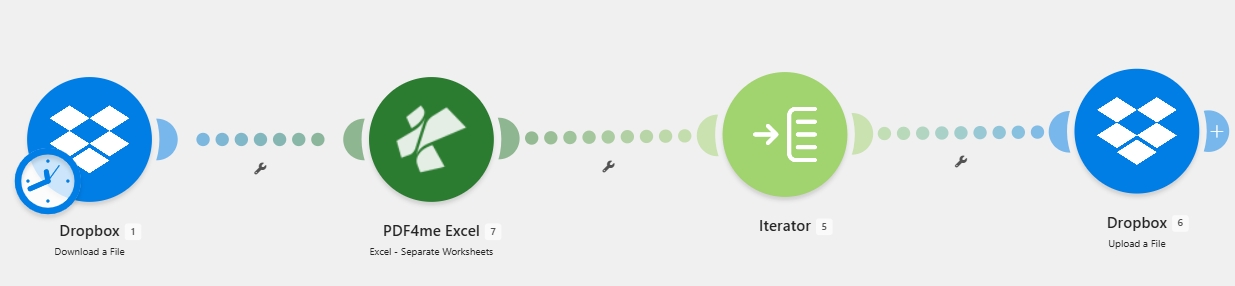
Four modules total. The arrow between step 3 and step 4 fans out: one upload per worksheet found in the source file.
Step 1: How do you pull the Excel file from Dropbox in Make?
Flow so far: none, this is the source module.
Add a Dropbox - Download a File module and point it at the workbook you want to split.
- Search for Dropbox in the module picker, then choose Download a File.
- Configure:
- Connection:
YnooxTestone(or click Add the first time to authenticate with Dropbox). - Way of selecting files:
Select a file. - File:
/pdf4metest/Excel/Separate Worksheets/Separate.xlsx.
- Connection:
- Click Save and run the module once to confirm the file downloads.
Dropbox Download configuration
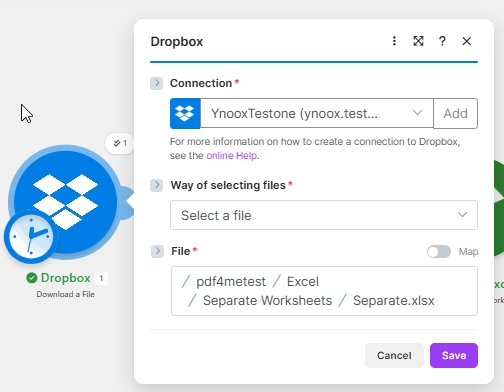
Fix a single file path here so the split runs deterministically. Switch to Watch Files later if you want it triggered by new arrivals.
Tip. If you want the scenario to fire whenever a new workbook lands, swap this module for Dropbox - Watch Files pointed at the same folder. The rest of the flow works unchanged because it consumes the file object identically.
Step 2: How does PDF4me Excel Separate Worksheets split the workbook?
Flow so far: Dropbox Download a File.
Add the PDF4me Excel action Excel - Separate Worksheets and hand it the file bytes from step 1. It returns an array where every element is one worksheet packaged as its own .xlsx.
- Add a module, search PDF4me Excel, pick Excel - Separate Worksheets.
- Configure:
- Connection:
My PDF4me Excel connection(or click Add and paste your PDF4me API key). - File:
Map(toggle on). - File Name:
1. File Namefrom the Dropbox module. - Document:
1. Datafrom the Dropbox module. - Culture & Language Settings:
en-US.
- Connection:
- Save. The module output will include a
Splitted Worksheet[]array once the scenario runs.
PDF4me Excel Separate Worksheets configuration
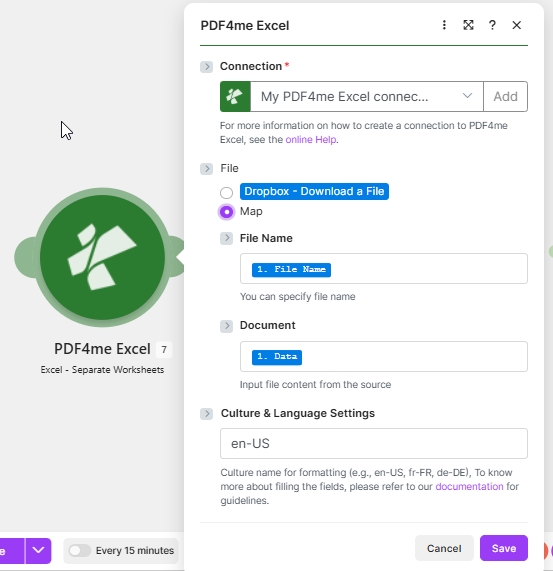
File Name uses step 1's original name so downstream logs stay readable. Document carries the binary that PDF4me actually splits.
Parameter reference
| Parameter | Type | Required | What it does | Example |
|---|---|---|---|---|
| Connection | Auth | yes | PDF4me API connection. Add once, reused across scenarios. | My PDF4me Excel connection |
| File Name | String | yes | Source filename with .xlsx extension. Passed through for logging and downstream mapping. | Separate.xlsx |
| Document | Binary | yes | The .xlsx bytes to split. Map from any prior module that emits a file. | 1. Data |
| Culture & Language Settings | String | yes | Locale used to parse numeric and date cells. Does NOT modify stored values. | en-US |
This is the one line that does the splitting. The action reads the workbook, walks every sheet, and emits one .xlsx per sheet into an array named Splitted Worksheet[]. Everything after this module is plumbing.
Step 3: Iterator - turning the returned array into individual runs
Flow so far: Dropbox Download plus PDF4me Excel Separate Worksheets.
An Iterator takes an array and emits its items one at a time, so any module you put after it runs once per item.
- Add a module, search Flow Control, pick Iterator.
- Configure:
- Array:
7. Splitted Worksheet[](from the PDF4me module output).
- Array:
- Save.
Iterator configuration
![Flow Control Iterator in Make with Array set to 7. Splitted Worksheet[] mapped from the PDF4me Excel module output.](/assets/images/blog/split-excel-worksheets-make-dropbox/04-iterator.jpg)
One line of configuration. The module number in front of Splitted Worksheet[] will match whatever number Make assigned the PDF4me module in your scenario.
Step 4: How do you upload each split file back to Dropbox?
Flow so far: Dropbox Download plus PDF4me Excel Separate Worksheets plus Iterator.
Add a final Dropbox - Upload a File and feed it the iterator's file properties. Because it sits after the Iterator, it runs once per worksheet.
- Add Dropbox - Upload a File.
- Configure:
- Connection:
YnooxTestone. - Folder:
/pdf4meoutput/. - File:
Flow Control - Iterator(this maps the iterator's current item straight into the file field - no manual name/binary split needed).
- Connection:
- Save the module and save the scenario.
Dropbox Upload configuration
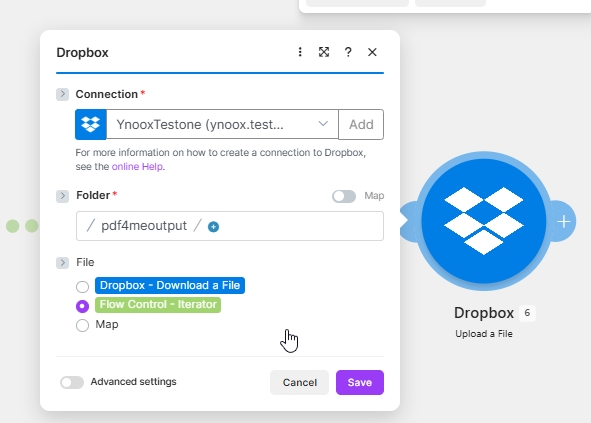
Picking Flow Control - Iterator instead of mapping File Name and Data separately lets Dropbox use the sheet name PDF4me already assigned to each item.
Tip. If you'd rather prefix or suffix the filename (e.g. 2026-Q1.xlsx instead of Q1.xlsx), switch File back to Map and build the name with an expression like {{formatDate(now; "YYYY")}}-{{2.File Name}}.
Run the Flow and Verify
- Save the scenario at the top right.
- Click Run once in the bottom-left panel.
- Open the run history: each of the four modules should show a green checkmark. On the fourth module you'll see a number badge equal to the number of worksheets in the source file.
- Open Dropbox at
/pdf4meoutput/and confirm one .xlsx per worksheet.
What did you actually build? A cloud-native Excel splitter that never needs Microsoft Excel installed anywhere. The same four-module pattern (download plus PDF4me Excel action plus Iterator plus upload) is what powers per-sheet PDF exports, row-based CSV extractions, and any other Excel operation where PDF4me returns an array of files. Swap the middle module and you have a new capability without touching the plumbing.
Common Variations You Can Add Without Rebuilding
/eu/, "US" to /us/). One split, many destinations.PDF4me + Make vs the alternatives
| Approach | Setup effort | Runs unattended | Handles multi-tab workbooks | Cost |
|---|---|---|---|---|
| PDF4me + Make (this blog) | Four modules, ~10 minutes | Yes, on a schedule or trigger | Yes, any tab count | PDF4me free tier plus Make free plan |
| VBA macro in desktop Excel | 30-60 minutes of copy-paste plus signing | No, needs desktop Excel open and macros enabled | Yes | Free but manual |
| Online Excel splitter tool | 2-minute upload per file | No, per-file manual | Yes | Free but data leaves your control |
| Alteryx / Power Query | ~1 hour setup, requires the platform | Yes but tied to a workstation license | Yes | Enterprise licence |
Common questions
How do I split an Excel sheet into multiple worksheets without VBA?
Use a cloud action like PDF4me Excel - Separate Worksheets inside Make, Zapier, n8n, or Power Automate. The action reads the .xlsx bytes, splits every sheet into its own workbook, and returns an array you can loop over. No macros, no VBA, no local Excel install required. The full four-module Make scenario in this walkthrough runs on the free tier and finishes each split in seconds.
How do I split an Excel file into multiple files automatically?
Point a Make Watch Files module at the folder where new workbooks land, chain PDF4me Excel - Separate Worksheets after it, wrap the returned array in a Flow Control Iterator, then upload each item back to a destination folder with Dropbox Upload a File. Now every workbook dropped into that folder is split automatically within the polling interval (15 minutes on the free plan, faster on paid).
Can Make separate Excel sheets into different files on its own?
Make on its own can move, rename, and re-upload Excel files, but it cannot inspect or manipulate what is inside the workbook. You need an Excel-aware action for that. The PDF4me Excel connector provides Excel - Separate Worksheets, which is the exact operation this walkthrough uses. Once installed and connected, Make delegates the split to PDF4me and handles the surrounding orchestration.
Does PDF4me Excel - Separate Worksheets change any data inside the sheets?
No. The action operates on the workbook structure, not the cell values. It reads the sheets, saves each one as an independent .xlsx, and returns those as-is. Formatting, formulas, cell types, merged cells, and named ranges within each sheet are preserved. Cross-sheet formulas that reference other sheets will break in the split files (that is unavoidable because the sheets they pointed to are now in separate workbooks), so add a cell-reference pass afterwards if you need those recalculated.
Troubleshooting
The Array field is mapped to the wrong output. Confirm you selected Splitted Worksheet[] from the PDF4me Excel module, not the single Doc Data output. If the array selector reads Doc Data, delete the mapping and re-add it from the correct source.
Happens when the File field is mapped to a text value instead of the iterator's file bundle. In the File field, pick the Flow Control - Iterator item itself, not the child File Name string. Make will then pass both name and binary content together.
The source workbook has sheets with duplicate or blank names. PDF4me falls back to auto-numbering when the sheet name is missing. Open the source .xlsx, give each sheet a distinct name, and re-run the scenario.
You are still using Download a File (which reads a fixed path every run). Switch to Watch Files for the trigger, or add a Move a File module after Dropbox Upload that shifts the source workbook into a /processed/ folder so the next poll finds nothing new.
Next Steps
The same four-step pattern (download plus split-with-PDF4me plus iterate plus upload) handles any "one file in, many files out" Excel automation you'll ever need to build.