Fill the Form, Drop the Signature. Power Automate Does Both—No Code!
You have a fillable PDF form, data in JSON, and a signature image. Doing it by hand: fill fields, place the signature, save. Power Automate plus PDF4me automates it: get the template, JSON, and signature from Dropbox or SharePoint; run Fill a PDF Form and Sign PDF; then save the signed document. No code. Perfect for contracts, agreements, and forms that must be filled and signed in one flow.
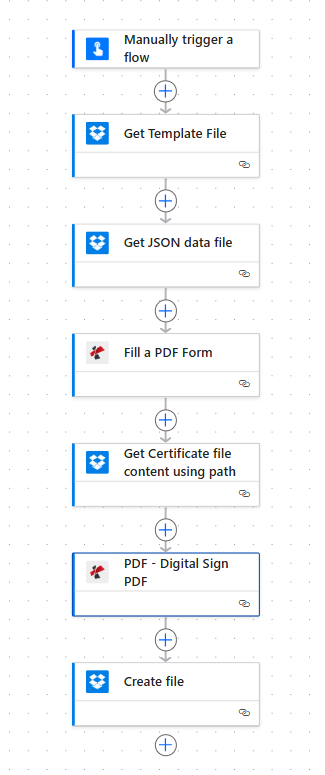
In a nutshell: Get Template File (PDF form) → Get JSON data file → Get Signature Image → PDF4me – Fill a PDF Form (template + JSON) → PDF4me – Sign PDF (filled PDF + signature image) → Create file. Output: a filled, signed PDF ready to store or send.
Why-Based Q&A
Why fill first, then sign? Filling the form with JSON gives you a complete document; adding the signature image on top makes it execution-ready. One flow: data in, signed PDF out. No manual steps in between.
Why use a signature image in Power Automate? PDF4me Sign PDF places an image (e.g. scanned signature or PNG) on the PDF with precise position and size. Stored in SharePoint or Dropbox, the same image can sign many documents automatically—ideal for approvals and standardized contracts.
Why PDF4me for both fill and sign? Fill a PDF Form and Sign PDF are separate actions; the output of the first is the input of the second. One connector, one flow: template + JSON + signature image → filled, signed PDF.
What You'll Get
Input: A fillable PDF form, a JSON file (or string) with field values, and a signature image file. Output: One PDF with all fields populated and the signature image placed (e.g. on the last page), ready to save or email.
What You Need
- Power Automate — Open Power Automate. Create a new cloud flow (Instant or Automated).
- PDF4me API key — Get your API key. Use it when you add the PDF4me actions. First time? See Connect PDF4me to Power Automate.
- Dropbox or SharePoint — For the PDF template, JSON file, signature image, and output folder.
The Flow at a Glance
- Manually trigger a flow (or When a file is created for automation).
- Get Template File — Blank fillable PDF form.
- Get JSON data file — Data to populate the form fields.
- Get Signature Image — Image file (e.g. PNG) to place on the PDF.
- PDF4me – Fill a PDF Form — Template + JSON → filled PDF.
- PDF4me – Sign PDF — Filled PDF + signature image → signed PDF.
- Create file — Save the signed PDF to your folder.
Complete flow overview
Seven steps: Trigger, three Get file actions (template, JSON, signature image), Fill a PDF Form, Sign PDF, Create file. The filled PDF from step 5 goes into Sign PDF; the signed PDF from step 6 goes into Create file.
Step 1: Get the Template File
Flow so far: Trigger and Get Template File.
- Add Manually trigger a flow (or When a file is created in Dropbox/SharePoint).
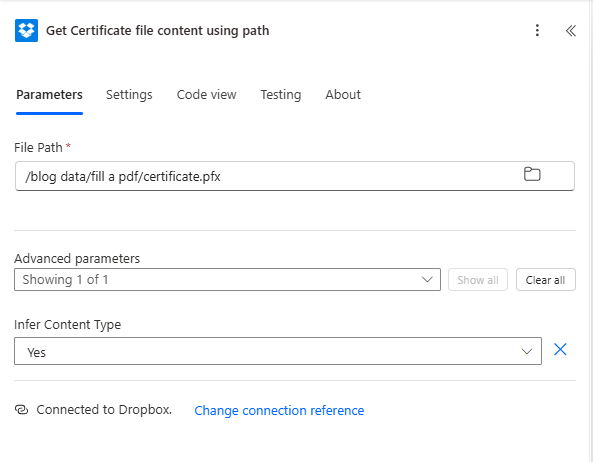
- Add Dropbox (or SharePoint) → Get file content using path. Name it "Get Template File".
- File Path — e.g.
/blog data/sign and fill pdf/sample_fill_form.pdf. - Run the action. File Content will be used as the template in Fill a PDF Form.
Get Template File
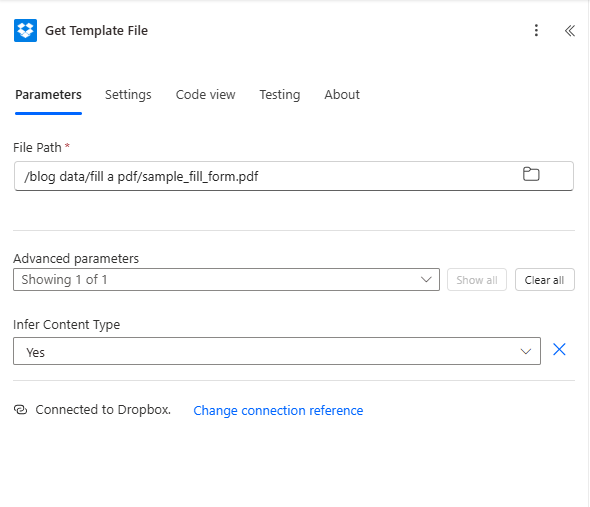
Get Template File: path to your fillable PDF. Output File Content is passed to Fill a PDF Form.
Step 2: Get the JSON Data File
Flow so far: Get Template File → Get JSON data file.
- Add Dropbox (or SharePoint) → Get file content using path. Name it "Get JSON data file".
- File Path — e.g.
/blog data/sign and fill pdf/sample_fill_form_data.json. - Run the action. Map this content as Form Data in Fill a PDF Form. If the connector returns base64, use
base64ToString(...)to get JSON text.
Get JSON data file
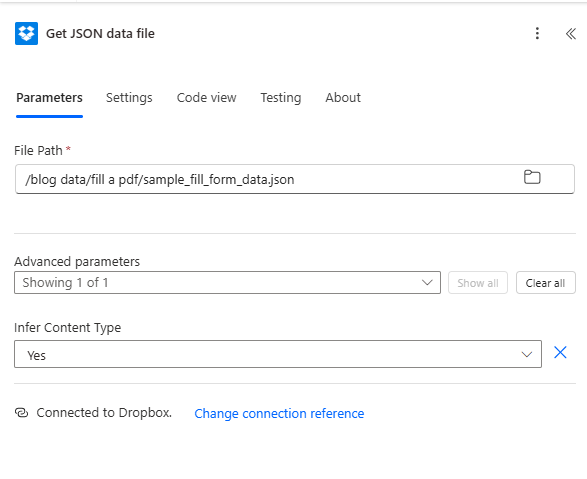
Get JSON data file: path to JSON. Keys must match the PDF form field names. Content is passed to Fill a PDF Form as Form Data.
Step 3: Get the Signature Image
Flow so far: Get Template File → Get JSON data file → Get Signature Image.
- Add Dropbox (or SharePoint) → Get file content using path. Name it "Get Signature Image".
- File Path — e.g.
/blog data/sign and fill pdf/signature.png. Use PNG or JPG. - Run the action. File Content will be passed to Sign PDF as Sign Image.
Get Signature Image
Get Signature Image: path to your signature image. Output is passed to Sign PDF as Sign Image.
Step 4: Fill the PDF Form
Flow so far: Get files → Fill a PDF Form.
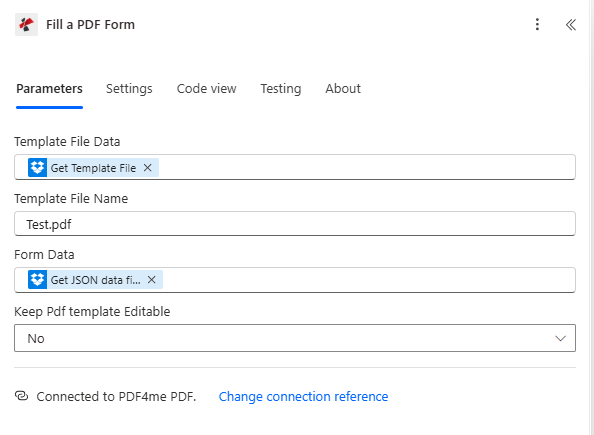
- Add PDF4me → Fill a PDF Form.
- Template File Data — File Content from Get Template File.
- Template File Name — e.g.
sample_fill_form.pdf. - Form Data (Data string) — JSON from Get JSON data file (use expression if content is base64).
- Keep Pdf template Editable — No for a flattened PDF.
- Run the action. Output Documents → first item → File Content = filled PDF. Pass this to Sign PDF.
Fill a PDF Form
Fill a PDF Form: template from step 1, form data from step 2. Output Documents contain the filled PDF for the next action.
Step 5: Sign the PDF
Flow so far: Get files → Fill a PDF Form → Sign PDF.
- Add PDF4me → Sign PDF.
- File Content — File Content from the first Output Documents item of Fill a PDF Form (e.g.
body('Fill_a_PDF_Form')?['OutputDocuments']?[0]?['FileContent']). - File Name — e.g.
filled_form.pdf(must include .pdf). - Sign Image — File Content from Get Signature Image.
- Pages — e.g.
last(or1,all). - Horizontal Alignment / Vertical Alignment — e.g. Right / Bottom.
- Image Width / Image Height (mm) — e.g.
50/20. - Horizontal Margin / Vertical Margin (mm) — e.g.
10/10. - Transparency — e.g.
100(opaque). - Run the action. File Content and File Name = signed PDF for Create file.
Sign PDF
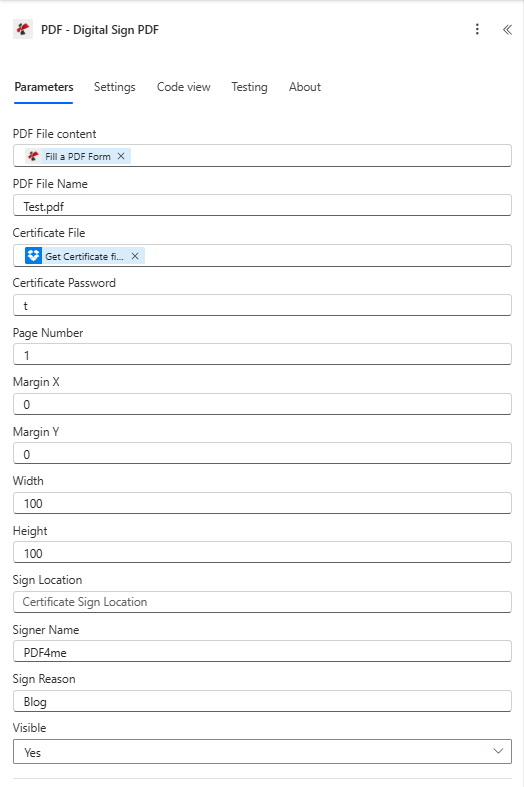
Sign PDF: filled PDF from step 4, signature image from step 3. Set page, alignment, size, and margins. Output is the signed PDF.
Step 6: Create the File (Save the Signed PDF)
Flow so far: Get files → Fill a PDF Form → Sign PDF → Create file.
- Add Dropbox (or SharePoint) → Create file.
- Folder Path — e.g.
/blog data/sign and fill pdf/output. - File Name — e.g.
Sign_Fill_PA.pdf. - File Content — File Content from the Sign PDF action.
- Run the flow. The filled, signed PDF is saved.
Create file
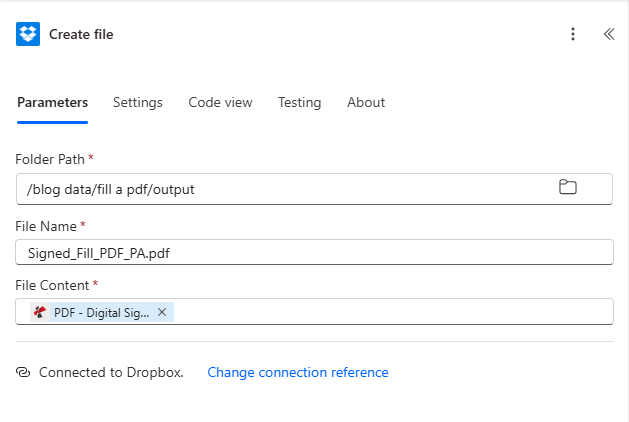
Create file: save the signed PDF from Sign PDF to your output folder.
Input and Output: What Goes In, What Comes Out
Input: PDF form and JSON
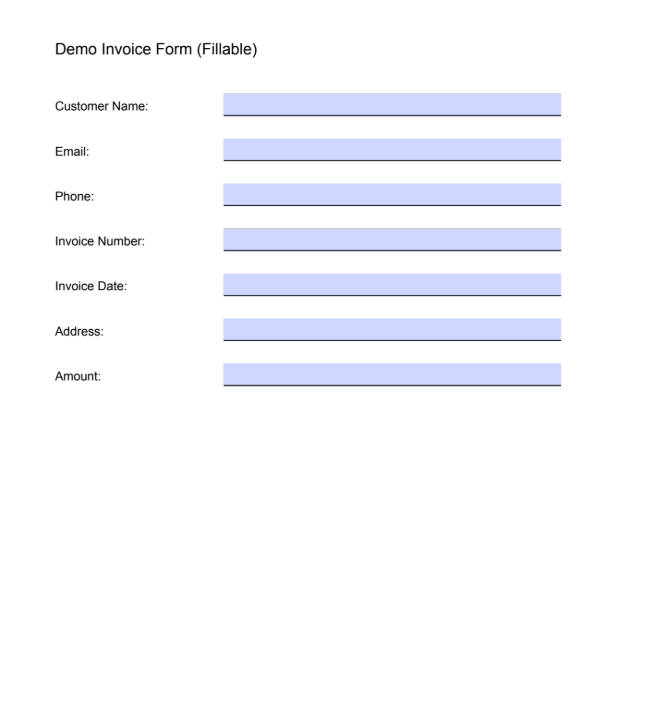
Blank fillable form: template for Fill a PDF Form. Field names must match the JSON keys.
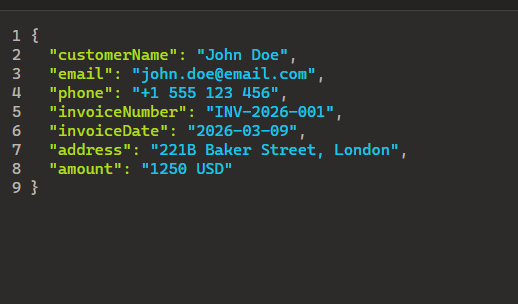
JSON data: keys match form fields. Get JSON data file provides this to Fill a PDF Form.
Output: Filled and signed PDF
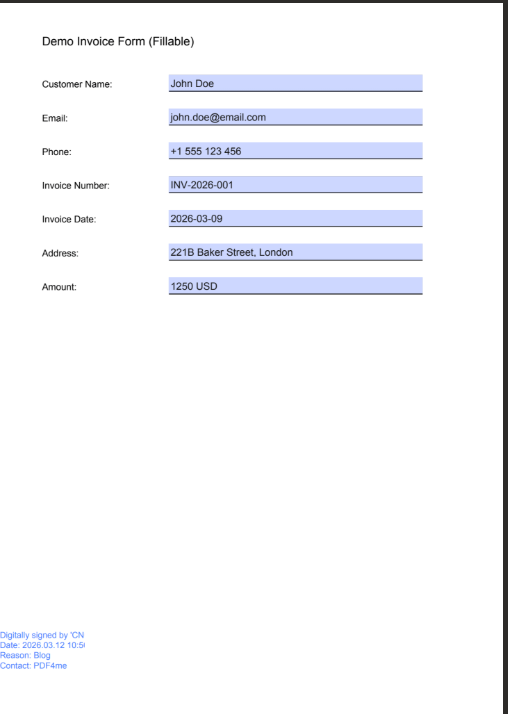
Filled and signed PDF: fields populated from JSON and signature image placed (e.g. last page, bottom right). Saved via Create file.
Use Cases: When to Sign and Fill PDFs in Power Automate
Contracts and agreements: Data from CRM or SharePoint; fill the contract template, apply the authorized signature image, save to a library or send by email.
Invoices and quotes: Generate JSON from Dynamics or Excel; fill the form, sign with company signature, and store or email the final PDF.
Approval workflows: After approval, fill the form with approver data, place the approver’s signature image, and archive or notify.
Quick Reference: Key Settings
| Action | Setting | Example |
|---|---|---|
| 1. Get Template File | File Path | /blog data/sign and fill pdf/sample_fill_form.pdf |
| 2. Get JSON data file | File Path | /blog data/sign and fill pdf/sample_fill_form_data.json |
| 3. Get Signature Image | File Path | /blog data/sign and fill pdf/signature.png |
| 4. Fill a PDF Form | Template File Data / Form Data | From steps 1 and 2 |
| 5. Sign PDF | File Content / Sign Image | From step 4 output and step 3 |
| 6. Create file | File Content | From Sign PDF |
For details: Fill a PDF Form, Sign PDF — Power Automate.
Troubleshooting
JSON keys must match PDF form field names (case sensitive). Check names in a PDF editor.
Map File Content from the first item in Output Documents of Fill a PDF Form, not from Get Template File.
PDF4me Troubleshooting covers API key, credits, and more.
What's Next?
- Trigger on When a file is created or When an item is created to process new template/JSON pairs automatically.
- Use Apply to each over a list of JSON records to generate multiple filled, signed PDFs.
- Add Send an email after Create file to email the signed PDF to recipients.
- Same pattern in Make: fill then sign in one scenario.