A workbook with 5, 50, or 500 sheets can be split into individual .xlsx files in a single Power Automate flow. PDF4me Excel - Separate Worksheets returns an array with one file per sheet; an Apply to each loop fans the writes out to Dropbox, SharePoint, OneDrive, or Dataverse. This guide walks through the exact run shown in the screenshots: a 5-tab Separate.xlsx in Dropbox becomes Sheet1.xlsx through Sheet5.xlsx in an output folder. Total flow: 4 actions, zero code, runs in ~9 seconds end-to-end.
The flow at a glance
1. Manual trigger
Manually trigger a flow. Swap for any trigger that produces a workbook.
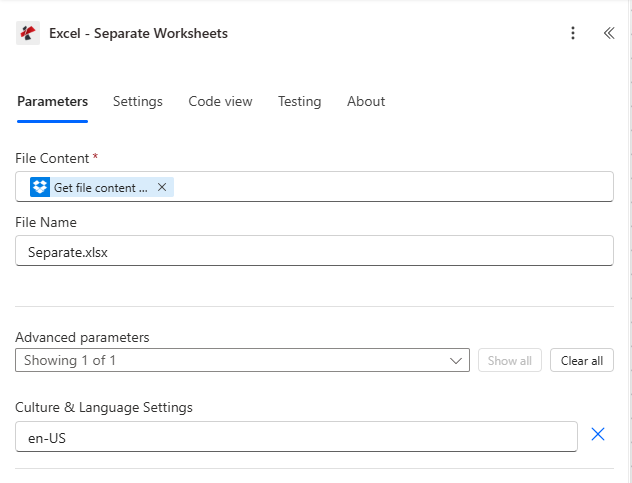
PDF4me action. Splits the 5-sheet workbook into 5 single-sheet XLSXes.
4. Apply to each → Create file
Loop outputDocuments. Each iteration writes one sheet as its own .xlsx to Dropbox.
The short version
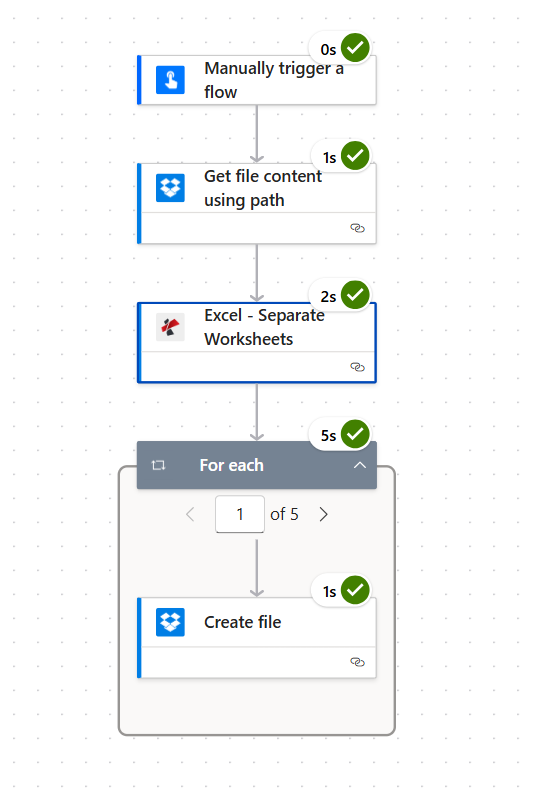
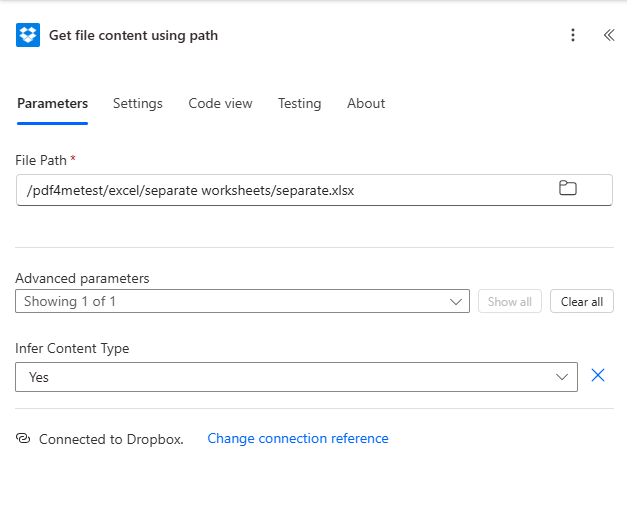
A manual trigger starts the flow. Dropbox Get file content using path reads Separate.xlsx (5 sheets, each with a different roster of People records). Excel - Separate Worksheets returns an outputDocuments array with 5 entries: {fileName: "Sheet1.xlsx", streamFile: "<base64>"} through Sheet5.xlsx. An Apply to each over outputDocuments runs once per sheet (the screenshot shows the 1 of 5 iteration counter) and uses Create file to drop each XLSX into /pdf4metest/excel/separate worksheets/output. Browse the output folder and the 5 split files are there, sorted alphabetically.
The one thing people miss: Apply to each is not optional
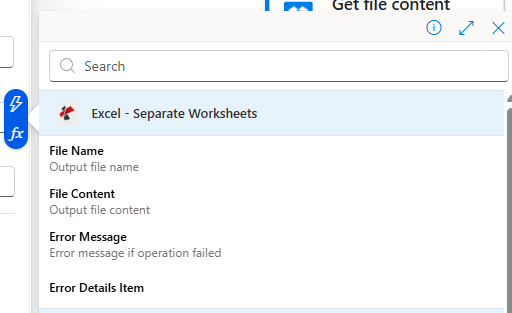
Excel - Separate Worksheets returns an array, not a single file. The number of entries depends on the source workbook (2 sheets in → 2 entries; 50 sheets in → 50 entries). Always wrap the next step in Apply to each over outputDocuments. Picking File Content from outside the loop returns nothing useful. Inside the loop, the dynamic content picker exposes File Name and File Content on the current item.
People search this problem with surprisingly specific phrasing. Here are the actual queries this flow answers:
"How do I split an Excel file with multiple sheets into separate files automatically?" Yes. This flow does exactly that. Drop the source workbook into Dropbox, the split + upload happens hands-free.
"Can Power Automate save each sheet as a separate Excel file?" Yes, via the PDF4me Connect action plus an Apply to each loop. No VBA, no Office Scripts.
"Do I have to write one action per sheet?" No. The Apply to each handles any sheet count. The flow body never changes.
"What if the workbook has 100 sheets?" Same flow. The loop just iterates 100 times. Each iteration is ~1 second.
"Can I rename the output files?" Yes, build the new name with a Compose step or expression inside the loop before Create file. See the troubleshooting section.
A four-action Power Automate flow that takes any multi-sheet .xlsx and writes one file per worksheet to a destination folder. Reusable across HR rosters, sales pipelines split by region, monthly reports split by month, anything that lives as multiple tabs in a single workbook.
The full flow. The For each runs 5 times (once per output sheet); each iteration is ~1 second.
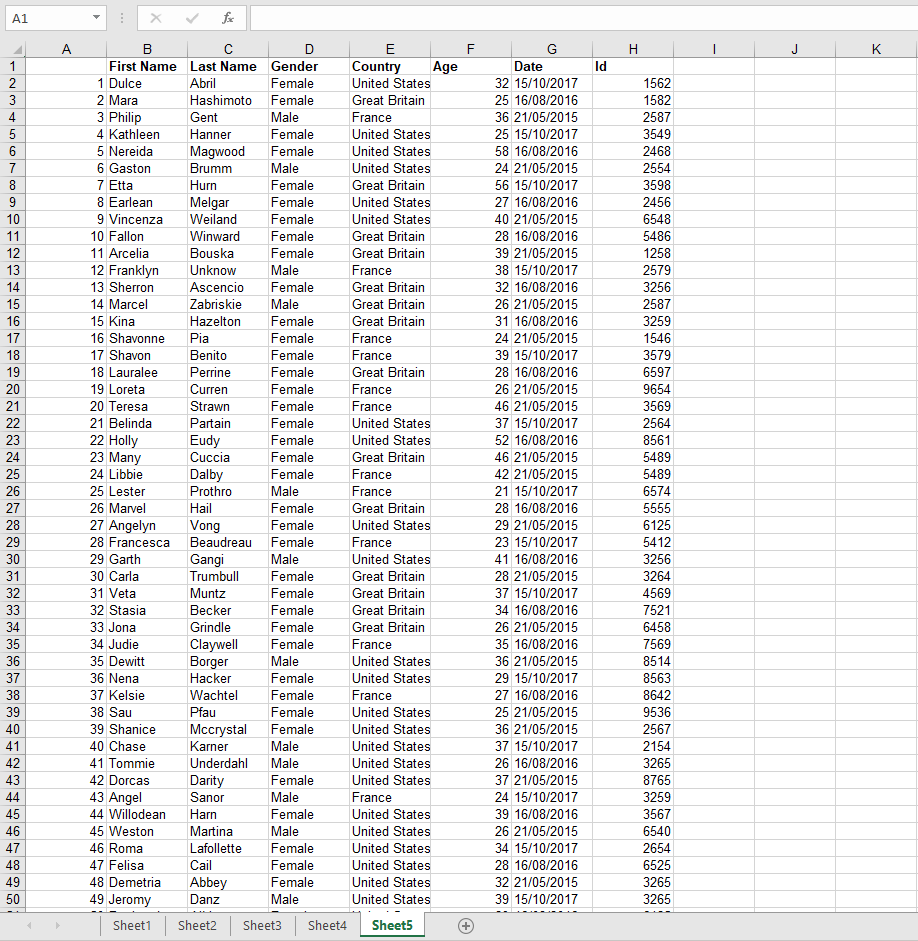
Open Separate.xlsx in Excel. It has 5 sheet tabs (Sheet1 through Sheet5), each populated with rows of People records: First Name, Last Name, Gender, Country, Age, Date, Id.
Source workbook. Five sheet tabs at the bottom, each ~50 rows of People records.The source folder before the flow runs. Just the one workbook.
For testing, the manual trigger is fastest. In production, replace it with When a file is created (Dropbox), When an item is created (SharePoint), When a new email arrives (Outlook), Recurrence, or any other trigger.
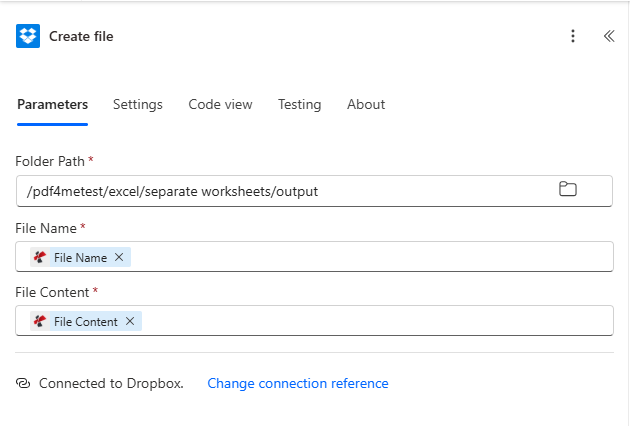
After the Separate Worksheets action, add Apply to each and select outputDocuments from the dynamic content picker. Inside the loop, drop a Dropbox Create file action and configure it like this:
Field
Value used in this run
Folder Path
/pdf4metest/excel/separate worksheets/output
File Name
File Name (dynamic content from the current item)
File Content
File Content (dynamic content from the current item)
The Apply to each iterates outputDocuments. The current-item File Name and File Content show up in the dynamic content picker inside the loop.Inside the loop. File Name and File Content come from the current item.
Apply to each does not show File Name / File Content
Make sure the loop is iterating outputDocuments, not the action itself. Click the Apply to each dropdown, search "outputDocuments", and pick it.
Only one file appears in the output folder
Create file is OUTSIDE the loop. Drag it inside the Apply to each container so it runs once per item.
Output files all overwrite each other
Two causes: (a) File Name is hardcoded instead of mapped to dynamic content. delete and re-pick File Name from the inner item; (b) two sheets in the source share the same name. rename them in Excel or build a unique name in a Compose step.
Decimals read as text or dates
A sheet using 1.234,56 (comma decimal) gets misinterpreted because Culture & Language Settings is en-US. Switch to your locale (fr-FR, de-DE, pt-BR, etc).
Cross-sheet formula came out as #REF!
Expected. After splitting, =Sheet2!A1 from a Sheet1 output cannot resolve because Sheet2 is now in a different file. Plan each sheet to be self-contained, or pre-compute the values upstream.
Need a date prefix on each output file name
Inside the Apply to each, add a Compose before Create file with: concat(formatDateTime(utcNow(),'yyyy-MM-dd'),'_',items('Apply_to_each')?['fileName']). Point File Name at the Compose output. Result: 2026-06-02_Sheet1.xlsx.
How do I split an Excel file with multiple sheets into separate files automatically in Power Automate?+
Use the PDF4me Excel - Separate Worksheets action. It takes a single multi-sheet .xlsx as input and returns an outputDocuments array with one file per sheet. Wrap the result in an Apply to each loop and write each item with Create file. Four actions total: trigger, Get file content, Separate Worksheets, Apply to each → Create file.
Can Power Automate save each sheet as a separate Excel file without code?+
Yes. The PDF4me Excel - Separate Worksheets action is a no-code cloud connector. There is no VBA, no Office Script, no Power Automate Desktop required. it runs entirely in the Power Automate cloud designer and outputs ready-to-save .xlsx files.
What happens if the source workbook has a different sheet count next run?+
Nothing breaks. The action dynamically returns one outputDocuments entry per sheet present, and the Apply to each iterates whatever the array length is. Build the flow once with a 5-sheet sample and it will handle 2-sheet or 200-sheet workbooks identically.
Do the output files keep their sheet names?+
Yes. Each output file is named after its source sheet name plus the .xlsx extension. Sheet5 → Sheet5.xlsx. If you have custom sheet names (e.g. "Q1 2025"), the output file is "Q1 2025.xlsx" accordingly.
Will my formulas still work after the split?+
Intra-sheet formulas (everything that references cells on the same sheet) work as expected. the engine preserves cell values, number formats, and styles. Cross-sheet references like =Sheet2!A1 cannot survive because Sheet2 is no longer in the same file; expect those to become #REF!. Plan the workbook so each sheet is self-contained, or pre-compute the values upstream.
Can I use SharePoint, OneDrive, or Dataverse instead of Dropbox?+
Yes. Swap the Dropbox actions for SharePoint Get file content / Create file, OneDrive Get file content / Create file, or Dataverse Download file / Add file. The PDF4me action and its parameters are identical regardless of source.
How do I rename the output files (add a date prefix, replace spaces, etc.)?+
Inside the Apply to each loop, add a Compose step before Create file. Build the new name with concat() and formatDateTime() expressions, then bind Create file → File Name to the Compose output. Example: concat(formatDateTime(utcNow(),'yyyy-MM-dd'),'_',items('Apply_to_each')?['fileName']) produces 2026-06-02_Sheet1.xlsx.
Is there a limit on the number of sheets I can split?+
Practical limits are bounded by Power Automate run-time and action body size. A single workbook with hundreds of sheets is fine; the loop just iterates more times. For thousands of sheets, consider Power Automate concurrency settings or batching the work across multiple runs.
Does this work in Power Automate Desktop?+
PDF4me Connect is a cloud connector available in Power Automate (the web flow designer). For Power Automate Desktop, call the same Separate Worksheets REST endpoint with the HTTP action.