Convert PDF to Text File in Power Automate: Turn Scanned Contracts into a Searchable SharePoint Corpus with PDF4me

PDF4me Extract Text and Images is a Power Automate action that returns the text layer of a PDF as an array. Paired with OCR upstream and a Compose join downstream, this flow turns every PDF dropped in a SharePoint library into a matching .txt file, ready for AI search.
Search for how to do this and the first result is Microsoft's own PDF actions reference, which describes Power Automate Desktop actions. They do not exist in a cloud flow. That single detail is why the next two results are a Reddit thread and a Power Platform community thread of people asking the same question and not getting a straight answer. This flow is the straight answer, and it runs entirely in the cloud on standard-tier connectors.
A PDF lands in a SharePoint library. The trigger reports the new item, Get file content fetches its bytes, and PDF4me runs OCR only if the file needs it before pulling the text out as an array. A one line Compose expression joins that array into a single string, and SharePoint writes the result next door as a plain text file. Six actions, no premium connector, and the whole run finishes in about twelve seconds.
Why-Based Q&A
Why write a .txt file instead of just using the text in the flow? A string inside a flow run lives for the length of that run. A file in a library is durable, indexable, and readable by anything you point at it later, whether that is SharePoint search, a vector database, or a chatbot pulling context.
Why does it take two actions to get one file? The properties-only trigger is deliberately lightweight. It reports that an item appeared and hands you its metadata, including an identifier, but no bytes. Get file content exchanges that identifier for the document itself. Splitting the two keeps the trigger fast and lets you filter on metadata before you ever download anything.
Why run OCR when most PDFs already have text? Because you cannot tell by looking. A scanned contract and a born-digital one are indistinguishable in a folder listing. The OCR action's OCR Only When Needed setting inspects each file and skips the ones that already carry a text layer, so you pay the cost only where it buys something.
Why is a Compose step needed at all? Extract Text and Images returns texts as an array, usually one entry per page. Writing an array straight to a file gives you JSON brackets and escaped quotes. Compose joins the entries into clean prose before anything touches disk.
What You'll Get
Input: any PDF dropped into a SharePoint document library, scanned or born-digital, no naming convention required. Output: one plain text file per PDF in a second library, containing the full readable contents of the document.
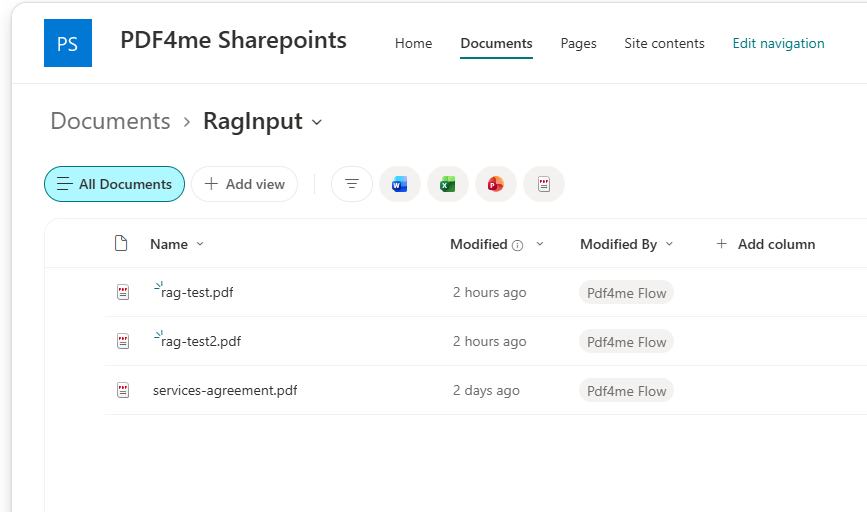
RagInput. Drop a PDF here and the flow starts.
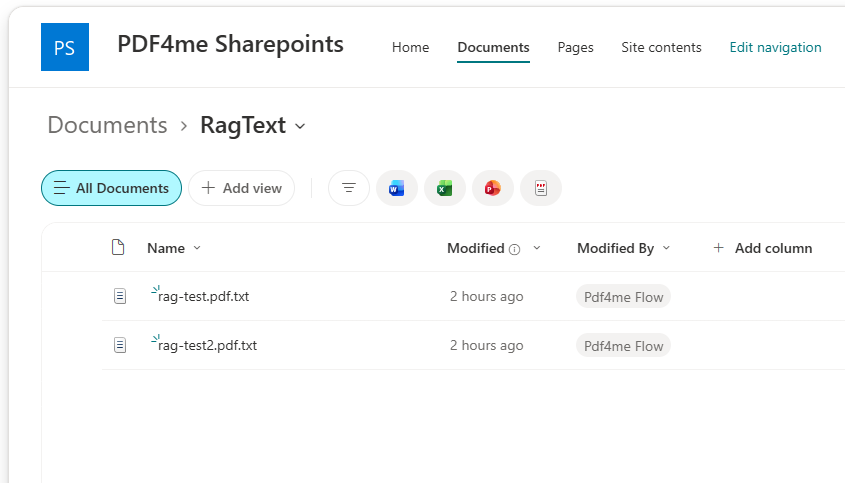
RagText. One plain text file per PDF, ready to index.
Here is what comes out the other side for the sample contract, exactly as written to disk:
MASTER SERVICES AGREEMENT
 Between Initech LLC and Umbrella Inc.
Effective  date:  1 January 2026.  Auto-renews annually.
 Liability cap:  USD  100000. Confidentiality: 5 years.
 CLEAN TEST MARKER: PDF4ME-CLEAN-TEST-2026.
Note the leading spaces. OCR preserves layout whitespace, and that is fine for search and for feeding a language model. Trim it later if a downstream parser is fussy.
What You Need
- Power Automate. Open Power Automate. This is a cloud flow. Everything here is standard tier, no premium connector and no gateway.
- PDF4me API key. Get your API key. Connect it the first time you add a PDF4me action.
- A SharePoint site with two folders. One for input PDFs and one for output text. Create both before you build, so the folder pickers have somewhere to point.
- A test PDF. contract-sample.pdf. A short services agreement with a marker line you can grep for.
Grab the samples first. Upload the PDF to your input folder once the flow is saved, then compare what lands in the output folder against the expected text file.
The Flow at a Glance
- When a file is created (properties only) (SharePoint trigger) scoped to
/Shared Documents/RagInput. - Get file content using the trigger's
Identifier. - PDF - Convert PDF to editable PDF using OCR with quality
Draftand OCR Only When Neededtrue. - PDF - Extract Text and Images with Extract Text
Yesand Extract ImagesNo. - Compose running a
join()over the returnedtextsarray. - Create file (SharePoint) writing
.txtinto/Shared Documents/RagText.
Complete flow overview
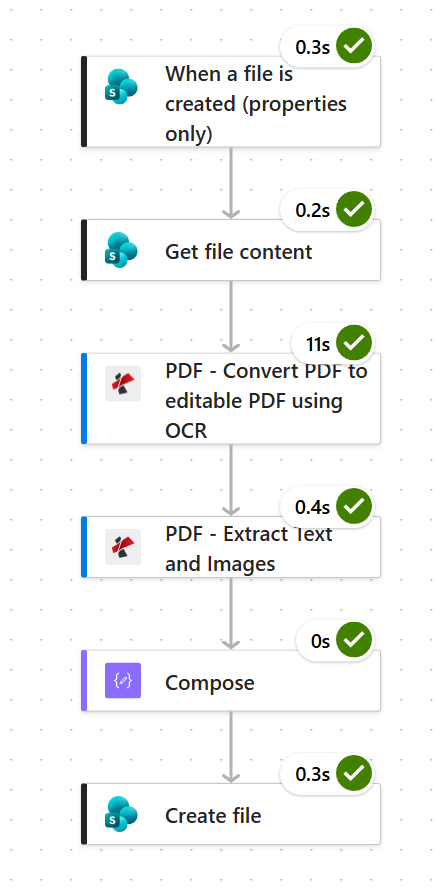
OCR is the only slow step at 11 seconds. The other five finish in under half a second each.
Step 1: How do you watch a SharePoint library for new PDFs?
Flow so far: nothing yet, this is the trigger.
Use When a file is created (properties only). It fires on new items and returns their metadata. Scope it to one folder, because a library-wide watch fires on every upload anyone makes anywhere in that library.
- Create an Automated cloud flow and pick When a file is created (properties only).
- Configure:
- Site Address:
https://ynoox1.sharepoint.com/sites/PDF4meSharepoints - Library Name: pick Documents from the dropdown
- Site Address:
- Open Advanced parameters, add Folder, and set it to
/Shared Documents/RagInput.
SharePoint trigger configuration
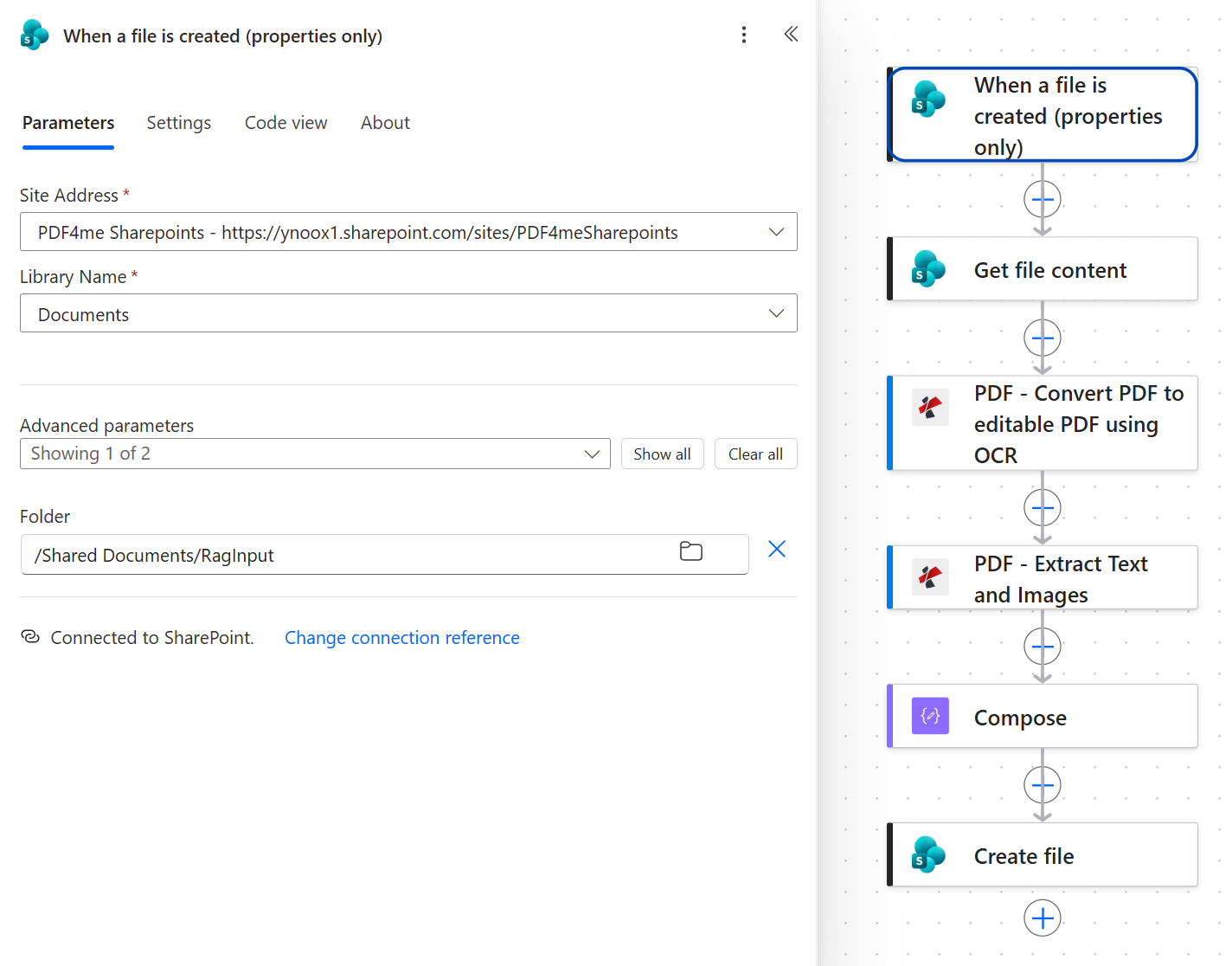
Library Name is the library itself, Documents. The Folder parameter underneath is what narrows the trigger to one folder inside it.
Tip. You will also find a trigger called When a file is created in a folder, which returns the file bytes directly and saves you the next action. It is marked deprecated, so prefer the properties-only pairing shown here for anything you intend to keep running.
Step 2: Why do you need Get file content after the trigger?
Flow so far: SharePoint trigger.
The properties-only trigger hands over metadata, not the document. Get file content exchanges the trigger's Identifier for the actual bytes that PDF4me needs.
- Add SharePoint > Get file content.
- Configure:
- Site Address: the same site as the trigger
- File Identifier:
Identifierfrom the trigger
- Open Advanced parameters and set Infer content type to
Yes.
Get file content configuration
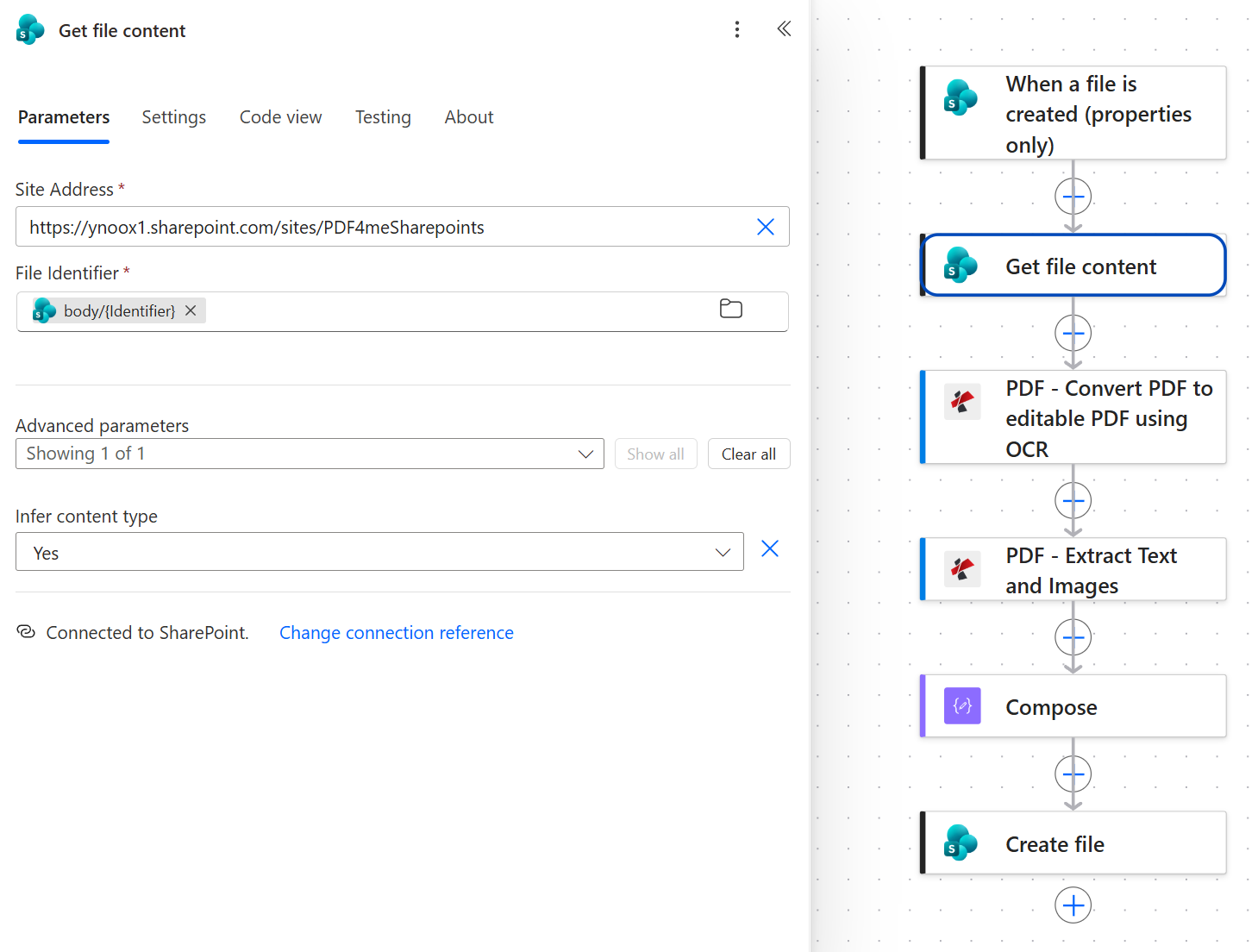
Infer content type Yes is what hands the next action real PDF bytes instead of a generic blob.
The identifier is the join between the two steps. Use the trigger's Identifier field, not the file name or the path. Names repeat across folders and change when someone renames a document. The identifier does not.
Step 3: Why run OCR before extracting text?
Flow so far: SharePoint trigger plus Get file content.
A scanned page is an image. There is no text to extract until OCR puts a text layer on it. This action does that, and it is smart enough to leave already-readable PDFs alone.
- Add PDF - Convert PDF to editable PDF using OCR.
- Configure:
- File Content:
File Contentfrom Get file content - File Name: the trigger's file name token
- QualityType:
Draft - OCR Only When Needed:
true - Language: leave blank unless your documents are not in English
- Is Async:
No
- File Content:
OCR parameters
| Parameter | Value used here | What it controls |
|---|---|---|
| File Content | File Content from Get file content | The PDF bytes to process. |
| File Name | trigger file name token | Source name, used for processing identification. |
| QualityType | Draft | Recognition effort. Draft is fast and accurate enough for clean scans. Move to High for poor originals. |
| OCR Only When Needed | true | Skips files that already have a text layer, so born-digital PDFs pass straight through. |
| Language | blank | Hint for the recognition engine. Leave empty for English. |
| Is Async | No | Waits for the result inline. Switch to Yes for very large documents. |
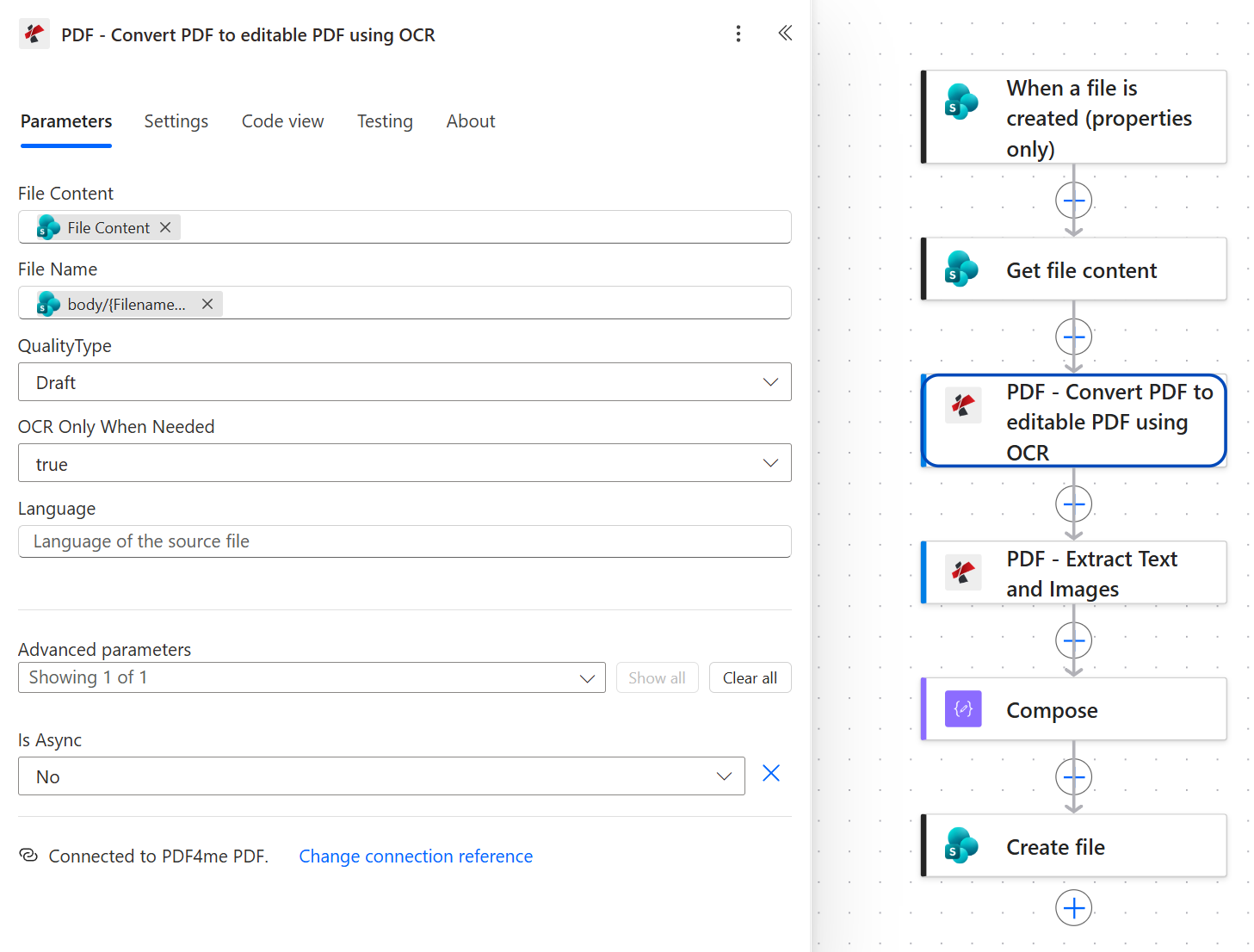
QualityType is set to Draft here. On a clean scan it reads just as well as High and costs less time.
Tip. This is the slow step, 11 seconds in the run above against half a second for everything else. Start on Draft, check the text file, and only move to High if characters are coming back wrong. Raising quality on documents that did not need it is the easiest way to make this flow feel sluggish.
Step 4: How does Extract Text and Images return the text?
Flow so far: SharePoint trigger plus Get file content plus OCR.
This action reads the text layer and hands it back as an array called texts. Point it at the OCR output, not back at Get file content, or scanned pages come back empty.
- Add PDF - Extract Text and Images.
- Configure:
- File Content:
File Contentfrom the OCR action - File Name: the trigger's file name token
- Extract Text:
Yes - Extract Images:
No
- File Content:
Extract Text and Images parameters
| Parameter | Value used here | What it controls |
|---|---|---|
| File Content | File Content from the OCR step | The searchable PDF. Reusing Get file content's copy here is the single most common mistake. |
| File Name | trigger file name token | Source name, carried through for identification. |
| Extract Text | Yes | Returns the texts array. |
| Extract Images | No | Skip embedded images. Set Yes only if you need them, it makes the response much larger. |
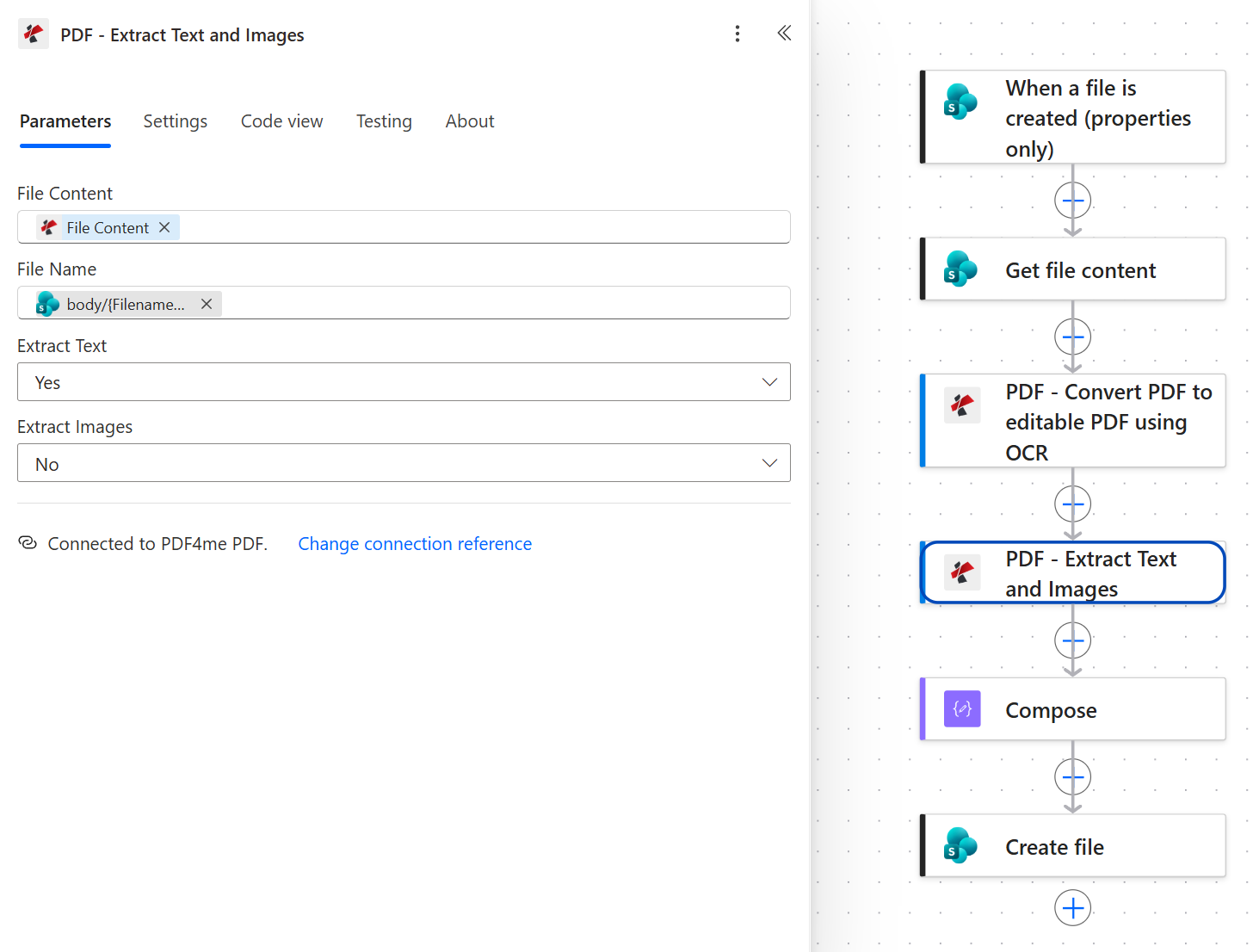
Look at the icons. File Content carries the PDF4me mark because it comes from OCR. File Name carries the SharePoint mark because it comes from the trigger.
Step 5: How do you turn the texts array into one string?
Flow so far: SharePoint trigger plus Get file content plus OCR plus Extract Text and Images.
texts is an array. A file needs a string. One join expression bridges the two.
- Add a Compose action.
- In Inputs, switch to the expression editor and paste:
join(body('PDF_-_Extract_Text_and_Images')?['texts'], decodeUriComponent('%0A'))
- Click Update.
The decodeUriComponent('%0A') is how you write a literal newline in a Power Automate expression. There is no escape sequence for it, so this is the idiom.
Compose configuration
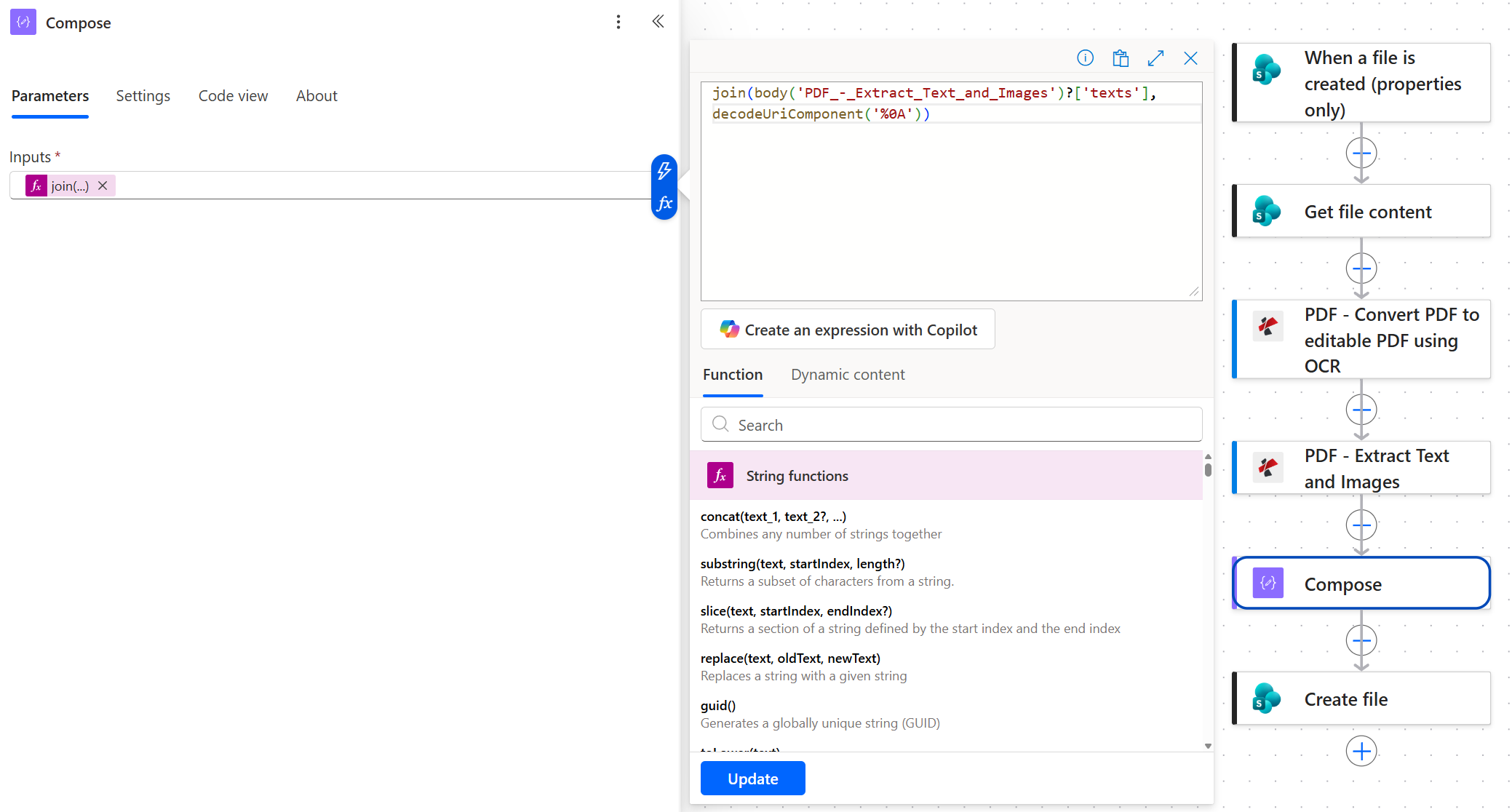
The action name inside body() uses underscores for spaces and hyphens. Rename the action and this expression breaks.
This is the one line that decides whether the output is readable. Skip Compose and pass the array straight to Create file, and the text file will contain JSON brackets and escaped quotes rather than the document.
Step 6: How do you save the text as a .txt file in SharePoint?
Flow so far: SharePoint trigger plus Get file content plus OCR plus Extract Text and Images plus Compose.
The last step writes the joined string into a second library.
- Add SharePoint > Create file.
- Configure:
- Site Address: same site as the trigger
- Folder Path:
/Shared Documents/RagText - File Name: the trigger's file name token followed by the literal text
.txt - File Content: the Compose output token
SharePoint Create file configuration
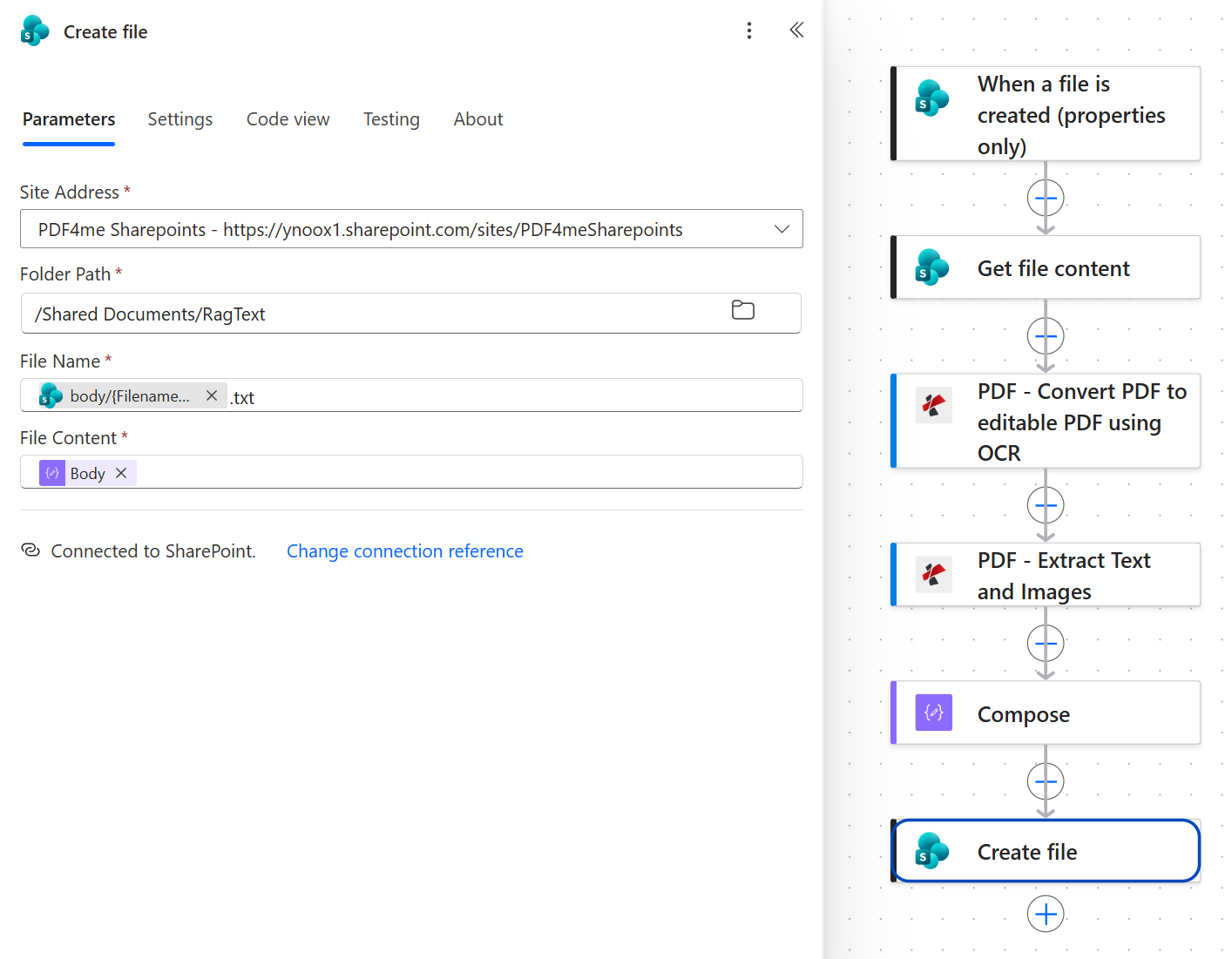
File Content is the Compose output, carrying the purple data-operation icon, not anything from PDF4me. The text has already been assembled by this point.
Tip. The trigger's file name token already carries the .pdf extension, so appending .txt produces contract.pdf.txt, which is what the output folder above shows. That is harmless and it keeps the link to the source obvious. If you would rather have contract.txt, wrap the token in replace() and swap .pdf for .txt instead of appending.
Run the Flow and Verify
- Save the flow at the top right.
- Upload
contract-sample.pdfinto the input folder. The trigger polls, so give it a minute. - Open the flow's run history and check all six actions carry a green tick. OCR will be the slow one.
- Open
/Shared Documents/RagText. A.txtfile should be sitting there. Open it and search forPDF4ME-CLEAN-TEST-2026. If that marker is present, OCR and extraction both worked end to end.
What did you actually build? A document ingestion pipeline. Every PDF that lands in the library becomes plain text automatically, which is the unglamorous prerequisite for anything that reads documents at scale: SharePoint search, a vector index, a retrieval augmented chatbot, or plain full text grep. If you only need the text inside the flow rather than on disk, the shorter Extract Text from PDFs in Power Automate walkthrough covers that with Dropbox.
Common Variations You Can Add Without Rebuilding
.json. Most vector stores prefer metadata alongside the content.| Cloud flow vs the alternatives | Runs unattended | Handles scanned PDFs | Connector tier |
|---|---|---|---|
| PDF4me in a Power Automate cloud flow | Yes | Yes, OCR built into the flow | Standard |
| Power Automate Desktop PDF actions | Only while the machine is on | No OCR in the base actions | Standard, plus a machine |
| AI Builder form processing | Yes | Yes | Premium, credit metered |
Common questions
Can Power Automate extract text from PDF?
Not on its own in a cloud flow. The PDF actions in Microsoft's documentation belong to Power Automate Desktop and are unavailable in cloud flows, which is why so many community threads on this question go unresolved. Adding the PDF4me connector gives a cloud flow a real Extract Text and Images action that returns the document's text as an array.
The whole extraction is one action. The surrounding five steps are just moving the file in and the text out.
How to extract text from PDF using Power Automate?
Trigger on the new file, fetch its bytes with Get file content, run Convert PDF to editable PDF using OCR so scanned pages get a text layer, then run Extract Text and Images with Extract Text set to Yes. That returns a texts array. Join it with a Compose expression if you want prose rather than an array.
Point the extraction step at the OCR action's output rather than the file you downloaded. Reusing the downloaded copy is the reason scanned documents come back empty.
Can Power Automate do OCR?
A cloud flow has no native OCR action. AI Builder offers one on a premium, credit-metered licence, and Power Automate Desktop has its own OCR engine tied to a machine. The PDF4me Convert PDF to editable PDF using OCR action runs in a standard-tier cloud flow with no machine involved.
Its OCR Only When Needed setting is worth knowing about. Set to true, it inspects each file and skips OCR when a text layer already exists, so a mixed library does not pay the cost on every document.
Why is Power Automate extract text from PDF not working?
Three causes cover almost every case. The document is a scan and never went through OCR, so there is genuinely no text to find. The extraction step is reading the downloaded file rather than the OCR output, which produces the same empty result on scanned input. Or the text arrived fine but was written to the file as a raw array, so it looks like JSON rather than a document.
Open the run history and inspect the Extract Text and Images output directly. If texts has content there, the problem is downstream in Compose or Create file.
How do you convert PDF to a text file for free?
For one document, any online converter will do it. The reason to build this flow is volume and repetition: it runs unattended on every file that lands in the folder, handles scans, and needs no one to be at a keyboard. PDF4me's free tier covers a meaningful number of documents per month, and every connector used here is standard tier, so there is no premium Power Automate licence involved.
Troubleshooting
Extract Text and Images is reading the wrong file. Its File Content must come from the OCR action, carrying the PDF4me icon, not from Get file content. On a born-digital PDF both work, which is why this bug usually surfaces only once a real scan arrives.
Create file is receiving the raw texts array. Its File Content must be the Compose output token. If Compose is present but still returning an array, check that the join expression has both arguments, the array and the separator.
File Identifier is mapped to the wrong token. It needs the trigger's Identifier, not the file name, the path, or the item ID. Those look interchangeable in the dynamic content list and are not.
The output folder sits inside the folder the trigger watches, so each new text file starts another run. Keep RagInput and RagText separate, as siblings rather than nested.
Next Steps
The same six-step pattern (watch a folder, fetch, OCR, extract, flatten, save) turns any document library into a machine readable corpus.