Your Scan Already Hid a Spreadsheet. You Just Needed a Door to Excel.
Invoice and order tables often arrive as PDFs—sometimes scans you cannot sort or filter. Copy-pasting row by row is slow and brittle. Power Automate with PDF4me runs a simple pipeline: pull the file from Dropbox, Convert PDF to editable PDF using OCR so text and tables are machine-readable, Convert PDF to Excel to get a workbook, then Create file back in Dropbox. Five actions. One flow. Tables land in Excel ready for formulas, pivots, and handoff to finance or BI.
This guide uses authentic screenshots and descriptive image captions so you can follow each step and match paths, quality settings, and dynamic content in your own flow.
In a nutshell: Manually trigger a flow → Dropbox – Get file content using path (/blog data/convert from pdf/sample_pdf.pdf) → PDF4me – Convert PDF to editable PDF using OCR (File Content from Dropbox; QualityType as needed) → PDF4me – Convert PDF to Excel (Output Format: Excel, Merge All Sheets: Yes, QualityType High in this example) → Dropbox – Create file (Folder Path /blog data/convert from pdf/output, File Name PDF_To_Excel.xlsx). Result: an .xlsx file in Dropbox with extracted table data.
What You'll Get!
Input: A PDF in Dropbox (native or scanned) with tabular content—e.g. line items with ID, Name, Product, Quantity, Price, Total. Output: An Excel workbook saved to your output folder (e.g. PDF_To_Excel.xlsx under /blog data/convert from pdf/output), with rows and columns you can edit, filter, and connect to downstream systems.
What You Need?
- Power Automate — Open Power Automate. Create a cloud flow (Instant or Automated).
- PDF4me API key — Get your API key. Use it when you add PDF4me actions. See Connect PDF4me to Power Automate.
- Dropbox — Connection with permission to read the source PDF path and write to the output folder.
- Source PDF — e.g.
/blog data/convert from pdf/sample_pdf.pdf(adjust to your folder naming). - Output location — e.g.
/blog data/convert from pdf/outputfor the generated.xlsx.
Sample input (what the PDF can look like)
Before automation, the document may look like a simple table in PDF form—same structure you expect in Excel after conversion.
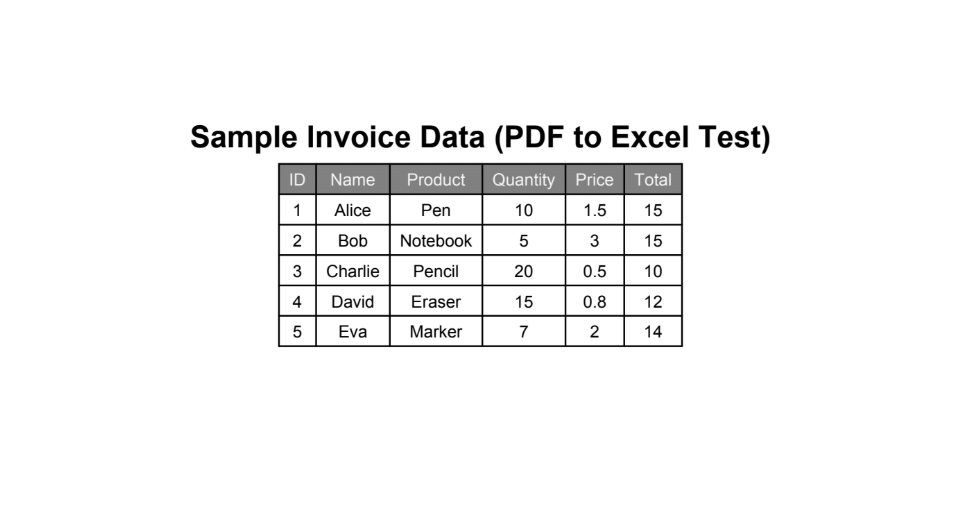
Example source content: tabular invoice-style data that OCR and PDF-to-Excel steps turn into editable rows.
The Flow at a Glance (5 Steps!)
- Manually trigger a flow (or replace with When a file is created in Dropbox for hands-off runs).
- Dropbox – Get file content using path — File Path:
/blog data/convert from pdf/sample_pdf.pdf. Infer Content Type: Yes. - PDF4me – Convert PDF to editable PDF using OCR — File Content from step 2; File Name e.g.
Test.pdf; QualityType Draft or High; OCR Only When Needed and Language as required. - PDF4me – Convert PDF to Excel — File Content from step 3; File Name e.g.
Test.pdf; QualityType High; Merge All Sheets: Yes; Output Format: Excel; Is Async: No (unless you need async for large files). - Dropbox – Create file — Folder Path:
/blog data/convert from pdf/output; File Name:PDF_To_Excel.xlsx; File Content from step 4.
Complete flow overview
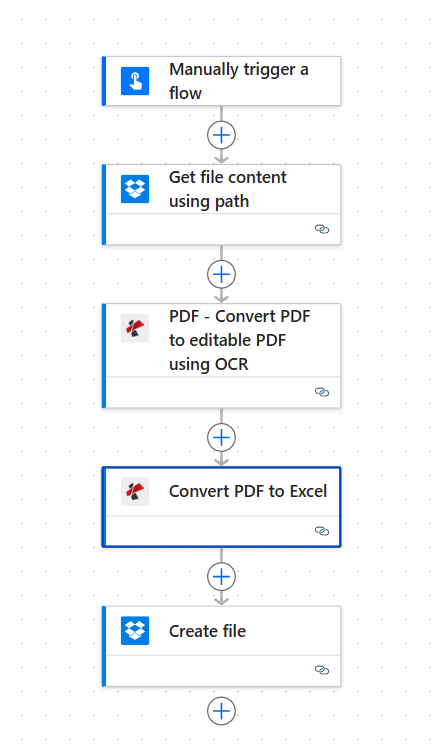
Five connected actions: read PDF from Dropbox, OCR for scans, convert to Excel, write .xlsx back to Dropbox. Green checks show each action configured.
Step 1: Get File Content (Dropbox)
Flow so far: Trigger and one Dropbox action.
- Add Manually trigger a flow (or a Dropbox file trigger).
- Add Dropbox → Get file content using path.
- File Path —
/blog data/convert from pdf/sample_pdf.pdf. Use the folder picker if needed. - Advanced parameters — Infer Content Type: Yes (matches the screenshot pattern).
- Save. File Content feeds the next action.
Dropbox – Get file content using path
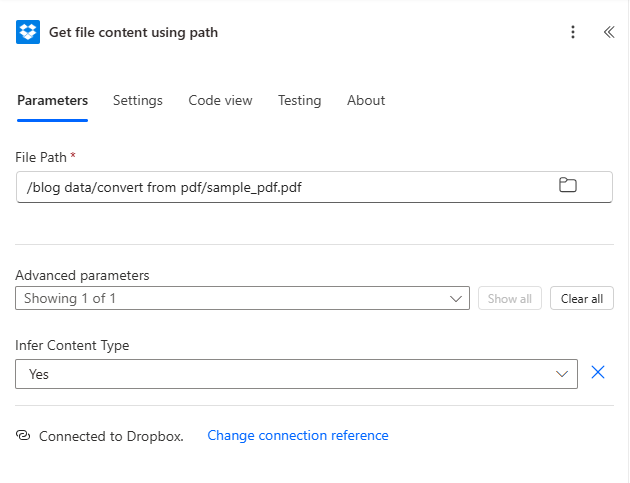
Dropbox returns binary file content for PDF4me; path and Infer Content Type match your storage layout.
Step 2: Convert PDF to Editable PDF Using OCR (PDF4me)
Flow so far: Trigger → Get file content → OCR.
- Add PDF4me → Convert PDF to editable PDF using OCR.
- File Content — Map File Content from Get file content using path (or the dynamic output name shown in your flow).
- File Name — e.g.
Test.pdf(should reflect your real file name where required). - QualityType —
Draftfor faster runs;Highfor difficult scans (see docs for credit behavior). - OCR Only When Needed —
falseif you want OCR to run every time (as in the screenshot); use skip logic when appropriate for native PDFs. - Language — Set explicitly if auto-detect is not ideal.
- Is Async —
Nofor synchronous completion unless files are very large.
PDF4me – Convert PDF to editable PDF using OCR
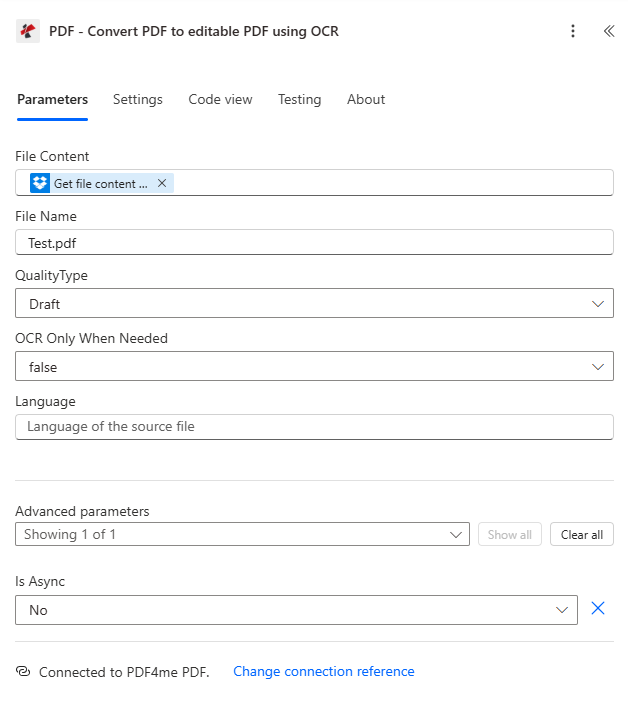
OCR step makes scanned text selectable and improves table extraction in the Convert PDF to Excel action.
Step 3: Convert PDF to Excel (PDF4me)
Flow so far: Trigger → Get file content → OCR → Convert to Excel.
- Add PDF4me → Convert PDF to Excel.
- File Content — Map output from Convert PDF to editable PDF using OCR (not the raw Dropbox file, so the engine sees OCR’d content).
- File Name — e.g.
Test.pdf(consistent with the previous step). - QualityType —
Highin this walkthrough for stronger structure on noisy tables. - Merge All Sheets —
Yesif you want a single workbook view when the PDF spans multiple logical tables or pages. - Output Format —
Excel. - Is Async —
Nounless you standardize on async for long jobs.
PDF4me – Convert PDF to Excel
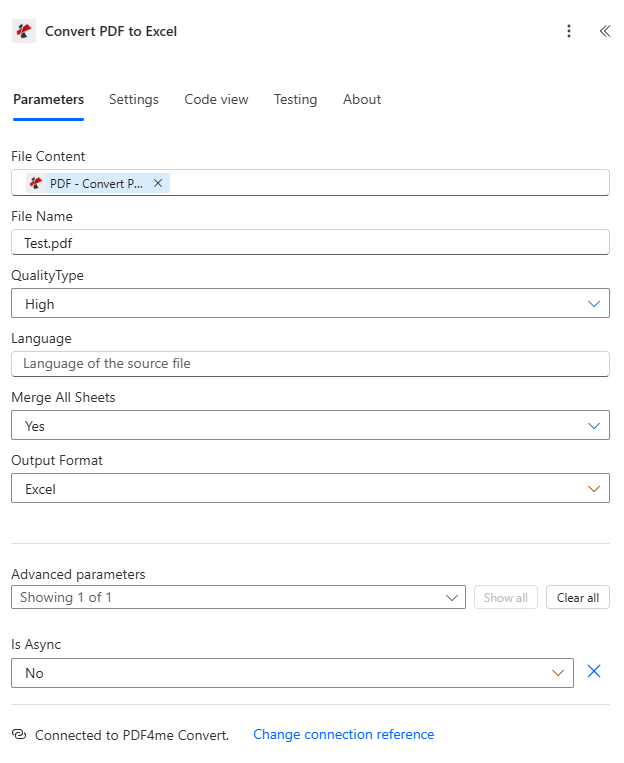
High quality plus merged sheets helps keep invoice lines together when the PDF layout is dense or multi-page.
Step 4: Create File (Dropbox)
Flow so far: All actions; final step writes the workbook.
- Add Dropbox → Create file.
- Folder Path —
/blog data/convert from pdf/output. - File Name —
PDF_To_Excel.xlsx(or a dynamic name with timestamp in a later iteration). - File Content — Map the Excel output from Convert PDF to Excel (e.g. file content / document output from that action).
- Save and test the flow end to end.
Dropbox – Create file
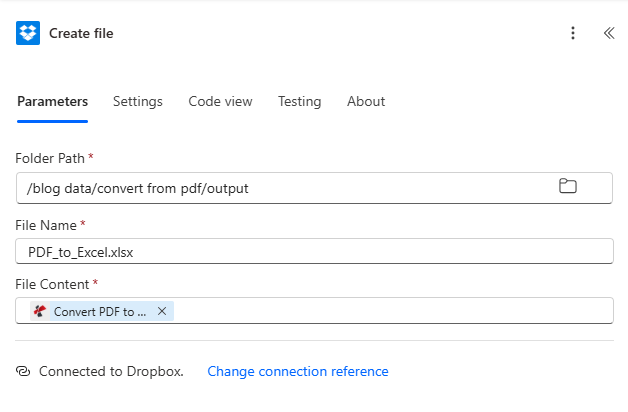
Dropbox stores the .xlsx where your team already works—no manual download from a portal.
Output: Excel Workbook With Extracted Rows!
After a successful run, open the file in Excel on the web or desktop. You should see columns such as ID, Name, Product, Quantity, Price, and Total aligned with your source table.
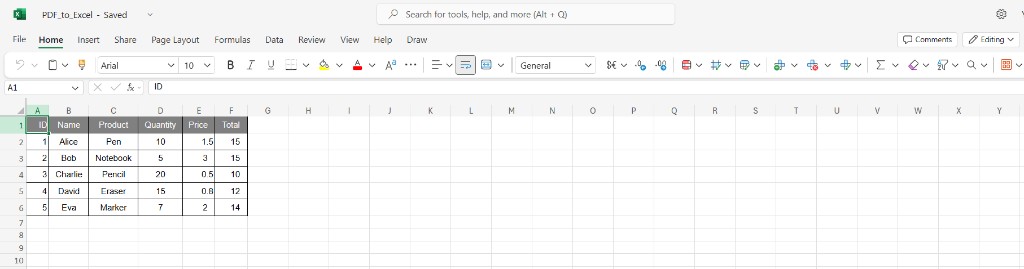
Result: structured grid ready for filters, SUMIFS, and export to databases or Power BI.
Use Cases
Accounts payable and ops: Turn vendor PDF invoices into Excel for three-way match, accruals, or ERP import—without retyping line items.
Inventory and fulfillment: Convert packing lists or order PDFs dropped in a folder into spreadsheets for WMS or spreadsheet-based planning.
Recurring intake: Swap the manual trigger for When a file is created so every new PDF in an inbox folder becomes an Excel file automatically.
Quick Reference
| Step | Action | Key setting | Example |
|---|---|---|---|
| 1 | Dropbox – Get file content using path | File Path, Infer Content Type | /blog data/convert from pdf/sample_pdf.pdf; Yes |
| 2 | PDF4me – Convert PDF to editable PDF using OCR | File Content, QualityType | From step 1; Draft or High |
| 3 | PDF4me – Convert PDF to Excel | File Content from OCR, Output Format, Merge All Sheets | From step 2; Excel; Yes |
| 4 | Dropbox – Create file | Folder Path, File Name, File Content | .../output; PDF_To_Excel.xlsx; from step 3 |
For full parameter details, see Convert PDF to editable PDF using OCR — Power Automate and Convert PDF to Excel — Power Automate.
Troubleshooting
Raise OCR and Convert PDF to Excel QualityType to High for scans. Check that the PDF is not password-protected or corrupted. Set Language on OCR if the document is not in the default locale.
Convert PDF to Excel must use the output of the OCR action, not the original Dropbox Get file content (unless your PDF is already text-based and you skip OCR). Re-select dynamic content from the correct step.
Confirm the output folder exists and the connection can write to it. Use a unique File Name (e.g. add utcNow()) if you need versioning instead of overwrite.
See PDF4me Troubleshooting for API key, credits, and connectivity.
What's Next?
- Run the flow — Trigger manually and confirm
PDF_To_Excel.xlsxappears under/blog data/convert from pdf/outputwith expected columns. - Automate intake — Replace the manual trigger with When a file is created (properties only) or a scheduled check on your inbox folder.
- Dynamic naming — Build File Name from the trigger file name or metadata so each run produces a distinct workbook.
- Downstream — Add Send an email, Excel Online (Business), or Dataverse rows after Create file for approvals or BI.