Static Lines Stayed in the PDF. n8n Gave Them a Spreadsheet to Live In.
Invoice tables and line items often arrive as PDFs. You need them in Excel for filters, formulas, and imports. n8n with PDF4me chains the right operations: Dropbox – Download a file pulls the PDF, Convert PDF to editable PDF using OCR recovers text from scans, Convert PDF to Excel builds the workbook, then Dropbox – Upload a file saves the .xlsx next to your process. Five nodes including the trigger. One execution. No retyping.
This guide uses authentic screenshots and descriptive image captions so you can match credentials, binary field names, and quality settings in your own workflow.
In a nutshell: When clicking Execute workflow → Dropbox – Download a file (/blog data/convert from pdf/sample_pdf.pdf, binary field data) → PDF4me – Convert PDF to editable PDF using OCR (Find Search; binary data; QualityType Draft; OCR Only When Needed true; Language English; output editable_pdf_output.pdf; binary output data) → PDF4me – Convert PDF to Excel (Convert; binary from OCR; QualityType High; Merge All Sheets; OCR When Needed; output PDF_to_EXCEL_output.xlsx; binary data) → Dropbox – Upload a file (/blog data/convert from pdf/output/PDF_To_Excel_Output.xlsx, binary data). Result: an Excel file in Dropbox with extracted rows and columns.
What You'll Get!
Input: A PDF in Dropbox (e.g. sample_pdf.pdf under /blog data/convert from pdf/) containing tabular content such as invoice lines. Output: An Excel workbook (e.g. PDF_To_Excel_Output.xlsx or PDF_to_EXCEL_output.xlsx depending on naming) stored under /blog data/convert from pdf/output/, with headers like ID, Name, Product, Quantity, Price, Total ready for analysis.
What You Need?
- n8n — n8n (cloud or self-hosted). Create a new workflow.
- PDF4me credentials — Get your API key. Add a PDF4me account in n8n. See Connect PDF4me to n8n.
- Dropbox — Dropbox OAuth2 API credential. Nodes: download by path and upload with binary.
- Source PDF — e.g.
/blog data/convert from pdf/sample_pdf.pdf. - Output folder — e.g.
/blog data/convert from pdf/output/for the generated.xlsx.
Sample source content (what the PDF represents)
The PDF may encode a small table like this test dataset—useful for validating column mapping after conversion.
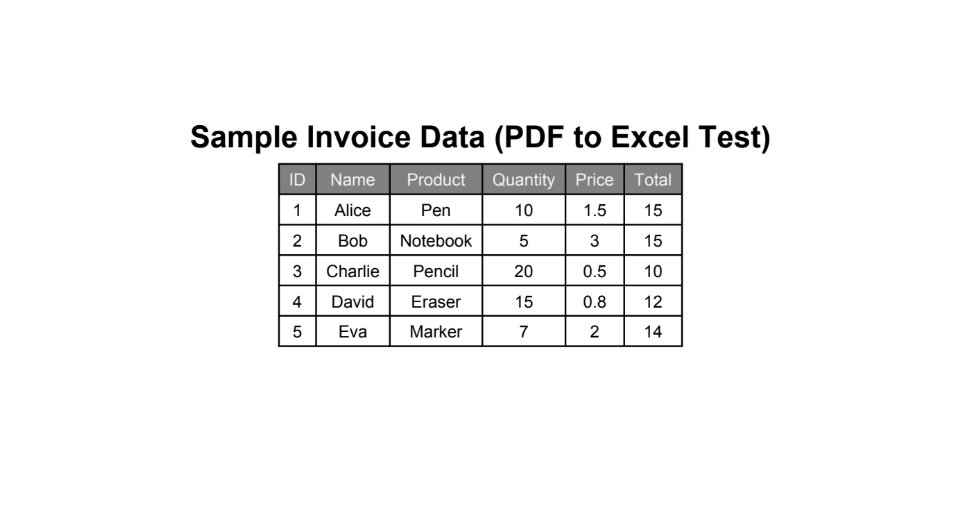
Example structured data: line items with quantities and totals, ideal for PDF-to-Excel regression tests.
The Workflow at a Glance (5 Nodes!)
- Trigger — When clicking Execute workflow (or schedule / webhook).
- Dropbox – Download a file — File Path:
/blog data/convert from pdf/sample_pdf.pdf. Put output binary in fielddata. - PDF4me (Find Search) — Convert PDF to editable PDF using OCR — Binary Property
data; QualityType Draft; OCR Only When Needed true; Language English; Output File Nameeditable_pdf_output.pdf; Binary Data Output Namedata. - PDF4me (Convert) — Convert PDF to Excel — Binary from step 3; QualityType High; Language English; Merge All Sheets and OCR When Needed as needed; Output File Name
PDF_to_EXCEL_output.xlsx; Binary Data Output Namedata. - Dropbox – Upload a file — File Path:
/blog data/convert from pdf/output/PDF_To_Excel_Output.xlsx. Input Binary Field:data.
Complete workflow overview
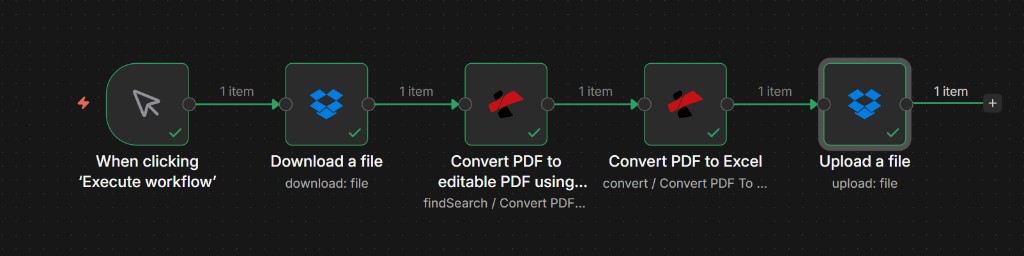
End-to-end chain: ingest PDF, OCR, convert to Excel, upload .xlsx. Each node shows one item when run successfully.
Step 1: Download a file (Dropbox)
Workflow so far: Trigger and Dropbox download only.
- Add When clicking Execute workflow (or your preferred trigger).
- Add Dropbox → Download (file by path).
- Credential — Dropbox OAuth2 API.
- Resource — File. Operation — Download.
- File Path —
/blog data/convert from pdf/sample_pdf.pdf. - Put Output File in Field —
dataso PDF4me nodes read binary from the same property name consistently. - Execute step and confirm output metadata (file name, size, MIME type
application/pdf).
Dropbox – Download a file: Parameters
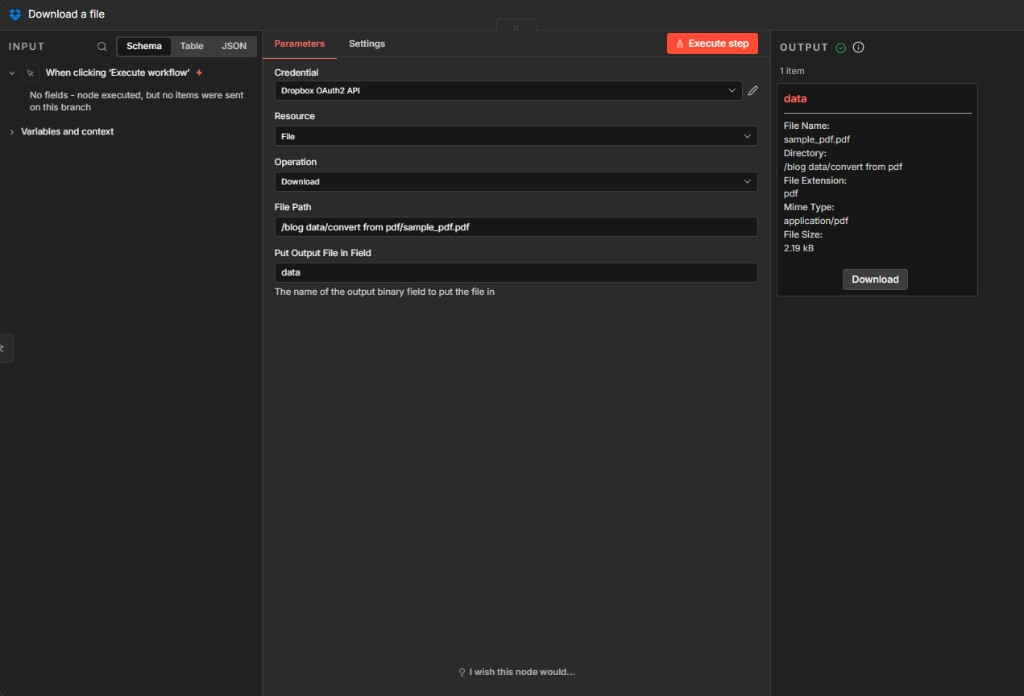
Binary output in data feeds the OCR node; path matches your Dropbox folder layout.
Step 2: Convert PDF to editable PDF using OCR (PDF4me)
Workflow so far: Trigger → Download → OCR.
- Add PDF4me and choose Resource: Find Search (or the grouping that exposes OCR in your n8n version).
- Operation — Convert PDF to editable PDF using OCR.
- Input Data Type — Binary Data.
- PDF Binary Field —
data(from Download). - Quality Type — Draft for a fast pass; use High when scans are noisy (see docs for API cost per quality).
- OCR Only When Needed — true to skip OCR when the PDF already has a text layer (efficiency).
- Language — English (set explicitly when detection is unreliable).
- Output File Name — e.g.
editable_pdf_output.pdf. - Binary Data Output Name —
dataso the next node keeps a single binary pipeline. - Execute step and confirm output size reflects an OCR’d text layer (often larger than the source scan).
PDF4me – Convert PDF to editable PDF using OCR
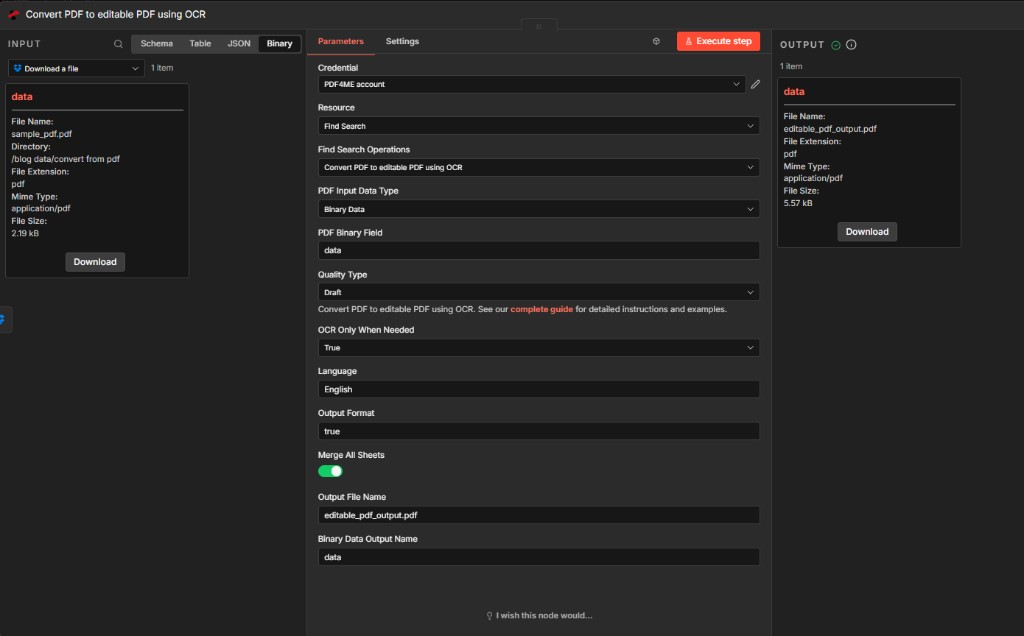
OCR produces a searchable PDF buffer used as input to Convert PDF to Excel—important for scanned invoices.
Step 3: Convert PDF to Excel (PDF4me)
Workflow so far: Trigger → Download → OCR → Convert to Excel.
- Add PDF4me → Resource: Convert → Convert PDF to Excel.
- Input Data Type — Binary Data.
- Binary Property —
datafrom the OCR node output (not the original download). - Input File Name — e.g.
New.pdfor a name matching your intermediate file; keep extension consistent with what PDF4me expects. - Quality Type — High for stronger table recovery on complex or scanned PDFs.
- Language — English.
- Merge All Sheets — on if you want one consolidated sheet when the PDF spans multiple pages or tables.
- OCR When Needed — on so conversion can still apply OCR if required for parts of the document.
- Output File Name — e.g.
PDF_to_EXCEL_output.xlsx. - Binary Data Output Name —
data. - Execute step and verify OUTPUT shows
application/vnd.openxmlformats-officedocument.spreadsheetml.sheetand a sensible file size.
PDF4me – Convert PDF to Excel
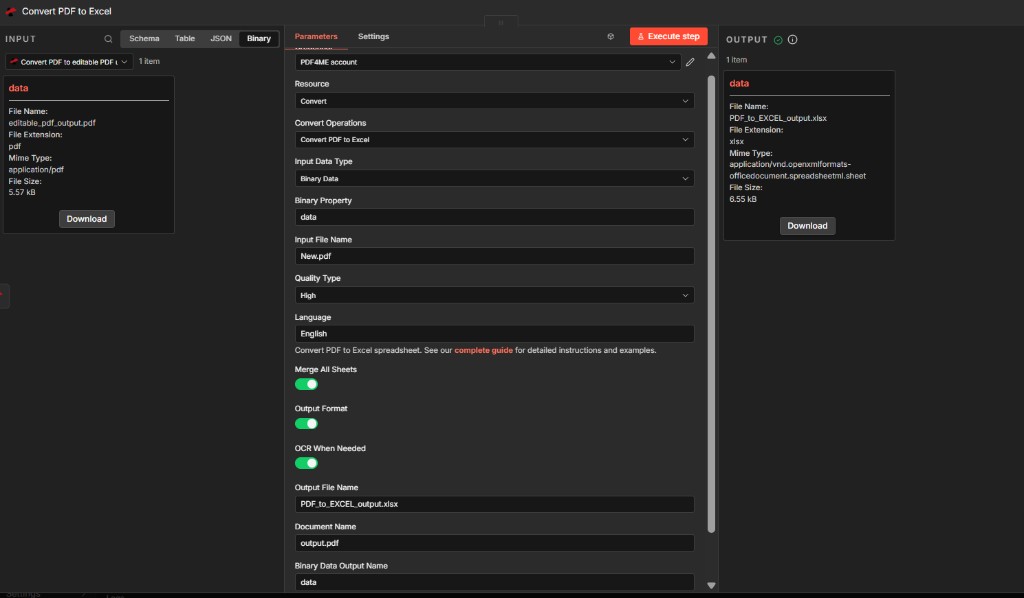
Mapping OCR output—not the raw download—keeps table detection aligned with searchable text.
Step 4: Upload a file (Dropbox)
Workflow so far: Full pipeline; upload publishes the spreadsheet.
- Add Dropbox → Upload (or Upload a file).
- Credential — Same Dropbox OAuth2 API.
- Resource — File. Operation — Upload.
- File Path — Full destination path including file name, e.g.
/blog data/convert from pdf/output/PDF_To_Excel_Output.xlsx(match casing to your Dropbox folder). - Binary File — On.
- Input Binary Field —
datafrom Convert PDF to Excel. - Execute step and confirm OUTPUT returns Dropbox metadata (
path_display,id,is_downloadable).
Dropbox – Upload a file: Parameters
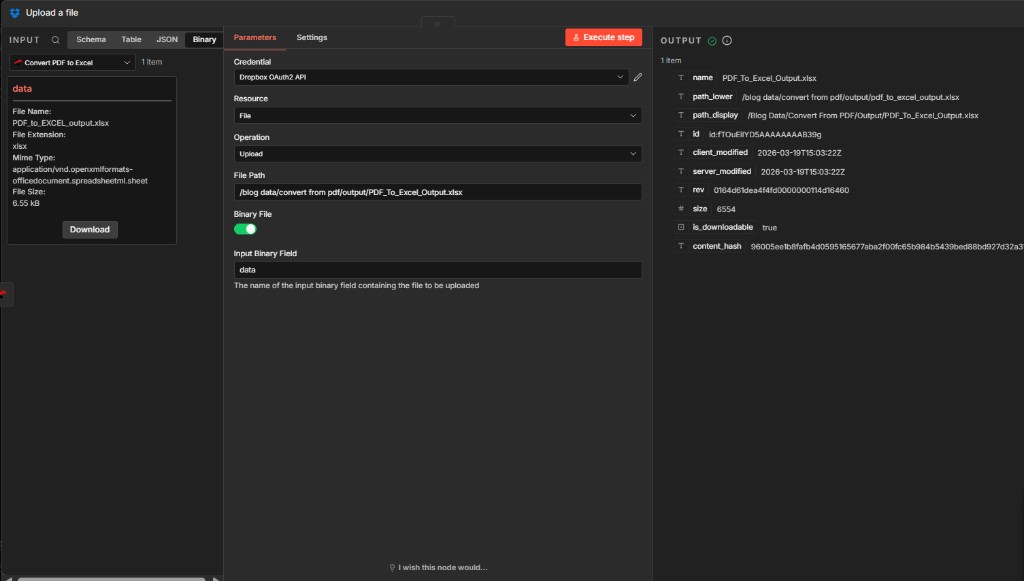
Upload completes the loop: processed data lands in a dedicated output folder for finance or ops.
Output: Excel Online!
Open the uploaded file in Excel on the web or desktop. You should see columns such as ID, Name, Product, Quantity, Price, and Total aligned with your source table.
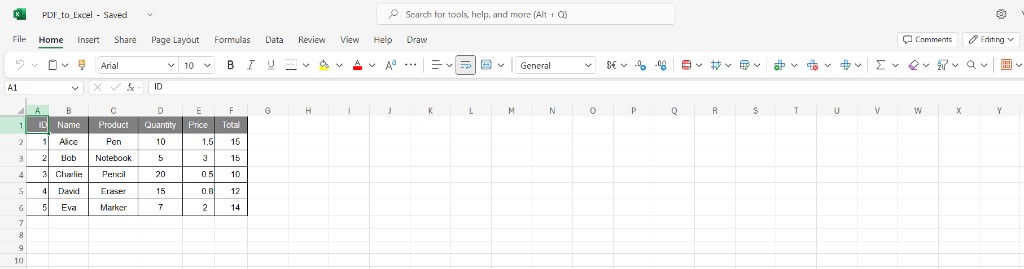
Final grid: editable rows for pivot tables, imports, and review—without manual copy from the PDF.
Use Cases
Operations and finance: Turn recurring vendor PDFs into spreadsheets for reconciliation, three-way match, or ERP staging tables.
Scanned PDFs: Run Convert PDF to editable PDF using OCR before Convert PDF to Excel so text and tables are recoverable from image-based documents.
Same logic elsewhere: Compare with PDF to Excel with OCR in Power Automate if your stack is Microsoft-first.
Quick Reference
| Step | Node | Purpose | Key settings |
|---|---|---|---|
| 1 | Dropbox – Download a file | Load PDF | Path .../sample_pdf.pdf; binary field data |
| 2 | PDF4me – OCR editable PDF | Searchable PDF | Binary data; Draft; OCR only when needed; English |
| 3 | PDF4me – Convert PDF to Excel | XLSX | Binary from step 2; High; merge sheets; PDF_to_EXCEL_output.xlsx |
| 4 | Dropbox – Upload a file | Save output | Full path under .../output/; binary data |
For full parameter lists, see Convert PDF to Editable PDF Using OCR — n8n and Convert PDF to Excel — n8n.
Troubleshooting
Point Convert PDF to Excel at the OCR output, not the first download. Raise Quality Type to High and confirm Language matches the document.
Keep a consistent Binary Property name (e.g. data) end to end, or update each node after renames. Re-run Execute step per node when debugging.
See PDF4me Troubleshooting for API key, credits, and connectivity.
What's Next?
- Production trigger — Replace the manual trigger with Cron, Webhook, or Dropbox event patterns so new PDFs convert without opening n8n.
- Naming — Build the upload path from the source file name plus
.xlsxto avoid overwriting prior runs. - Validation — Add a Spreadsheet File read or HTTP step to post rows to a database or queue.
- Governance — Log file IDs from Dropbox OUTPUT for audit trails.