Turn Every Inbound Email Into an Audit-Ready PDF Archive in Power Automate: A 7-Step Outlook Workflow

Email-to-PDF archive is a Power Automate flow that fires on every new inbound Outlook email, converts the message body and every attachment to PDF, merges them into one timestamped consolidated PDF, and writes the result to Dropbox for long-term compliance retention. Seven actions. No code. One file per email, body first then attachments in order. The output is named merge-YYYYMMDD-HHmmss.pdf so every archive entry is uniquely sortable.
Audit teams, records-management leads, and compliance officers need email evidence preserved in a tamper-evident, searchable format that survives Exchange retention policies. Native Outlook export is manual, file-by-file, and loses attachments to separate files. This walkthrough builds the no-code alternative: every email that lands becomes a single consolidated PDF, automatically, with the original .eml and attachments still in Outlook for legal hold but the archive PDF as the authoritative records copy.
Outlook trigger fires on every inbound email to a watched address. An array variable named email opens. PDF4me Convert to PDF turns the HTML body into PDF first (becomes page 1). An Apply to each walks every attachment, converts each to PDF using Aspose Words / Cells / Slides renderers, and appends in turn. PDF4me Merge multiple PDF files consumes the whole array and emits one consolidated PDF. Dropbox writes it as merge-20260611-103323.pdf. Body first, attachments in order, timestamped, archive-grade.
Why-Based Q&A
Why convert to PDF for archive instead of saving the .eml file? EML files require Outlook or a compatible reader to open, embed attachments in a binary stream that auditors cannot search, and depend on the sender's mail-client formatting. A single consolidated PDF is universally readable, OCR-friendly, attachment-included, and matches the retention format most legal-discovery and SOX/GDPR audits expect.
Why one array variable for body and attachments together? The Merge multiple PDF files action wants a single ordered collection. Initialize once, push the body in step 4, push each converted attachment in step 5, and the array is exactly the document order the archive needs (body first, then attachments in send-order). Two separate arrays would force a Compose action later just to concatenate them.
Why base64ToBinary on every push? PDF4me Convert to PDF returns its output as a base64 string on $content. Outlook attachments arrive as base64 on contentBytes. Merge multiple PDF files needs binary buffers, not base64 strings. The same base64ToBinary(...) call bridges both sources, just pointed at different property names. Skip the conversion and the merge action errors with "invalid content".
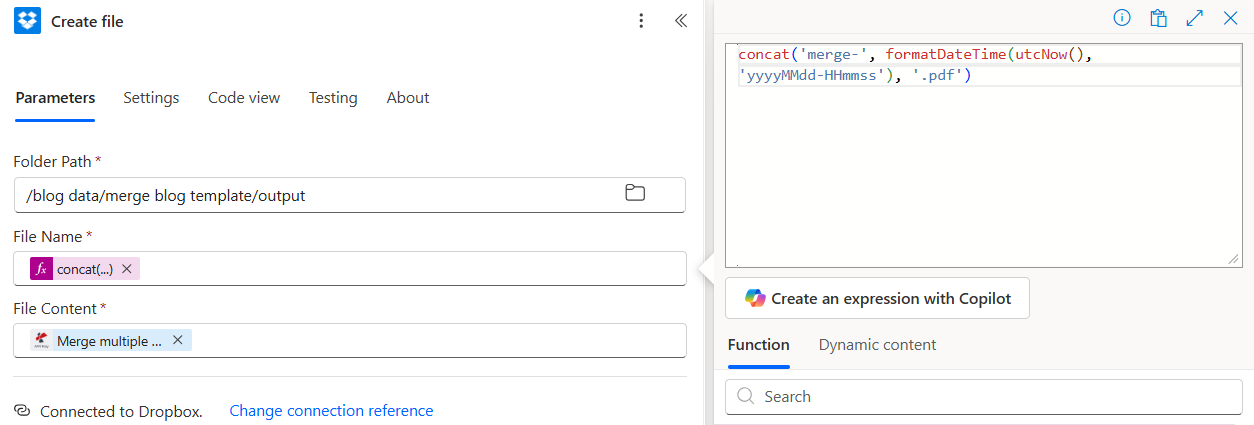
Why a timestamped output name? Two emails to the same address in the same minute would collide on a constant filename. concat('merge-', formatDateTime(utcNow(), 'yyyyMMdd-HHmmss'), '.pdf') produces second-precision UTC names like merge-20260611-103323.pdf: lexicographically sortable, instantly readable, and unique by construction. Auditors love this format.
What You'll Get
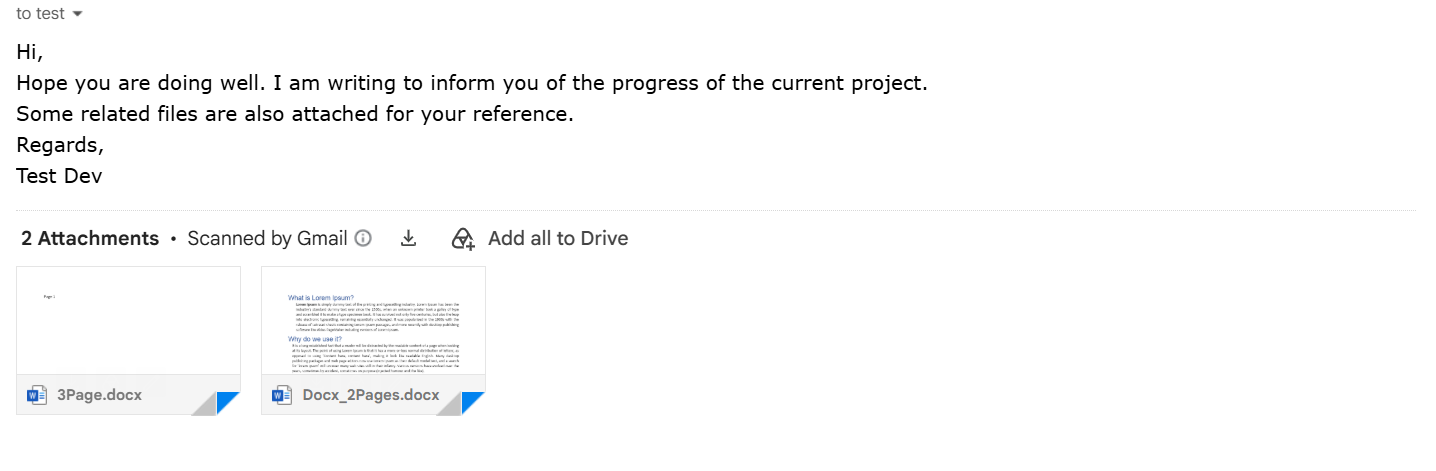
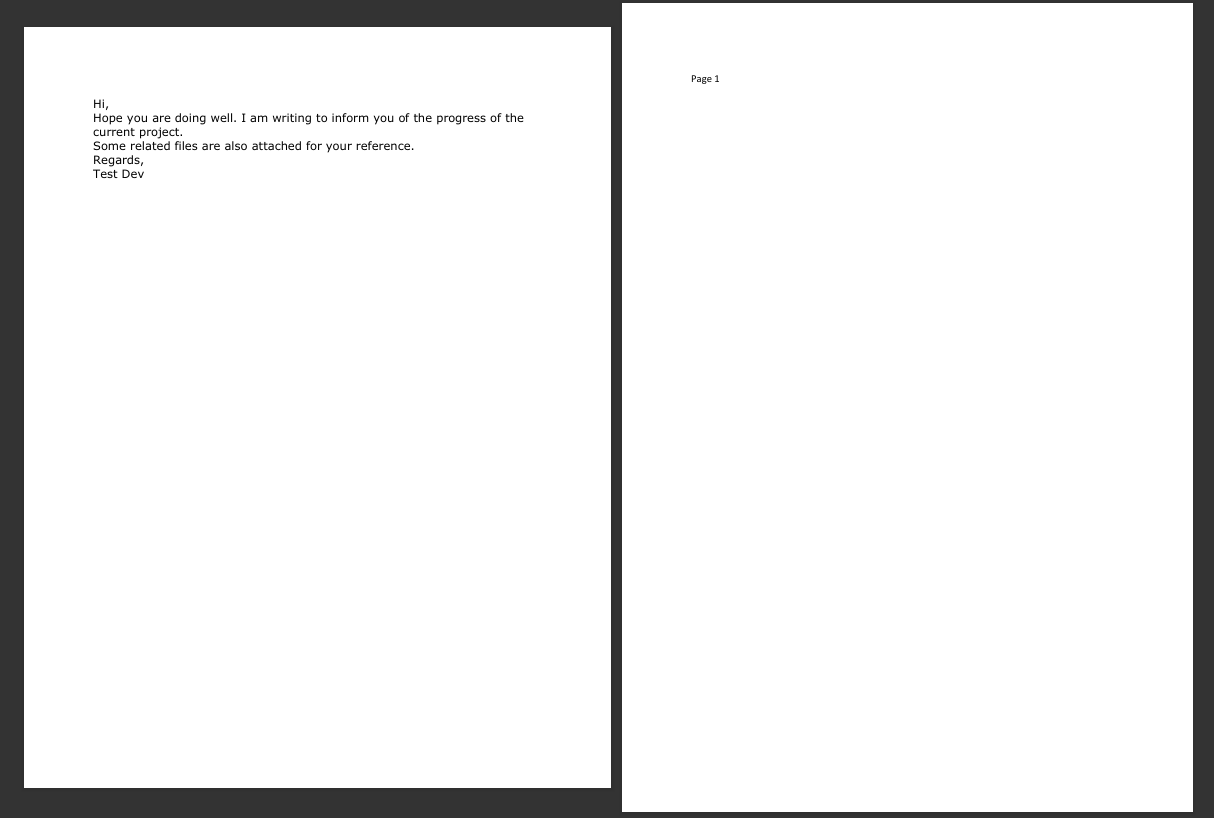
Input: Any inbound email at the watched Outlook address (here [email protected]) with one or more attachments. This walkthrough uses a short message body ("Hi, Hope you are doing well...") and two DOCX attachments (3Page.docx, Docx_2Pages.docx). Output: A single consolidated archive PDF in /blog data/merge blog template/output/, named merge-YYYYMMDD-HHmmss.pdf. Page 1 is the body. Page 2 onwards is each attachment in attachment order, rendered through Aspose Words.
The incoming email
The archive folder after two runs

Page 1 of a merged archive PDF
What You Need
- Power Automate. Open Power Automate. Any plan with premium connectors (PDF4me Connect is premium).
- PDF4me API key. Get your API key. Connect it the first time you add a PDF4me action.
- Office 365 Outlook. For the When a new email arrives V3 trigger and to read attachment contentBytes. Any inbox the connector can authenticate against works.
- Dropbox (or SharePoint, OneDrive, Google Drive). For the archive destination.
- A test email with attachments. The walkthrough uses two DOCX samples. 3Page.docx and Docx_2Pages.docx.
Grab the samples and the expected output first. Download both DOCX files, attach them to a quick email to your watched address, then publish the flow. Your first run should produce a merge-YYYYMMDD-HHmmss.pdf that mirrors the linked sample exactly (only the timestamp differs).
The Flow at a Glance
- Outlook: When a new email arrives (V3) (trigger).
- Initialize variable named
email(Array). - PDF4me: Convert to PDF (Body). Reads the HTML body, returns a PDF.
- Append to array variable with
base64ToBinaryon the converted body. - Apply to each on
triggerOutputs()?['body/attachments']:- PDF4me: Convert to PDF the attachment.
- Append to array variable with
base64ToBinaryon the converted PDF.
- PDF4me: Merge multiple PDF files into a single PDF file. Array in, one PDF out.
- Dropbox: Create file. File Name expression stamps the UTC timestamp.
Complete flow overview
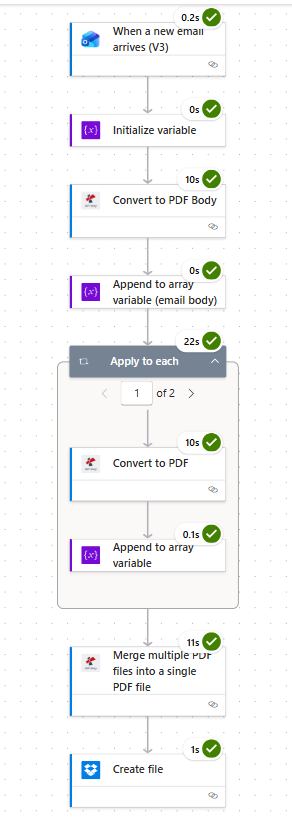
Seven actions. PDF4me sits in the flow three times: convert body, convert each attachment, merge everything.
Outlook attachment fields (reference)
The Outlook When a new email arrives V3 trigger exposes these attachment fields you map into the converter:
| Field | Type | Source expression | What it carries |
|---|---|---|---|
name | string | items('Apply_to_each')?['name'] | Original filename including extension (Invoice.docx) |
contentBytes | base64 string | items('Apply_to_each')?['contentBytes'] | Binary content of the attachment, base64-encoded |
contentType | string | items('Apply_to_each')?['contentType'] | MIME type (application/vnd.openxmlformats-officedocument.wordprocessingml.document) |
size | integer | items('Apply_to_each')?['size'] | Bytes, useful for filtering large attachments out |
isInline | boolean | items('Apply_to_each')?['isInline'] | True for inline images embedded in the body; usually filtered out |
PDF4me Convert to PDF reads the file extension off name to pick the right renderer (.docx → Aspose Words, .xlsx → Aspose Cells, .pptx → Aspose Slides, images and PDFs handled natively).
Step 1: How do you watch an Outlook inbox for inbound email?
Flow so far: trigger only.
- In Power Automate click Create, choose Automated cloud flow.
- Name the flow (e.g.
Email Archive to PDF), pick Office 365 Outlook: When a new email arrives (V3) as the trigger, click Create. - Connect your Office 365 mailbox.
- Expand Advanced parameters and click Show all to reveal filtering options.
- Configure:
- To:
[email protected](filter so only mail addressed to this address triggers the flow) - Include Attachments:
Yes - Only with Attachments:
Yes
- To:
Trigger configuration
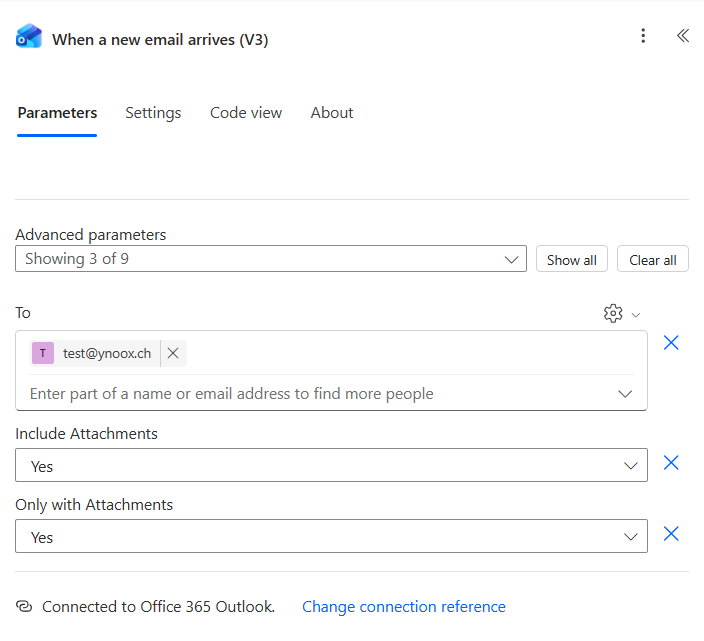
Tip. Only with Attachments Yes is what keeps the flow from firing on every internal notification, calendar invite, or automated reply. Combine with a To filter on a dedicated archive alias (e.g. [email protected]) for a clean intake address that only receives mail you actually want archived.
Step 2: Initialize Variable email
Flow so far: trigger plus Initialize variable.
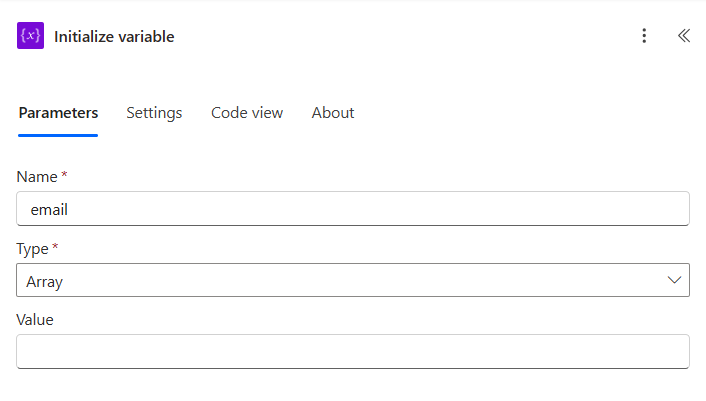
Open an empty array to collect the body PDF and every attachment PDF.
- Click + New step, pick Initialize variable.
- Configure:
- Name:
email - Type:
Array - Value: leave blank
- Name:
Initialize variable configuration
Step 3: How does PDF4me render the email body to PDF?
Flow so far: trigger plus Initialize variable plus Convert to PDF Body.
The Outlook trigger emits the message body as HTML on body/body. PDF4me Convert to PDF reads HTML directly, so the entire conversion is one action call.
- Click + New step, search PDF4me, pick Convert to PDF.
- Rename the action to Convert to PDF Body so step 5's Convert to PDF action gets its own clean name later.
- Connect PDF4me Connect with your API key (first time only).
- Configure:
- File Content (expression, click
fx):triggerOutputs()?['body/body'] - File Name:
email-body.html
- File Content (expression, click
Convert to PDF Body configuration
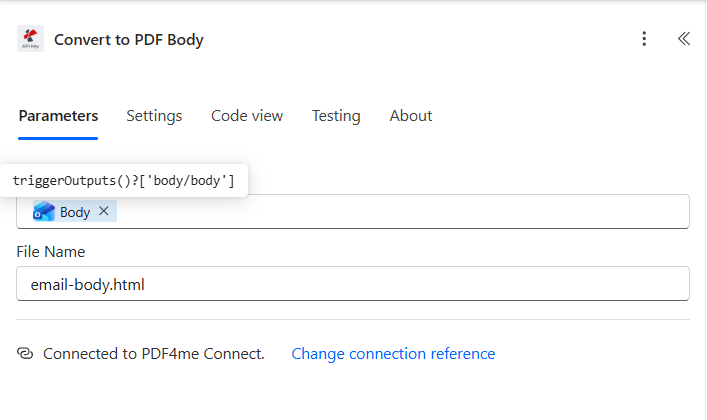
The .html extension on the filename tells PDF4me which renderer to use. Send .docx, .xlsx, .png, or .jpg just as easily, the same action handles them all.
Step 4: Append to Array Variable (Email Body)
Flow so far: trigger plus Initialize variable plus Convert to PDF Body plus Append (email body).
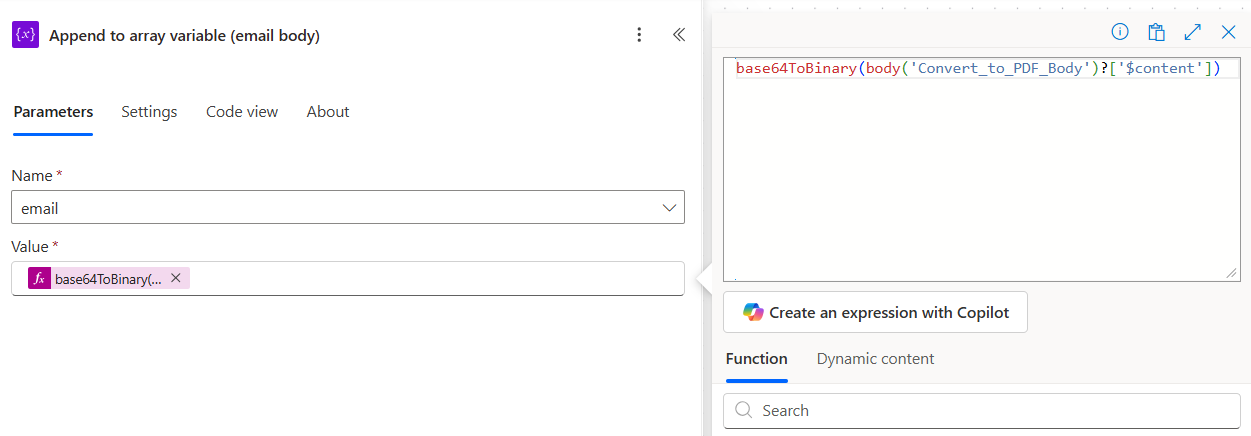
Push the converted body PDF onto the email array as page 1.
- Click + New step, pick Append to array variable.
- Rename the action to Append to array variable (email body) for clarity.
- Configure:
- Name:
email - Value (expression):
base64ToBinary(body('Convert_to_PDF_Body')?['$content'])
- Name:
Append email body configuration
Step 5: How do you loop over every attachment and convert each one?
Flow so far: trigger plus Initialize variable plus Convert to PDF Body plus Append (email body) plus Apply to each.
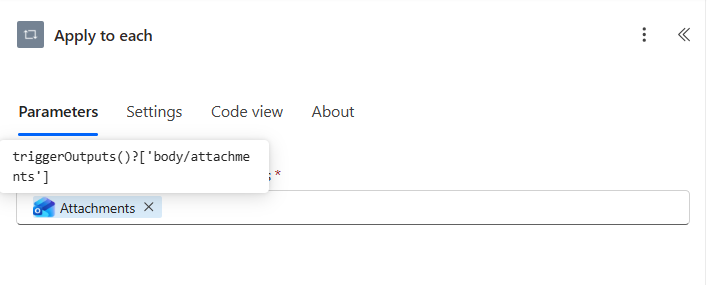
Loop over every attachment, convert each to PDF, and append in turn so the final merge respects attachment order.
Step 5a: Apply to each (pick the source)
- Click + New step, pick Apply to each.
- Configure:
- Select an output from previous steps (expression):
triggerOutputs()?['body/attachments']
- Select an output from previous steps (expression):
Step 5b: Convert to PDF (the attachment)
- Inside the loop click Add an action, pick PDF4me: Convert to PDF.
- Configure:
- File Content (expression):
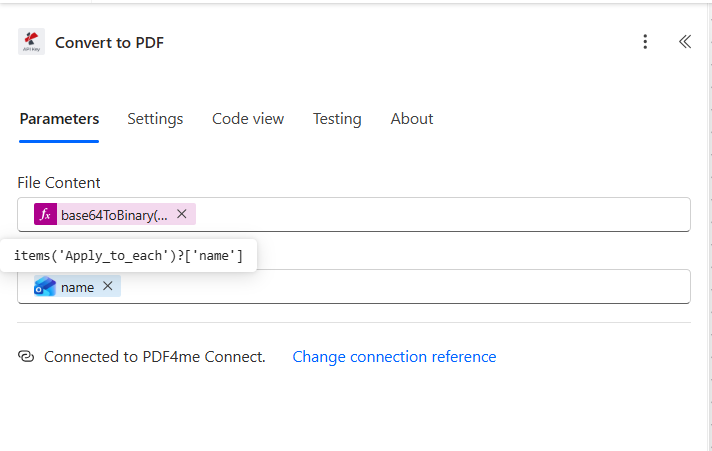
base64ToBinary(items('Apply_to_each')?['contentBytes']) - File Name (dynamic content): pick name from the Apply to each current item
- File Content (expression):
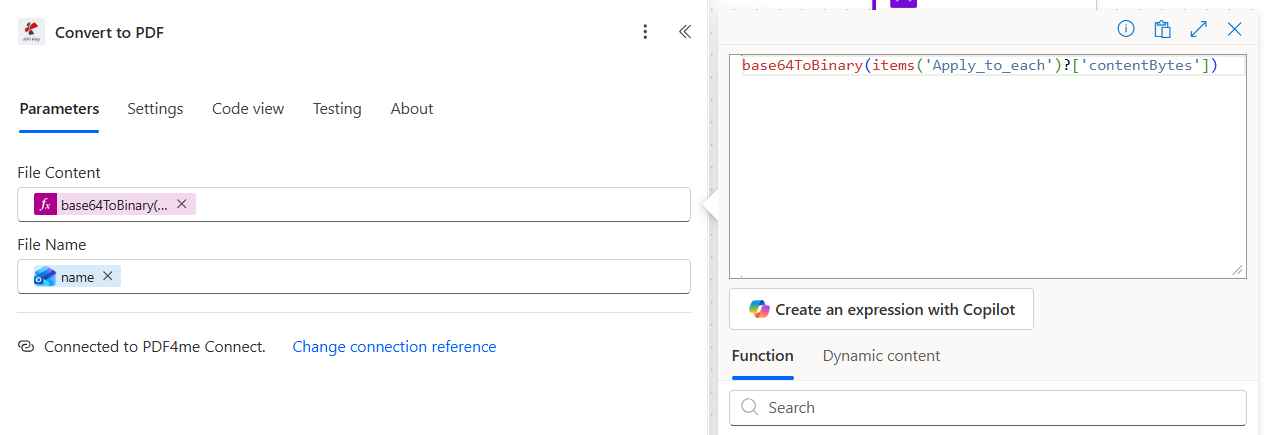
The name dynamic-content token resolves at run time to items('Apply_to_each')?['name'], so each attachment is converted using its original filename. PDF4me reads the extension to pick the right renderer.
Step 5c: Append to array variable (the converted attachment)
- Below Convert to PDF inside the same loop, Add an action, pick Append to array variable.
- Configure:
- Name:
email - Value (expression):
base64ToBinary(body('Convert_to_PDF')?['$content'])
- Name:
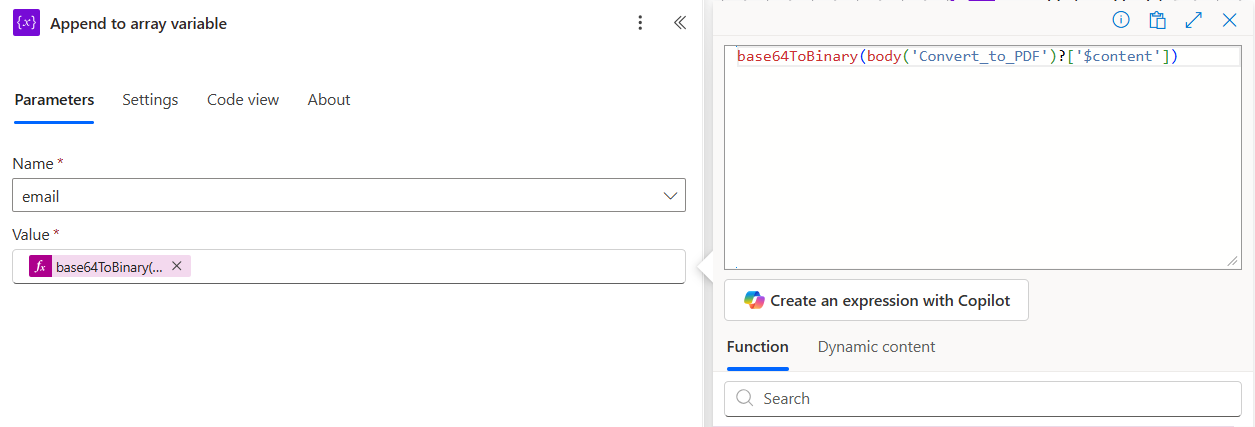
The two property names matter. Outlook attachment bytes live on contentBytes. PDF4me Convert to PDF output lives on $content. Both are base64. Keep the names straight when you paste the expressions and the loop just works.
Step 6: Merge Multiple PDF Files Into a Single Archive PDF
Flow so far: trigger plus Initialize variable plus Convert to PDF Body plus Append (body) plus Apply to each plus Merge multiple PDFs.
The whole email array (body PDF first, then attachment PDFs in attachment order) goes into a single Merge call.
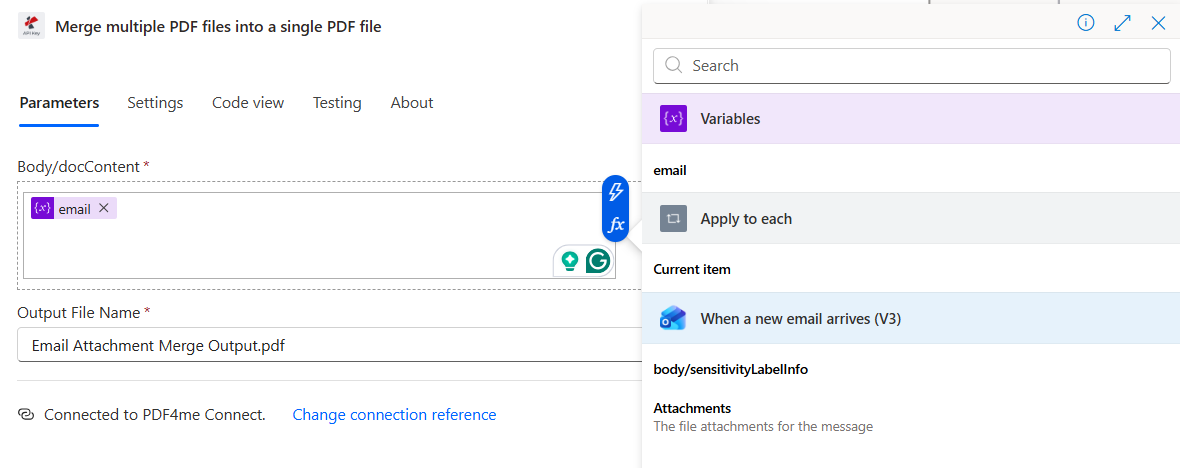
- Below the Apply to each loop click + New step, search PDF4me, pick Merge multiple PDF files into a single PDF file.
- Configure:
- Body/docContent: pick the
emailvariable token - Output File Name:
Email Attachment Merge Output.pdf
- Body/docContent: pick the
Merge action configuration
Step 7: Why a Timestamped Filename for the Archive?
Flow so far: trigger plus Initialize variable plus Convert to PDF Body plus Append plus Apply to each plus Merge plus Create file.
Write the consolidated PDF to Dropbox with a UTC-timestamped filename so every archive entry is a fresh, sortable file. Two emails to the same address in the same second is rare enough that this provides effective uniqueness without needing to embed message IDs.
- Click + New step, pick Dropbox: Create file.
- Configure:
- Folder Path:
/blog data/merge blog template/output - File Name (expression, click
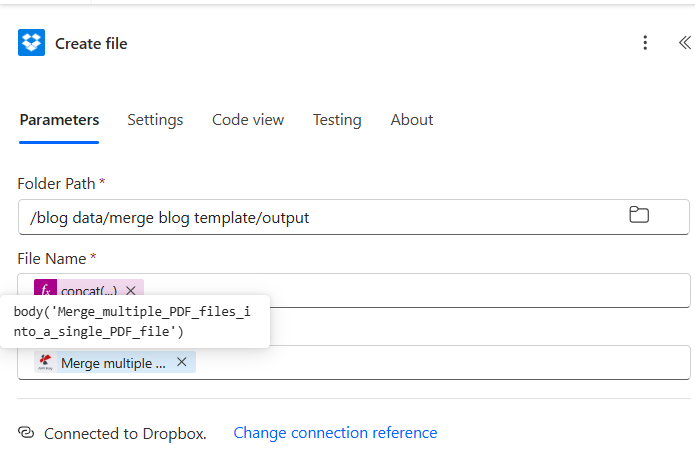
fx):concat('merge-', formatDateTime(utcNow(), 'yyyyMMdd-HHmmss'), '.pdf') - File Content: pick the File Content token from the Merge multiple PDFs action
- Folder Path:
File name expression
Final action with File Content mapped
Tip for higher-volume inboxes. For mailboxes receiving 10+ emails per minute, append a short hash of the message Internet Message ID to guarantee uniqueness: concat('merge-', formatDateTime(utcNow(), 'yyyyMMdd-HHmmss'), '-', substring(triggerOutputs()?['body/internetMessageId'], 0, 8), '.pdf'). Audit trail still readable, collisions impossible.
Run the Flow and Verify
- Save the flow at the top right.
- Email a message with one or more attachments to the watched address.
- Open Run history. The trigger should fire within seconds.
- Open Dropbox at
/blog data/merge blog template/output/. A file namedmerge-YYYYMMDD-HHmmss.pdfis there. - Open the PDF. Page 1 is the body text. Page 2 onwards is each attachment, fully rendered, in attachment order.
What did you actually build? A zero-touch email-to-archive pipeline. Every message with attachments turns into one consolidated PDF, body first then attachments in order, timestamped so nothing collides, dropped into a shared folder your records-management team or auditors can search. The same recipe handles two attachments or twenty without any change.
Common Variations You Can Add Without Rebuilding
endsWith(toLower(items('Apply_to_each')?['name']), '.pdf'). Skips email signatures and inline image attachments.PDF/A-2b after the merge. The archived PDF is ISO 19005 compliant, fit for legal hold and regulator submission.Email archive: PDF vs EML
| Aspect | Consolidated PDF (this flow) | Raw EML export |
|---|---|---|
| Universally readable | Yes, any PDF reader | No, needs Outlook or compatible client |
| Search by content | Yes, OCR-friendly | Limited, body only |
| Includes attachments | Yes, inline as pages | Yes, as binary stream |
| Audit format match | SOX, GDPR, HIPAA, FINRA accept | Often rejected |
| Tamper-evident | Yes, if Digital Sign added | Easily edited in any editor |
| File size | Larger (all rendered pages) | Smaller (no rendering) |
| Retention pipeline | One PDF per email, easy to chain | EML requires container format |
Common questions
How do I trigger this flow on a shared mailbox instead of a personal inbox?
Replace the When a new email arrives (V3) trigger with When a new email arrives in a shared mailbox (V2). Pass the mailbox address as the Original Mailbox Address field. The rest of the flow stays identical, every attachment reference and body expression resolves the same way.
What if an email has no attachments?
The trigger's Only with Attachments Yes filter prevents the flow from firing on body-only emails. If you want to archive body-only emails too, set that filter to No and wrap the Apply to each loop in a Condition: only run it when length(triggerOutputs()?['body/attachments']) is greater than zero. The merge action will still work with just the one body PDF in the array, producing a single-page archive.
How do I include the sender, subject, and received date on page 1 of the archive?
Before step 3, add a Compose action with an HTML preamble:
<h2>From: @{triggerOutputs()?['body/from']}</h2>
<h2>Subject: @{triggerOutputs()?['body/subject']}</h2>
<p>Received: @{triggerOutputs()?['body/receivedDateTime']}</p>
<hr>
@{triggerOutputs()?['body/body']}
Then point step 3's File Content at the Compose output. Page 1 now carries searchable header metadata.
Will this work with HTML emails containing inline images?
Yes. PDF4me Convert to PDF renders HTML with inline <img src="cid:..."> references and embedded base64 images. Outlook's body/body includes the full HTML with inline content, so the rendered PDF preserves the visual fidelity of what the recipient saw.
How long does the flow take to run?
Roughly 10-15 seconds per attachment on a one-page DOCX, plus 5-10 seconds for the trigger and final upload. A typical 2-attachment email completes in 35-45 seconds end-to-end. Power Automate's Apply to each runs sequentially by default for ordered output; if order does not matter and you need speed, set Concurrency Control to 20 in the loop's Settings.
Troubleshooting
One of the Append to array Value expressions is not wrapped in base64ToBinary(...). Each push (body and attachments) needs the conversion. Re-open both Append actions, switch to the expression editor, and confirm the expressions are base64ToBinary(body('Convert_to_PDF_Body')?['$content']) and base64ToBinary(body('Convert_to_PDF')?['$content']) verbatim.
The Convert to PDF Body action did not receive real HTML. Check the trigger's Include Attachments stayed Yes (without it the body sometimes arrives empty) and that File Content resolves to triggerOutputs()?['body/body'], not body/bodyPreview.
The default Apply to each runs in parallel, which can scramble append order. Open the loop's Settings and set Concurrency Control Degree of parallelism to 1. The loop now runs sequentially and attachments land in array order.
The timestamp resolution is one second. For high-volume inboxes append the Internet Message ID hash: concat('merge-', formatDateTime(utcNow(), 'yyyyMMdd-HHmmss'), '-', substring(triggerOutputs()?['body/internetMessageId'], 0, 8), '.pdf').
Next Steps
The same seven-step pattern (trigger then init array then convert body then loop-convert-and-append then merge then save with a timestamp) works for any "email plus attachments to one PDF" automation. Ship one and every inbound message becomes a searchable, sortable, audit-ready archive entry automatically.