New File in Your Dropbox Folder? Run a Mail Merge in Zapier. Six Steps, Fully Automated!
Drop a Word template (e.g. simple_mail_merge_template.docx) into a Dropbox folder and keep a JSON file (e.g. sample_mail_merge_data.json) in the same place. When a new file appears, Zapier can run a mail merge: find the JSON, call PDF4me – Generate Document (Template File Type: Mail Merge), upload Word, run Generate Document again for PDF, then upload. Six steps. Trigger-based. No manual run.
The screenshots match the folder paths, file names, and PDF4me options you set in Zapier—map trigger → find JSON → PDF4me → upload using the same values shown in each image.
In a nutshell: New File in Folder (Dropbox, /Generate document Mail Merge) → Find a file (sample_mail_merge_data.json, include file contents) → PDF4me – Generate Document (Template File Type: Mail Merge, template from trigger, data from find step) → Upload File (Mail_Merge_Zap_deployed.docx) → PDF4me – Generate Document (second run, e.g. Data Text + PDF output) → Upload File (Mail_Merge_Zap_deployed-2.pdf). Result: one Word and one PDF in /Generate document Mail Merge/Output per run.
Why-Based Q&A
Why find sample_mail_merge_data.json in a separate step? The trigger file might be the template; the JSON lives beside it. A dedicated find file step always passes the correct data file into PDF4me regardless of which file arrived last.
Why Zapier for mail merge? Combine Dropbox triggers with PDF4me and email, CRM, or task apps in one Zap—no script to maintain when your stack changes.
What You'll Get
Trigger: A new file in the watched Dropbox folder (e.g. a new or updated template). Input: The triggering file as template and a fixed JSON file (sample_mail_merge_data.json) in the same folder. Output: Word and PDF in /Generate document Mail Merge/Output as Mail_Merge_Zap_deployed.docx and Mail_Merge_Zap_deployed-2.pdf (or your chosen names). Overwrite off so prior runs are kept unless you change names.
What You Need
- Zapier — Create a Zapier account and start a new Zap.
- PDF4me API key — Get your API key. Connect PDF4me for both Generate Document actions. See Connect PDF4me to Zapier.
- Dropbox — New File in Folder, Find a file (by name), and Upload File (twice).
- Word mail merge template — e.g.
simple_mail_merge_template.docx, merge fields matching JSON keys. Lives in the watched folder (or arrives as the trigger file). - JSON data file — e.g.
sample_mail_merge_data.jsonwith keys likefirstname,lastname,gender,member. Example:{"firstname":"John","lastname":"Adams","gender":"Female","member":"Basic"}.
The Zap at a Glance (6 Steps)
- Dropbox – New File in Folder — Folder
/Generate document Mail Merge. Include file contents: Yes (and sharing link if needed). - Dropbox – Find a file — Same folder, file name
sample_mail_merge_data.json, include file contents: Yes. - PDF4me – Generate Document — Template from step 1. Template File Type: Mail Merge. Input Data Format Type: File. Data File from step 2. Input Data Type: Json.
- Dropbox – Upload File —
/Generate document Mail Merge/Output. File from step 3. Overwrite: No. Name:Mail_Merge_Zap_deployed. Extension:.docx. - PDF4me – Generate Document — Same template (step 1). Template File Type: Mail Merge. Input Data Format Type: Text. Data Text — JSON (from step 2 content or a fixed sample). Input Data Type: Json. Output: Pdf where the action exposes it.
- Dropbox – Upload File — Same Output folder. File from step 5. Overwrite: No. Name:
Mail_Merge_Zap_deployed-2. Extension:.pdf.
Complete Zap overview
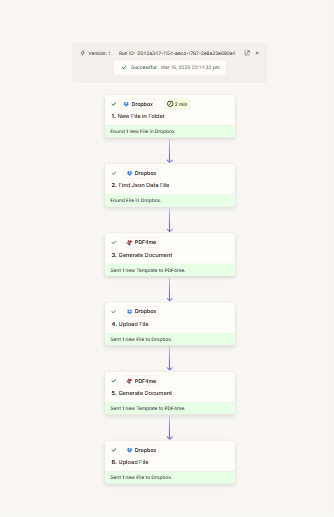
Trigger → find JSON → mail merge to Word → upload → second merge to PDF → upload. All steps green when mapping matches the reference.
Step 1: New File in Folder (Trigger)
Zap so far: Trigger only.
- Dropbox → New File in Folder.
- Folder —
/Generate document Mail Merge. - Include file contents? — Yes.
- Include sharing link? — Yes if your upload steps need it.
- Test. Step 1 supplies the template file for PDF4me (e.g.
simple_mail_merge_template.docx).
New File in Folder: Configuration
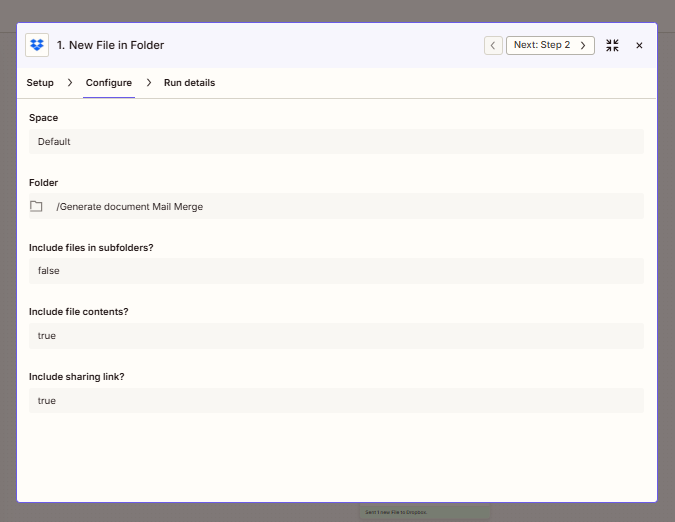
The watched folder is where templates and the JSON file live; a new file starts the Zap.
Step 2: Find the JSON data file
Zap so far: Trigger → Find JSON.
- Dropbox → Find a file (search by folder + name).
- Folder —
/Generate document Mail Merge. - File name —
sample_mail_merge_data.json. - Include file contents? — Yes.
- Test. Map this step’s file into PDF4me as Data File for step 3.
Find JSON: Configuration
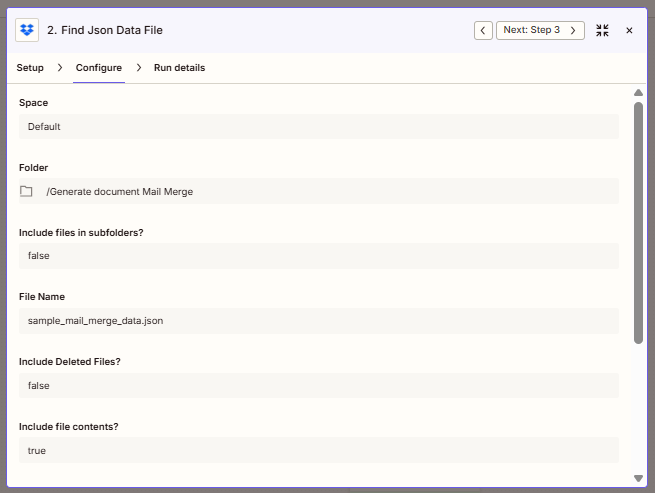
Always targets the same JSON path so the merge data is stable even when the trigger file varies.
Step 3: PDF4me – Generate Document (template from trigger, data from JSON)
Zap so far: Trigger → Find JSON → Generate Document.
- PDF4me → Generate Document.
- Template File — From step 1 (trigger file).
- Template File Name / Extension — From step 1 (e.g.
simple_mail_merge_template,.docx). - Template File Type — Mail Merge.
- Input Data Format Type — File.
- Data File — From step 2.
- Input Data Type — Json.
- Test. Use the returned file URL or binary in step 4.
Generate Document: Word output
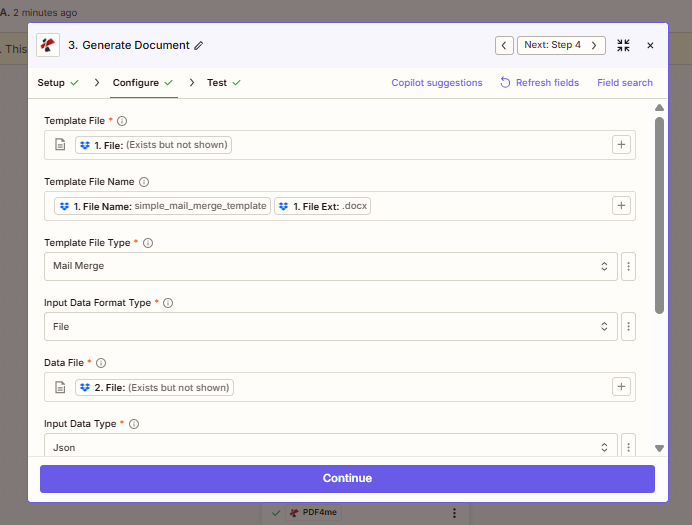
First pass produces the merged Word document from template + JSON file.
Step 4: Upload File (Word)
Zap so far: Through first Generate Document.
- Dropbox → Upload File.
- Folder —
/Generate document Mail Merge/Output. - File — From step 3.
- Overwrite — No.
- File name —
Mail_Merge_Zap_deployed. Extension —.docx. - Test.
Upload File: DOCX
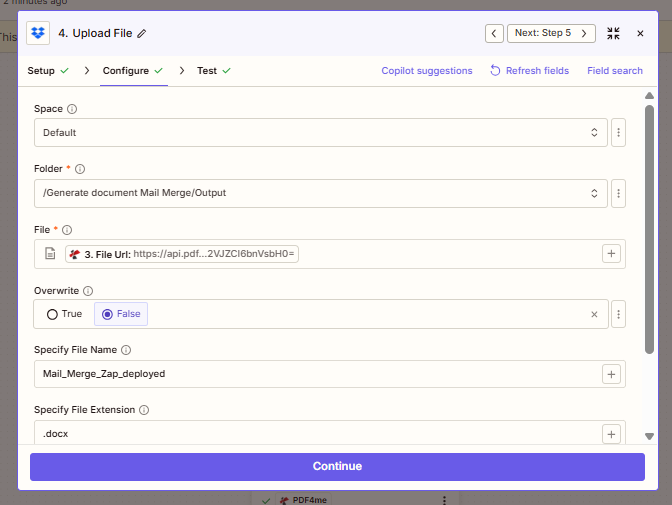
Stores the editable mail merge result under a fixed base name.
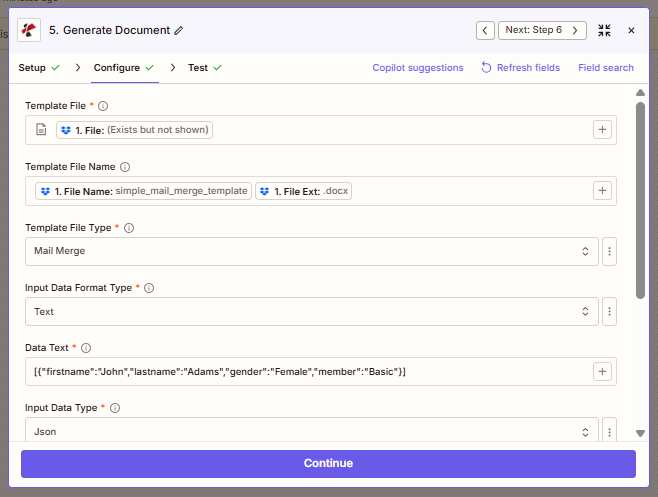
Step 5: PDF4me – Generate Document (second run, PDF)
Zap so far: Word uploaded; second PDF4me action.
- PDF4me → Generate Document.
- Template File — From step 1 (same as first merge).
- Template File Type — Mail Merge.
- Input Data Format Type — Text.
- Data Text — JSON array or object matching your merge fields (e.g.
[{"firstname":"John","lastname":"Adams","gender":"Female","member":"Basic"}]), mapped from step 2 if Zapier exposes file content as text. - Input Data Type — Json.
- Set Output Document Type to Pdf when available.
- Test. Feed step 6 with this step’s file output.
Generate Document: Data Text for PDF
Second pass uses the same logical data as the JSON file, formatted as text, to emit a PDF.
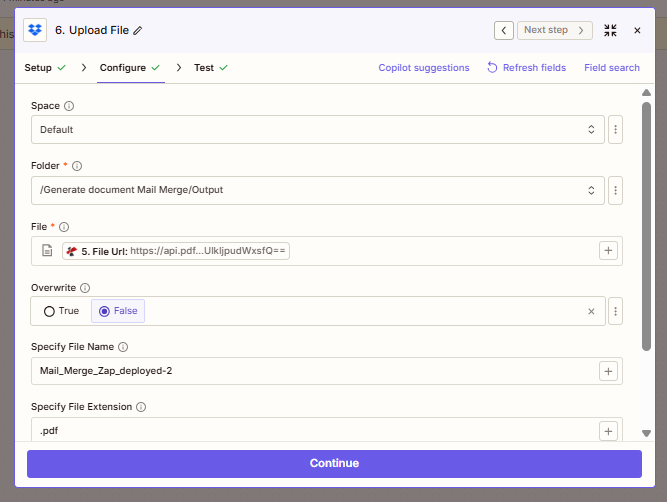
Step 6: Upload File (PDF)
Zap so far: Full Zap.
- Dropbox → Upload File.
- Folder —
/Generate document Mail Merge/Output. - File — From step 5.
- Overwrite — No.
- File name —
Mail_Merge_Zap_deployed-2. Extension —.pdf. - Turn the Zap on.
Upload File: PDF
Completes the pair: Word + PDF in Output for each trigger.
Real-World Use Cases
Template drop and run: A new template file in the folder kicks off Word + PDF generation without opening Zapier.
Certificates and letters: Update sample_mail_merge_data.json; add or replace a file in the folder to regenerate both formats.
Dual delivery: Teams get .docx for edits and .pdf for distribution in one automated run.
Quick Reference
| Step | Key setting | Example |
|---|---|---|
| New File in Folder | Folder, file contents | /Generate document Mail Merge |
| Find file | Folder, file name | sample_mail_merge_data.json |
| Generate Document | Mail Merge, File data | Template step 1; Data step 2 |
| Upload File | Output, name | Mail_Merge_Zap_deployed.docx |
| Generate Document | Mail Merge, Text data | JSON; output PDF |
| Upload File | Output, name | Mail_Merge_Zap_deployed-2.pdf |
See Generate Document Single — Zapier. For a manual four-step mail merge on Make, see Mail Merge in Make (four steps).
Troubleshooting
Confirm sample_mail_merge_data.json exists in /Generate document Mail Merge and spelling matches exactly.
In Zapier, open the field picker and choose step 1 for the template file and step 2 for the JSON file. Re-test each PDF4me action after changing mappings.
What's Next
- Test end-to-end — Drop a file into the watched folder and verify both outputs in
Output. - Polling — Dropbox triggers on Zapier use polling; upgrade or add a Delay if you need spacing between rapid uploads.
- Single format — Remove the second Generate Document + upload if you only need Word or only PDF.
- Manual flow — Mail Merge in Make (four steps) without a folder trigger.