Invoice OCR in Zapier: Loop Over Every Attachment in a Shared Mailbox with PDF4me AI Document Parser

PDF4me AI Document Parser is a Zapier action that reads a document with AI and returns its fields as JSON. Paired with Looping by Zapier, it handles the normal case in accounts payable: one email carrying several invoices, each attachment parsed in its own run.
Every invoice-OCR tool demonstrates the same thing, which is one document going in and clean fields coming out. That is not how invoices arrive. They arrive as an email to a shared inbox, from a supplier who attached three PDFs and wrote "PFA" in the body. The interesting problem is not reading one invoice, it is that a single trigger has to turn into several parses, and most walkthroughs quietly skip it by watching a folder where somebody has already split the files apart. This Zap does not skip it. Three steps, and the middle one is the loop.
A supplier emails your shared mailbox with two invoices attached. Looping by Zapier splits the attachment list into one iteration per file, and each iteration runs the PDF4me AI Document Parser on its own attachment. You get one structured JSON per invoice, with a confidence score on every field, ready to map into Sheets, Airtable, or your ledger. Three steps, no code.
Why-Based Q&A
Why trigger on a shared mailbox instead of a folder? Because that is where invoices already are. Asking suppliers to upload to a portal, or asking a person to save attachments into Dropbox first, adds a manual step at the exact point you are trying to automate. A shared mailbox is also the version of this that survives someone leaving: the address belongs to the function, not the individual.
Why do you need a loop at all? Because a Zap step runs once per trigger, and one email can carry any number of attachments. Without the loop you parse whichever attachment Zapier hands you first and silently drop the rest, which is the worst kind of bug: the Zap goes green and the invoices disappear. Looping turns the attachment list into one iteration per file.
Why an Analyzer instead of a fixed invoice schema? Because the fields you actually need are specific to your ledger. AI Document Parser runs an Analyzer you define once in the PDF4me dashboard, so the same action handles invoices today and purchase orders or delivery notes later. Change the schema and every Zap pointing at that Analyzer picks it up without a rebuild.
Why do confidence scores matter more than the extracted values? Because OCR does not fail loudly. It returns a plausible wrong answer. The parser reports a score per field, so you can route anything below your threshold to a human instead of posting it. In the captured run the totals scored in the nineties while the billing state scored 59.8, which is exactly the distinction a review queue should act on.
What You'll Get
Input: one email in a shared mailbox with any number of PDF invoices attached. Output: one Zap run per attachment, each returning the invoice as structured JSON with a per-field confidence score, ready to map into any downstream app.
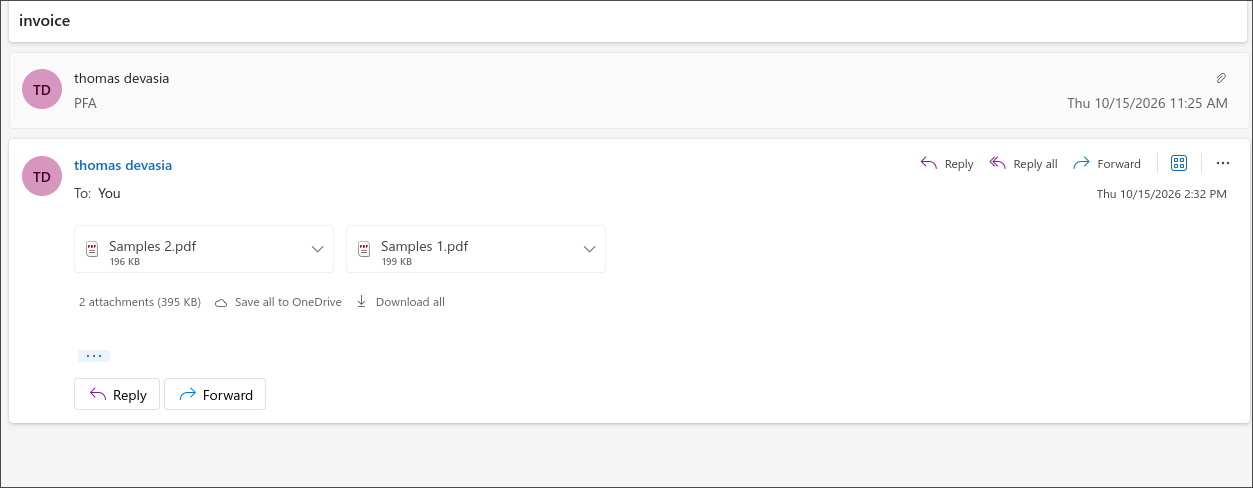
Two attachments, one message, a two word body. This is the input the Zap has to cope with.
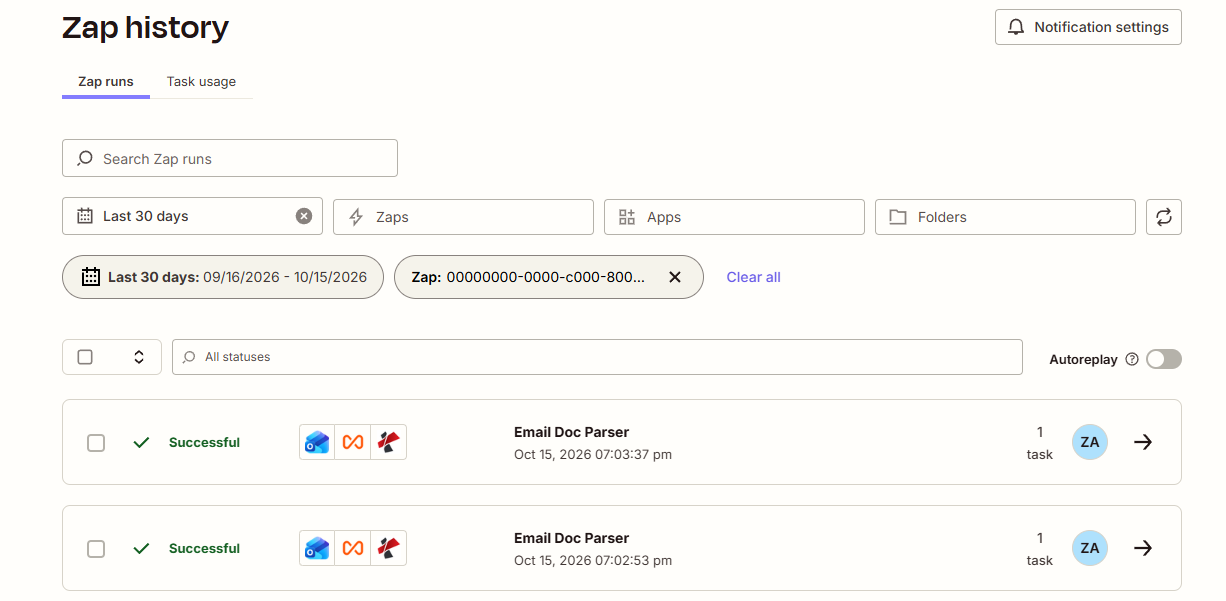
One email in, two runs out. Each loop iteration is its own Zap run in the history.
What You Need
- A Zapier account. Looping by Zapier is a built-in app, so there is nothing to install. Check your plan: multi-step Zaps are required, and every loop iteration counts as a task.
- PDF4me API key. Get your API key. The captured Zap runs on the PDF4me app at version 1.30.0.
- An Analyzer saved in the PDF4me dashboard. Open the Analyzer list. The built-in
default_invoice_extractionAnalyzer produces the output shown here, so you can start there and build your own later. - A Microsoft Outlook shared mailbox that receives supplier invoices, and an account with permission to read it. If you do not have one yet, Microsoft documents how to create one.
- A test email you control, with at least two PDFs attached, so you can prove the loop runs more than once before pointing the Zap at live supplier mail.
The Zap at a Glance
- New Email in Shared Mailbox (Microsoft Outlook) polls the mailbox every 2 minutes.
- Create Loop From Line Items (Looping by Zapier) turns the attachment list into one iteration per file.
- AI - Document Parser (PDF4me) runs the Analyzer against the attachment from the current iteration.
Complete Zap overview
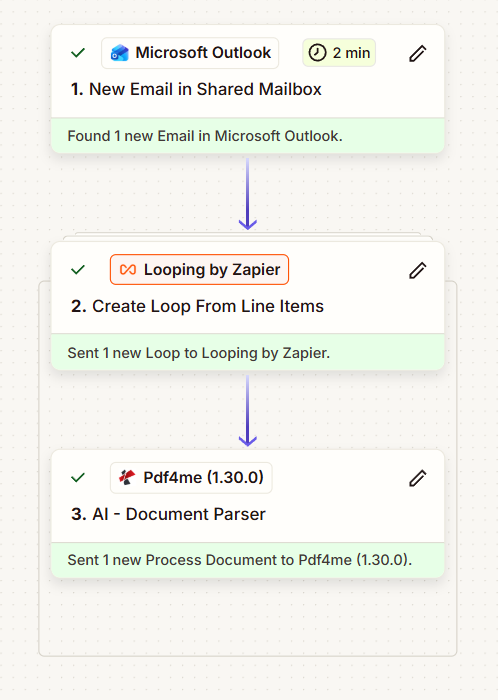
Three steps. The loop in the middle is what makes the third step run once per attachment.
Step 1: How do you trigger a Zap from a shared mailbox?
Flow so far: nothing yet, this is the trigger.
An invoice arriving is the event, so the mailbox is the trigger.
- Create a Zap and pick Microsoft Outlook > New Email in Shared Mailbox.
- Connect the account that has permission to read the mailbox, then choose the shared mailbox address and the folder to watch. Watching Inbox is fine to start with.
- Test the trigger with the email you prepared. Zapier reports Found 1 new Email in Microsoft Outlook, and the attachment list becomes available to later steps as line items.
The polling interval on the captured Zap shows as 2 min, which is the Zapier plan's schedule rather than anything you configure on the step.
Tip. Use a dedicated folder, not the whole Inbox, as soon as this is more than a test. A server-side Outlook rule that files supplier mail into an Invoices folder gives you a clean trigger scope and a place to look when something does not fire. It also stops the Zap burning tasks on newsletters.
Step 2: How do you loop over every attachment on one email?
Flow so far: the Outlook trigger.
This is the step that turns one email into one run per invoice.
- Add Looping by Zapier > Create Loop From Line Items.
- In Values to Loop, map the attachment line items from the trigger. The captured run loops two values together, which is the pattern to copy:
- Attachments Name, the filename
- Attachments File, the file itself
- Test the step. Zapier reports Sent 1 new Loop to Looping by Zapier and the Data out tab shows the first iteration plus a preview of all of them.
Create Loop From Line Items output
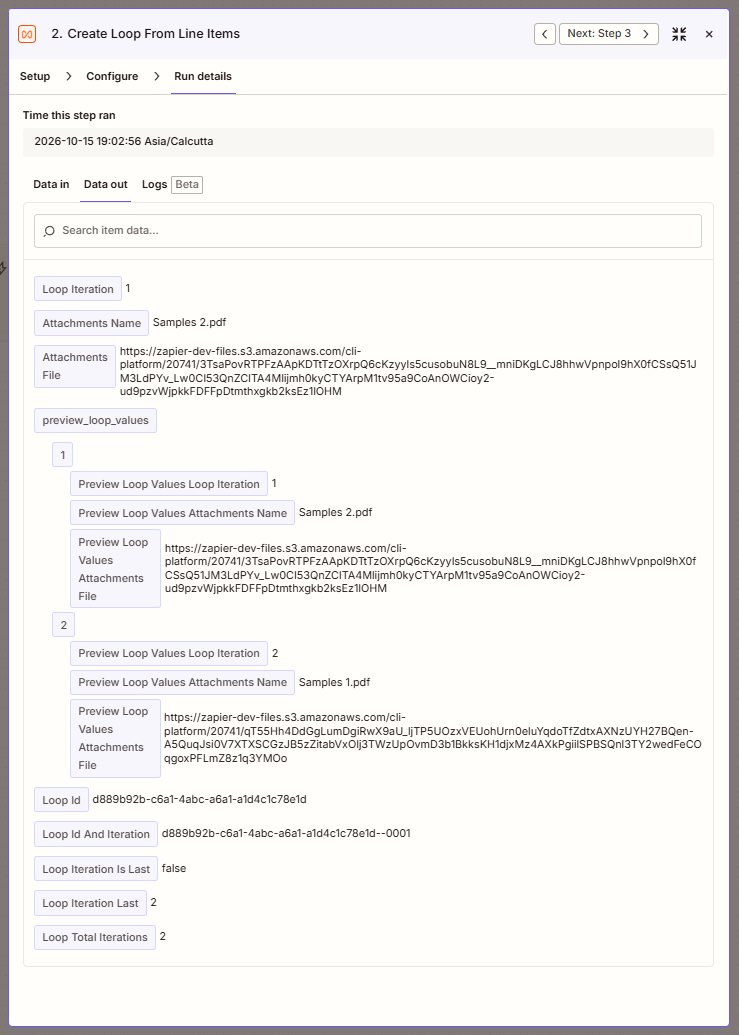
Loop Total Iterations reads 2, one per attachment, and preview_loop_values names both files before either has been parsed.
What the loop hands you
| Field | Value in the captured run | What you use it for |
|---|---|---|
Loop Iteration | 1 | Which pass you are on, counting from 1 |
Attachments Name | Samples 2.pdf | The filename for this iteration, useful for naming records downstream |
Attachments File | A zapier-dev-files.s3.amazonaws.com URL | The file itself, and what you map into the parser |
Loop Total Iterations | 2 | How many attachments the email carried |
Loop Iteration Is Last | false | Fire a summary or a notification only when this turns true |
Loop Id | d889b92b-c6a1-4abc-a6a1-a1d4c1c78e1d | Ties every iteration of one email together, which is what you group by downstream |
preview_loop_values | Iteration 1 Samples 2.pdf, iteration 2 Samples 1.pdf | The whole list, visible on the first pass |
Two details are worth noticing before you move on. The loop does not run in the order the attachments appear in Outlook: the mail showed Samples 2 first and the loop agreed, but you should never depend on that. And Loop Id is the only thing connecting the resulting rows back to the email they came from, so map it downstream now rather than wishing you had later.
Tip. Every iteration is a separate Zap run and consumes a task. An email with ten attachments is ten tasks, not one, which is the single most common surprise on the monthly bill. Zapier documents the loop limits, and they are worth reading before you point this at a busy mailbox.
Step 3: How do you turn each attachment into structured JSON?
Flow so far: the trigger plus the loop.
Everything from here runs once per attachment, because it sits inside the loop.
- Add PDF4me > AI - Document Parser and connect your API key.
- Configure:
- File: the Attachments File token from the loop, not from the trigger. This is the one thing people get wrong.
- File Name and File Ext: build the name from the loop's Attachments Name.
- AI Analyzer Id: pick your Analyzer from the dropdown.
default_invoice_extractionproduces the output below. - AI Analyzer Name (Deprecated): leave empty.
- Test. Zapier reports Sent 1 new Process Document to Pdf4me, and Data out carries the parsed fields.
AI - Document Parser output, first attachment
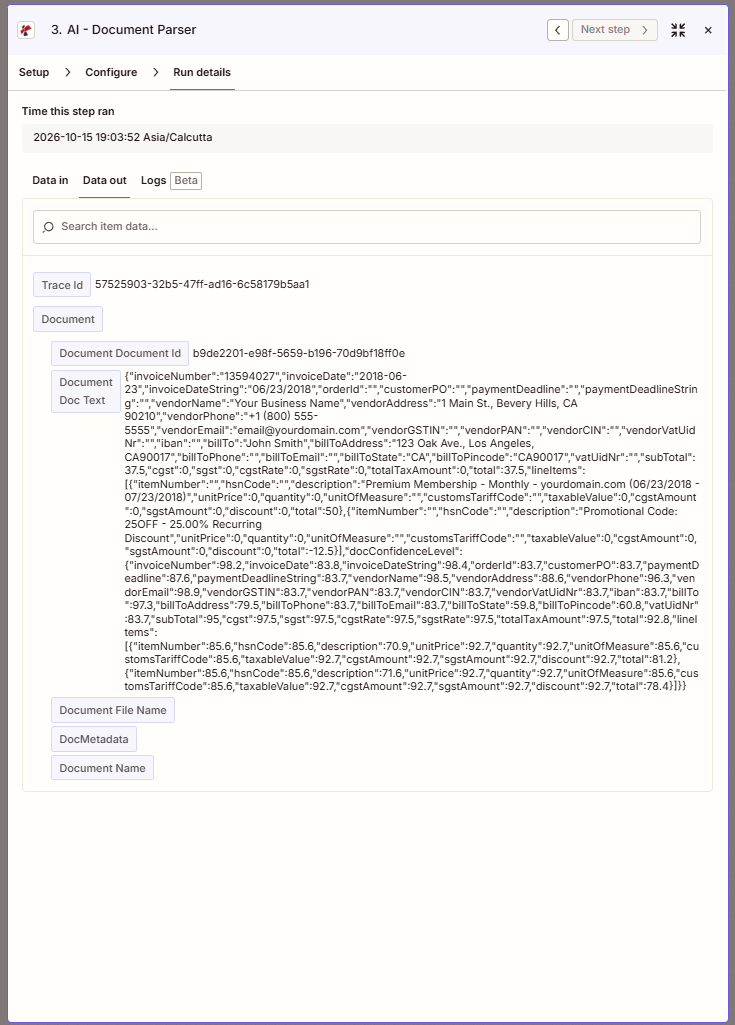
Doc Text carries the invoice. Every field also appears in docConfidenceLevel with a score attached.
AI - Document Parser output, second attachment
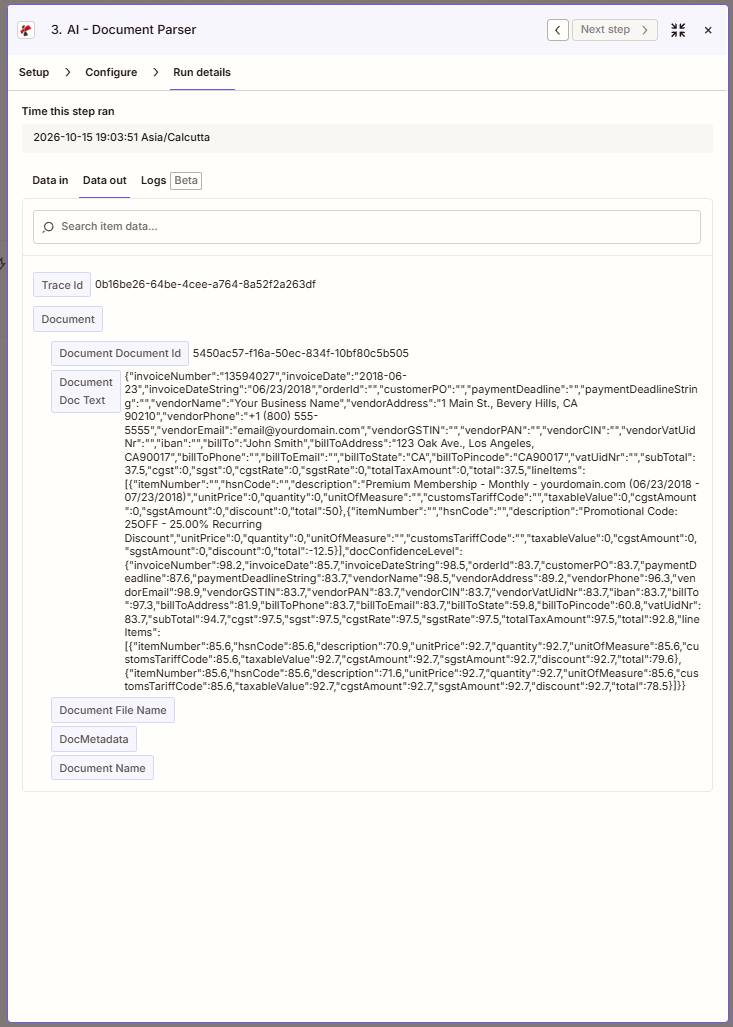
A different Trace Id and a different Document Id, which is how you tell the two parses apart in logs.
Both attachments in this capture hold the same sample invoice, so the extracted figures match. What the second run proves is not that the parser handles two different layouts, it is that the third step executed twice from a single email.
What comes back
| Output field | What it holds |
|---|---|
Trace Id | Unique per call. Quote it in a support ticket |
Document Document Id | PDF4me's id for the parsed document, different on every run |
Document Doc Text | The JSON payload: the extracted fields plus docConfidenceLevel |
Document File Name, Document Name, DocMetadata | Naming and metadata, populated according to what you map in |
Inside Doc Text the default_invoice_extraction Analyzer returns the header fields (invoiceNumber, invoiceDate, invoiceDateString, orderId, customerPO, paymentDeadline), the vendor block (vendorName, vendorAddress, vendorPhone, vendorEmail, and tax identifiers including vendorGSTIN, vendorPAN, vendorCIN, vendorVatUidNr, iban), the customer block (billTo, billToAddress, billToPhone, billToEmail, billToState, billToPincode), the totals (subTotal, cgst, sgst, cgstRate, sgstRate, totalTaxAmount, total) and a lineItems array. For the sample invoice that resolves to invoiceNumber 13594027, billTo John Smith, total 37.5, and two line items, the second of which is the -12.5 discount line.
Reading the confidence scores
docConfidenceLevel mirrors the same shape with a number in place of every value. These are the scores from the two captured runs, and the spread is the point.
| Field | Run 1 | Run 2 | What it tells you |
|---|---|---|---|
vendorEmail | 98.9 | 98.9 | Machine-readable text, trust it |
vendorName | 98.5 | 98.5 | Clean heading, trust it |
billTo | 97.3 | 97.3 | Clean, trust it |
subTotal | 95 | 94.7 | Good, and worth a tolerance check against total |
total | 92.8 | 92.8 | Good, but this is the field worth auto-checking |
billToAddress | 79.5 | 81.9 | Multi-line and wrapped, review if it matters |
billToPincode | 60.8 | 60.8 | The sample runs the city, state and postcode together |
billToState | 59.8 | 59.8 | Lowest in the document, do not post this unreviewed |
The same document scored slightly differently on two passes, which is normal for a model and is exactly why you set a threshold rather than trusting a single number. Pick a floor, route anything under it to a person, and let the rest through.
Run the Zap and Verify
- Publish the Zap.
- Send a test email to the shared mailbox with two PDFs attached.
- Wait for the poll, then open Zap history.
- You should see two runs of the Zap, not one, each marked Successful and each consuming 1 task.
- Open each run and check step 3's Data out: the
Trace IdandDocument Document Idshould differ between them, andDoc Textshould hold that attachment's invoice. - Check
Loop Total Iterationson step 2. If it reads 1 when you attached two files, the problem is the mapping in Values to Loop, not the parser.
In the captured run the two Zap runs completed at 07:02:53 pm and 07:03:37 pm on Oct 15 2026, both Successful, 1 task each, from a single email carrying 395 KB of attachments.
What did you actually build? An invoice intake that starts where invoices actually land. Nobody downloads an attachment, nobody retypes a total, and an email with five invoices on it produces five structured records instead of one. The confidence scores give you somewhere sensible to draw the line between automatic and reviewed.
Common Variations You Can Add Without Rebuilding
Loop Id into its own column so every row from one email can be grouped back together.docConfidenceLevel field. Above your threshold it posts automatically, below it goes to a review queue or a Slack channel with the Trace Id attached.Attachments Name ending in .pdf, placed inside the loop, stops the parser being called on an image and wasting a task.How this compares to the other ways of doing invoice OCR
Each row describes the alternative. The last row is this Zap.
| Comparison | Who runs it | Where invoices come from | What you maintain |
|---|---|---|---|
| AP automation platform vs this Zap | Finance, in a dedicated product | A forwarding address into that product | A per-document contract and its approval rules |
| OCR API called from code vs this Zap | A developer, in an application | Whatever your code fetches | The code, the mailbox polling and the retries |
| ERP capture module vs this Zap | Finance, inside the ERP | A scanner or a drop folder | Licences, and a workflow tied to that ERP |
| This Zap | Anyone who can edit a Zap | The shared mailbox you already use | Three steps and one Analyzer schema |
Common questions
What is invoice OCR?
Invoice OCR is reading an invoice with software instead of a person, so that the supplier, the date, the line items and the total come out as data your systems can use. Classic OCR only recovered the characters on the page and left you to work out which number was the total; the AI parsers that replaced it return named fields directly.
That distinction matters when you choose a tool. A library that performs optical character recognition gives you text. A document parser gives you total, invoiceNumber and billTo, which is what a Zap can actually map into a spreadsheet.
How does looping by Zapier work?
Looping by Zapier is a built-in app that re-runs the steps below it, once per item. Create Loop From Line Items takes a set of line items from an earlier step, such as the attachment list on an email, and starts one iteration per item.
Each iteration is a separate Zap run with its own entry in Zap history and its own task consumption. Inside an iteration you get Loop Iteration, Loop Total Iterations, Loop Iteration Is Last and a Loop Id shared by all iterations of the same source record.
What is OCR invoice processing?
OCR invoice processing is the whole pipeline, not just the reading step: an invoice arrives, its fields are extracted, the values are checked, and the result is posted into a ledger or a review queue. The extraction is usually the easy part.
The parts that decide whether it works in practice are intake and exception handling. This Zap covers intake with the shared mailbox and the loop, and gives you the raw material for exception handling with docConfidenceLevel.
How do you automate accounts payable?
Start with intake, because manual steps there undo everything downstream. Give suppliers one address, trigger on it, and make sure one email with several invoices produces several records rather than one.
Then decide what posts automatically. A confidence threshold on the extracted fields splits invoices into those your ledger can take unattended and those a person should see, and that split is what makes the automation safe to leave running.
Troubleshooting
Check Loop Total Iterations on step 2. If it reads 1, Values to Loop is mapped to a single field rather than the attachment line items, so the loop has nothing to iterate over. If it reads 2 but only one parse happened, step 3's File is mapped to the trigger instead of to the loop's Attachments File.
This is the loop working as designed. One email with ten attachments is ten runs and ten tasks. Add a Filter inside the loop so signatures, logos and anything that is not a PDF never reach the parser.
The Analyzer decides which fields exist. An empty key means the schema asked for something this document does not contain, which is normal. An entirely empty Doc Text usually means the wrong AI Analyzer Id, or a file that reached the action without its extension, so check File Name and File Ext.
Look at docConfidenceLevel before blaming the mapping. In this capture the totals scored above 92 while billToState scored 59.8, so a field can be present, plausible and still wrong. Keep the Trace Id on every record so you can match a bad row back to its run.
Next Steps
The hard part of invoice automation was never reading the invoice. It was the envelope it arrived in, and a loop is what opens it.