New File in the Folder? Zapier Generates a PDF and a Word Doc. Six Steps, Fully Automated!
Drop a data file (e.g. JSON) into a Dropbox folder and keep a Google Docs template (e.g. Google Docs Template.docx) in the same place. When a new file appears, Zapier can run automatically: a find file step loads the template, PDF4me – Generate Document runs twice—once with Data Text (inline JSON) → PDF, once with Data File (the file from the trigger) → Word—then Upload File saves both. Six steps. Trigger-based. No manual run.
The screenshots below show the same folder paths, template name, and PDF4me settings you use in Zapier; map each Dropbox or PDF4me field from the previous step’s output (trigger → find template → actions) the way you see in the images.
In a nutshell: New File in Folder (Dropbox, /Generate document Mail Merge, include file contents and sharing link) → Find a file (same folder, Google Docs Template.docx) → PDF4me – Generate Document (template from step 2, Template File Type GoogleDocs, Input Data Format Type text, Data Text JSON, output pdf) → Upload File (Google_Docs_Zap_Deployed.pdf) → PDF4me – Generate Document (template from step 2, Input Data Format Type file, Data File from trigger, output docx) → Upload File (Google_Docs_Zap_Deployed-2.docx). Result: one PDF and one Word file in /Generate document Mail Merge/Output per run.
Why-Based Q&A
Why run Generate Document twice? One pass uses inline JSON (Data Text) to produce a PDF quickly; the second uses the trigger file as Data File to produce an editable DOCX from the same template—two formats from one Zap.
Why Zapier? Dropbox’s New File in Folder trigger plus PDF4me’s Generate Document action connects to thousands of other apps. You can extend the Zap with filters, paths, or notifications without code.
What You'll Get
Trigger: A new file in the watched Dropbox folder (e.g. a JSON data file). Input: The triggering file as data and a fixed template (Google Docs Template.docx) in the same folder. Output: A PDF (from Data Text, e.g. Google_Docs_Zap_Deployed.pdf) and a Word document (from the triggered file, e.g. Google_Docs_Zap_Deployed-2.docx) in /Generate document Mail Merge/Output. Overwrite off so existing files are not replaced.
What You Need
- Zapier — Create a Zapier account and start a new Zap.
- PDF4me API key — Get your API key. Connect PDF4me when you add each Generate Document action. First time? See Connect PDF4me to Zapier.
- Dropbox — Trigger New File in Folder, action to find a file by name, and Upload File (twice).
- Google Docs template — e.g.
Google Docs Template.docx, with merge fields (e.g.{{name}},{{course}},{{date}},{{instructor}}). Stored in the watched folder. - JSON data — As the trigger file or as inline Data Text in the first Generate Document step. Keys must match placeholders (e.g.
name,course,date,instructor). Example:{"name":"Alice Johnson","course":"Intro to Automation","date":"2026-03-10","instructor":"Mr. Smith"}.
The Zap at a Glance (6 Steps)
- Dropbox – New File in Folder — Watch
/Generate document Mail Merge. Include file contents: Yes. Include sharing link: Yes (if offered). - Dropbox – Find a file (or search by path/name) — Same folder. File name:
Google Docs Template.docx. Include file contents: Yes. - PDF4me – Generate Document — Template from step 2. Template File Type: GoogleDocs. Input Data Format Type: text. Data Text: your JSON. Input Data Type: json. Output Document Type: pdf. Keep Pdf Editable: false.
- Dropbox – Upload File — Folder:
/Generate document Mail Merge/Output. File: output URL or file from step 3. Overwrite: No. File name:Google_Docs_Zap_Deployed. Extension:.pdf. - PDF4me – Generate Document — Template from step 2. Input Data Format Type: file. Data File: from the trigger (step 1). Input Data Type: json. Output Document Type: docx.
- Dropbox – Upload File — Same output folder. File from step 5. Overwrite: No. File name:
Google_Docs_Zap_Deployed-2. Extension:.docx.
Complete Zap overview
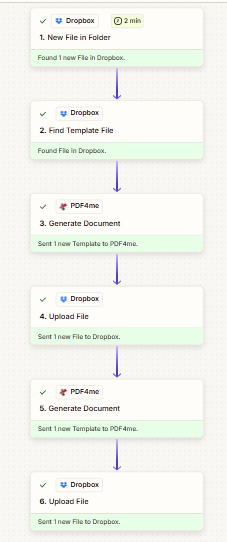
Six steps: trigger, find template, Generate Document (PDF), Upload, Generate Document (DOCX), Upload. Each stage succeeds when folders and field mappings match the reference screenshots.
Step 1: New File in Folder (Trigger)
Zap so far: Trigger only.
- Create a new Zap. Choose Dropbox → New File in Folder.
- Connect your Dropbox account.
- Folder —
/Generate document Mail Merge. - Include files in subfolders? — No (or as needed).
- Include file contents? — Yes so the file is available for the second Generate Document (Data File).
- Include sharing link? — Yes if you need a link in later steps.
- Test the trigger. The file from this step is your Data File in step 5.
New File in Folder: Configuration
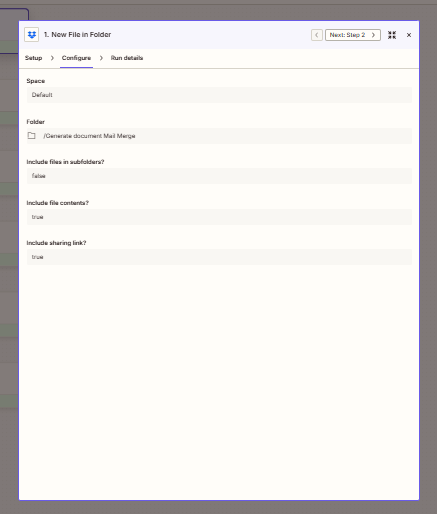
Watch /Generate document Mail Merge with file contents enabled so the trigger supplies the data file for the DOCX pass.
Step 2: Find the Google Docs template (Dropbox)
Zap so far: Trigger → Find file.
- Add Dropbox → Find a file (or the search action that returns a file by name in a folder).
- Folder —
/Generate document Mail Merge. - File name —
Google Docs Template.docx. - Include file contents? — Yes.
- If multiple matches: choose first or the option that returns one file.
- Test. Map this step’s file (and name/extension if separate) into both Generate Document actions as Template File.
Find template: Configuration
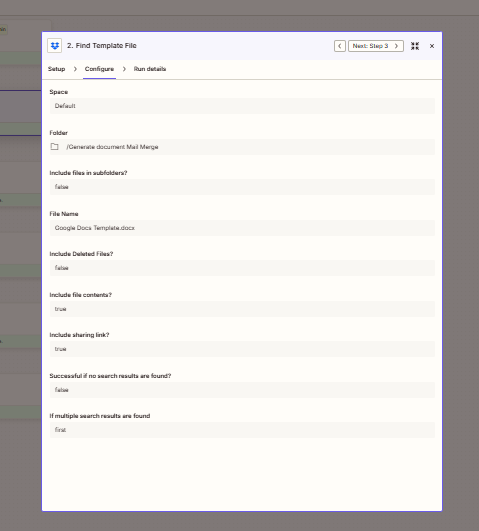
Locate Google Docs Template.docx in the same folder as the trigger; both Generate Document steps use this template.
Step 3: Generate Document (PDF) — Data Text
Zap so far: Trigger → Find template → Generate Document (first run).
- Add PDF4me → Generate Document.
- Template File — From step 2 (file / binary from the find step).
- Template File Name — e.g.
Google Docs Templateand extension.docxfrom step 2 if the action asks for them separately. - Template File Type — GoogleDocs.
- Input Data Format Type — text. Data Text — Your JSON (e.g.
[{"name":"Alice Johnson","course":"Intro to Automation","date":"2026-03-10","instructor":"Mr. Smith"}]). Input Data Type — json. - Output Document Type — pdf. Keep Pdf Editable — false.
- Test. Use the returned file URL (or file object) in step 4.
Generate Document: PDF output
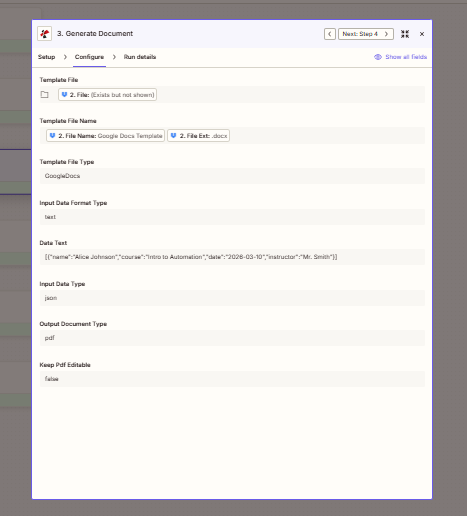
First pass: template from find step, inline JSON as Data Text, output PDF for upload.
Step 4: Upload File (PDF)
Zap so far: Trigger → Find template → Generate PDF → Upload.
- Add Dropbox → Upload File.
- Folder —
/Generate document Mail Merge/Output. - File — From step 3 (URL or file field Zapier exposes).
- Overwrite — No. File name —
Google_Docs_Zap_Deployed. Extension —.pdf. - Include sharing link — optional Yes.
- Test.
Upload File: PDF
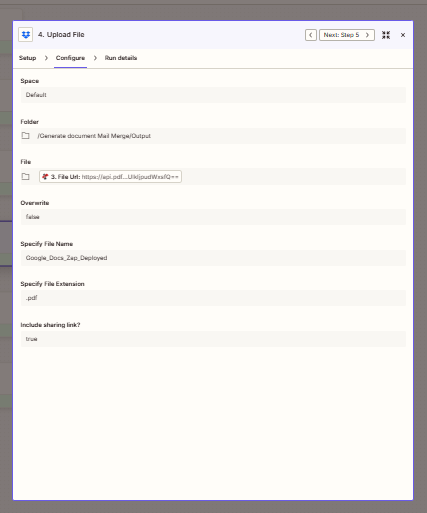
Save the PDF to the Output subfolder with a fixed base name and .pdf extension.
Step 5: Generate Document (DOCX) — Data File
Zap so far: Trigger → Find template → PDF path complete → second Generate Document.
- Add PDF4me → Generate Document.
- Template File — From step 2 again.
- Template File Type — GoogleDocs.
- Input Data Format Type — file. Data File — From step 1 (the file that triggered the Zap). Input Data Type — json.
- Output Document Type — docx.
- Test. Pass the output to step 6.
Generate Document: DOCX output
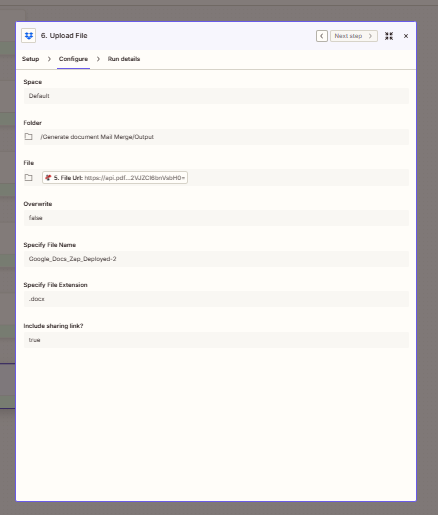
Second pass: same template, JSON from the trigger file, Word output.
Step 6: Upload File (DOCX)
Zap so far: All six steps.
- Add Dropbox → Upload File.
- Folder —
/Generate document Mail Merge/Output. - File — From step 5.
- Overwrite — No. File name —
Google_Docs_Zap_Deployed-2. Extension —.docx. - Turn the Zap on. Each new file in the watched folder produces one PDF and one DOCX in Output.
Upload File: DOCX
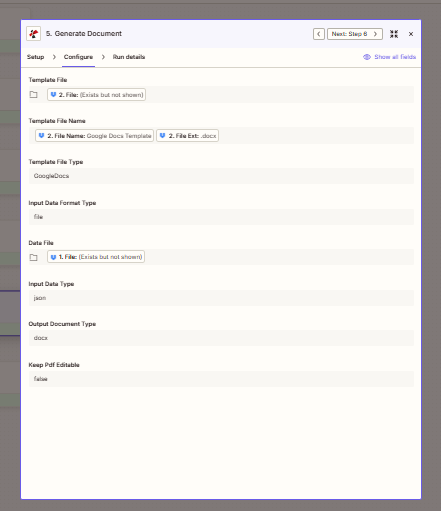
Second upload uses the DOCX from step 5 and a distinct file name so it does not overwrite the PDF.
Use Cases
Dual format on trigger: When a new JSON file lands, get a fixed PDF and an editable DOCX without clicking Run in an automation builder.
Certificates and reports: One Google Docs template; each new data file drives a fresh pair of outputs in Output.
Downstream handoff: Add Gmail, Slack, or Drive steps after Upload to notify teams or archive by date.
Quick Reference
| Step | Key setting | Example |
|---|---|---|
| New File in Folder | Folder, file contents | /Generate document Mail Merge; Yes |
| Find file | Folder, file name | Same folder; Google Docs Template.docx |
| Generate Document (PDF) | Template, Data Text, output | Step 2; JSON; pdf |
| Upload File | Folder, file, name | .../Output; step 3; Google_Docs_Zap_Deployed.pdf |
| Generate Document (DOCX) | Template, Data File | Step 2; step 1 (trigger file); docx |
| Upload File | Folder, file, name | .../Output; step 5; Google_Docs_Zap_Deployed-2.docx |
For parameter-level detail, see Generate Document Single — Zapier. For a manual four-step flow on Make (download template + data, no folder trigger), see Google Docs template in Make (four steps).
Troubleshooting
Confirm Google Docs Template.docx exists in /Generate document Mail Merge and the name matches exactly (including spaces and extension).
JSON keys must match template placeholders. The trigger file used in step 5 must be valid JSON with those keys. Step 3 Data Text should be valid JSON (often an array of one object).
See PDF4me Troubleshooting for API key, credits, and connection issues.
What's Next
- Dry run — Add a test JSON file to
/Generate document Mail Mergeand confirmGoogle_Docs_Zap_Deployed.pdfandGoogle_Docs_Zap_Deployed-2.docxin Output. - Single output — Remove one Generate Document pair (action + upload) if you only need PDF or only Word.
- Manual flow — Google Docs in Make (4 steps) without a Dropbox trigger.
- Dynamic Data Text — Use Formatter, Code by Zapier, or a prior step to build JSON instead of pasting static text.