Power Automate PDF Generation from a SharePoint List: A Handlebars Template plus HTML to PDF Invoice Workflow

PDF4me Generate Document Single is a Power Automate action that renders a Handlebars HTML template plus a JSON payload into a finished HTML document, which the paired Convert HTML to PDF action then paginates into A4. A new SharePoint list row fires the flow, Compose assembles the JSON, and Dropbox stores the invoice PDF named after the invoice number. No premium connector, no code.
Every finance team hits the same wall in Power Automate. The native Convert File action requires a premium license and refuses to touch an HTML template. Adobe PDF Services costs. Encodian costs. matthewdevaney's popular workaround skips HTML entirely and locks you into Power Apps. The pattern below is the one nobody in the top ten of the SERP shows end to end: a SharePoint list column set becomes a JSON payload, a real Handlebars template file lives in /Shared Documents/, and two PDF4me actions do the rendering and pagination for the free-tier connector cost.
Handlebars template rendering: PDF4me vs the alternatives
The comparison every Power Automate architect makes before picking a connector for invoice PDFs:
| Approach vs PDF4me | Handlebars templating? | HTML to PDF paginator? | Connector tier | Notes |
|---|---|---|---|---|
| PDF4me (this blog) | Yes, Generate Document Single | Yes, Convert HTML to PDF | Standard | Two single-purpose actions, no premium license needed |
| Adobe PDF Services | No | Yes | Premium | Cost per user, no template engine, HTML only |
| Encodian | No native templating | Yes | Premium | Popular but paid per invocation |
| matthewdevaney Power Apps route | Word template only | N/A | Standard | Skips HTML entirely, locked to Power Apps front-end |
Native Convert File | No | Word / Excel only, not HTML | Premium | Cannot render an HTML invoice at all |
A SharePoint Invoices list is the source of truth. A single Handlebars HTML template is stored beside it. On every new row, Compose builds the JSON, PDF4me Generate Document (Single) fills the template, PDF4me Convert HTML to PDF paginates it, and Dropbox saves the finished invoice named after the row's Title. Six actions, all standard-tier connectors, one branded PDF per row.
Why-Based Q&A
Why store the Handlebars template in SharePoint instead of hard-coding the HTML in the flow? The template becomes an editable file that finance or design can update in the browser. Change a logo, tweak the totals row, or add a VAT line, and the very next invoice picks it up. The flow never has to be reopened.
Why two PDF4me actions instead of one? Generate Document (Single) is a template engine, not a paginator. It merges JSON into HTML and returns HTML. Convert HTML to PDF is the paginator that reads that HTML, applies the A4 page size, margins, and background printing, and returns the PDF bytes. Splitting the roles keeps each action single-purpose and lets you preview the rendered HTML before you paginate.
Why Compose in the middle? The Handlebars template is nested (invoice, customer, items array, totals). SharePoint hands you 12 flat columns. Compose is the "assemble JSON" step that shapes the flat columns into the nested payload the template iterates over. Doing it in Compose means Generate Document (Single) sees one clean input rather than 12 dynamic-content pills strewn across its config.
Why Dropbox for the output, not back into SharePoint? Dropbox is the demo storage. Any file connector fits the last step: SharePoint Create file, OneDrive Create file, Google Drive Create file, or SFTP Upload. The Body from Convert HTML to PDF is a plain binary; the destination is a swap, not a rework.
What You'll Get
Input: a SharePoint list called Invoices (columns: Title, InvoiceDate, DueDate, CustomerName, CustomerAddress, CustomerEmail, Currency, Subtotal, TaxRate, TaxAmount, GrandTotal, Notes) plus a single Handlebars template at /Shared Documents/invoice_template.html. Output: one A4 PDF per row in Dropbox, named {Title}.pdf (INV-1005 becomes INV-1005.pdf).
What You Need
- Power Automate. Open Power Automate. The SharePoint, Dropbox, and PDF4me connectors used below are all standard-tier, no premium plan required.
- PDF4me API key. Get your API key. Connect it the first time you add a PDF4me action.
- SharePoint site with a list called
Invoicesand a Documents library (any name) where the Handlebars template is stored. - Dropbox account (or any file destination: SharePoint, OneDrive, Google Drive, SFTP all slot in unchanged).
- The Handlebars invoice template, ready to upload to
/Shared Documents/. invoice_template.html. Every Handlebars path in it matches the mapping table below. - Sample signed invoice PDF, exactly what the flow produced for INV-1005. invoice-sample.pdf.
Grab the samples first. Download the Handlebars template and upload it to /Shared Documents/ before you build the flow, so Step 3 has a file to point at. The sample output PDF shows exactly what "success" looks like.
The Flow at a Glance
- When an item is created (SharePoint trigger on
Invoiceslist). - Compose the nested JSON payload (invoice / customer / items / totals / notes).
- Get file content using path for
/Shared Documents/invoice_template.html. - PDF - Generate Document (Single) with the template body plus the JSON, output type Html.
- Convert HTML to PDF with A4 portrait, scale 0.8, 40px margins, print backgrounds Yes.
- Create file in Dropbox
/, file name{Title}.pdf.
Complete flow overview
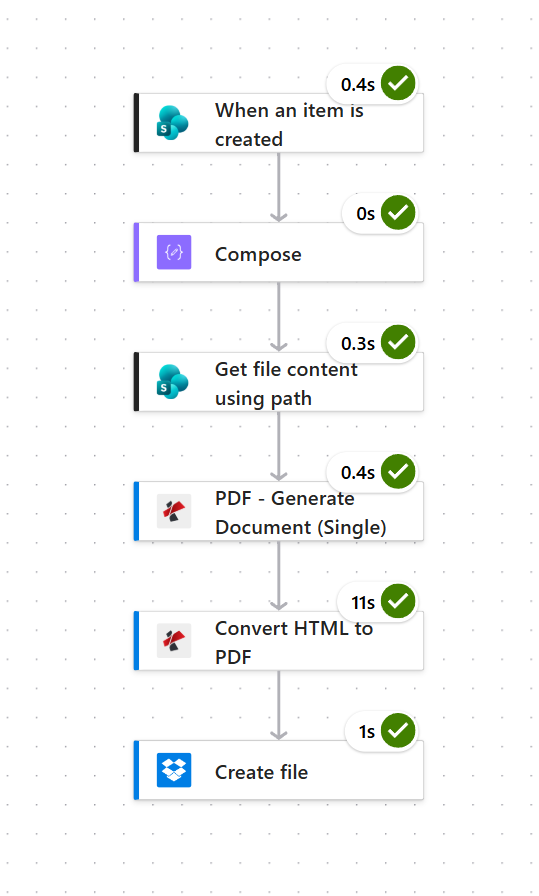
End-to-end run. The 11 second Convert HTML to PDF is the paginator, everything else is under half a second.
Step 1: How do you trigger a Power Automate flow on a new SharePoint invoice?
Flow so far: the flow starts here.
Point the SharePoint trigger at the site and list that holds your invoice rows. Every column becomes dynamic content downstream.
- Add SharePoint > When an item is created as the trigger.
- Configure:
- Site Address: pick the SharePoint site (in the sample:
PDF4me Sharepoints - https://ynoox1.sharepoint.com/sites/PDF4meSharepoints). - List Name:
Invoices.
- Site Address: pick the SharePoint site (in the sample:
- Save and let the trigger detect the list schema. The rows in the screenshot below (INV-1002, INV-1003, INV-1005) show the exact 12 columns the Handlebars template will consume.
The Invoices list
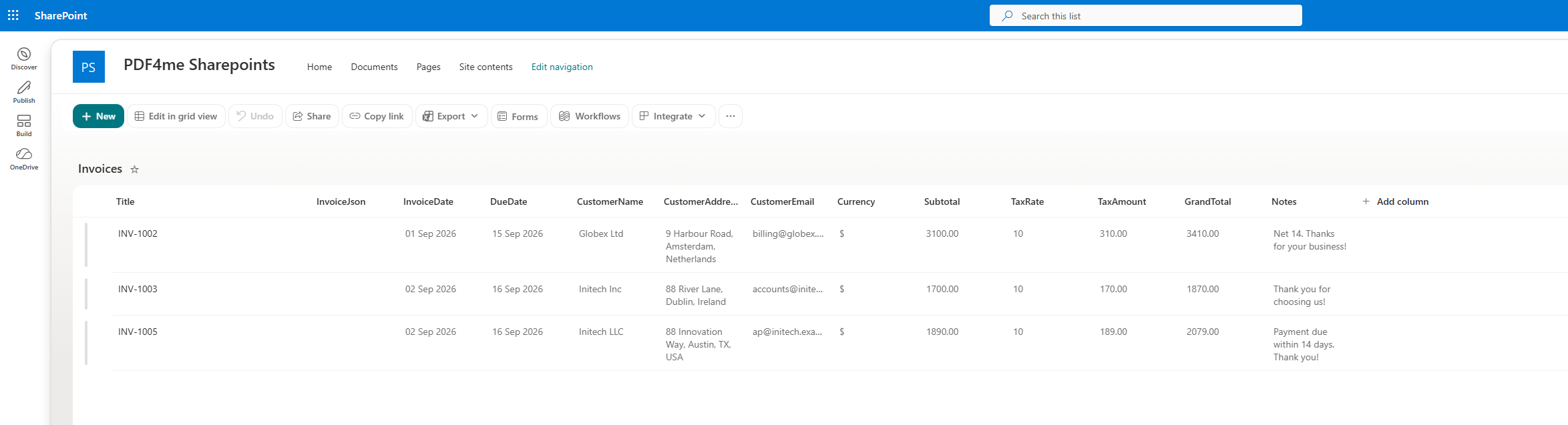
The SharePoint list is the source of truth. Every column here maps into one field of the Handlebars payload.
Trigger configuration
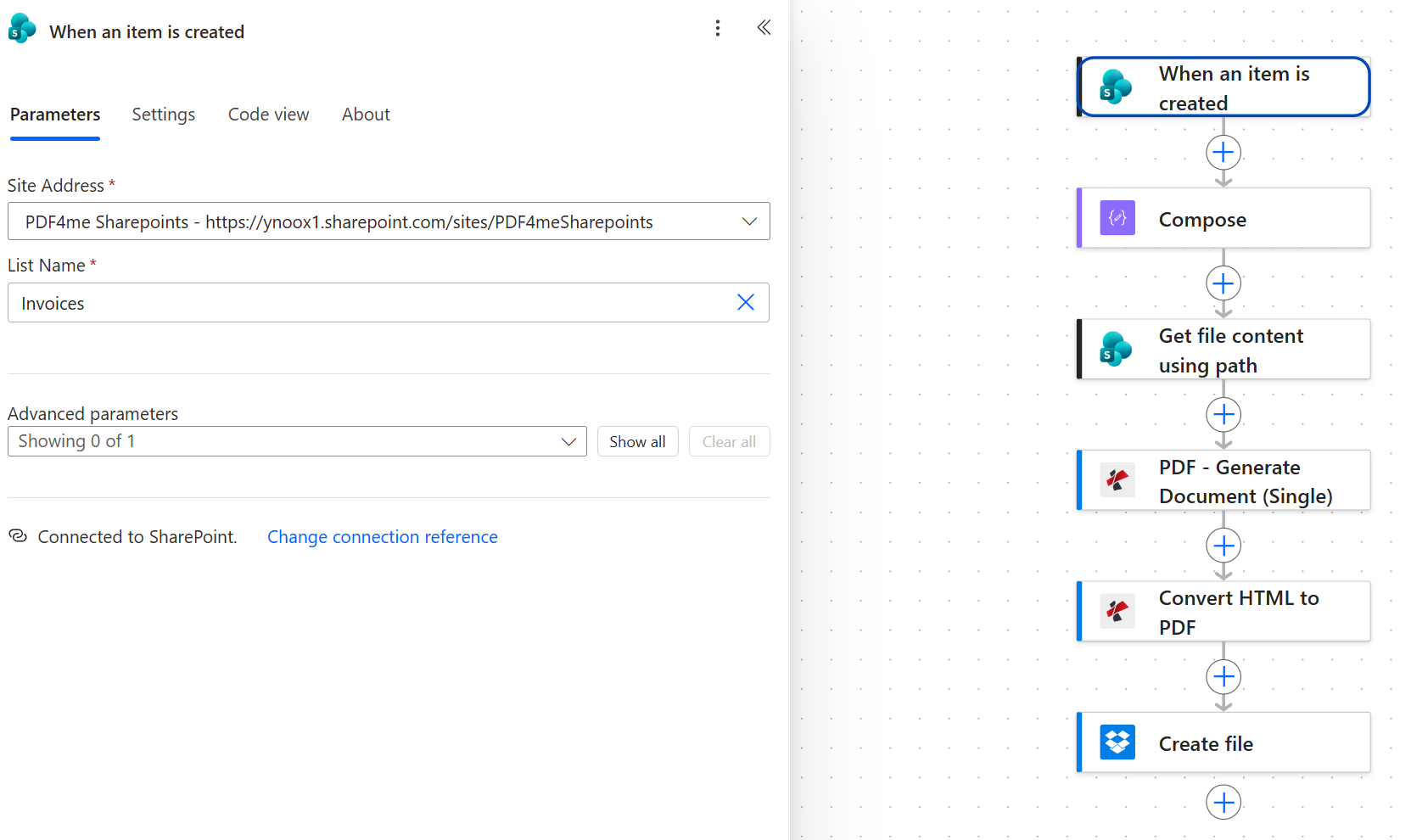
Two fields, that is the entire trigger. Everything else comes from the row.
Tip. If your finance team already has the invoices in Excel or Dataverse, keep them there. Swap the trigger for Excel - When a row is added or Dataverse - When a row is added. The rest of the flow does not change.
Step 2: How do you build the Handlebars JSON payload from a SharePoint row?
Flow so far: SharePoint trigger.
Compose shapes the 12 flat SharePoint columns into the nested JSON the Handlebars template iterates over. The template expects invoice, customer, an items array, totals, and a notes string.
- Add Compose.
- In Inputs, paste the JSON below, then drop the matching SharePoint dynamic-content pill between the quotes of each value so numbers and dates arrive as strings.
{
  "invoice": {
    "number": "Title",
    "date":   "InvoiceDate",
    "dueDate": "DueDate"
  },
  "customer": {
    "name":    "CustomerName",
    "address": "CustomerAddress",
    "email":   "CustomerEmail"
  },
  "items": [
    { "description": "Item1Description", "quantity": "Item1Qty", "unitPrice": "Item1UnitPrice", "lineTotal": "Item1Amount", "currency": "Currency" },
    { "description": "Item2Description", "quantity": "Item2Qty", "unitPrice": "Item2UnitPrice", "lineTotal": "Item2Amount", "currency": "Currency" },
    { "description": "Item3Description", "quantity": "Item3Qty", "unitPrice": "Item3UnitPrice", "lineTotal": "Item3Amount", "currency": "Currency" },
    { "description": "Item4Description", "quantity": "Item4Qty", "unitPrice": "Item4UnitPrice", "lineTotal": "Item4Amount", "currency": "Currency" },
    { "description": "Item5Description", "quantity": "Item5Qty", "unitPrice": "Item5UnitPrice", "lineTotal": "Item5Amount", "currency": "Currency" }
  ],
  "totals": {
    "currency":   "Currency",
    "subTotal":   "Subtotal",
    "taxRate":    "TaxRate",
    "taxAmount":  "TaxAmount",
    "grandTotal": "GrandTotal"
  },
  "notes": "Notes"
}
Compose configuration
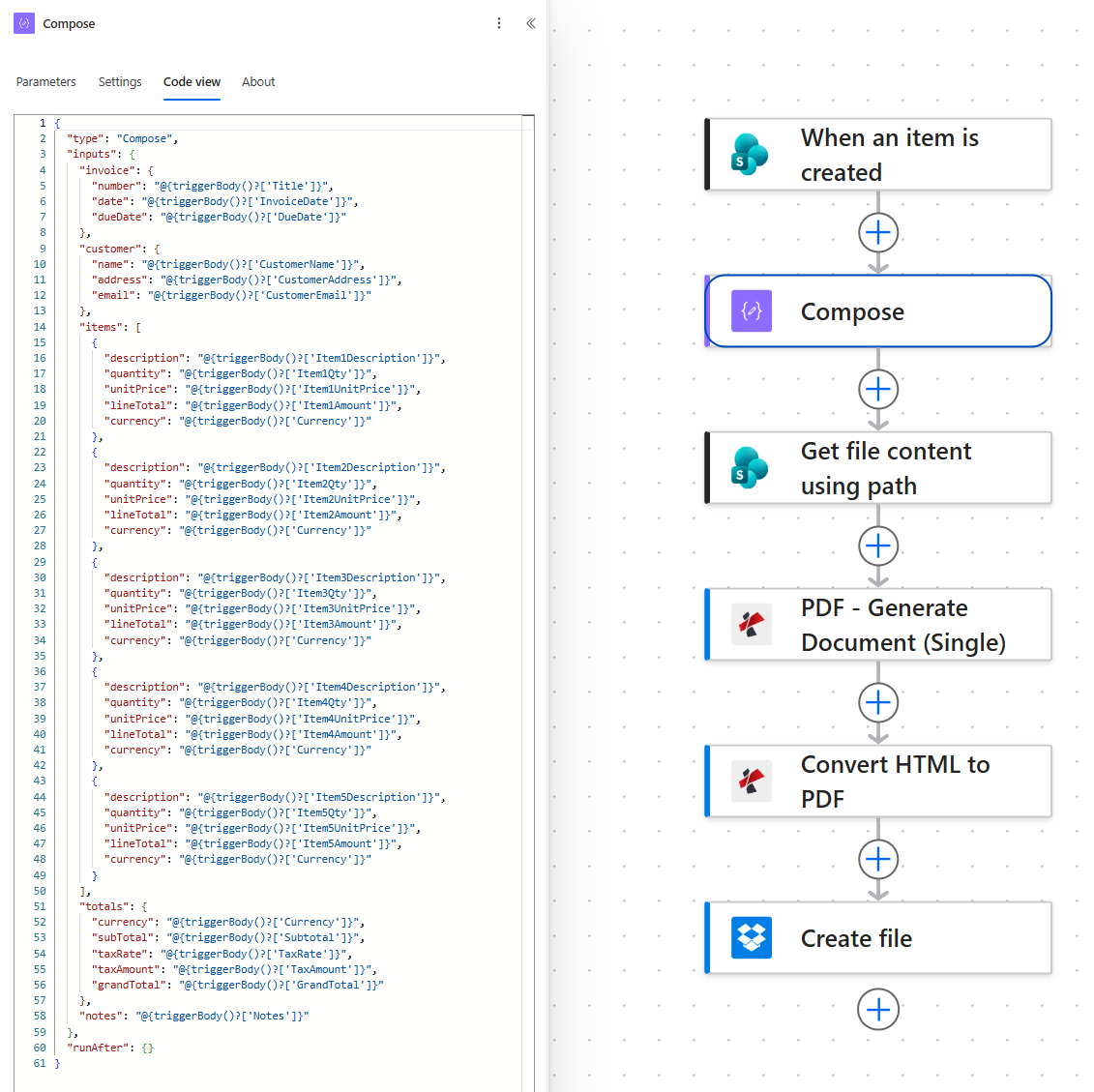
Compose in Code view. Each JSON value is a SharePoint pill between the two quotes, so numbers and dates arrive as strings the Handlebars template can render.
Tip. Keep the items array a fixed size that matches the columns you added to SharePoint (five in this sample). If a row only has three items, leave Item4/Item5 blank in SharePoint and add an {{#if description}} guard around the row in the Handlebars template so empty rows are skipped.
Reference: SharePoint column to Handlebars path
The exact mapping between a SharePoint column and where it lands in the template. Bookmark this table when you extend the schema.
| SharePoint column | Handlebars path | Type | Used in template |
|---|---|---|---|
Title | invoice.number | Text | Invoice number heading and Dropbox filename |
InvoiceDate | invoice.date | Date | Invoice header |
DueDate | invoice.dueDate | Date | Invoice header |
CustomerName | customer.name | Text | Bill-to block |
CustomerAddress | customer.address | Text | Bill-to block |
CustomerEmail | customer.email | Text | Bill-to block |
Item{N}Description | items[N-1].description | Text | Line-item row |
Item{N}Qty | items[N-1].quantity | Number | Line-item row |
Item{N}UnitPrice | items[N-1].unitPrice | Number | Line-item row |
Item{N}Amount | items[N-1].lineTotal | Number | Line-item row |
Currency | totals.currency and each items[].currency | Text | Currency symbol |
Subtotal | totals.subTotal | Number | Totals block |
TaxRate | totals.taxRate | Number | Totals block |
TaxAmount | totals.taxAmount | Number | Totals block |
GrandTotal | totals.grandTotal | Number | Totals block |
Notes | notes | Text | Footer |
Step 3: How do you load the Handlebars template file from SharePoint?
Flow so far: SharePoint trigger plus Compose.
Store the template as a plain .html file in the site's Documents library. The Get file content using path action reads its raw bytes so Generate Document (Single) can use them as the template body.
The template itself
The template is ordinary HTML with inline CSS, plus Handlebars expressions where the data goes. Two constructs do the real work. {{#each items}} repeats a table row per line item, and the {{#if description}} guard inside it skips the blanks left by unused Item4 and Item5 columns.
<tbody>
  {{#each items}}
  {{#if description}}
  <tr>
    <td>{{description}}</td>
    <td class="num">{{quantity}}</td>
    <td class="num">{{currency}}{{unitPrice}}</td>
    <td class="num">{{currency}}{{lineTotal}}</td>
  </tr>
  {{/if}}
  {{/each}}
</tbody>
Everything else is a direct substitution: {{invoice.number}} in the header, the {{customer.*}} block for bill-to, {{totals.*}} in the totals table, and {{notes}} in the footer.
Download the template. Upload it to /Shared Documents/ as invoice_template.html, then edit the seller name, address, and VAT number at the top. Those are deliberately static, so they are the only lines you need to touch before your first run.
- Add SharePoint > Get file content using path.
- Configure:
- Site Address: same site as the trigger.
- File Path:
/Shared Documents/invoice_template.html. - Infer content type:
Yes(leave the default).
Get file content using path
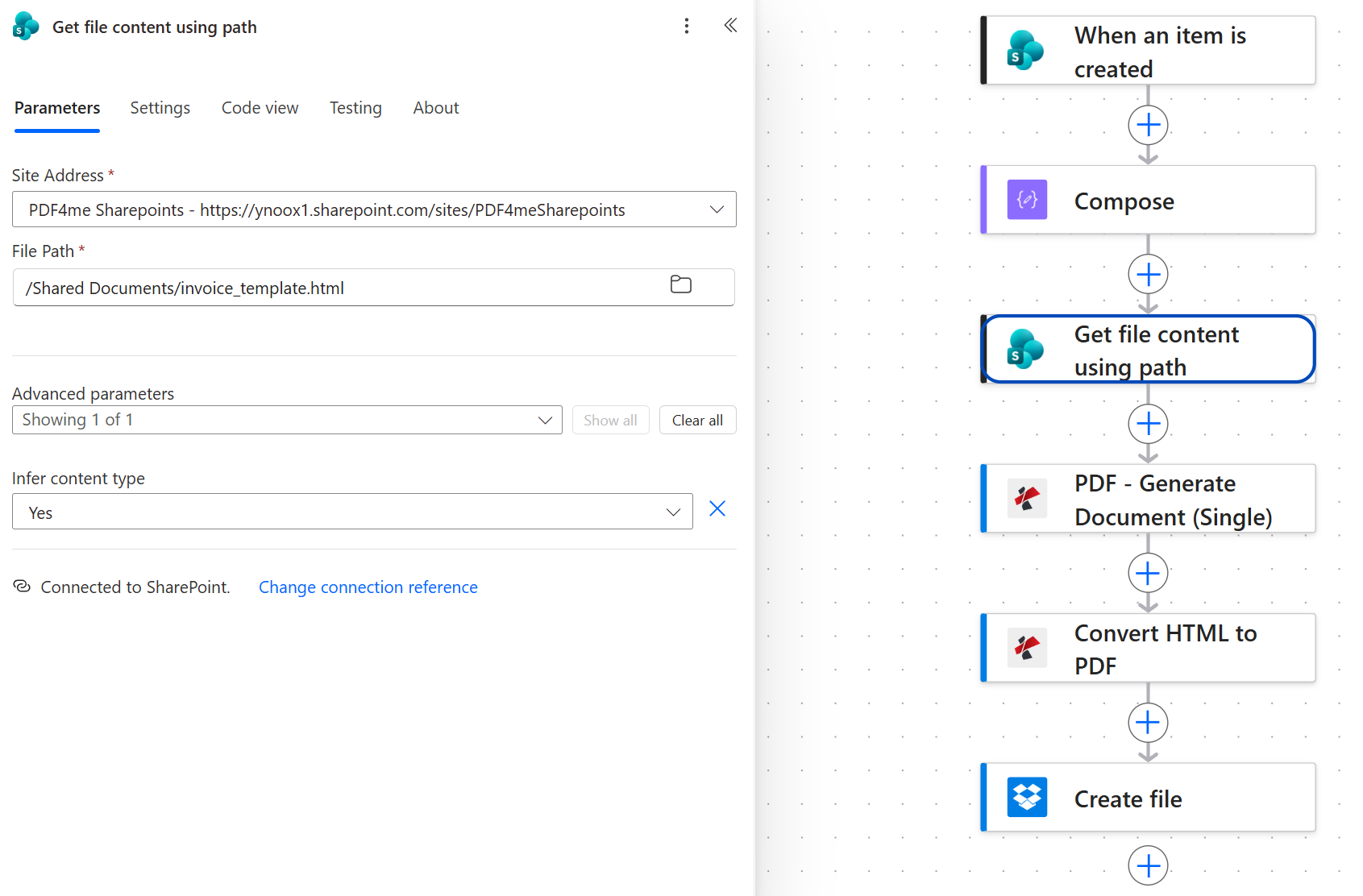
The template lives in /Shared Documents/ and is fetched by absolute path. Version history is automatic because it is just a SharePoint file.
Tip. If your template lives in OneDrive or Dropbox instead, swap this action for the storage's equivalent Get file content. The Body output of any of them is what the next step feeds to Template File Data.
Step 4: How does PDF - Generate Document (Single) fill the Handlebars template?
Flow so far: SharePoint trigger plus Compose plus Get file content using path.
Generate Document (Single) is the template engine. It reads the Handlebars source ({{invoice.number}}, {{#each items}}...{{/each}}), substitutes values from the JSON payload, and returns rendered HTML. It does not paginate. That is the next step's job.
- Add PDF4me PDF > PDF - Generate Document (Single).
- Configure:
- Template File Type:
Html (Handlebars Syntax). - Template File Name:
invoice_template.html. - Template File Data: dynamic content,
Bodyfrom the SharePoint Get file content step. - Document Data Type:
Json. - Document Data Text: dynamic content,
Bodyfrom the Compose step. - Output Type:
Html. - Keep Pdf template Editable:
No.
- Template File Type:
Generate Document (Single) configuration
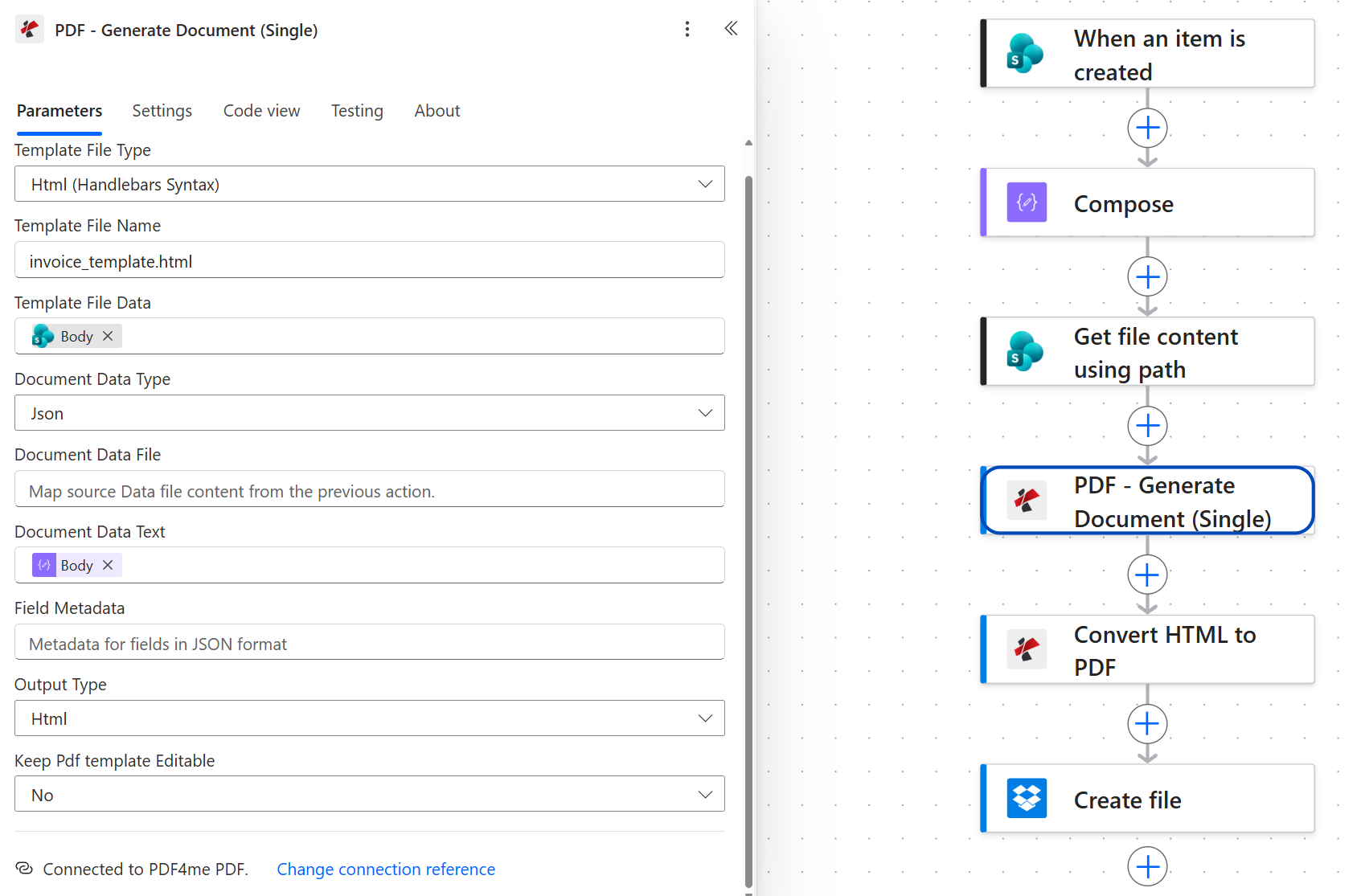
Output Type is Html, not Pdf. Generate Document (Single) hands off the rendered HTML to the next step so pagination stays a separate, testable concern.
Tip. Generate Document (Single) also supports Word and PDF templates. If the design team hands you a .docx invoice mockup, set Template File Type to Word and change Output Type to Pdf to skip the Convert step entirely. The Handlebars route wins when you want CSS control and browser-preview iteration.
Step 5: How do you paginate the rendered HTML into an A4 PDF?
Flow so far: SharePoint trigger plus Compose plus Get file content using path plus PDF - Generate Document (Single).
Convert HTML to PDF is the pagination engine. It reads the HTML produced by Generate Document (Single), applies page size and margins, and returns the PDF bytes.
- Add PDF4me PDF > Convert HTML to PDF.
- Configure:
- File Content: dynamic content,
Bodyfrom the Generate Document (Single) step. - HTML File Name:
invoice.html. - Page Layout:
Portrait. - Page Size:
A4. - Scale:
0.8(fits the 5-item invoice on one page). - Top / Bottom / Left / Right Margin:
40pxeach. - Print Background:
Yes(renders the totals block's background colour).
- File Content: dynamic content,
Convert HTML to PDF configuration
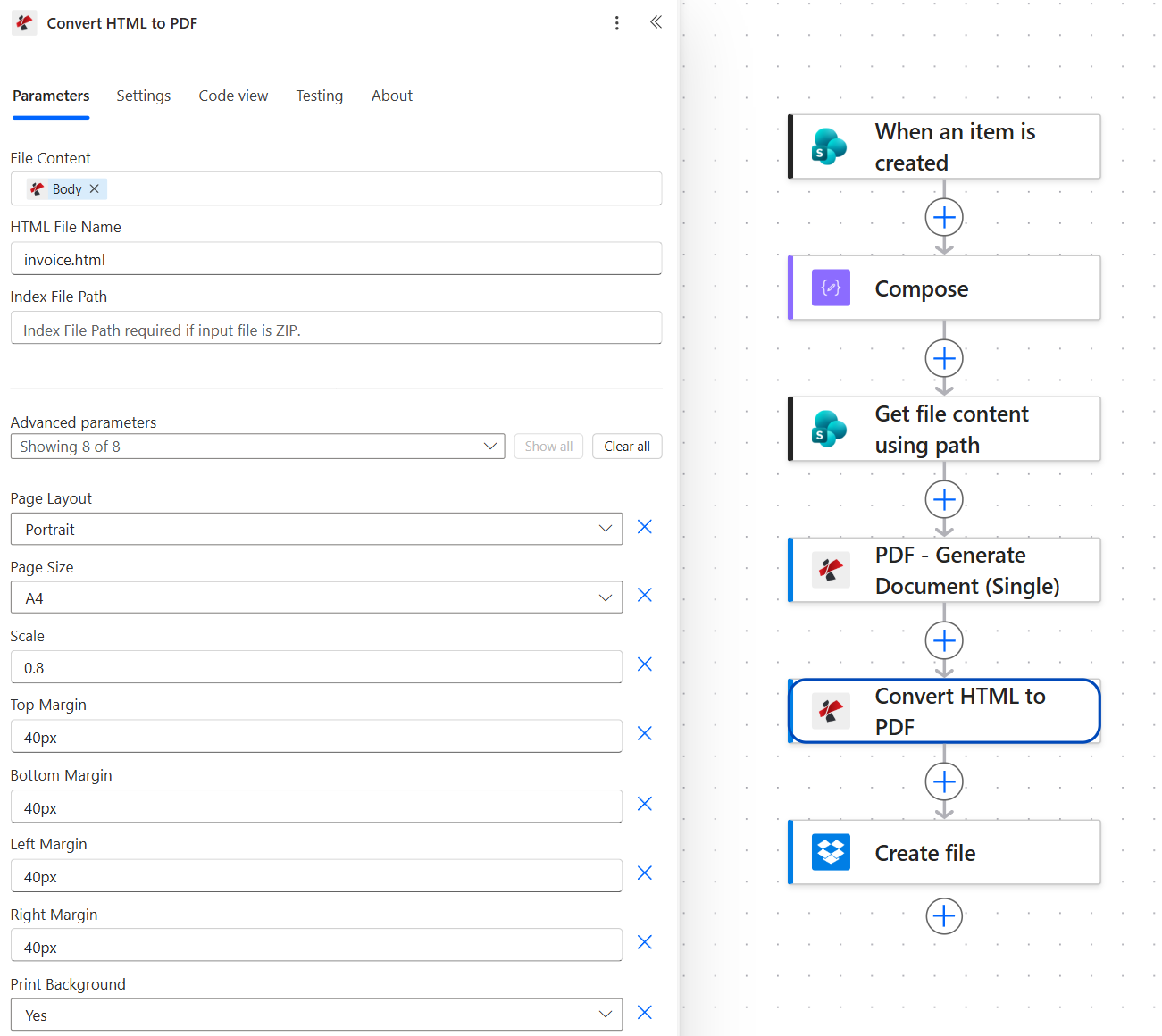
Scale 0.8 keeps a five-line invoice on a single A4 page. Bump it to 0.9 or 1.0 if you have fewer items and want a larger font.
Tip. Print Background: Yes is the setting that finally makes coloured <td> cells and CSS gradients appear. Browsers strip background colours from print by default. If your totals row looks white in the PDF, this is why.
Step 6: How do you save the invoice PDF to Dropbox with a predictable name?
Flow so far: SharePoint trigger plus Compose plus Get file content using path plus PDF - Generate Document (Single) plus Convert HTML to PDF.
The final step drops the PDF into a Dropbox folder with a name tied to the invoice number.
- Add Dropbox > Create file.
- Configure:
- Folder Path:
/(or a subfolder like/invoices/). - File Name: dynamic content,
Titlefrom the SharePoint trigger, followed by the literal string.pdf. INV-1005 becomesINV-1005.pdf. - File Content: dynamic content,
Bodyfrom the Convert HTML to PDF step.
- Folder Path:
Create file configuration
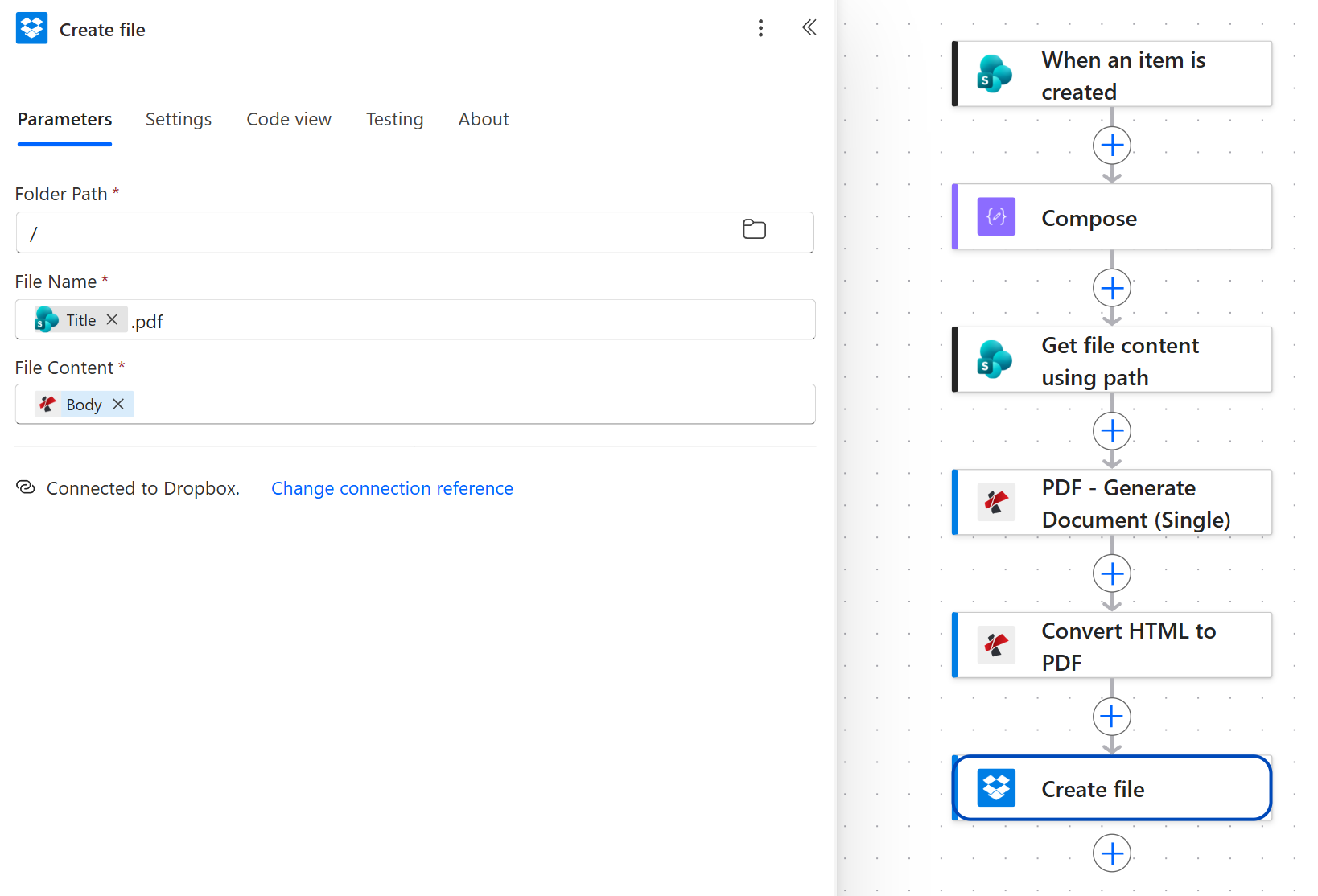
Naming the file after the invoice number means the Dropbox folder becomes a searchable, deduplicated invoice archive automatically.
Tip. If two rows can ever share the same Title, add a _ and a timestamp: concat(triggerBody()?['Title'], '_', ticks(utcNow()), '.pdf'). Otherwise Dropbox silently overwrites the previous file with the same name.
Run the Flow and Verify
- Save the flow at the top right.
- Add a new row to the
InvoicesSharePoint list. Set Title to something recognisable (INV-1005) and fill every column so the template has real data. - Open the flow's Run history and pick the latest run. Every card should be green, similar to the flow overview screenshot. The Convert HTML to PDF card is the slowest (about 11 seconds) because that is where pagination happens.
- Open Dropbox and confirm
INV-1005.pdf(or your Title) is in the root. Download it, open it, and compare to the sample.
What did you actually build? A SharePoint-native invoice generator with an editable HTML template, all in six standard-tier connector actions. The same pattern (row plus template plus render plus paginate plus store) works for quotes, delivery notes, purchase orders, warranty certificates, or any per-row branded PDF. Swap SharePoint for Dataverse or Excel, swap Dropbox for OneDrive, keep the two PDF4me actions.
Common Variations You Can Add Without Rebuilding
Body and address it to the SharePoint CustomerEmail column.Shared Documents/Signed Invoices/ so it is preserved beside the source list.Common questions
How to create a pdf using power automate from a sharepoint list item?
Use SharePoint's When an item is created as the trigger, a Compose action to shape the row's flat columns into a nested JSON payload, a Get file content using path action to load your HTML template from /Shared Documents/, PDF4me Generate Document (Single) to merge the JSON into the template, and PDF4me Convert HTML to PDF to paginate the result. Save the output to any file connector (Dropbox, OneDrive, SharePoint). Every action in that chain is on the standard connector tier, so you do not need a Power Automate Premium license.
Can power automate generate a pdf?
Yes. Native Power Automate cannot render a PDF on its own from an HTML template, but the PDF4me connector adds the two actions that make it possible: Generate Document (Single) for template rendering and Convert HTML to PDF for pagination. Both are standard-tier and free to install. Together they turn any SharePoint / Dataverse / Excel row into a branded PDF using an editable HTML template stored beside the data.
How to create pdf from html in power automate?
Add the PDF4me Convert HTML to PDF action anywhere the flow has HTML in scope (a Compose output, a Get file content Body, a Compose expression, a webhook payload). Configure the page size (A4), layout (Portrait), margins (40px), and set Print Background: Yes so CSS backgrounds are preserved. The action's Body output is the PDF binary you feed to your storage action. This is the same action used in Step 5 above.
Can power automate convert html to pdf without premium?
Yes. The PDF4me connector's Convert HTML to PDF action is on the standard connector tier, meaning you can install it and use it on any Power Automate plan without the Premium license upgrade that the native Convert File and Adobe PDF Services connectors require. You still need a PDF4me API key (free tier available), which you paste in when you add the action the first time.
How to generate pdf from a template in power automate?
Use PDF4me Generate Document (Single) with Template File Type: Html (Handlebars Syntax) (for HTML templates) or Word (for .docx templates). Feed the template bytes into Template File Data and a JSON payload into Document Data Text. Set Output Type: Html if you need to paginate afterwards (as in this blog), or Pdf to get a PDF back in one step. The action supports the full Handlebars syntax including {{#each}} and {{#if}} for line items and conditional blocks.
Troubleshooting
{{invoice.number}} literally in the PDFThe template placeholder was not substituted, which means Document Data Text was empty or malformed JSON. Open the Compose step's Outputs in the run history and confirm it is a valid JSON object with the exact key path Handlebars is looking for (case-sensitive).
Set Print Background: Yes on Convert HTML to PDF. Chromium's print engine strips background colours from <td> and <div> by default; this switch re-enables them.
Lower the Scale on Convert HTML to PDF from 0.8 to 0.7. Alternatively, add page-break-inside: avoid on the <table> in the template, so pagination breaks between rows and not within them.
Two rows shared the same Title. Change the File Name expression to concat(triggerBody()?['Title'], '_', ticks(utcNow()), '.pdf') so every run produces a unique filename.
Next Steps
The same six-step pattern (row plus template plus render plus paginate plus name plus store) handles any per-row branded PDF you can describe in HTML.