Generate Personalised Invitations and Merge Them Into One PDF in Power Automate: A 7-Step Dropbox Workflow

The painful part of bulk mailouts is not writing the letter, it is stitching the personalised copies together so finance, HR, or operations get one clean PDF instead of fifty attachments. This walkthrough builds the exact pattern in Power Automate with PDF4me Generate Documents (Multiple), Merge multiple PDF files, Dropbox, and a single Apply to each loop. Seven flow actions. One DOCX template. A JSON array of recipients. Out the other end falls one consolidated PDF, one page per recipient, named and uploaded back to Dropbox automatically.
Two Dropbox steps frame the flow. PDF4me's Generate Documents (Multiple) produces one personalised PDF per recipient. An Apply to each loop wraps every streamFile in base64ToBinary(...) and pushes it onto an array variable. PDF4me's Merge multiple PDF files stitches the array into one consolidated PDF. Dropbox Create file writes it back. The flow runs in under a minute on a two-recipient batch and scales linearly. No custom expressions beyond the one base64ToBinary call.
Why-Based Q&A
Why Generate Documents (Multiple) instead of (Single)? The Single variant takes one record and emits one PDF. To produce N PDFs you would call it N times, each adding a billing event and a network round-trip. (Multiple) takes the whole JSON array in one call and returns the N PDFs together on body/outputDocuments. One call, one billing event, full batch.
Why an array variable plus Apply to each? Generate Documents (Multiple) emits each PDF as a base64 string on streamFile. Merge multiple PDF files wants a collection of binaries. The Apply to each loop bridges the two: convert each base64 string to a binary with base64ToBinary(...) and push it onto an array variable named mergefiles. After the loop, the array is the collection the merge action expects.
Why DOCX as the template instead of PDF? DOCX merge tokens (<<[FirstName]>>, <<[HC_WoM_Date]>>) live in the body text where the PDF4me engine reads them directly. PDF templates require a form-field schema upfront, which is overkill for a letter. DOCX is also what Word, Office 365, and Google Docs already export, so authors can edit the template without leaving their writing tool.
Why merge to a single PDF at all? Compliance review, batch print runs, signature audit trails, and downstream archival all prefer one consolidated PDF over N attachments. If you ever need the individual files back, drop a Split PDF by page count = 1 action in front of step 7 and you have both worlds without rebuilding the rest of the flow.
What You'll Get
Input: One DOCX template with <<[merge_token]>> placeholders in /blog data/merge blog template/template.docx, plus a JSON array of recipients pasted into the Generate Documents (Multiple) action. Output: A single PDF named Merged_files.pdf uploaded to /blog data/merge blog template/output, with one personalised page per recipient in the same order as the JSON array. The template stays untouched in its source folder so re-runs are idempotent.
What You Need
- Power Automate. Open Power Automate. Any plan with premium connectors (PDF4me Connect is premium).
- PDF4me API key. Get your API key. Connect it the first time you add a PDF4me action.
- Dropbox. Source for the template, destination for the merged PDF. SharePoint, OneDrive, Google Drive work the same with their respective connectors.
- A DOCX template with merge tokens. Use double-angle-bracket syntax (
<<[FieldName]>>). The walkthrough usestemplate.docx, you can download the exact template used in this walkthrough and drop it into Dropbox to mirror every screenshot. - A recipients JSON array. One object per recipient, keys matching the template tokens exactly. Download the sample JSON.
Grab the sample files first. Drop Template.docx into /blog data/merge blog template/ on your Dropbox and keep the JSON in a scratchpad. Every screenshot value below will then line up with what you see in your own flow.
The Flow at a Glance
- Manually trigger a flow (trigger).
- Dropbox: Get file content using path. Reads
template.docxfrom Dropbox. - PDF4me: Generate Documents (Multiple). Template plus JSON array of recipients in, array of personalised PDFs out.
- Initialize variable named
mergefiles(Array). - Apply to each on
body/outputDocuments, with Append to array variable usingbase64ToBinary(...)inside. - PDF4me: Merge multiple PDF files into a single PDF file. Array of binaries in, one PDF out.
- Dropbox: Create file. Writes
Merged_files.pdfback to Dropbox.
Complete flow overview
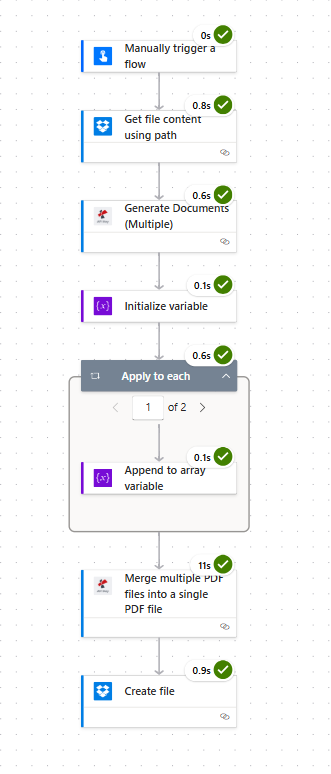
Seven actions. Each card shows a green tick when configured. PDF4me sits in the middle twice: once to generate, once to merge.
Step 0: The DOCX Template
Before any flow runs, the template needs the right merge tokens. Each <<[FieldName]>> placeholder is replaced once per recipient. Spelling and casing must match the JSON keys exactly.
Template preview
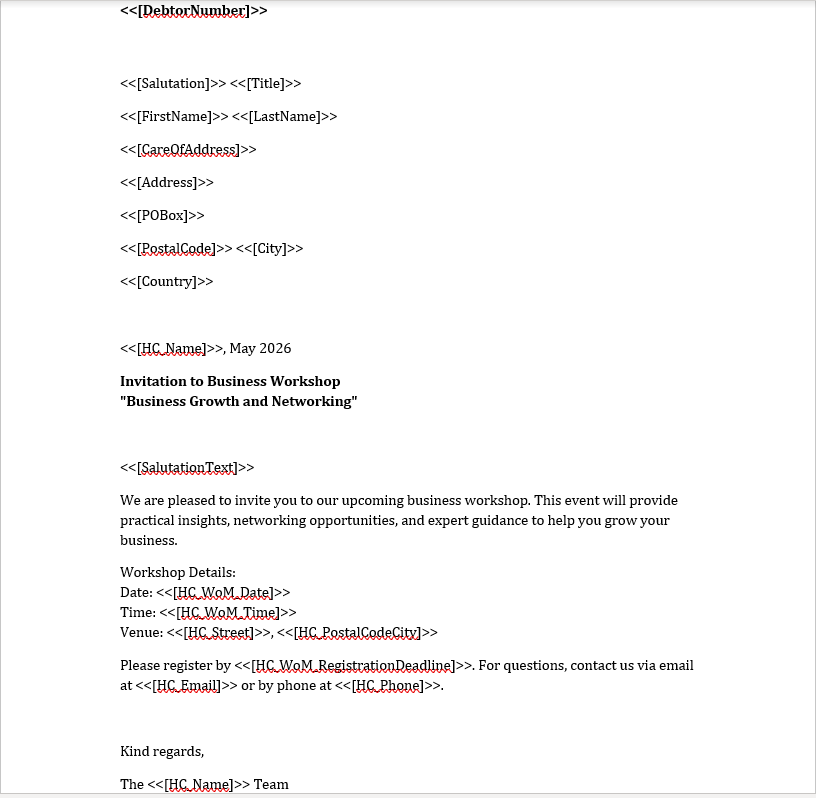
The DOCX uses double-angle-bracket syntax. No special characters, no XML, just literal placeholders the PDF4me engine reads directly.
Step 1: Manually Trigger a Flow
Flow so far: trigger only.
- In Power Automate click Create, choose Instant cloud flow.
- Pick Manually trigger a flow as the trigger.
- Give the flow a name (e.g.
Bulk Invitation Mailout) and click Create. - Leave the trigger inputs blank for now. Real production triggers (HTTP request, SharePoint list update, schedule) plug in here once the rest of the flow is working.
Step 2: Dropbox: Get File Content Using Path
Flow so far: trigger plus Get file content.
Reads the template DOCX into the flow as raw bytes so Generate Documents can consume it directly.
- Click + New step, search Dropbox, pick Get file content using path.
- Connect Dropbox if you have not already.
- Configure:
- File Path:
/blog data/merge blog template/template.docx - Infer Content Type:
Yes
- File Path:
- Save the flow and run a quick test. The action returns a
File Contenttoken containing the template binary.
Get file content configuration
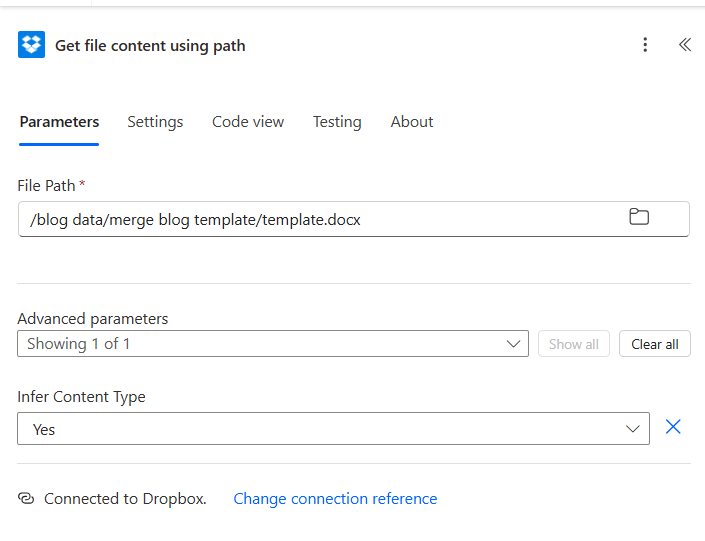
Infer Content Type Yes is what makes downstream PDF4me actions accept the file as a real DOCX, not as a generic stream.
Step 3: PDF4me: Generate Documents (Multiple)
Flow so far: trigger plus Get file content plus Generate Documents (Multiple).
This is where one DOCX plus a JSON array becomes N personalised PDFs in a single action call.
- Click + New step, search PDF4me, pick Generate Documents (Multiple).
- Connect PDF4me Connect with your API key (first time only).
- Configure the top half of the action:
- Template File Type:
Docx - Template File Name:
Test.docx(label only, not a path) - Template File Data: pick the File Content token from step 2
- Document Data Type:
Json
- Template File Type:
Step 3a: Top of the action
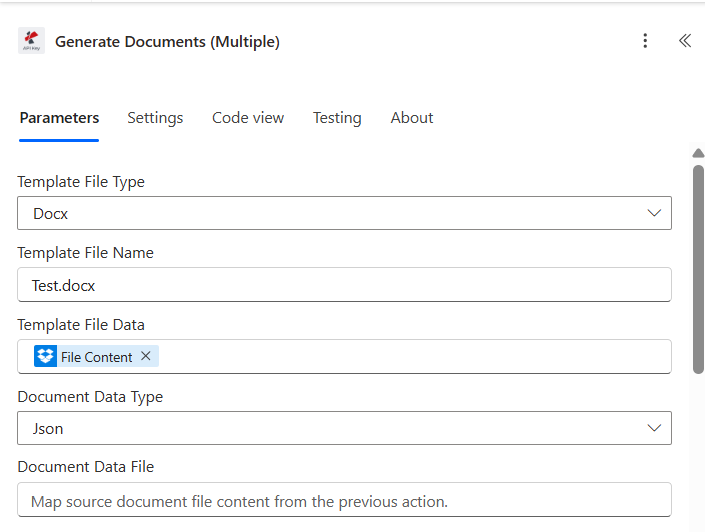
- Paste the JSON array into Document Data Text. The walkthrough uses two recipients (John Doe, X AB). Each object has the same 19 keys, every key matches a
<<[Token]>>in the DOCX template.
Step 3b: The JSON payload
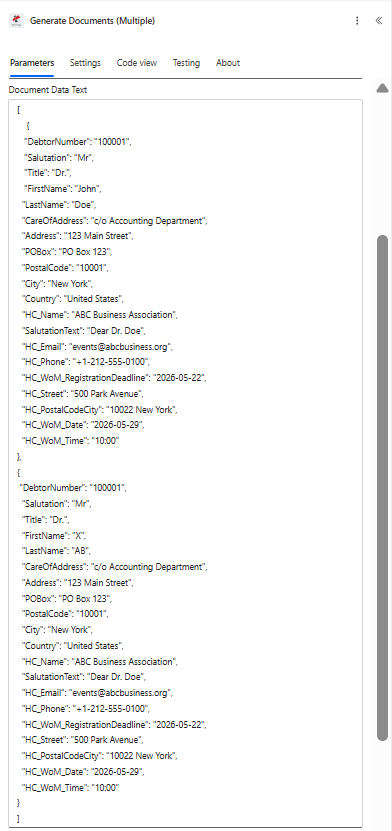
[
{
"DebtorNumber": "100001",
"Salutation": "Mr",
"Title": "Dr.",
"FirstName": "John",
"LastName": "Doe",
"CareOfAddress": "c/o Accounting Department",
"Address": "123 Main Street",
"POBox": "PO Box 123",
"PostalCode": "10001",
"City": "New York",
"Country": "United States",
"HC_Name": "ABC Business Association",
"SalutationText": "Dear Dr. Doe",
"HC_Phone": "+1-212-555-0100",
"HC_WoM_RegistrationDeadline": "2026-05-22",
"HC_Street": "500 Park Avenue",
"HC_PostalCodeCity": "10022 New York",
"HC_WoM_Date": "2026-05-29",
"HC_WoM_Time": "10:00"
},
{
"DebtorNumber": "100001",
"Salutation": "Mr",
"Title": "Dr.",
"FirstName": "X",
"LastName": "AB",
"CareOfAddress": "c/o Accounting Department",
"Address": "123 Main Street",
"POBox": "PO Box 123",
"PostalCode": "10001",
"City": "New York",
"Country": "United States",
"HC_Name": "ABC Business Association",
"SalutationText": "Dear Dr. Doe",
"HC_Phone": "+1-212-555-0100",
"HC_WoM_RegistrationDeadline": "2026-05-22",
"HC_Street": "500 Park Avenue",
"HC_PostalCodeCity": "10022 New York",
"HC_WoM_Date": "2026-05-29",
"HC_WoM_Time": "10:00"
}
]
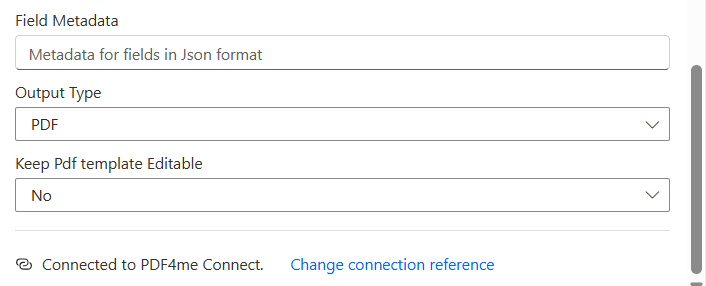
- Configure the bottom half:
- Field Metadata: leave blank (optional, for currency, date, or number formatting)
- Output Type:
PDF - Keep Pdf template Editable:
No
Step 3c: Output type
- Save and Test. The action returns
body/outputDocuments, an array of objects, one per recipient. Each object carries astreamFileproperty containing the personalised PDF as a base64 string.
Tip. Missing JSON keys render as empty strings in the output PDF, not as errors. That is forgiving on partial data but it also means typos fail silently. Diff your token list against the JSON keys before going live, both are case-sensitive.
Step 4: Initialize Variable mergefiles
Flow so far: trigger plus Get file content plus Generate Documents (Multiple) plus Initialize variable.
The merge action wants a collection of binaries. Create an empty array to hold them.
- Click + New step, pick Initialize variable.
- Configure:
- Name:
mergefiles - Type:
Array - Value: leave blank
- Name:
Initialize variable configuration
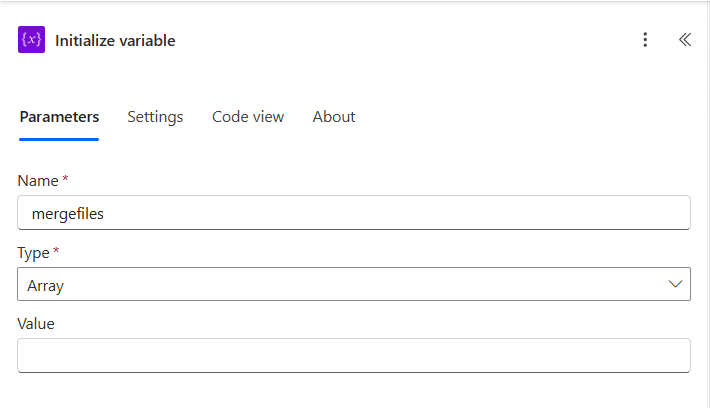
Initialize variable always comes before the first Apply to each that needs it. Power Automate enforces this at design time.
Step 5: Apply to Each Plus Append to Array Variable
Flow so far: trigger plus Get file content plus Generate Documents (Multiple) plus Initialize variable plus Apply to each.
Loop over the PDFs and convert each one to a binary buffer.
Step 5a: Apply to each (pick the source)
- Click + New step, pick Apply to each.
- Configure:
- Select an output from previous steps: pick
body/outputDocumentsfrom the Generate Documents (Multiple) action
- Select an output from previous steps: pick
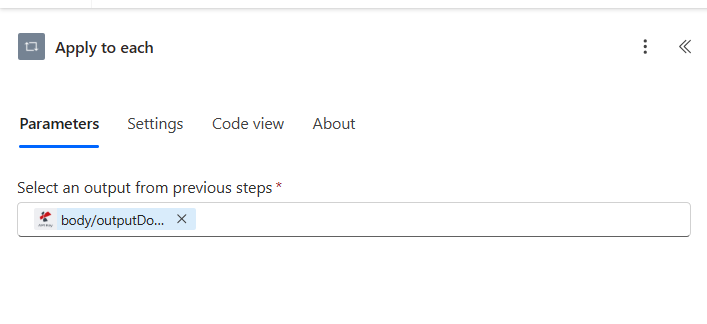
Step 5b: Append to array variable (inside the loop)
- Inside the Apply to each container click Add an action, pick Append to array variable.
- Configure:
- Name:
mergefiles - Value (expression, click
fx):base64ToBinary(items('Apply_to_each')?['streamFile'])
- Name:
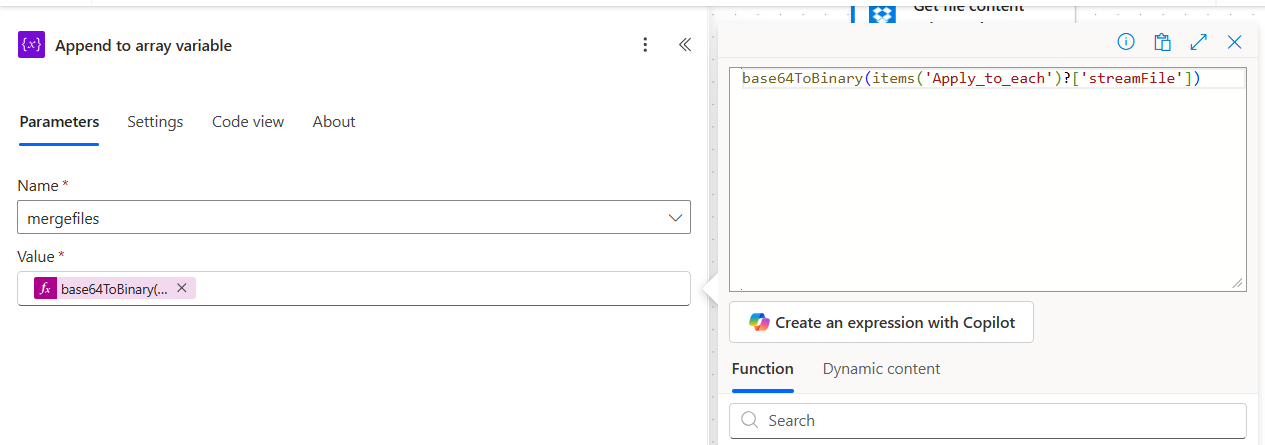
This is the one line that ties everything together. Generate Documents (Multiple) emits base64 strings on streamFile. Merge multiple PDF files needs binary buffers. base64ToBinary(...) is the bridge. Without it the merge action errors with "invalid content".
Step 6: PDF4me: Merge Multiple PDF Files Into a Single PDF File
Flow so far: trigger plus Get file content plus Generate Documents (Multiple) plus Initialize variable plus Apply to each plus Merge multiple PDFs.
Now the whole array goes in and one PDF comes out.
- Below the Apply to each loop click + New step, search PDF4me, pick Merge multiple PDF files into a single PDF file.
- Configure:
- Body/docContent: pick the
mergefilesvariable token - Output File Name:
Test.pdf
- Body/docContent: pick the
Merge action configuration
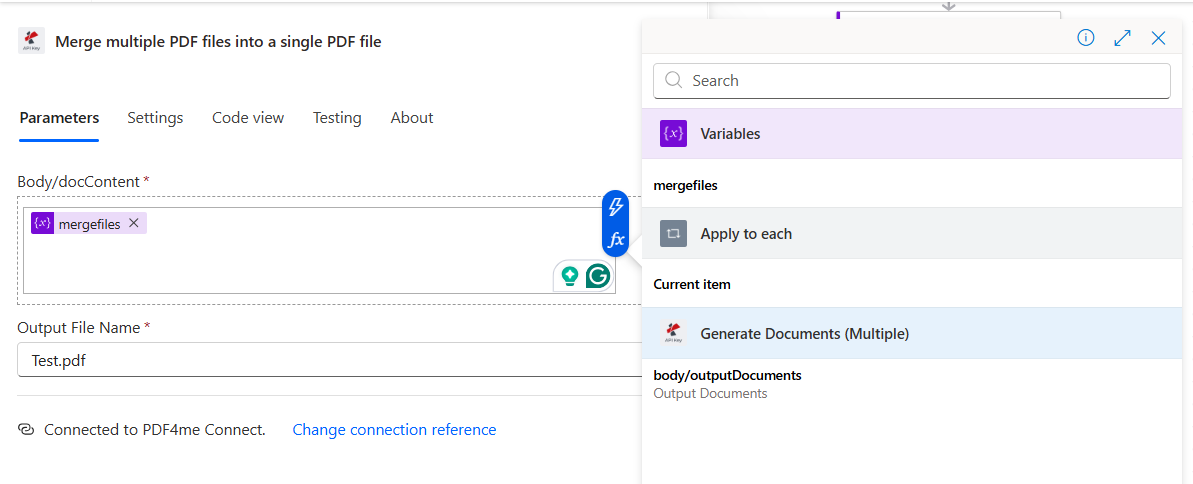
- The action concatenates the PDFs in array order, which is the JSON order. If your downstream consumer expects a specific sort (alphabetical, by debtor number, by region), sort the JSON before step 3 and the rest of the flow preserves that order.
Tip. Need a different output filename per run? Build it dynamically with concat('Invitations_', utcNow('yyyy-MM-dd'), '.pdf') in the Output File Name field. The merged PDF lands with a date stamp and re-runs do not overwrite each other.
Step 7: Dropbox: Create File
Flow so far: trigger plus Get file content plus Generate Documents (Multiple) plus Initialize variable plus Apply to each plus Merge multiple PDFs plus Create file.
Write the merged PDF back to Dropbox.
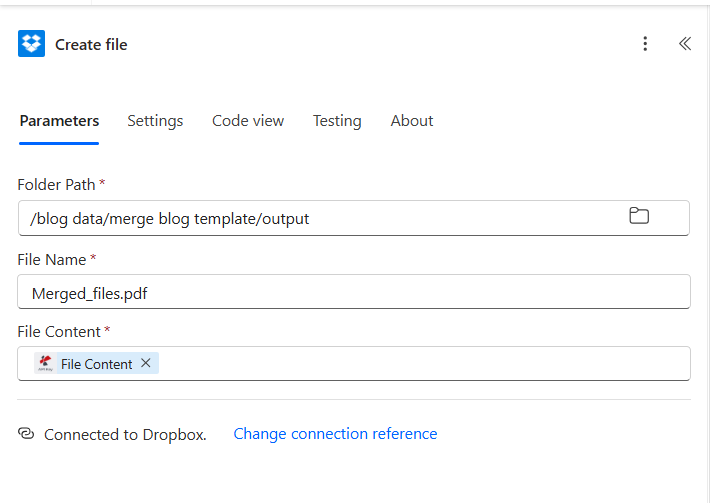
- Click + New step, pick Dropbox, Create file.
- Configure:
- Folder Path:
/blog data/merge blog template/output - File Name:
Merged_files.pdf - File Content: pick the File Content token from step 6 (Merge multiple PDFs)
- Folder Path:
- Save the flow.
Create file configuration
Run the Flow and Verify
- Click Test at the top right, choose Manually, click Test, then Run flow.
- The flow execution panel turns green action by action. Generate Documents (Multiple) typically takes one second per record on a single-page template. Merge multiple PDFs adds another second or two for two recipients.
- Open Dropbox at
/blog data/merge blog template/output/. The fileMerged_files.pdfis there.
The output, side by side
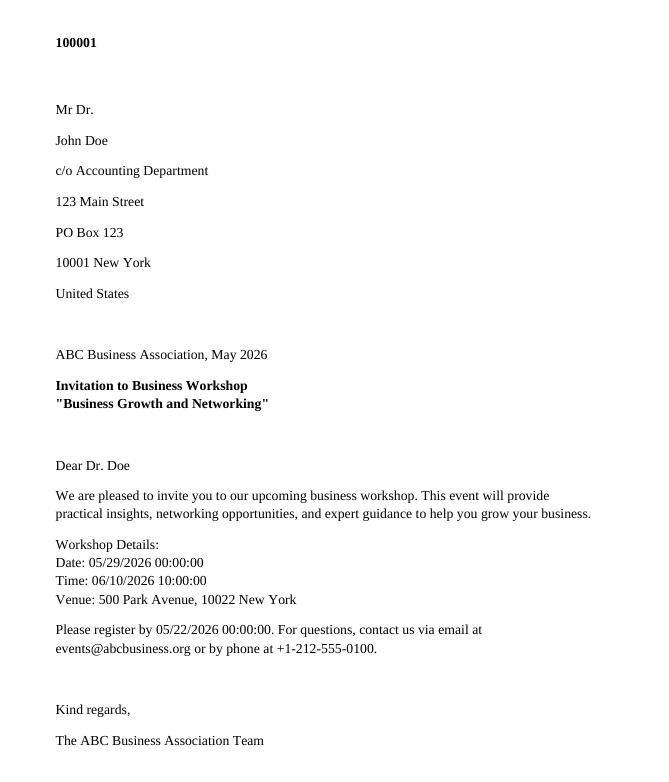
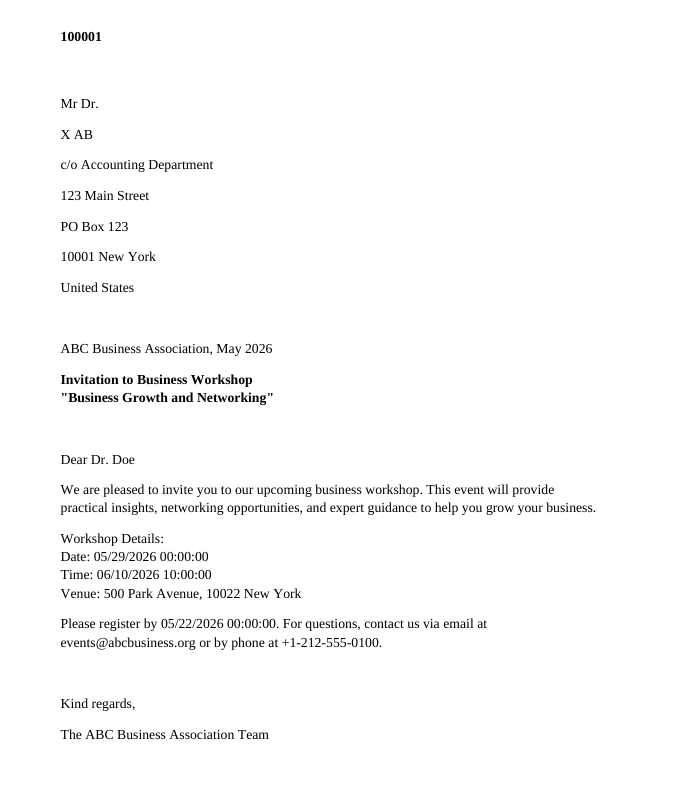
What did you actually build? A zero-touch bulk mailout that turns a single DOCX letter and a JSON list of recipients into one consolidated PDF, ready for printing, signing, archival, or attachment. The same pattern handles two recipients or two thousand without changing any field value. Same pattern works in Make (Iterator plus PDF4me Merge module) and Zapier (Looping by Zapier plus PDF4me Merge action).
Common Variations You Can Add Without Rebuilding
Merged_files.pdf and the mailout goes straight to finance, ops, or print without the Dropbox round-trip.PDF/A-2b. The Dropbox copy is then archive-ready and ISO 19005 compliant.Troubleshooting
The Value expression in Append to array is not wrapped in base64ToBinary(...). Without the conversion the merge action receives base64 strings instead of binary buffers. Re-open Append to array, switch to the expression editor, and paste base64ToBinary(items('Apply_to_each')?['streamFile']) verbatim.
A JSON key does not match a template token. Generate Documents (Multiple) substitutes missing keys with empty strings, which is forgiving but lets typos fail silently. Diff your DOCX token list against the JSON keys, both are case-sensitive.
The Apply to each loop is iterating the wrong source. Open the loop, confirm Select an output from previous steps points at body/outputDocuments (the array), not at a single property of one record.
Page order matches the JSON order. Sort the JSON array before Generate Documents (Multiple) using a Select or Compose action so the recipients land in the order you need.
Next Steps
The same seven-step pattern (trigger then fetch template then generate batch then loop-to-array then merge then save) works for any bulk personalised mailout in Power Automate. Ship one and the next ones cost almost nothing.