New PDF in the Folder? Zapier Fills It with JSON. Three Steps, That's It!
You have a fillable PDF form in Dropbox and JSON data ready. Typing into each field by hand is slow. Zapier plus PDF4me automates it: when a new PDF appears in a folder, run Fill a PDF Form with JSON, and upload the result. No code. Works with Dropbox, Google Drive, and thousands of apps. Connect your storage, map the template and JSON, and get a populated form.
In a nutshell: New File in Folder (Dropbox, folder: /Blog Data/Fill a PDF, Include file contents: Yes) → PDF4me – Fill a PDF Form (Template File from step 1, Input Type: Json Text, Input Data Json with customerName, email, etc.) → Upload File (Dropbox, folder: /Blog Data/Fill a PDF/Output, File Name: Fill_PDF_Zap, Extension: .pdf). Output: filled PDF ready to store or send.
Why-Based Q&A
Why use JSON to fill PDF forms? JSON keys map directly to form field names (customerName, email, invoiceNumber, and so on). Data from forms, CRMs, or spreadsheets becomes JSON easily. One template, many fills: reuse the same form with different JSON for bulk automation.
Why Zapier for PDF form filling? Zapier connects PDF4me to 6,000+ apps. Trigger on a new file, form submission, or database record. Pass the template and JSON to Fill a PDF Form, then route the output to Dropbox, email, or the next app—without writing code.
Why PDF4me Fill a PDF Form? The action accepts JSON directly. You provide the template PDF and the Form Data (JSON); PDF4me matches keys to form fields and returns a filled PDF. No field-by-field mapping needed.
What You'll Get
Input: A fillable PDF form in Dropbox (or from a trigger) and JSON (inline or from a previous step) with matching field names. Output: A completed PDF with all fields populated, ready to save, email, or pass to the next Zap step.
What You Need
- Zapier — Create a Zapier account and start a new Zap.
- PDF4me API key — Get your API key. Connect it when you add the PDF4me action. First time? See Connect PDF4me to Zapier.
- Dropbox — For the PDF form template and output folder. Google Drive works too with the appropriate Zapier triggers and actions.
The Zap at a Glance
- New File in Folder (Dropbox) — Triggers when a new PDF is added. Include file contents: Yes.
- PDF4me – Fill a PDF Form — Template File from step 1, Input Data Json with field names and values.
- Upload File (Dropbox) — Saves the filled PDF to your output folder with a specified name and extension.
Complete Zap overview
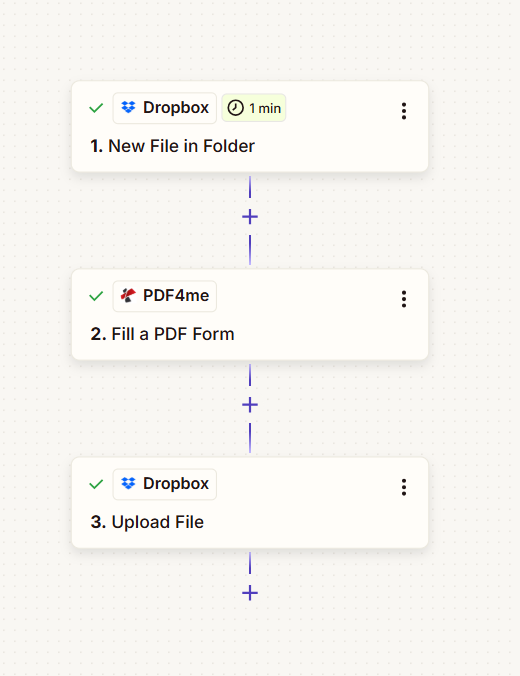
Three steps: New File in Folder, Fill a PDF Form, Upload File. The trigger provides the template PDF; Fill a PDF Form uses JSON to populate fields; Upload File saves the result.
Step 1: New File in Folder (Trigger)
Zap so far: Trigger only.
- Create a new Zap.
- Add Dropbox → New File in Folder as the trigger.
- Connect your Dropbox account (or select existing connection).
- Folder — e.g.
/Blog Data/Fill a PDF. - Include file contents? — Yes (so the PDF is passed to the next step).
- Test the trigger. When a new file (e.g.
Sample_fill_form.pdf) is added to the folder, the Zap receives the file as the template.
New File in Folder: Configuration
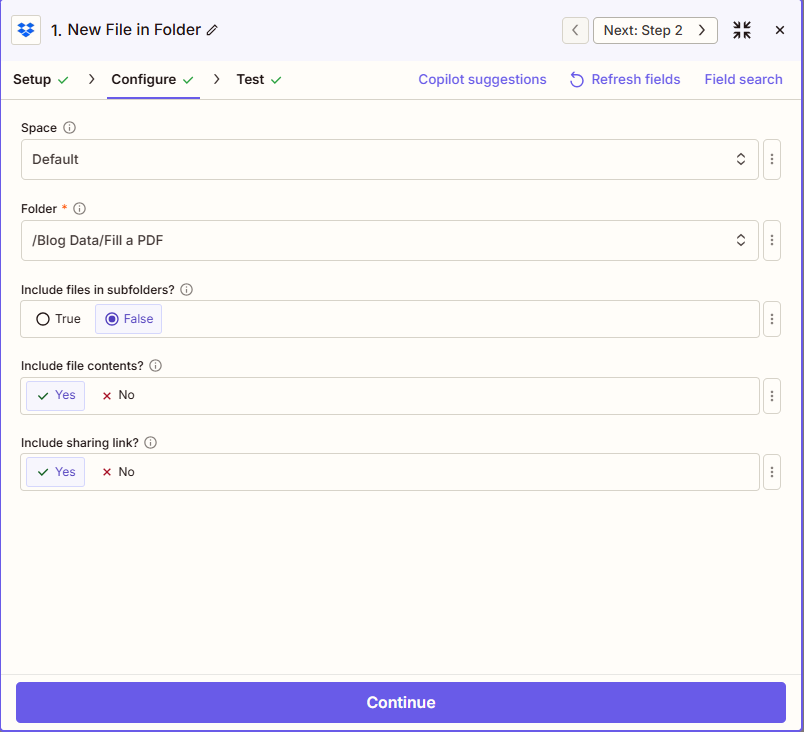
Trigger: New File in Folder watches the specified folder. Include file contents set to Yes so the PDF is available for the Fill a PDF Form action.
Step 2: Fill a PDF Form
Zap so far: Trigger → Fill a PDF Form.
- Add PDF4me → Fill a PDF Form as the action.
- Connect your PDF4me account (API key).
- Template File — Map from step 1: select the file from the trigger (e.g.
FileorContents). - Template File Name — e.g.
Sample_fill_form.pdf(or map from trigger). - Input Type — Json Text (or the option that accepts JSON string).
- Input Data (JSON) — Paste or map your JSON, e.g.
{"customerName":"John Doe","email":"[email protected]","phone":"+1 555 123 456","invoiceNumber":"INV-2026-001","invoiceDate":"2026-03-09","address":"221B Baker Street, London","amount":"1250 USD"}. - Test the action. The filled PDF is returned (File URL or File content).
- Use the output in the next step for upload.
PDF4me – Fill a PDF Form: Parameters
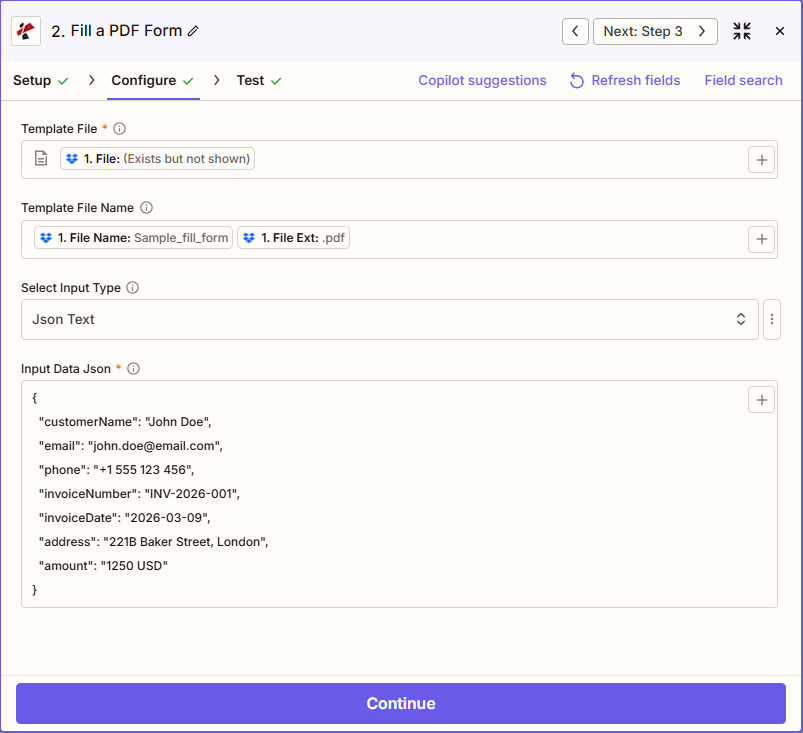
Fill a PDF Form: Template File mapped from the trigger, Input Data (JSON) with keys matching the PDF form fields. Output goes to the next action.
Additional options (if shown)
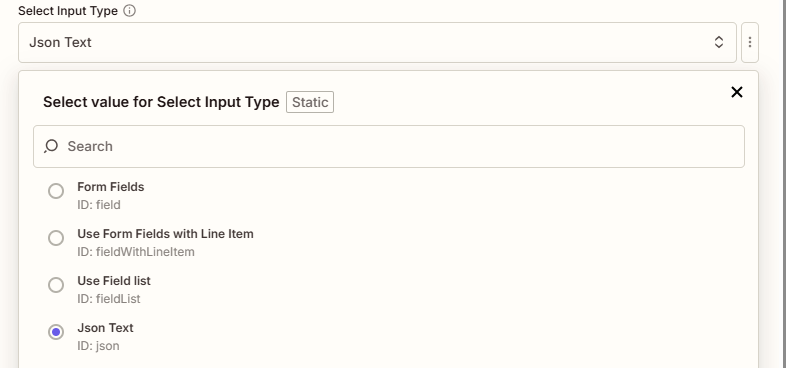
Optional settings for template file name and output naming. Configure as needed for your workflow.
Step 3: Upload File
Zap so far: Trigger → Fill a PDF Form → Upload.
- Add Dropbox → Upload File as the action.
- Connect your Dropbox account (same as trigger).
- Folder — e.g.
/Blog Data/Fill a PDF/Output. - File — Map from step 2: select the filled PDF output (File or File URL, depending on what PDF4me returns).
- Specify File Name — e.g.
Fill_PDF_Zap. - Specify File Extension —
.pdf. - Test the action and publish the Zap. The filled PDF is saved to your output folder.
Upload File: Configuration
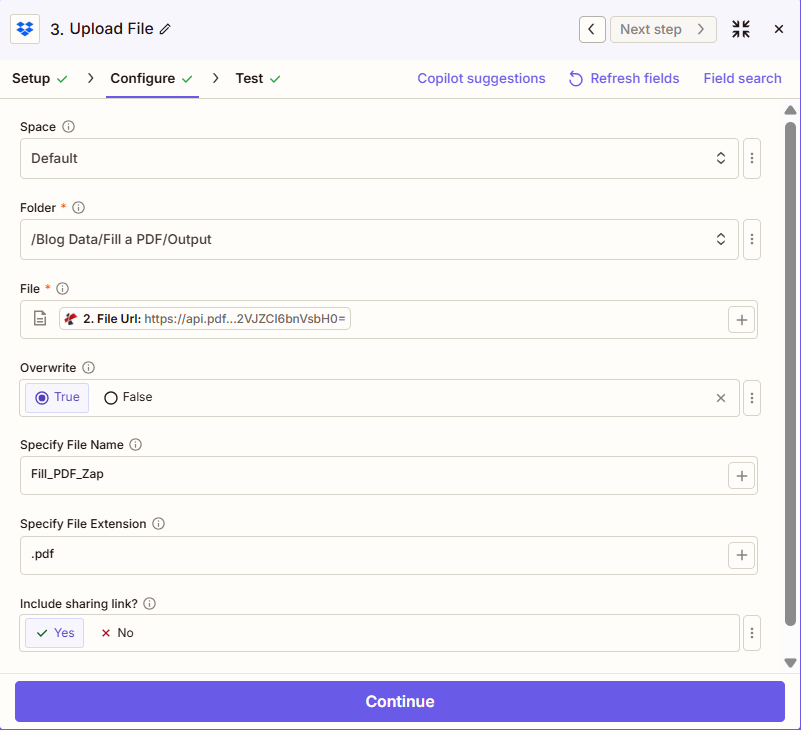
Upload action: Folder for output, File mapped from Fill a PDF Form, custom file name and extension.
Input and Output: What Goes In, What Comes Out
Here is the JSON, the blank form, and the filled result.
Example JSON input
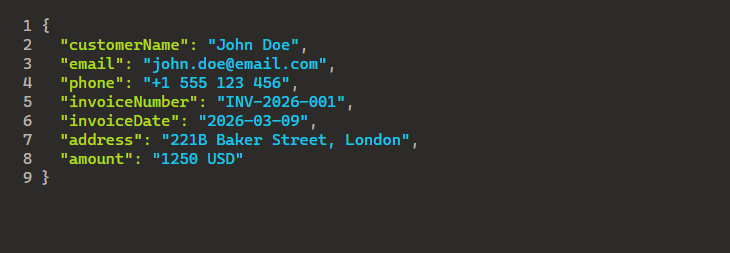
Sample JSON: keys match the fillable form fields. Paste into Input Data (JSON) or map from a previous step (e.g. form, CRM).
Blank fillable form (input)
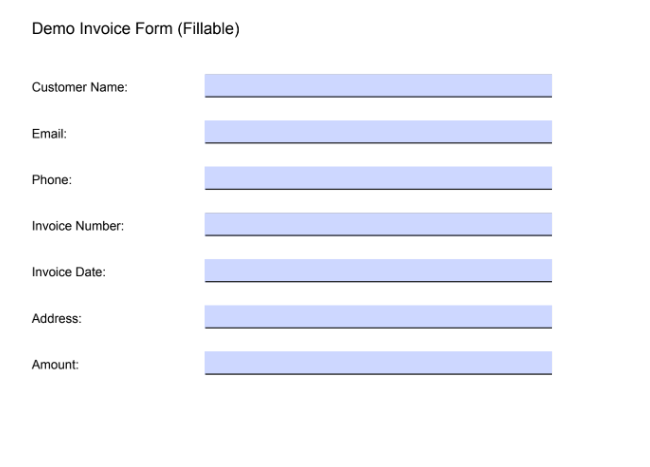
Blank fillable invoice form: fields correspond to the JSON keys. PDF4me populates each field from the JSON value.
Filled form (output)
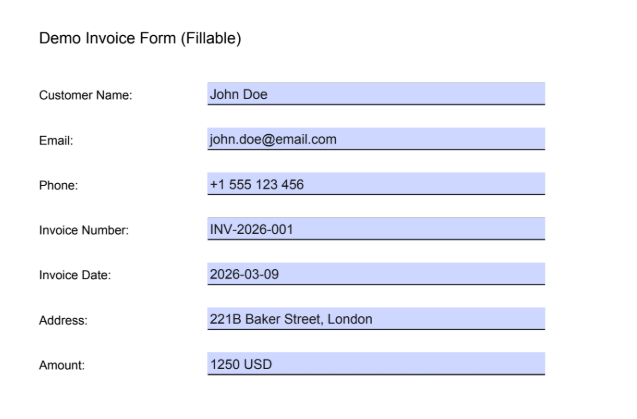
Filled invoice form: all fields populated from JSON. Output is saved via the Upload action or passed to the next Zap step.
Use Cases: When to Fill PDF Forms in Zapier
Form submissions → PDF: Trigger on Google Forms, Typeform, or JotForm. Map form fields to JSON, fill the PDF template, and upload or email the result.
CRM → contracts and quotes: New contact or deal in HubSpot, Salesforce, or Pipedrive. Pull data, build JSON, fill a contract or quote template, and save to Dropbox or send via email.
New file in folder: Drop a fillable PDF into a watched folder. Zap fills it with static or mapped JSON (e.g. from Airtable, spreadsheet) and uploads the completed form.
Quick Reference: Key Settings
| Step | Setting | Example |
|---|---|---|
| 1. New File in Folder | Folder | /Blog Data/Fill a PDF |
| 1. New File in Folder | Include file contents | Yes |
| 2. Fill a PDF Form | Template File | From step 1 (File/Contents) |
| 2. Fill a PDF Form | Input Data (JSON) | {"customerName":"John Doe","email":"..."} |
| 3. Upload File | File | From step 2 (File output) |
| 3. Upload File | File Name / Extension | Fill_PDF_Zap / .pdf |
For full parameter details, see Fill a PDF Form — Zapier.
Troubleshooting
JSON keys must match PDF form field names exactly (case sensitive). Check field names in Acrobat or a PDF editor.
Ensure the trigger uses Include file contents: Yes and map the correct field (File or Contents) from the trigger to Template File in Fill a PDF Form.
PDF4me Troubleshooting covers 401 (API key), 402 (credits), and more.
What's Next?
- Replace New File in Folder with New Form Submission (Google Forms, Typeform) to fill PDFs from form data automatically.
- Add a Formatter or Code by Zapier step to build JSON from multiple trigger fields before Fill a PDF Form.
- Add a Filter so only PDF files trigger the Zap (ignore .json or other extensions).
- Same flow in Make, n8n, or Power Automate if you prefer those platforms.