PDF Form and JSON in Dropbox? Power Automate Populates Them. Four Actions, That's It!
You have a fillable PDF form and data in JSON. Manually typing into each field is slow and error prone. Power Automate plus PDF4me automates it: get the template and JSON from Dropbox (or SharePoint), run Fill a PDF Form, and create the filled file. No code. Works with Microsoft 365. Connect storage, map the files, and get a populated form.
In a nutshell: Get Template File (e.g. /blog data/fill a pdf/sample_fill_form.pdf) → Get JSON data file (e.g. /blog data/fill a pdf/sample_fill_form_data.json) → PDF4me – Fill a PDF Form (Template File Data from step 1, Form Data from step 2) → Create file. Output: filled PDF ready to store or send.
Why-Based Q&A
Why use JSON to fill PDF forms? JSON keys map directly to form field names (customerName, email, invoiceNumber, and so on). Your data lives in Excel, Dynamics, or databases; JSON is the common bridge. One template, many fills: reuse the same form with different JSON for bulk automation.
Why two Get file steps? One fetches the blank PDF form (template); the other fetches the JSON data. Both outputs go to Fill a PDF Form: Template File Data from the first step, Form Data (Data string) from the second. Template and data stay separate for flexible flows.
Why PDF4me Fill a PDF Form? The action accepts JSON directly. You provide the template PDF and the data; PDF4me matches keys to form fields and returns a filled PDF. Integrates with Dropbox, SharePoint, and Power Automate expressions.
What You'll Get
Input: A fillable PDF form and a JSON file (or JSON string) with matching field names. Output: A completed PDF with all fields populated, ready to save, email, or pass to the next action.
What You Need
- Power Automate — Open Power Automate. Create a new cloud flow (Instant or Automated).
- PDF4me API key — Get your API key. Connect it when you add the Fill a PDF Form action. First time? See Connect PDF4me to Power Automate.
- Dropbox or SharePoint — For the PDF template, JSON file, and output folder. Use the connector that matches your storage.
The Flow at a Glance
- Manually trigger a flow (or When a file is created for automation).
- Get Template File (Dropbox or SharePoint) — Gets the blank fillable PDF form.
- Get JSON data file (Dropbox or SharePoint) — Gets the JSON data to populate the form.
- PDF4me – Fill a PDF Form — Combines template and JSON. Template File Data from step 1, Form Data (Data string) from step 2.
- Create file (Dropbox or SharePoint) — Saves the filled PDF to your output folder.
Complete flow overview
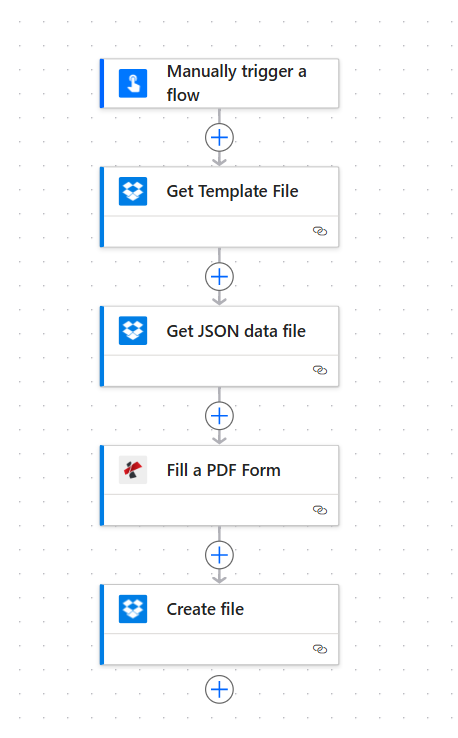
Five steps: Trigger, Get Template File, Get JSON data file, Fill a PDF Form, Create file. Each action shows a green checkmark when configured. The PDF and JSON from the Get file steps are passed into PDF4me; the filled PDF goes to Create file.
Step 1: Get the Template File
Flow so far: Trigger and Get Template File only.
- Add Manually trigger a flow (or When a file is created in Dropbox or SharePoint for automation).
- Add Dropbox (or SharePoint) → Get file content using path (you can name it "Get Template File" in Settings).
- File Path — Enter the path to your fillable PDF form, e.g.
/blog data/fill a pdf/sample_fill_form.pdf. - Infer content type — Yes (optional).
- Run the action. The output File Content will be passed to Fill a PDF Form as Template File Data.
Get Template File: Configuration
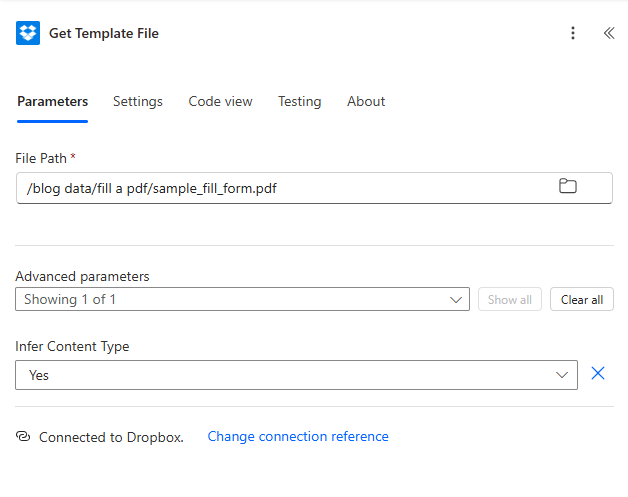
Get Template File: File Path set to the PDF form. The output File Content is passed to Fill a PDF Form as Template File Data.
Step 2: Get the JSON Data File
Flow so far: Get Template File → Get JSON data file.
- Add Dropbox (or SharePoint) → Get file content using path (name it "Get JSON data file" in Settings).
- File Path — Enter the path to your JSON file, e.g.
/blog data/fill a pdf/sample_fill_form_data.json. - Infer content type — Yes (optional).
- Run the action. The output File Content (or decoded text) will be passed to Fill a PDF Form as Form Data. Ensure JSON keys match the form field names (e.g. customerName, email, invoiceNumber).
Get JSON data file: Configuration
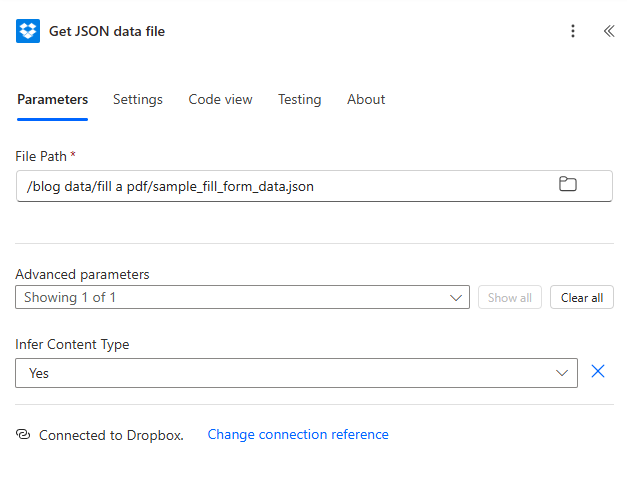
Get JSON data file: File Path set to the JSON file. The file content is mapped into Fill a PDF Form as Form Data (Data string). If the connector returns base64, use base64ToString() in an expression to get the JSON text.
Step 3: Fill the PDF Form
Flow so far: Get Template File → Get JSON data file → Fill a PDF Form.
- Add PDF4me → Fill a PDF Form.
- Template File Data — Map File Content from the Get Template File action.
- Template File Name — e.g.
sample_fill_form.pdf(must include .pdf). - Form Data (Data string) — Map the JSON content. Use File Content from Get JSON data file. If it returns binary or base64, use an expression like
base64ToString(body('Get_JSON_data_file')?['$content'])to get the JSON text. - Keep Pdf template Editable — No for a flattened PDF; Yes to keep fields editable.
- Run the action. PDF4me returns Output Documents with File Content (the filled PDF).
PDF4me – Fill a PDF Form: Template, Form Data, and options
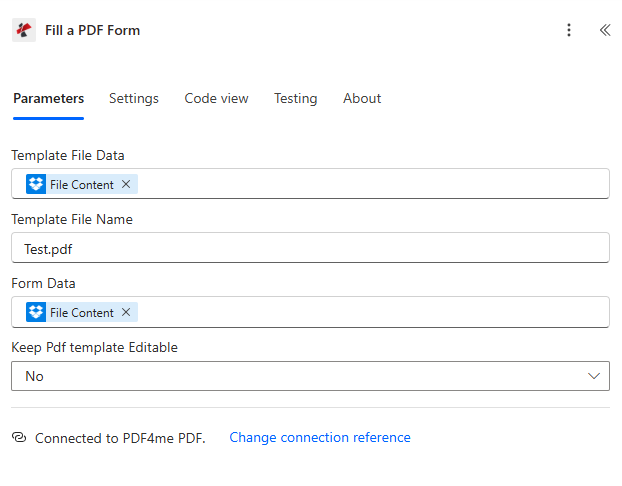
Fill a PDF Form: Template File Data from Get Template File, Template File Name, Form Data (Data string) from Get JSON data file. Keep Pdf template Editable set to No for a flattened output. Output Documents contain the filled PDF.
Step 4: Create the File (Save the Filled PDF)
Flow so far: Get Template File → Get JSON data file → Fill a PDF Form → Create file.
- Add Dropbox (or SharePoint) → Create file.
- Folder Path — e.g.
/blog data/fill a pdf/output. - File Name — e.g.
Fill_PDF_PA.pdf. - File Content — Map File Content from the first item in Output Documents of the Fill a PDF Form action (e.g.
body('Fill_a_PDF_Form')?['OutputDocuments']?[0]?['FileContent']or the dynamic content picker). - Run the flow. The filled PDF is saved to your folder.
Create file: Save filled PDF to output folder
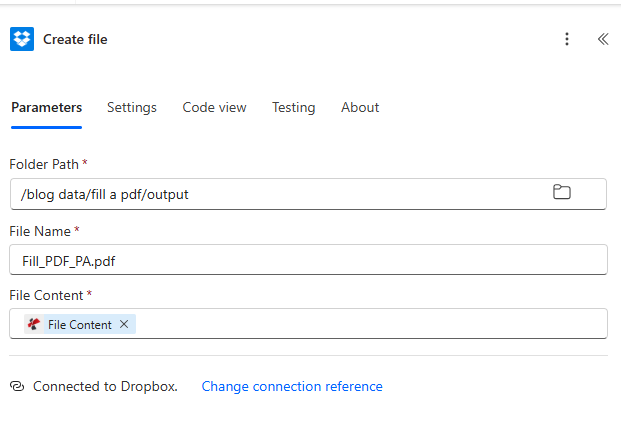
Create file: Folder Path, File Name Fill_PDF_PA.pdf, File Content mapped from Fill a PDF Form Output Documents.
Input and Output: What Goes In, What Comes Out
Here is the JSON, the blank form, and the filled result.
Example JSON input
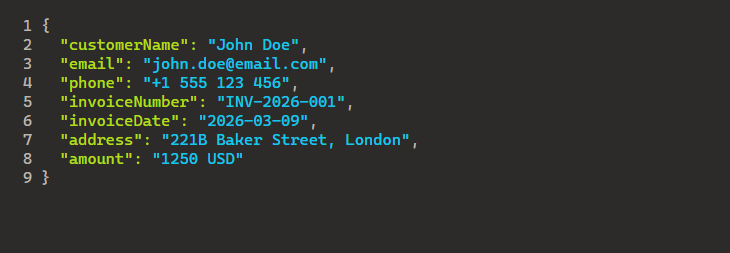
Sample JSON: keys (customerName, email, phone, invoiceNumber, invoiceDate, address, amount) match the fillable form fields. Get JSON data file fetches this; Form Data passes it to Fill a PDF Form.
Blank fillable form (input)
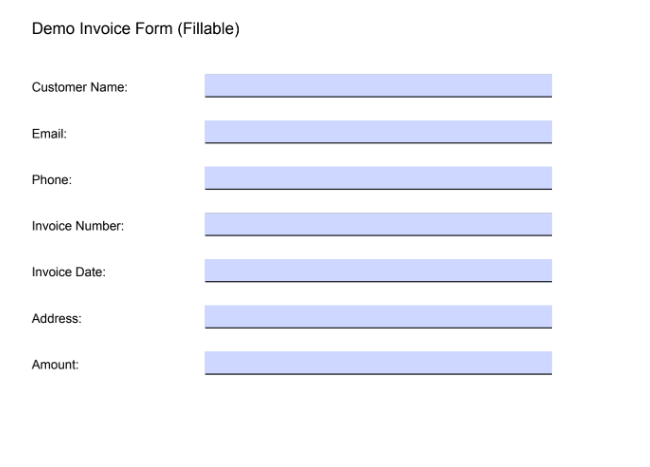
Blank fillable invoice form: fields correspond to the JSON keys. PDF4me populates each field from the JSON value.
Filled form (output)
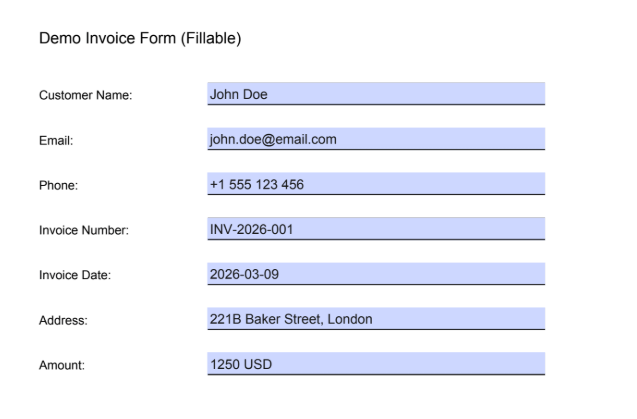
Filled invoice form: all fields populated from JSON. Output is saved via Create file or passed to the next flow action.
Use Cases: When to Fill PDF Forms in Power Automate
Invoices and quotes: Pull data from Excel, Dynamics, or SharePoint lists. Generate JSON, then fill the template. Save to a folder or email automatically.
Contracts and agreements: CRM or form responses produce JSON. Map to a contract template and generate filled PDFs for each party.
Certificates and badges: Event or training data in JSON. Fill certificate forms in bulk and save to SharePoint or send via Outlook.
Quick Reference: Key Settings
| Action | Setting | Example |
|---|---|---|
| 1. Get Template File | File Path | /blog data/fill a pdf/sample_fill_form.pdf |
| 2. Get JSON data file | File Path | /blog data/fill a pdf/sample_fill_form_data.json |
| 3. Fill a PDF Form | Template File Data | From Get Template File |
| 3. Fill a PDF Form | Form Data | From Get JSON data file (JSON text) |
| 4. Create file | File Content | Output Documents [0] from Fill a PDF Form |
For full parameter details, see Fill a PDF Form — Power Automate.
Troubleshooting
JSON keys must match PDF form field names exactly (case sensitive). Check field names in Acrobat or a PDF editor.
Form Data expects JSON text. If Get file content returns base64, use base64ToString(body('Get_JSON_data_file')?['$content']) in an expression.
Map from Output Documents of Fill a PDF Form, not from Get Template File. Use the first item in the array: body('Fill_a_PDF_Form')?['OutputDocuments']?[0]?['FileContent'].
PDF4me Troubleshooting covers 401 (API key), 402 (credits), and more.
What's Next?
- Replace the manual trigger with When a file is created in Dropbox or SharePoint to process new template and JSON pairs automatically.
- Generate JSON from Excel or a SharePoint list (e.g. Apply to each) to fill multiple forms in one run.
- Add Send an email after Create file to email the filled PDF to recipients.
- Same flow pattern in Make if you prefer that platform.