Fillable PDF Plus JSON? n8n Populates the Form. Four Nodes, Done!
You have a fillable PDF form and data in JSON. Typing into each field by hand is slow. n8n plus PDF4me automates it: download the form from Dropbox, run Fill a PDF Form with JSON, and upload the result. No code. Works self-hosted or on n8n Cloud. Connect Dropbox, paste or map your JSON, and get a populated form.
In a nutshell: Download the PDF file (Dropbox, e.g. /blog data/fill a pdf/sample_fill_form.pdf, output field: data) → PDF4me – Fill a PDF Form (PDF Binary Field: data, Form Data JSON with customerName, email, etc.) → Upload a file (Dropbox, e.g. /blog data/fill a pdf/output/Fill_Pdf_n8n.pdf). Output: filled PDF ready to store or send.
Why-Based Q&A
Why use JSON to fill PDF forms? JSON keys map directly to form field names (customerName, email, invoiceNumber, and so on). Data from databases, webhooks, or spreadsheets becomes JSON easily. One template, many fills: reuse the same form with different JSON for bulk automation.
Why n8n for PDF form filling? n8n gives you self-hosted control and flexible data flow. Trigger on a new file, schedule runs, or pull from APIs. Pass the PDF binary and JSON into Fill a PDF Form, then route the output to Dropbox, email, or the next node.
Why PDF4me Fill a PDF Form? The node accepts JSON directly. You provide the PDF binary and the Form Data (JSON); PDF4me matches keys to form fields and returns a filled PDF. No field-by-field mapping needed.
What You'll Get
Input: A fillable PDF form in Dropbox and JSON (pasted or from a previous node) with matching field names. Output: A completed PDF with all fields populated, ready to save, email, or pass to the next node.
What You Need
- n8n — Self-hosted or n8n Cloud. Add the PDF4me and Dropbox nodes.
- PDF4me API key — Get your API key. Connect it when you add the PDF4me node. First time? See Connect PDF4me to n8n.
- Dropbox — For the PDF form and output folder. Google Drive works too with the appropriate nodes.
The Workflow at a Glance
- When clicking Execute workflow (or a file trigger for automation).
- Download the PDF file (Dropbox) — Gets the blank fillable PDF. Output goes to binary field
data. - PDF4me – Fill a PDF Form — PDF Binary Field:
data, Form Data (JSON) with field names and values. - Upload a file (Dropbox) — Saves the filled PDF to your output folder.
Complete workflow overview
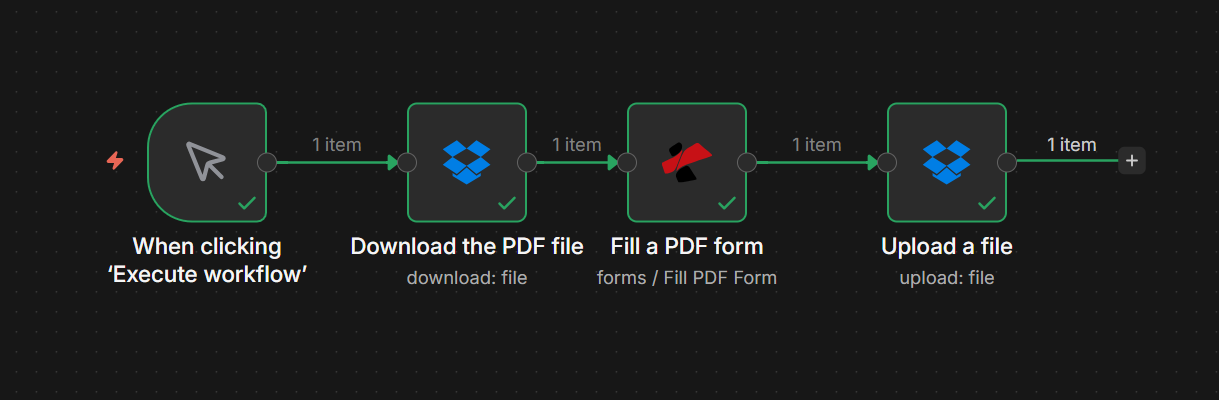
Four nodes: Trigger, Download the PDF file, Fill a PDF form, Upload a file. Each shows a green checkmark when configured. The PDF binary flows from Download to Fill a PDF Form; the filled PDF goes to Upload.
Step 1: Download the PDF File
Workflow so far: Trigger and Download only.
- Add When clicking Execute workflow (or Dropbox – When a file is created for automation).
- Add Dropbox → Download the PDF file (or Download operation on File resource).
- Credential — Select your Dropbox account.
- File Path — e.g.
/blog data/fill a pdf/sample_fill_form.pdf. - Put Output File in Field —
data(so the next node can use the binary). - Execute the node. The PDF is available in the
databinary field.
Download the PDF file: Configuration
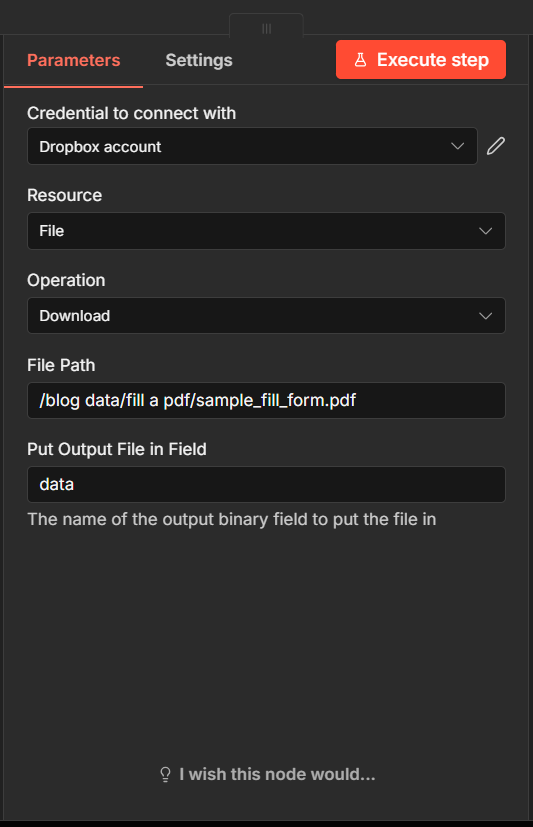
Download node: File Path set to the PDF form. Put Output File in Field set to data so the Fill a PDF Form node receives the binary.
Step 2: Fill a PDF Form
Workflow so far: Download → Fill a PDF Form.
- Add PDF4me → Forms → Fill a PDF Form.
- Credential — PDF4me account.
- PDF Input Data Type — Binary Data.
- PDF Binary Field —
data(from the Download node). - Data Type — Single Document.
- Form Data (JSON) — Paste or map your JSON. Keys must match form field names, e.g.
{"customerName":"John Doe","email":"[email protected]","phone":"+1 555 123 456","invoiceNumber":"INV-2026-001","invoiceDate":"2026-03-09","address":"221B Baker Street, London","amount":"1250 USD"}. - Output Type — pdf.
- Output File Name — e.g.
filled_form_output.pdf. - Output Binary Field Name —
data. - Execute the node. The filled PDF appears in the
databinary field.
PDF4me – Fill a PDF Form: Parameters
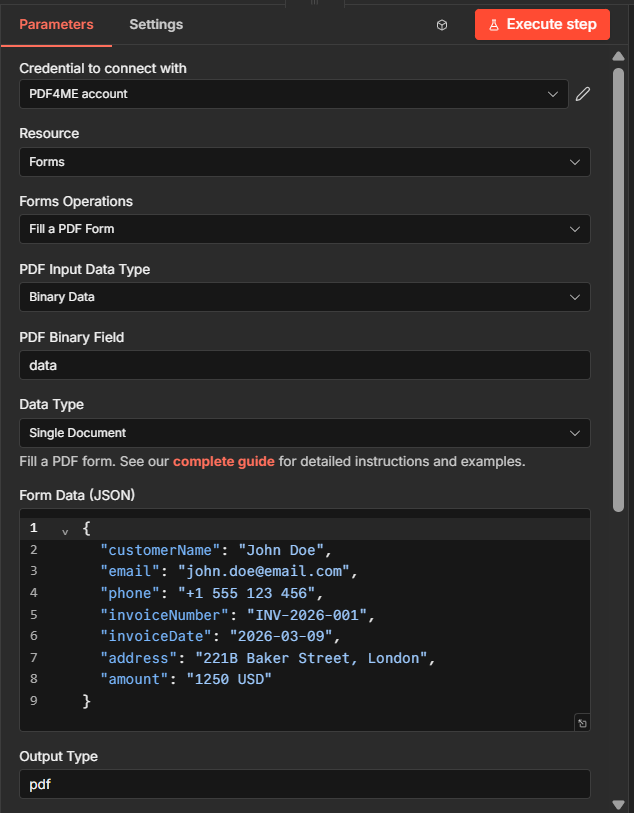
Fill a PDF Form: PDF Binary Field from Download, Form Data (JSON) with keys matching the PDF form fields. Output goes to the data binary field.
Step 3: Upload a File
Workflow so far: Download → Fill a PDF Form → Upload.
- Add Dropbox → Upload a file (or Upload operation on File resource).
- Credential — Same Dropbox account.
- File Path — e.g.
/blog data/fill a pdf/output/Fill_Pdf_n8n.pdf. - Binary File — Yes.
- Input Binary Field —
data(from Fill a PDF Form). - Execute the workflow. The filled PDF is saved to Dropbox.
Upload a file: Configuration
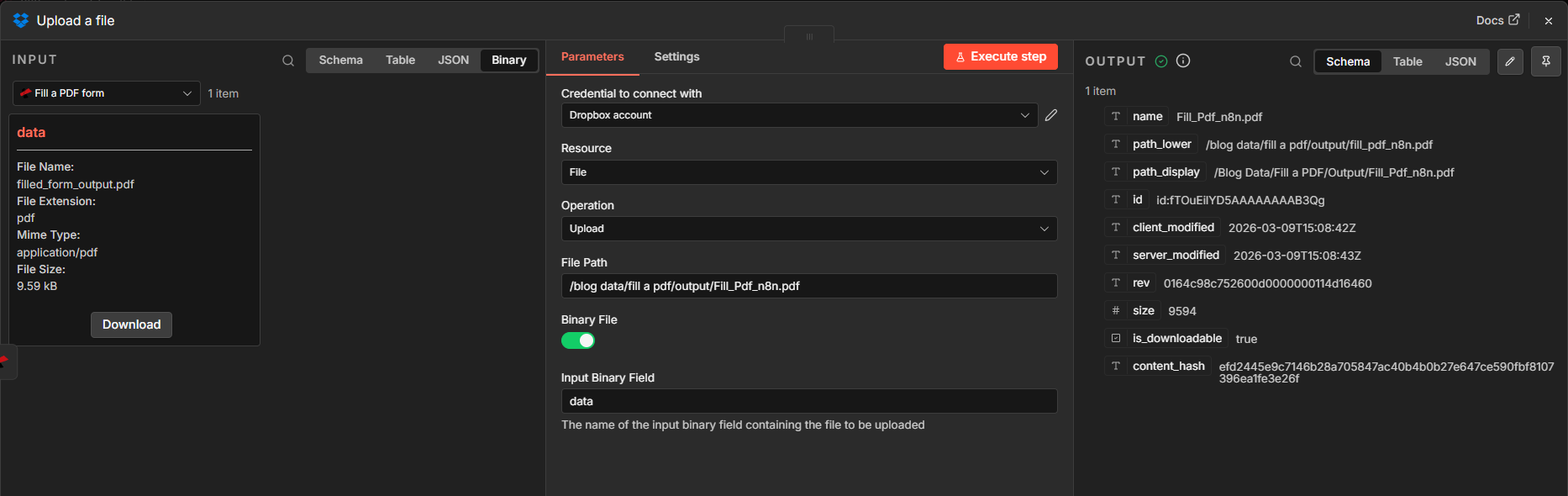
Upload node: File Path for the output folder and filename. Input Binary Field set to data from Fill a PDF Form.
Input and Output: What Goes In, What Comes Out
Here is the JSON, the blank form, and the filled result.
Example JSON input
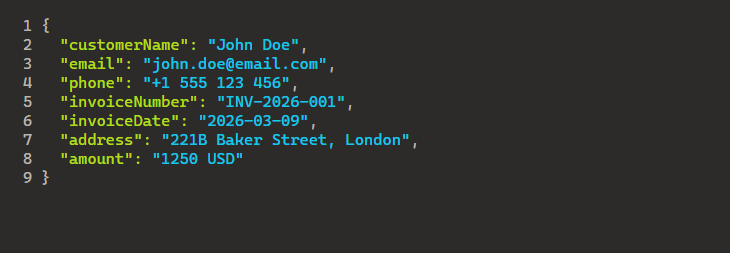
Sample JSON: keys match the fillable form fields. Paste into Form Data (JSON) or map from a Set node or previous node.
Blank fillable form (input)
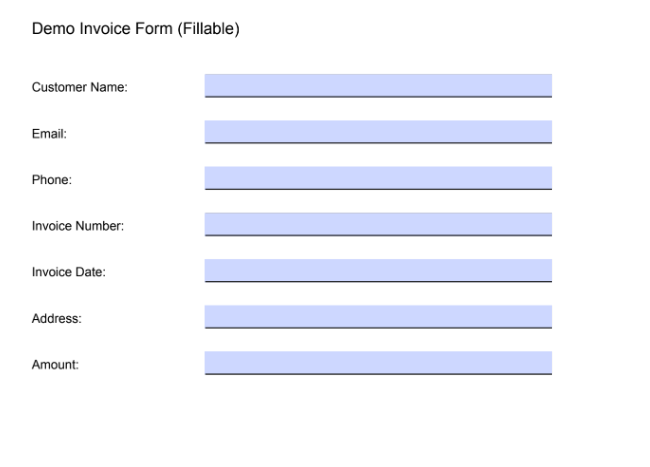
Blank fillable invoice form: fields correspond to the JSON keys. PDF4me populates each field from the JSON value.
Filled form (output)
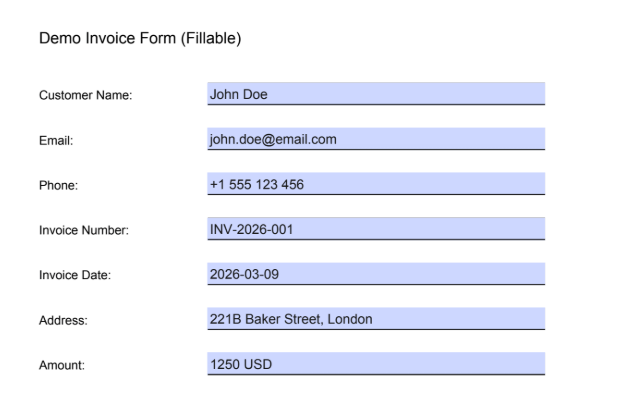
Filled invoice form: all fields populated from JSON. Output is saved via the Upload node or passed to the next workflow step.
Use Cases: When to Fill PDF Forms in n8n
Invoices and quotes: Webhook or form submission sends JSON. Download the template, fill it, and upload or email the PDF.
Contracts and agreements: CRM or database returns JSON. Map to a contract template and generate filled PDFs for each record.
Certificates and badges: Event or training data in JSON. Fill certificate forms in bulk and save to cloud storage or send via email.
Quick Reference: Key Settings
| Node | Setting | Example |
|---|---|---|
| 1. Download the PDF file | File Path | /blog data/fill a pdf/sample_fill_form.pdf |
| 2. Fill a PDF Form | PDF Binary Field | data (from Download) |
| 2. Fill a PDF Form | Form Data (JSON) | {"customerName":"John Doe","email":"..."} |
| 3. Upload a file | Input Binary Field | data (from Fill a PDF Form) |
For full parameter details, see Fill a PDF Form — n8n.
Troubleshooting
JSON keys must match PDF form field names exactly (case sensitive). Check field names in Acrobat or a PDF editor.
Ensure the Download node uses Put Output File in Field: data and the Fill a PDF Form node references data in PDF Binary Field.
PDF4me Troubleshooting covers 401 (API key), 402 (credits), and more.
What's Next?
- Replace the manual trigger with Dropbox – When a file is created to process every new PDF in a folder automatically.
- Add a Set node before Fill a PDF Form to build JSON from previous nodes (e.g. form submissions, webhooks).
- Add Split In Batches to process multiple forms from an array of JSON objects.
- Same flow in Make or Power Automate if you prefer those platforms.