Populate an Excel Template from JSON in Power Automate: A 4-Step Dropbox Workflow with Aspose Smart Markers

Drop an Excel template that uses Aspose Smart Markers (cells written like &=RootData.Items.ItemName) into Dropbox, paste a matching JSON payload into a Power Automate flow, and the populated workbook lands back in Dropbox with totals already calculated. This guide walks through the exact four-action flow shown in the screenshots: Manual trigger, Dropbox Get file content using path, PDF4me Excel - Populate, and Dropbox Create file. Every field value comes from a real run; the input template, JSON payload, and output workbook are all linked at the end.
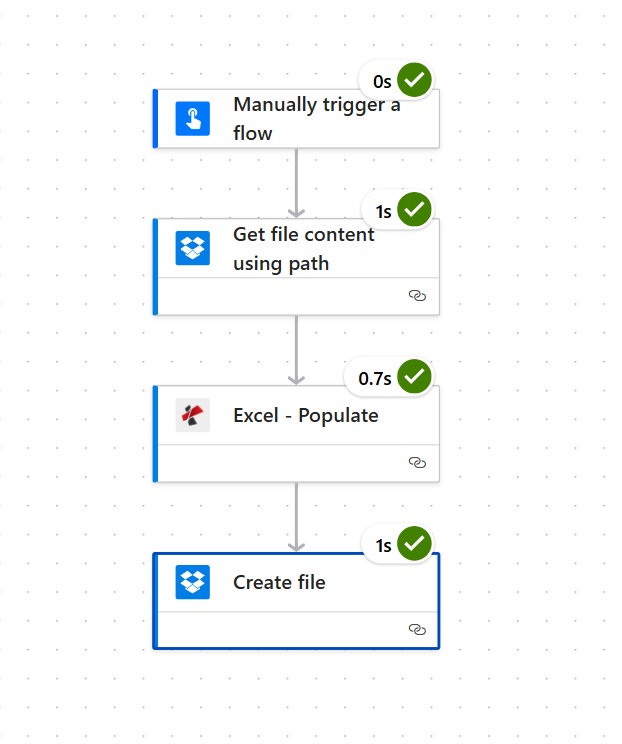
A manual trigger starts the flow. Dropbox Get file content using path reads aspose template.xlsx (the workbook contains a real Excel Table named SimpleInvoice with cells like &=RootData.Items.ItemName in row 2). PDF4me Excel - Populate merges the JSON payload (3 records: Laptop, Mouse's, Keyboard) into Worksheet Index 1 with formulas recalculated. Dropbox Create file writes Excel_populate.xlsx (Invoice Subtotal $1,635.00, Sales Tax $98.10, TOTAL $1,585.00) back into /output.
First, the JSON Data top-level keys must match the data-source names used in the cell markers. Markers like &=RootData.Items.ItemName require the JSON to wrap the records under RootData.Items[]. Field names are case sensitive. Second, the Worksheet Indexes field is 1-based, comma-separated. The template ships with three sheets (Invoice, Sheet1, Sheet2). Pass 1 to populate only the rich Invoice sheet shown in this guide.
What you are building
A four-action Power Automate flow that converts a designed Excel template plus a JSON payload into a fully populated workbook with live formulas. The same pattern works for invoices, inventory reports, payroll summaries, sales recaps, and any other Excel deliverable where the structure stays the same but the rows change every run.
What you need
- Power Automate account with a flow open in the cloud designer.
- PDF4me API key. Get your API key. Add the PDF4me Connect connection the first time you drop the action.
- Dropbox with two folders ready: one for the template, one for the output. (Any storage works: SharePoint Get file content, OneDrive Get file content, and Dataverse Download file all map the same way.)
- An Excel template using Aspose Smart Markers. Download
template.xlsx(also referenced asaspose template.xlsxin the screenshots) to follow along exactly. - JSON sample data. Download
sheet1-data.json(the nestedRootData.Itemspayload used in the run).
A tour of the input template
Before you build the flow, it helps to see what Smart Markers actually look like inside the Excel file. Open the Invoice sheet of template.xlsx. Row 1 is the header. Row 2 contains the markers (one per column). Rows 3 to 6 are pre-formatted empty rows. Below that sits a totals block with a SimpleInvoice Excel Table aggregation.
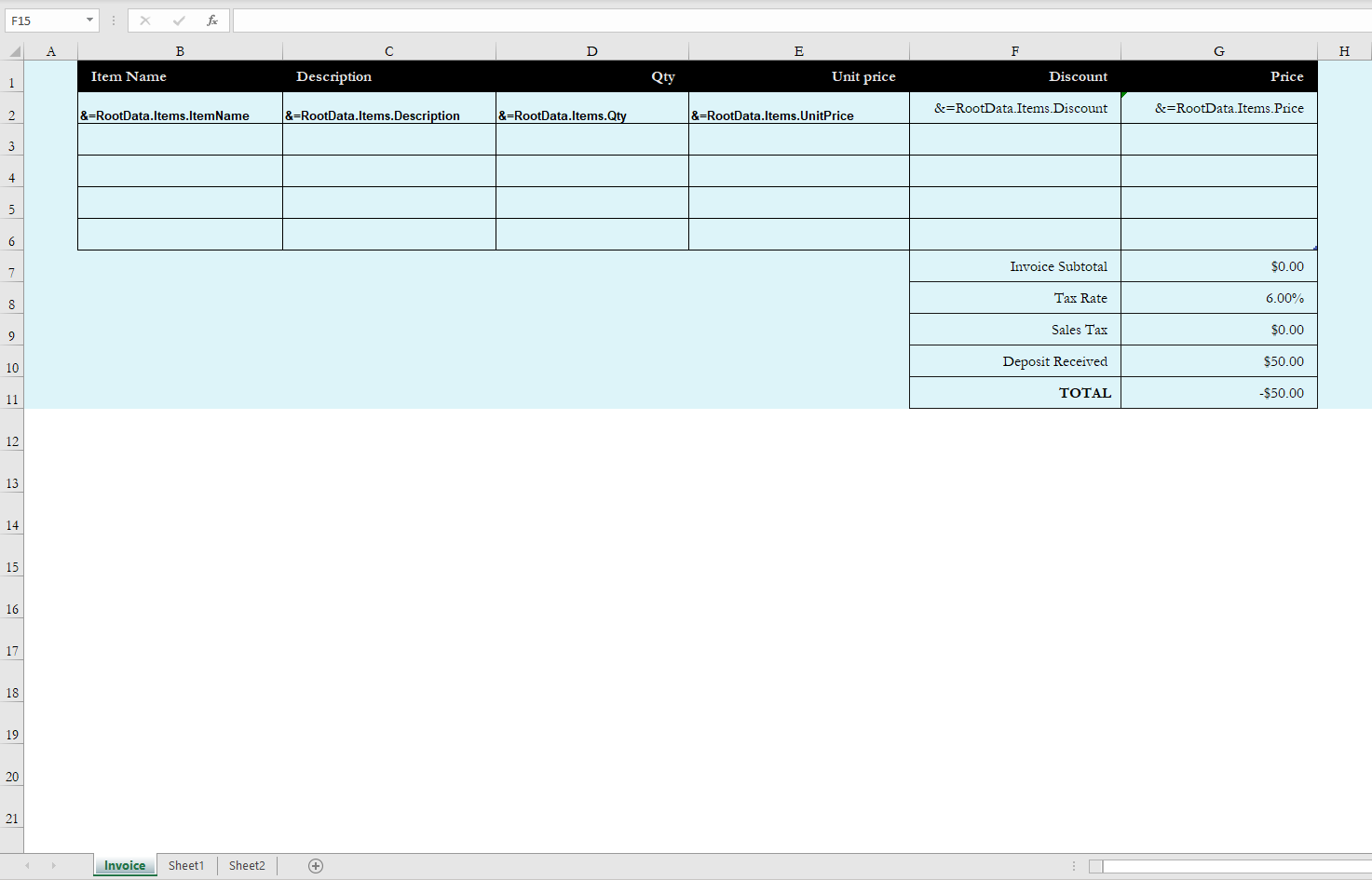
SimpleInvoice Excel Table.The six markers are:
| Cell | Marker |
|---|---|
| B2 | &=RootData.Items.ItemName |
| C2 | &=RootData.Items.Description |
| D2 | &=RootData.Items.Qty |
| E2 | &=RootData.Items.UnitPrice |
| F2 | &=RootData.Items.Discount |
| G2 | &=RootData.Items.Price |
The totals block uses structured references instead of plain A1 addresses:
G7  =SUM(SimpleInvoice[Price])
G9  =IFERROR(G7*G8,"")
G11 =SUM(G2:G4)-G10
When Excel - Populate expands the marker row from 1 record to 3, the SimpleInvoice table range automatically grows, and SUM(SimpleInvoice[Price]) keeps summing the right column. That is the entire reason this pattern beats writing per-row formulas manually.
Build the flow
Action 1: Manually trigger a flow
For testing, the manual trigger is fastest. In production, replace it with When a file is created (Dropbox), When an item is created or modified (SharePoint), Recurrence, or any event that gives you a fresh JSON payload.
Action 2: Dropbox - Get file content using path
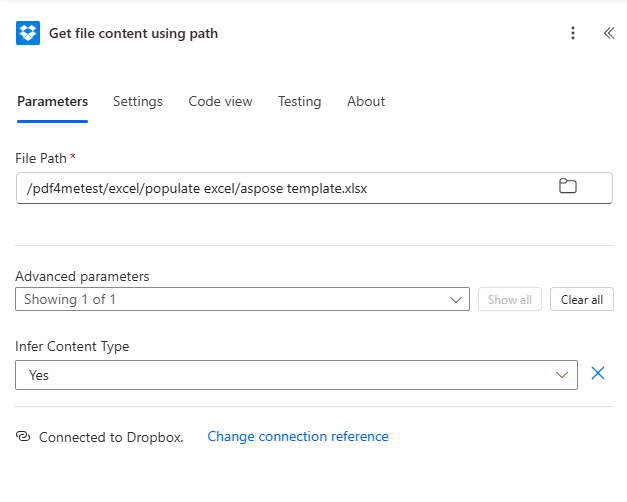
Set File Path to the full Dropbox path of the template, including the filename:
/pdf4metest/excel/populate excel/aspose template.xlsx
Under Advanced parameters, Infer Content Type is set to Yes (the default).
Action 3: PDF4me - Excel - Populate
This is where the merge happens. Search for PDF4me in the action picker, then pick Excel - Populate. Configure these fields:
The full JSON Data payload (copy-paste from sheet1-data.json):
{
  "RootData": {
    "Items": [
      { "ItemName": "Laptop",   "Description": "Dell Inspiron 15",    "Qty": 2, "UnitPrice": 750, "Discount": 50, "Price": 1450 },
      { "ItemName": "Mouse's",  "Description": "Wireless Mouse",      "Qty": 3, "UnitPrice":  25, "Discount":  0, "Price":   75 },
      { "ItemName": "Keyboard", "Description": "Mechanical Keyboard", "Qty": 1, "UnitPrice": 120, "Discount": 10, "Price":  110 }
    ]
  }
}
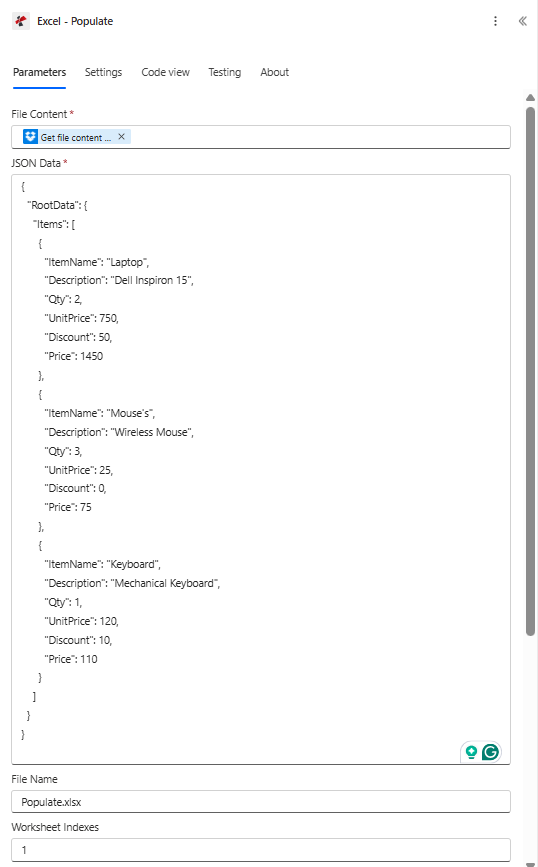
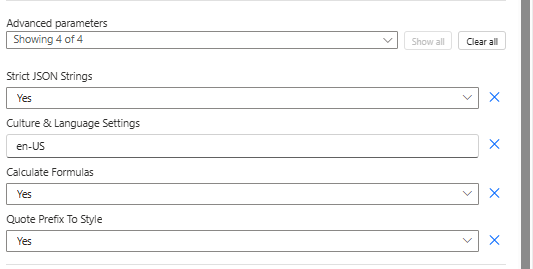
Expand Advanced parameters for the four optional controls. The defaults are usually correct, but the screenshots show what each value looks like in the UI:
Action 4: Dropbox - Create file
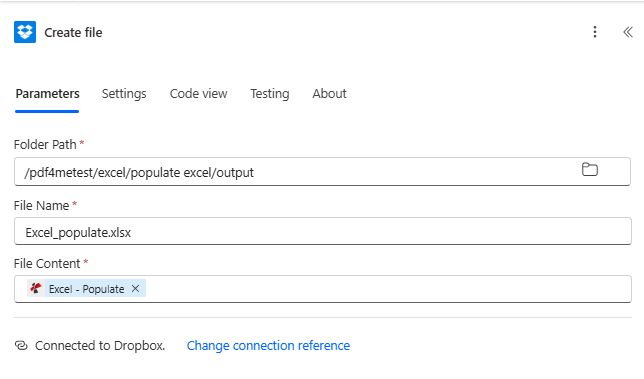
The final step uploads the populated workbook back into Dropbox:
| Field | Value |
|---|---|
| Folder Path | /pdf4metest/excel/populate excel/output |
| File Name | Excel_populate.xlsx |
| File Content | Output File Content (dynamic content from Excel - Populate) |
That is the entire flow. Save and click Test.
The result
When you open Excel_populate.xlsx from the /output folder, the Invoice sheet now carries the three records on rows 2 to 4, and the totals block has computed live values from the SimpleInvoice table aggregation.
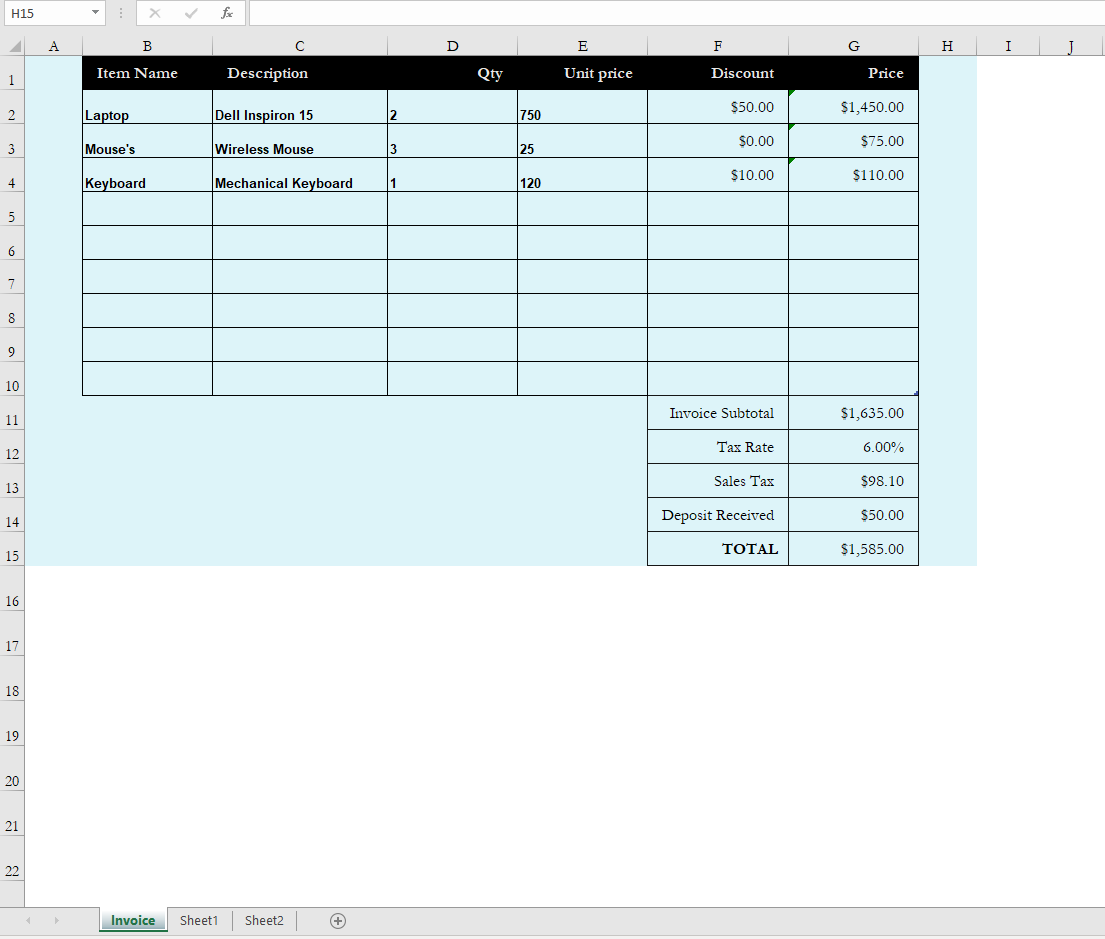
The exact numeric proof that formulas recalculated correctly:
| Cell | Formula | Result |
|---|---|---|
| G7 | =SUM(SimpleInvoice[Price]) | $1,635.00 (1450 + 75 + 110) |
| G9 | =IFERROR(G7*G8,"") with G8 = 6.00% | $98.10 |
| G10 | Static 50 | $50.00 (Deposit Received) |
| G11 | =SUM(G2:G4)-G10 | $1,585.00 (1635 + 98.10 - 50 ≈ rounded display) |
Download the actual output workbook produced by this run: output-excel-populate.xlsx.
Troubleshooting
A column comes out empty. Your JSON property name does not match the marker field name. Markers are case sensitive. &=RootData.Items.ItemName will NOT pick up itemName from the JSON.
The wrong sheet got populated. Check Worksheet Indexes. The value is 1-based (not 0-based). Pass 1 for the first sheet, 2 for the second, etc. Leave empty to populate every sheet.
Totals show $0.00 after the run. Calculate Formulas is set to No. Switch it to Yes.
Strings that look numeric got converted to numbers (or vice versa). Toggle Strict JSON Strings. Yes keeps quoted JSON primitives as text. No coerces them.
Decimal separators or date formats look wrong for your locale. Change Culture & Language Settings. en-US, fr-FR, de-DE, ja-JP, etc. are all valid.
The data lands but only fills the first row even when you sent multiple records. The marker was authored with the (noadd) modifier (&=RootData.Items.ItemName(noadd)). Remove the modifier so the engine inserts new rows.
When to use this pattern
- Invoice generation from CRM line items. Pull lines from Dynamics, Salesforce, or HubSpot into a JSON Items array; render with a designed Excel invoice template.
- Monthly inventory and sales reports. Recurrence trigger plus Dataverse List rows plus this flow gives you a polished Excel deliverable in minutes.
- HR roster, payroll summary, expense reports. Anywhere a designed Excel layout meets fresh row data.
- Excel deliverables a recipient will open and edit. Excel - Populate returns native
.xlsx(not PDF), so recipients can sort, filter, and adjust formulas downstream.