Excel Invoice Template in Power Automate: Fill It from a SharePoint List and Archive Every Invoice as PDF/A with PDF4me

PDF4me Excel - Populate is a Power Automate action that fills an Excel invoice template with JSON data. Here a new SharePoint list item supplies the data, Populate writes it into the template's smart markers, and three more PDF4me actions turn the workbook into a compressed PDF/A invoice that SharePoint stores automatically.
Search for an excel invoice template and page one is a gallery. Microsoft, Vertex42, QuickBooks and Square all hand you a well-designed blank workbook, and every one of them stops at the download. None of them says how the template gets filled, which in practice means someone copying a customer's details into cells, exporting to PDF, naming the file and dropping it in a folder, one invoice at a time. This flow keeps the part those pages get right, a template anyone can design in Excel, and removes every step that comes after the download.
A row lands in a SharePoint list. Power Automate reshapes it into JSON, fills an Excel invoice template with it, converts the workbook to PDF, compresses it, converts it to PDF/A-2b, and writes the result to a SharePoint folder. Eight actions, about thirty-six seconds per invoice, and nobody opens Excel.
Why-Based Q&A
Why use an Excel workbook as the invoice template? Because that is where invoices already get designed. Column widths, merged cells, fonts and borders are all set in Excel, so the person who owns the layout can change it without touching the flow or learning HTML. The only requirement is that each cell holding a value carries a smart marker instead of sample text, and step 4 shows exactly what those look like.
Why does the flow need a Compose action? Because a SharePoint list row is flat and the template is not. The list stores the two line items as ten separate columns, Item1Description through Item2TaxRate. The template has one item row that repeats for every entry in an Items array. Compose is where ten columns become a two-element array, and that array is what makes the row repeat.
Why convert the invoice to PDF/A instead of keeping the .xlsx? A workbook is a live document. Anyone who opens it can change a quantity, and a formula can recalculate to a different total on a different machine. A PDF fixes what was actually invoiced. PDF/A goes one step further and embeds everything needed to render the page, fonts included, which is what you want for a document that usually has to stay readable for years after it was sent.
Why keep the template in a SharePoint library rather than inside the flow? Because the flow reads it fresh on every run. Change the logo, the colours or the column order in SharePoint, and the next invoice uses the new layout without anyone editing the flow. SharePoint version history also keeps every earlier copy of the template, so a bad layout change can be rolled back from there.
What You'll Get
Input: a SharePoint list row holding the invoice header, the customer's details and two line items. Output: a compressed PDF/A-2b invoice, ExcelArchived.pdf, in the /Shared Documents/ArchivedExcel folder of the same site.

The data source: one list row per invoice, twenty-two columns wide. The last row, Morris - INV, is the one that produced the sample output.
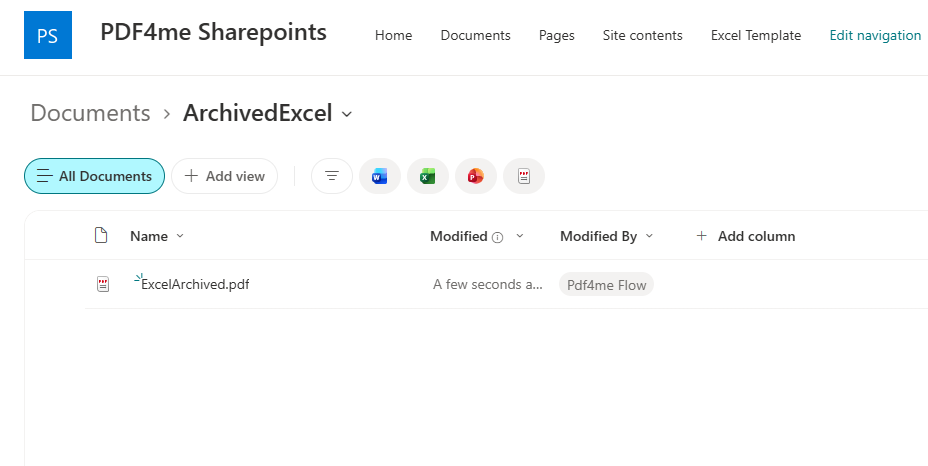
ExcelArchived.pdf in the ArchivedExcel folder, written by the flow account a few seconds after the row was added.
What You Need
- Power Automate. Open Power Automate. A cloud flow on standard connectors. SharePoint and the PDF4me connectors need no premium plan.
- PDF4me API key. Get your API key. This flow uses three PDF4me connections, PDF4me Excel, PDF4me Convert and PDF4me PDF. One key authorises all three.
- A SharePoint site with a list whose columns match the Compose mapping, plus a document library for the template and the output. The captured flow uses the list Excel Template, the folder /Shared Documents/Excel Template for the workbook, and /Shared Documents/ArchivedExcel for the invoices.
- The Excel invoice template. pdf4me-excel-invoice-template.xlsx. One sheet, smart markers already in place.
- The Compose JSON. compose-rootdata.json. The exact RootData mapping from step 2, ready to paste.
- The finished invoice. excel-archived-invoice.pdf. PDF/A-2b, exactly what the captured run produced.
Grab the samples first. Upload the template to your SharePoint library, paste the JSON into the Compose action, then compare your first run against the finished invoice. Open its document properties and you should see PDF/A-2b declared. Knowing what a correct output looks like is the quickest way to tell whether your own run really worked.
The Flow at a Glance
- When an item is created (SharePoint trigger) watches the list named
Excel Template. - Compose builds the
RootDataJSON from the new row. - Get file content using path reads the template from
/Shared Documents/Excel Template. - Excel - Populate (PDF4me Excel) merges the JSON into worksheet
1. - Convert to PDF (PDF4me Convert) renders the workbook as
Invoice.pdf. - PDF - Compress (PDF4me PDF) with Optimize Profile
Web. - PDF - Create PdfA (PDF4me PDF) with Compliance
PdfA2b. - Create file (SharePoint) into
/Shared Documents/ArchivedExcel.
Complete flow overview
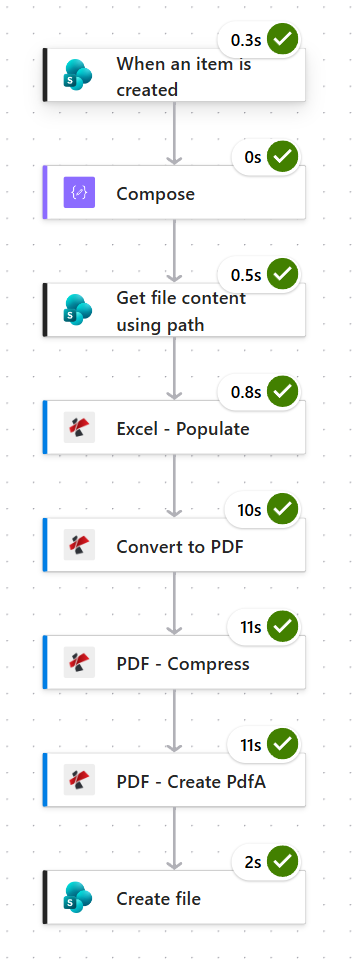
The run that produced the sample invoice. Convert, Compress and Create PdfA take ten to eleven seconds each, and everything else finishes in under a second apart from the two-second SharePoint write. Budget about thirty-six seconds per invoice.
Step 1: How do you trigger a flow when a SharePoint list item is created?
Flow so far: nothing yet, this is the trigger.
Every new row in the list is one invoice, so the trigger is the list itself.
- Create an Automated cloud flow and pick SharePoint > When an item is created.
- Configure:
- Site Address:
PDF4me Sharepoints - https://ynoox1.sharepoint.com/sites/PDF4meSharepoints - List Name:
Excel Template
- Site Address:
SharePoint trigger configuration
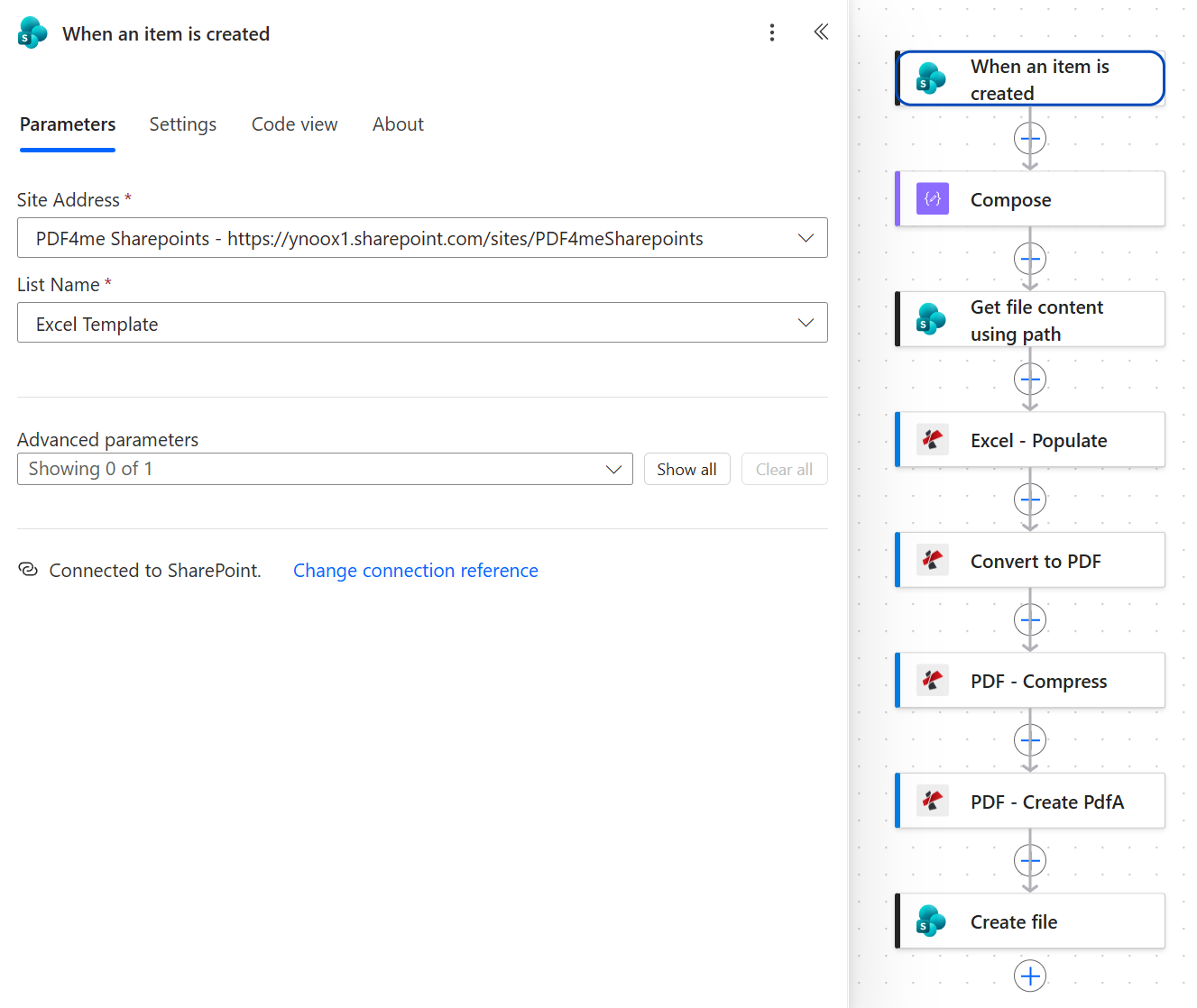
One list, one trigger. The list's built-in Title column carries the invoice number, which is why the next step maps Number to Title.
Tip. Expressions use a column's internal name, not the name you see in the list. The list shows a column called Date and time, but the trigger returns it as Dateandtime, and that is the name the Compose has to use. A wrong name does not fail the run. The ? in triggerBody()?['Dateandtime'] quietly returns null instead, so the invoice simply comes out with an empty date.
Step 2: How do you turn a flat SharePoint row into JSON for an Excel template?
Flow so far: SharePoint trigger.
The template expects a nested structure: an invoice header, a company block, a customer block and a list of items. The list row is flat. Compose is the translation layer between the two.
- Add Data Operation > Compose.
- Paste this into Inputs. Every value is a
triggerBody()?['<column>']expression that points at one list column.
{
  "RootData": {
    "Invoice": [
      {
        "Number": "@{triggerBody()?['Title']}",
        "Date": "@{triggerBody()?['Dateandtime']}",
        "DueDate": "@{triggerBody()?['DueDate']}",
        "PONumber": "@{triggerBody()?['PONumber']}",
        "PaymentTerms": "@{triggerBody()?['PaymentTerms']}"
      }
    ],
    "Company": [
      {
        "Email": "@{triggerBody()?['CompanyEmail']}",
        "Address": "@{triggerBody()?['CompanyAddress']}"
      }
    ],
    "Customer": [
      {
        "Name": "@{triggerBody()?['CustomerName']}",
        "Email": "@{triggerBody()?['CustomerEmail']}",
        "Company": "@{triggerBody()?['CustomerCompany']}",
        "Address": "@{triggerBody()?['CustomerAddress']}",
        "CityStateZIP": "@{triggerBody()?['CustomerCityStateZIP']}"
      }
    ],
    "Items": [
      {
        "Description": "@{triggerBody()?['Item1Description']}",
        "Qty": "@{triggerBody()?['Item1Qty']}",
        "UnitPrice": "@{triggerBody()?['Item1UnitPrice']}",
        "Discount": "@{triggerBody()?['Item1Discount']}",
        "TaxRate": "@{triggerBody()?['Item1TaxRate']}"
      },
      {
        "Description": "@{triggerBody()?['Item2Description']}",
        "Qty": "@{triggerBody()?['Item2Qty']}",
        "UnitPrice": "@{triggerBody()?['Item2UnitPrice']}",
        "Discount": "@{triggerBody()?['Item2Discount']}",
        "TaxRate": "@{triggerBody()?['Item2TaxRate']}"
      }
    ]
  }
}
Compose code view
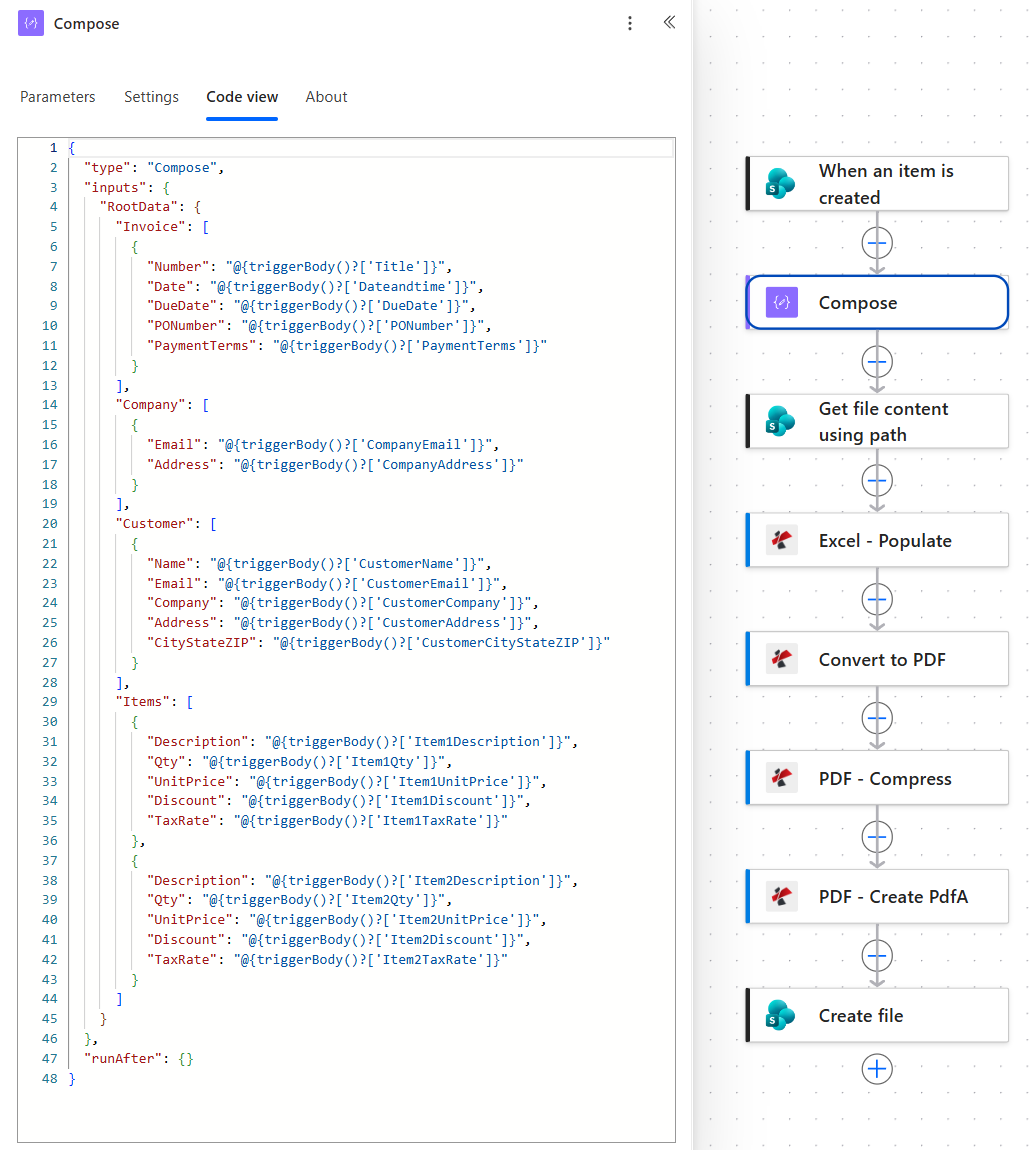
Invoice, Company and Customer are one-element arrays. Items has two elements, one for each set of item columns in the list.
How each template cell gets its value
| Template cell | Smart marker in the cell | Compose path | SharePoint column |
|---|---|---|---|
| Invoice No. (B12) | &=RootData.Invoice.Number(noadd) | Invoice[0].Number | Title |
| Date (B13) | &=RootData.Invoice.Date(noadd) | Invoice[0].Date | Dateandtime |
| Due Date (B14) | &=RootData.Invoice.DueDate(noadd) | Invoice[0].DueDate | DueDate |
| PO Number (B15) | &=RootData.Invoice.PONumber(noadd) | Invoice[0].PONumber | PONumber |
| Payment Terms (B16) | &=RootData.Invoice.PaymentTerms(noadd) | Invoice[0].PaymentTerms | PaymentTerms |
| Email and Address (B4, B5) | &=RootData.Company.Email(noadd) and .Address | Company[0] | CompanyEmail, CompanyAddress |
| Customer block (B6 to B10) | &=RootData.Customer.Name(noadd) and four more | Customer[0] | CustomerName to CustomerCityStateZIP |
| Item row (A19 to E19) | &=RootData.Items.Description, .Qty, .UnitPrice, .Discount, .TaxRate | Items[0] and Items[1] | Item1 and Item2 columns |
The From block (B3) is plain text, PDF4me, so it is the same on every invoice. Replace it with your own company name in the template.
Step 3: Where does the flow read the Excel template from?
Flow so far: SharePoint trigger plus Compose.
The template is an ordinary file in a document library. The flow reads it on every run, so whatever is in SharePoint at that moment is the layout that gets used.
- Add SharePoint > Get file content using path.
- Configure:
- Site Address:
PDF4me Sharepoints - https://ynoox1.sharepoint.com/sites/PDF4meSharepoints - File Path:
/Shared Documents/Excel Template/PDF4me_Excel_SharePoint_Template_.xlsx - Infer content type (advanced):
Yes
- Site Address:
Get file content using path configuration
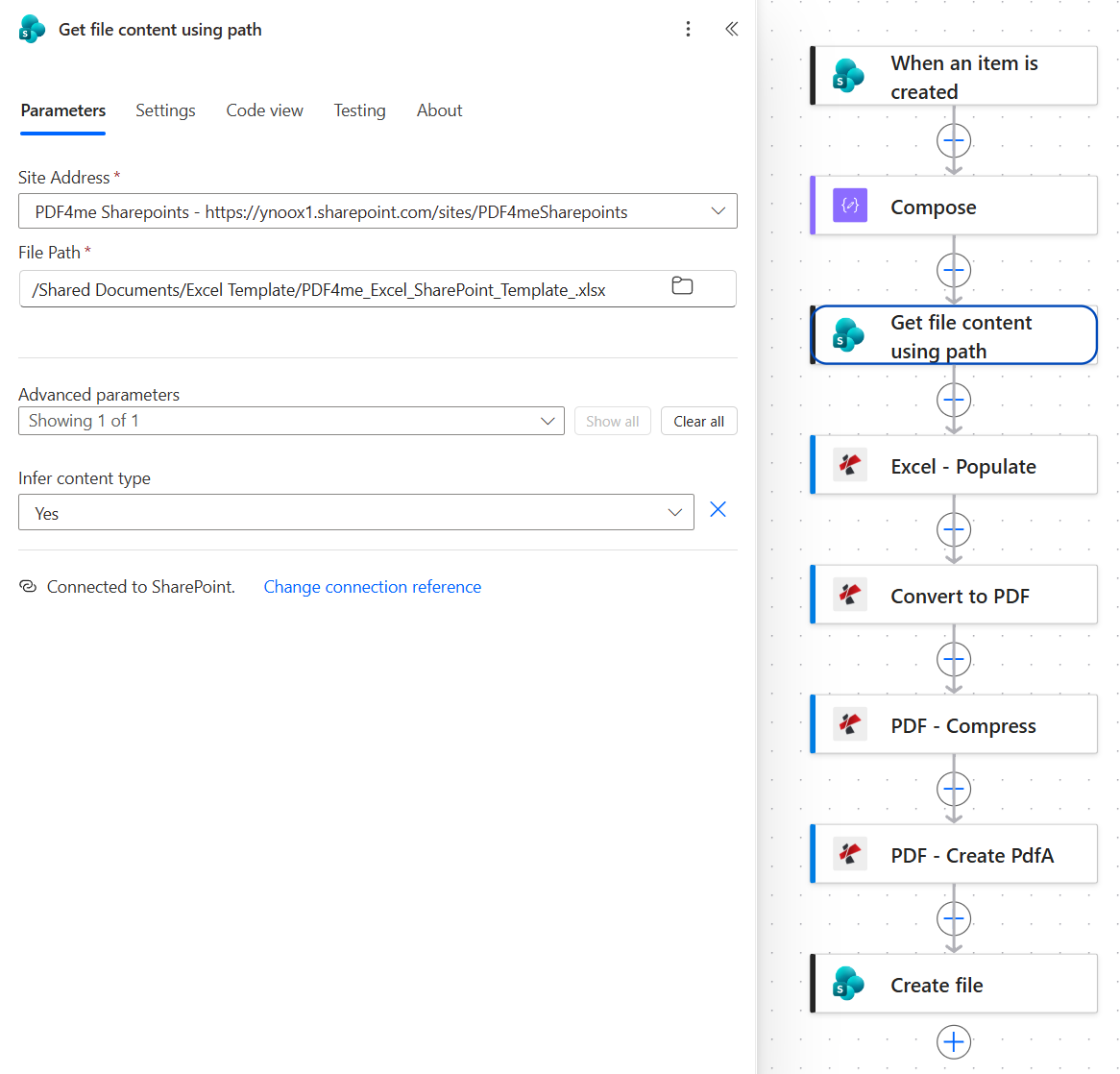
The list and the template folder are both called Excel Template. They are different things: one is a list, the other is a folder in Shared Documents.
Step 4: How does Excel - Populate fill an Excel invoice template?
Flow so far: SharePoint trigger plus Compose plus Get file content using path.
This is the step that does the work the template galleries leave to you. Excel - Populate takes the workbook and the JSON, finds every smart marker, and writes the matching value into its cell.
- Add Excel - Populate from the PDF4me Excel connection.
- Configure:
- File Content: the Body token from Get file content using path
- JSON Data: the output of Compose (the token shows as Body)
- File Name:
Populate.xlsx - Worksheet Indexes:
1
- Open Advanced parameters and set three of the four:
- Strict JSON Strings:
Yes - Culture & Language Settings:
en-US - Calculate Formulas:
Yes
- Strict JSON Strings:
Excel - Populate configuration
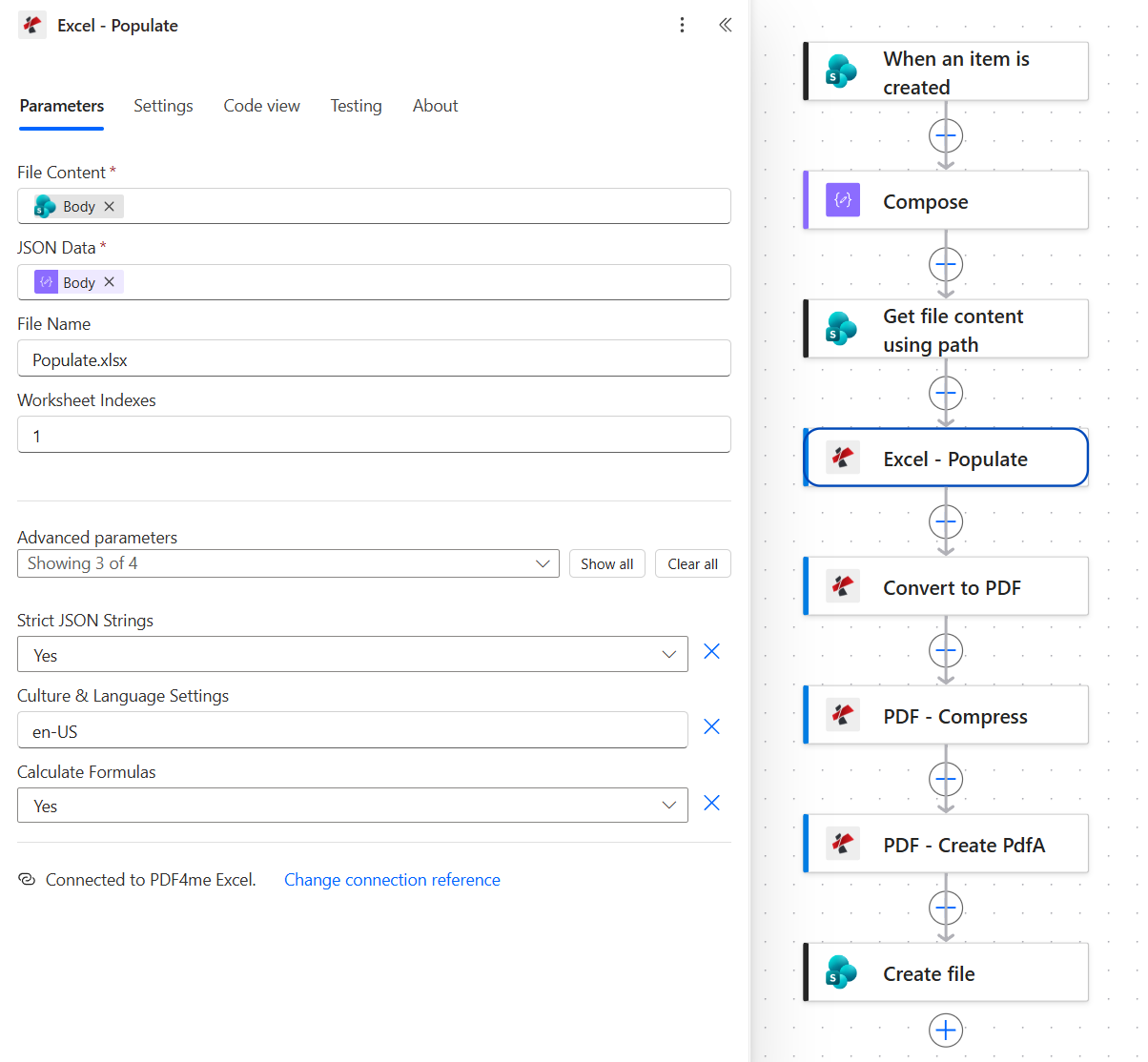
Two inputs carry the work: the template bytes from SharePoint and the JSON from Compose. Everything else is formatting and scope.
The template uses two kinds of marker, and the difference between them is the whole trick:
- Header cells such as Invoice No. hold
&=RootData.Invoice.Number(noadd). The(noadd)modifier writes the value in place and never inserts a row. - The item row holds
&=RootData.Items.Description,&=RootData.Items.Qtyand so on, with no modifier. That row is written once for every element of theItemsarray, so two items produce two rows, and a third item would produce a third.
The full grammar, including modifiers, nested paths and formula handling, is in the Excel Populate syntax overview. For the Populate action on its own, with a Dropbox template and an inline JSON payload, see populating an Excel template from JSON in Power Automate.
Tip. Every value in the Compose sits inside quotes as a string interpolation, so quantities and prices reach the template as text. With Strict JSON Strings set to Yes they stay text, which prints correctly and is all this template needs. If you add a line total or a SUM, set it to No so numeric-looking strings become real numbers. Otherwise SUM skips them, because Excel does not add up numbers stored as text.
Step 5: How do you convert the populated workbook to PDF?
Flow so far: SharePoint trigger plus Compose plus Get file content using path plus Excel - Populate.
The populated workbook only exists inside the run. It is never saved as an .xlsx; it goes straight into the converter.
- Add Convert to PDF from the PDF4me Convert connection.
- Configure:
- File Content: the Output File Content token from Excel - Populate
- File Name:
Invoice.pdf
Convert to PDF configuration
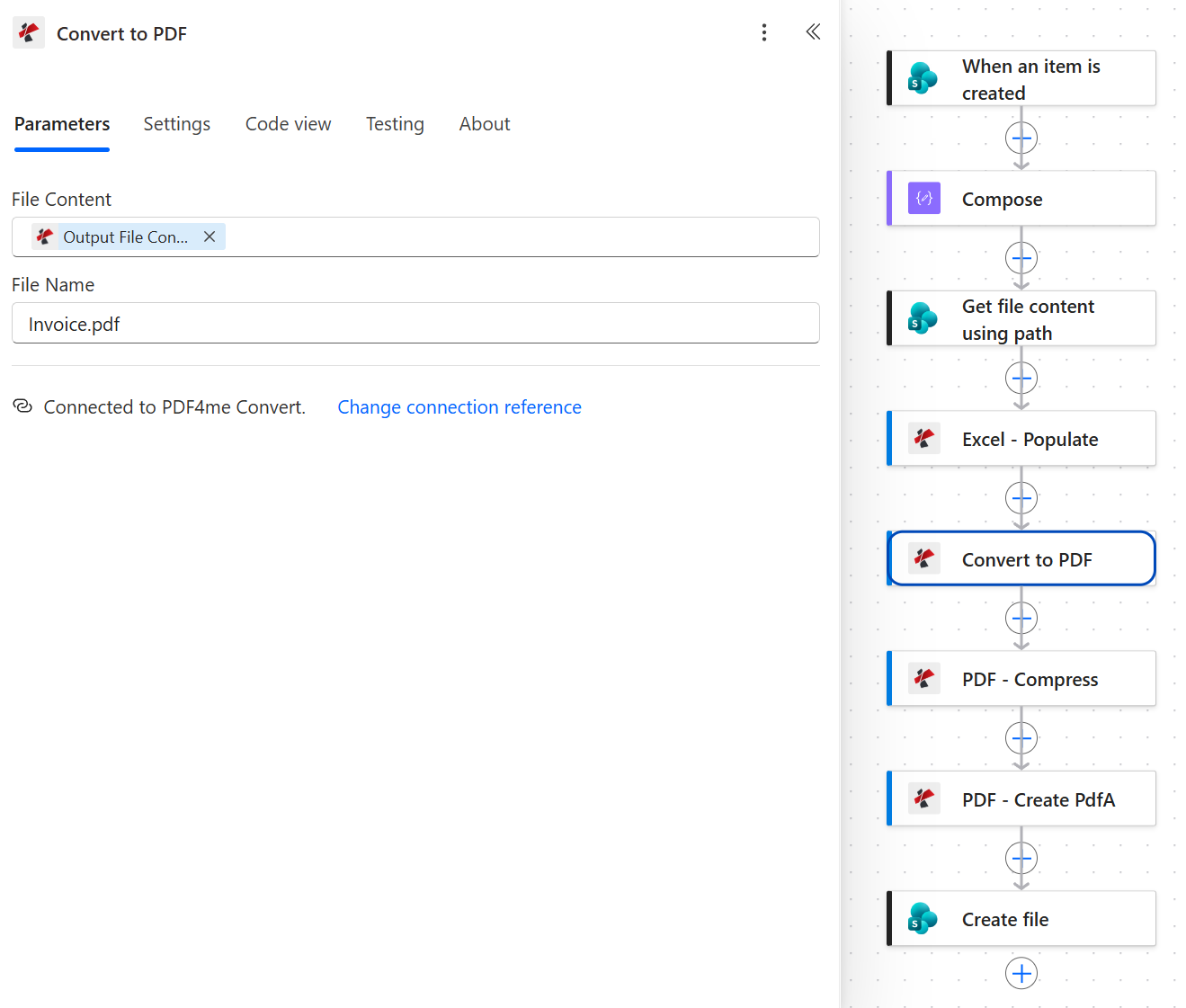
Output File Content is the populated workbook. It never touches SharePoint as an .xlsx.
Tip. The captured flow passes Invoice.pdf as the File Name and still converts correctly. The Convert to PDF reference asks for the source file's extension, though, so Invoice.xlsx is the safer value when you build your own.
Set the page layout in the template, not in the flow. Convert to PDF follows the workbook's page setup. The sample template is slightly wider than one Letter page, so the captured invoice has columns A to D on page one and only the Tax % column on page two. Open the template in Excel, go to Page Layout and set Scale to Fit > Width to 1 page, then save it back to SharePoint. Every invoice after that fits one page across.
Step 6: How do you compress the invoice and convert it to PDF/A?
Flow so far: everything through Convert to PDF.
Two actions from the PDF4me PDF connection, compress first and certify second. Reversing them would let compression rewrite a file that had already been made compliant.
- Add PDF - Compress.
- File Content: the Body token from Convert to PDF
- File Name: the
headers/FileNametoken carried through from the previous action - Optimize Profile:
Web
- Add PDF - Create PdfA.
- File Content: the Body token from PDF - Compress
- File Name: the
headers/FileNametoken - Compliance:
PdfA2b - Allow Upgrade:
Yes - Allow Downgrade:
Yes
Compress and Create PdfA parameters
| Action | Parameter | Value used here | What it controls |
|---|---|---|---|
| PDF - Compress | Optimize Profile | Web | Trades size against fidelity. A text-and-table invoice with no images has little for it to degrade. |
| PDF - Create PdfA | Compliance | PdfA2b | ISO 19005-2, level B. The page renders the same way on any viewer, years from now. |
| PDF - Create PdfA | Allow Upgrade | Yes | Lets the action settle on a higher level when the requested one is not reachable. |
| PDF - Create PdfA | Allow Downgrade | Yes | Lets it settle on a lower level instead of failing outright. |
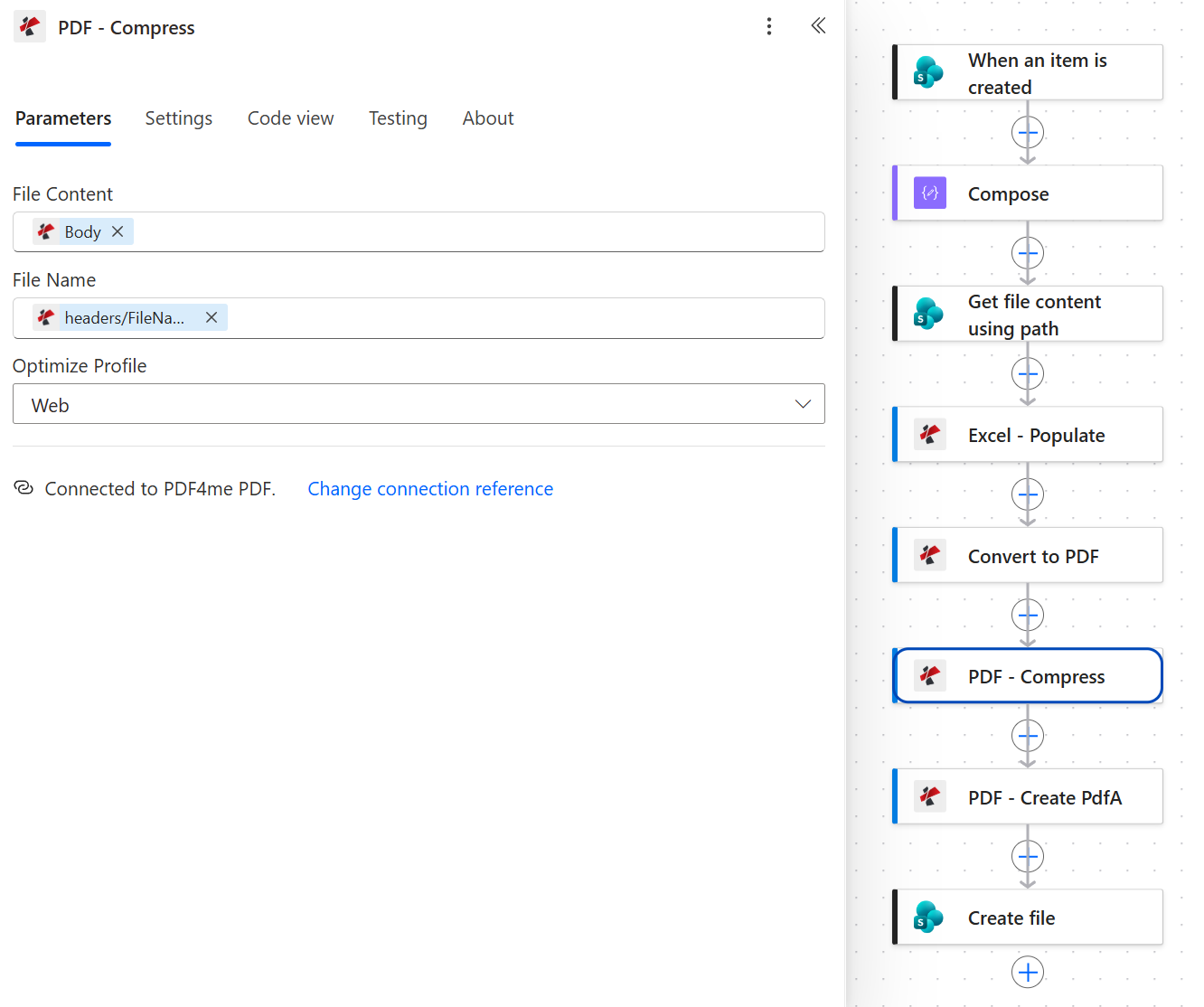
Compress works on the converted invoice, before anything is certified.
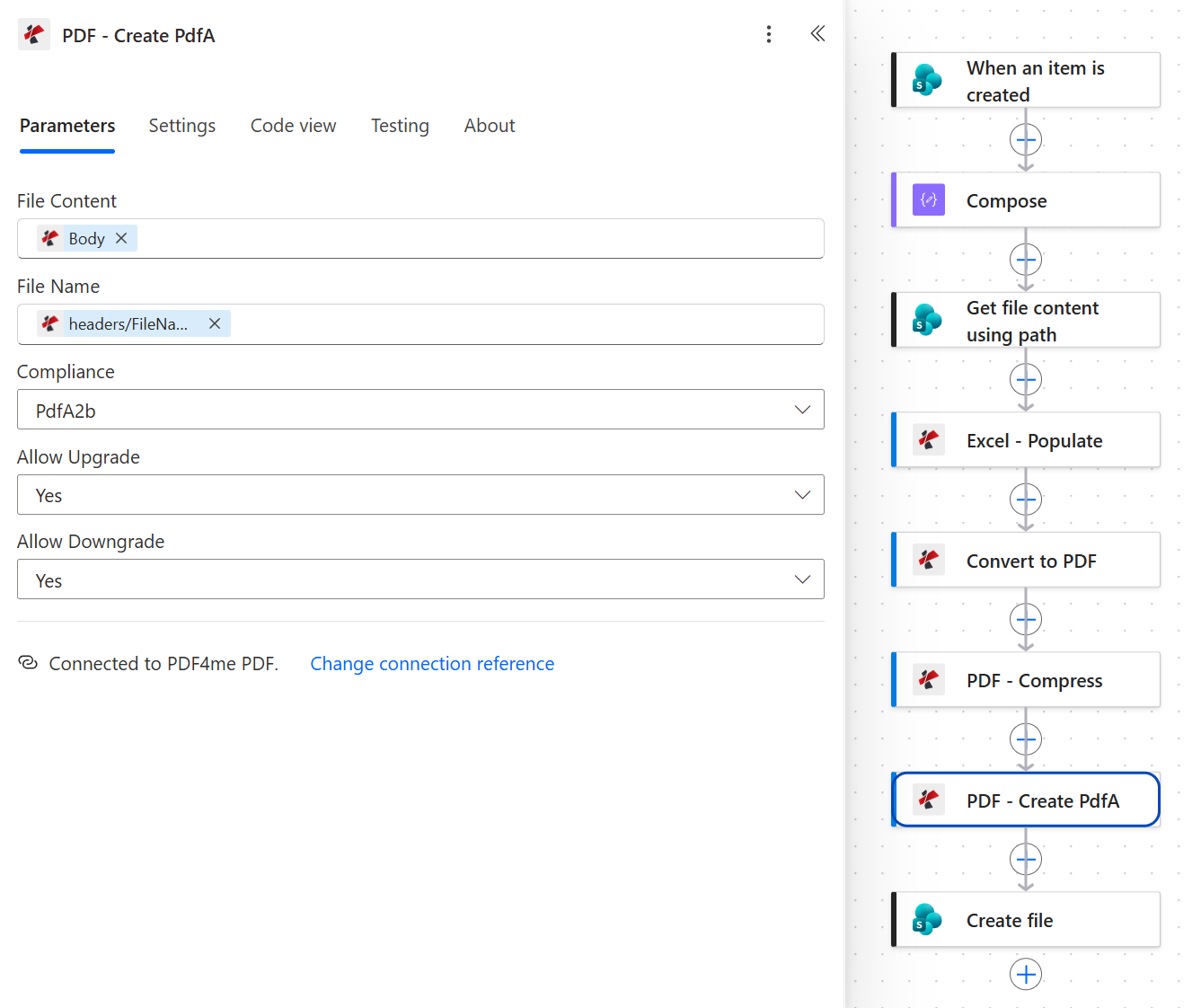
Create PdfA is the last action to touch the document, which is exactly where it belongs.
The same pair does the same job on files that are already in SharePoint in PDF archiving in Power Automate with an unattended SharePoint folder.
Step 7: Where does the finished invoice get saved?
Flow so far: everything through Create PdfA.
The last action writes the certified invoice back into the same SharePoint site.
- Add SharePoint > Create file.
- Configure:
- Site Address:
PDF4me Sharepoints - https://ynoox1.sharepoint.com/sites/PDF4meSharepoints - Folder Path:
/Shared Documents/ArchivedExcel - File Name:
ExcelArchived.pdf - File Content: the Body token from PDF - Create PdfA
- Site Address:
SharePoint Create file configuration
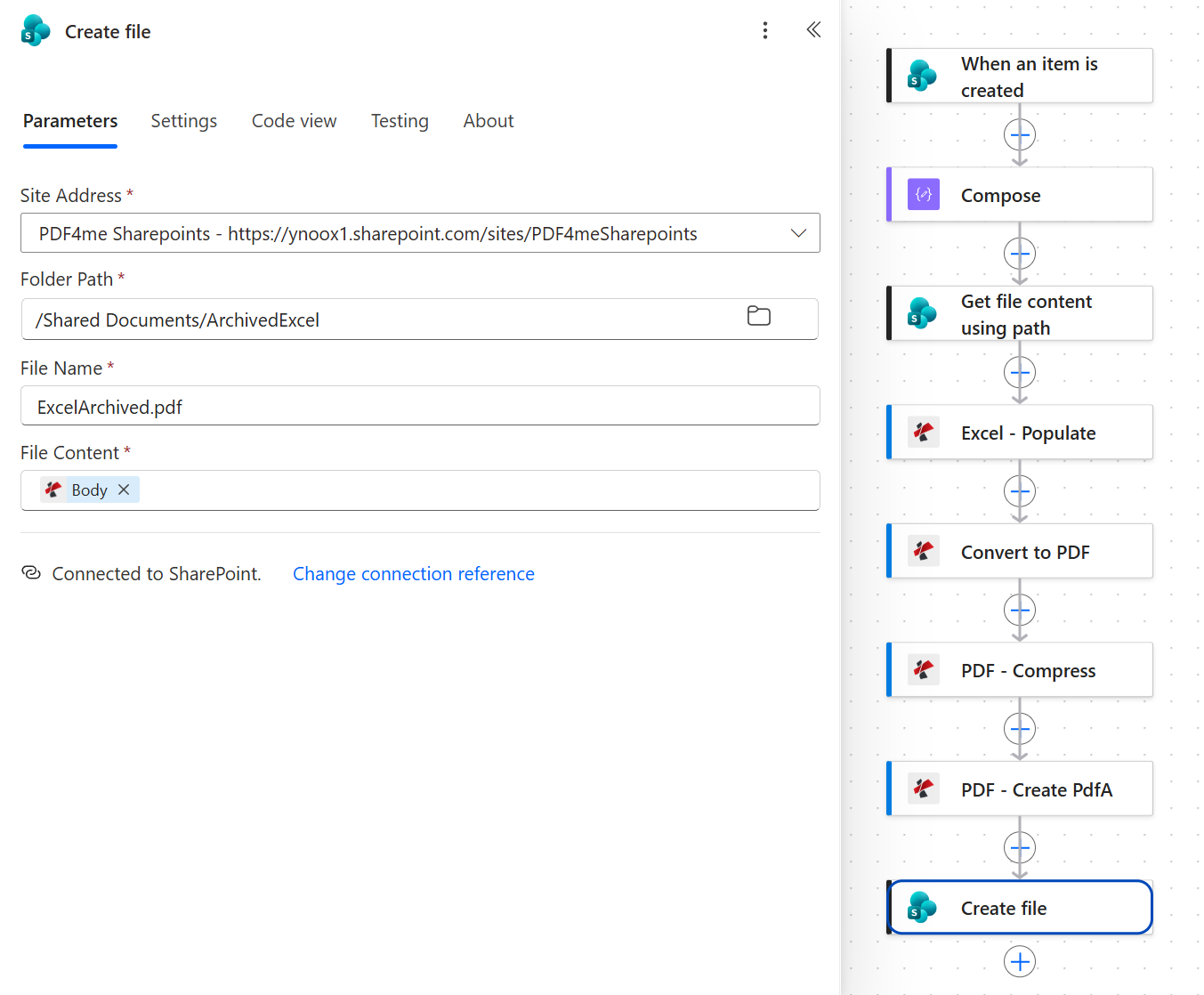
Every PDF4me action outputs a token called Body, so the label alone does not tell you which one you picked. Hover it, or check the code view for body('PDF_-_Create_PdfA').
Change this before you go live. ExcelArchived.pdf is a fixed name, so every new list item writes to the same file and the folder never holds more than the latest invoice. Build the name from the row instead. The list item ID is unique by definition, so concat('Invoice-', triggerBody()?['ID'], '.pdf') always works. The invoice number in Title works too, as long as it never contains characters SharePoint rejects in file names, such as a slash, a colon, an asterisk or a question mark.
Run the Flow and Verify
- Save the flow at the top right.
- Add a new item to the list named Excel Template and fill in every column the template uses.
- Open the run history. All eight actions should be green, with Convert, Compress and Create PdfA taking most of the time.
- Open
/Shared Documents/ArchivedExceland check that the PDF is there, with Modified By showing the flow's account. - Open the file itself and compare it with the list row, then check its document properties for the PDF/A declaration.
The invoice from the captured run is 37,876 bytes. It renders the row Morris - INV: customer Morris Luma at Invoicing.co, dated 2026-09-01 and due 2026-09-20, with two line items, PDF to Excel (quantity 60) and PDFA (quantity 45). Its XMP metadata declares pdfaid:part as 2 and pdfaid:conformance as B, which is PDF/A-2b seen from the inside. It is two pages rather than one, for the page-setup reason covered in step 5.
What did you actually build? An invoicing pipeline where the only manual step is entering the data. The layout lives in an Excel file that anyone can edit, the data lives in a list, and the output is a self-contained archival PDF filed without anyone deciding to file it. The pattern is not tied to Power Automate either: it carries over to Make, Zapier and n8n wherever the PDF4me Excel and PDF/A actions are available.
Common Variations You Can Add Without Rebuilding
How this compares to other ways of producing invoices
Each row describes the alternative. The last row is this flow.
| Comparison | Who can change the layout | How the template gets filled | Archival format |
|---|---|---|---|
| Hand-filled Excel template vs this flow | Anyone who uses Excel | Copy and paste, one invoice at a time | Plain PDF unless someone sets the PDF/A export option |
| Excel VBA macro vs this flow | Whoever maintains the macro | Automatically, on a desktop with the workbook open | Plain PDF unless the export is set up for PDF/A |
| HTML template plus Convert HTML to PDF vs this flow | Someone comfortable with HTML and CSS | Automatically, in the cloud | |
| This flow | Anyone who uses Excel | Automatically, on every new list item | PDF/A-2b |
The distinction that matters: the first two keep the layout in Excel but keep a person in the loop, and the third removes the person but moves the layout into code. Only this flow does both.
Common questions
Is there an invoice template in Excel?
Yes. Excel ships with invoice templates: in the desktop app, choose File > New and search for invoice, and Microsoft publishes more in its online template gallery. They are designed to be filled in by hand.
The template used in this post is built for a different job. Its value cells hold smart markers instead of sample text, so a flow can fill it. You can convert any invoice template you already like the same way: keep the design, and replace each value with a marker such as &=RootData.Invoice.Number(noadd).
How to generate invoice from Excel data?
Keep the data in rows, keep the layout in a template, and let something merge the two. Inside Excel alone that something is a Word mail merge or a VBA macro, and both run on someone's desktop.
In this flow the rows live in a SharePoint list, Compose turns one row into JSON, and Excel - Populate merges it into the template. If your data is already an Excel table in OneDrive or SharePoint, the Excel Online (Business) connector's List rows present in a table action can feed the same Compose inside an Apply to each loop, with items('Apply_to_each') in place of triggerBody(). Everything from step 3 onward stays as it is.
How to automate invoices in Excel?
Automating an invoice means removing every step a person does per invoice: typing the values in, exporting to PDF, naming the file and filing it. The template itself stays a normal Excel file.
This flow removes all four. The list row is the only input. The template is filled by Excel - Populate, exported by Convert to PDF, made archival by PDF - Create PdfA, and filed by Create file. Once the file name is built from the row, as step 7 describes, there is nothing left to do by hand.
Can Power Automate convert Excel to PDF?
Yes. In a cloud flow, the OneDrive for Business connector's Convert file action turns an .xlsx into a PDF, but only for a file stored in OneDrive, so SharePoint flows often copy the workbook there first and delete it afterwards.
PDF4me Convert to PDF takes the file content directly from any previous action. That is why the populated workbook in this flow is never saved anywhere: it goes from Excel - Populate straight into the converter, and the only file that ever lands in SharePoint is the finished PDF/A invoice.
Troubleshooting
Check the column name inside the Compose expression. It must be the internal name, Dateandtime rather than Date and time. The question mark in triggerBody()?['Dateandtime'] turns a wrong name into null instead of an error, so the run stays green and the cell stays empty. If the name is right, check the JSON path against the marker: RootData, then Customer, then Name, spelled the same way in both.
The template is wider than one printed page. Convert to PDF follows the workbook's page setup, so fix it there: Page Layout, Scale to Fit, Width 1 page. Save the template back to SharePoint and the next run fits one page across.
The Create file File Name is the fixed text ExcelArchived.pdf, so every run targets the same name. Make it unique per row with the list item ID, as described in step 7.
Create file is reading from PDF - Compress or Convert to PDF instead of PDF - Create PdfA. All three tokens are labelled Body, so the mistake is easy to make and nothing in the run history looks wrong. Confirm the expression is body('PDF_-_Create_PdfA').
Next Steps
The same eight-step pattern (list row, reshape to JSON, fetch the template, populate, convert, compress, certify, save) handles any document that starts life as a spreadsheet: quotes, delivery notes, statements and certificates.