Email Archiving in Power Automate: One Outlook Message Becomes One Compressed PDF/A File in SharePoint with PDF4me

PDF4me Create PdfA is a Power Automate action that rewrites a PDF to the ISO 19005 archival standard. Placed at the end of an Outlook flow that converts the message body, converts every attachment, and merges them, it turns email archiving into a single compressed PDF/A file that SharePoint stores permanently.
Search for email archiving and page one sells you storage. Proofpoint, Mimecast, Barracuda, GoDaddy, every one of them answers the question "where will the mail live and for how long". Not one of them answers the question that actually decides whether an archive is worth keeping: what format is it in? A mailbox export is only readable while something can still open it. This flow treats archiving as a format problem first and a storage problem second, which is the opposite order to everyone on that results page.
An email lands in a monitored mailbox. Power Automate converts the message body to PDF, converts every attachment to PDF, merges all of it into one document in the order it arrived, compresses it, converts it to PDF/A-2b, and files the result in SharePoint. The body is page one. The attachments follow. Eleven actions, about fifty-six seconds per message, and the thing that comes out the other end will still open correctly long after the mailbox is gone.
Why-Based Q&A
Why merge the body and attachments instead of storing them separately? Because the context and the artefacts are only meaningful together. The body says who sent it and why, the attachment is the thing itself. Store them as separate files and reconstructing the message later becomes a small research project. One PDF keeps the evidence intact.
Why does PDF/A matter for email specifically? Email retention windows are long, often seven years and sometimes permanent. An ordinary PDF may reference fonts and colour profiles that live outside the file. PDF/A forbids that, so everything needed to render the page travels with it. That is exactly what a retention policy is asking for when it says "readable for the retention period".
Why compress before the PDF/A conversion? Two reasons, and both point the same way. PDF/A conversion embeds fonts and profiles, so it makes files bigger; compressing first offsets that. And compression rewrites image streams, so running it on a file you just certified risks disturbing the compliance you paid for. Compress, then certify.
Why an array variable rather than chaining the actions? Because the attachment count is unknown until the email arrives. An array is the only structure that holds one body plus N attachments and preserves their order. Merge accepts the whole array in one call, so the loop stays two actions long no matter how many files turn up.
What You'll Get
Input: an Outlook email with one or more attachments. Output: a single compressed PDF/A-2b file in SharePoint containing the message body as page one followed by every attachment in order.
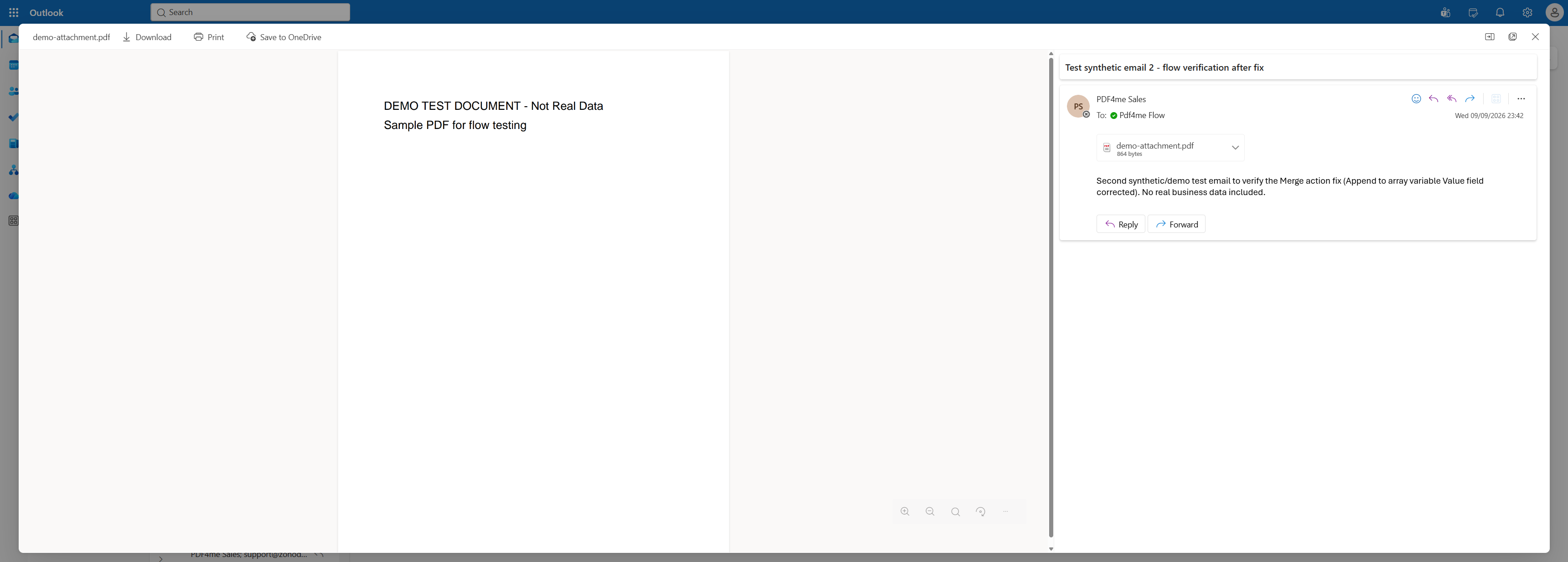
The message that triggers the flow: a short body and one PDF attachment.
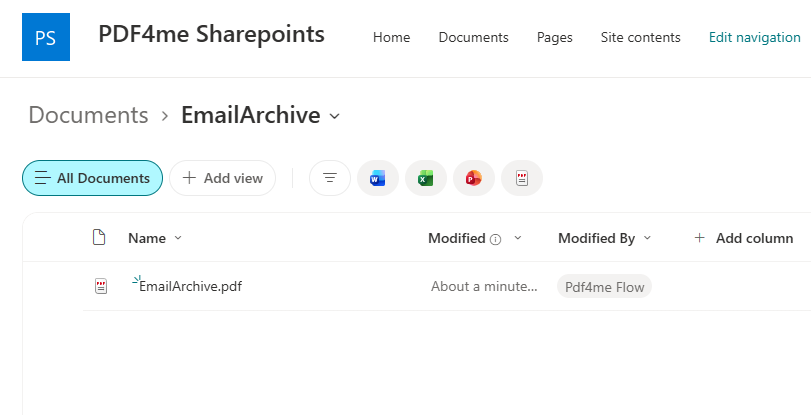
EmailArchive.pdf, written by the flow account, about a minute after the mail arrived.
What You Need
- Power Automate. Open Power Automate. A cloud flow on standard-tier connectors. No premium plan, no gateway.
- An Office 365 Outlook mailbox you can monitor. A shared mailbox works and is usually the better choice for an archive.
- PDF4me API key. Get your API key. This flow uses two PDF4me connections, PDF4me Connect and PDF4me PDF. One key authorises both.
- A SharePoint site with an archive folder. Create it before you build so the folder picker has something to point at.
- The sample attachment. demo-attachment.pdf. The one-page PDF that was sent with the test email.
- The finished archive. email-archive-output.pdf. Two pages, PDF/A-2b, exactly what the flow produced.
Grab both files first. Send yourself the attachment, then compare your result against the finished archive. Open its document properties and you should see PDF/A-2b declared. Knowing what a correct output looks like is the fastest way to tell whether your own run really worked.
The Flow at a Glance
- When a new email arrives (V3) (Outlook trigger) with attachments included.
- Initialize variable
email, type Array. - Convert to PDF (PDF4me Connect) on the HTML message body.
- Append to array variable pushing the converted body.
- Apply to each over the trigger's
Attachments. - Convert to PDF 2 on each attachment's
contentBytes. - Append to array variable 2 pushing each converted attachment.
- Merge multiple PDF files into a single PDF file (PDF4me Connect).
- PDF - Compress with Optimize Profile
Web. - PDF - Create PdfA with Compliance
PdfA2b. - Create file (SharePoint) into
/Shared Documents/EmailArchive.
Complete flow overview
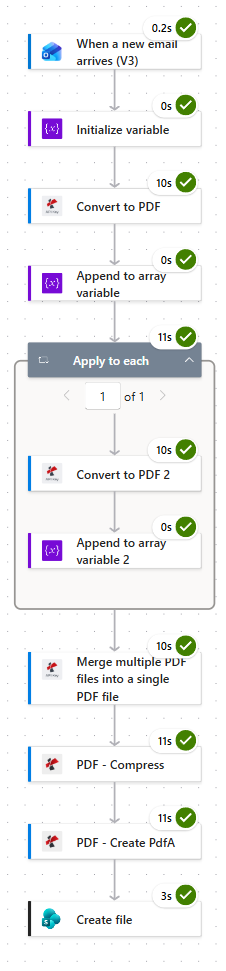
Four document operations at ten to eleven seconds each dominate the run. Budget about fifty-six seconds for a message with one attachment, and roughly ten seconds more for each extra attachment.
Step 1: How do you trigger a flow on incoming Outlook mail?
Flow so far: nothing yet, this is the trigger.
The trigger decides what gets archived, so it is worth being deliberate here. Two of its advanced parameters do the real work.
- Create an Automated cloud flow and pick Office 365 Outlook > When a new email arrives (V3).
- Open Advanced parameters and configure:
- To:
[email protected] - Include Attachments:
Yes - Importance:
Any - Only with Attachments:
Yes - Folder:
Inbox
- To:
Outlook trigger configuration
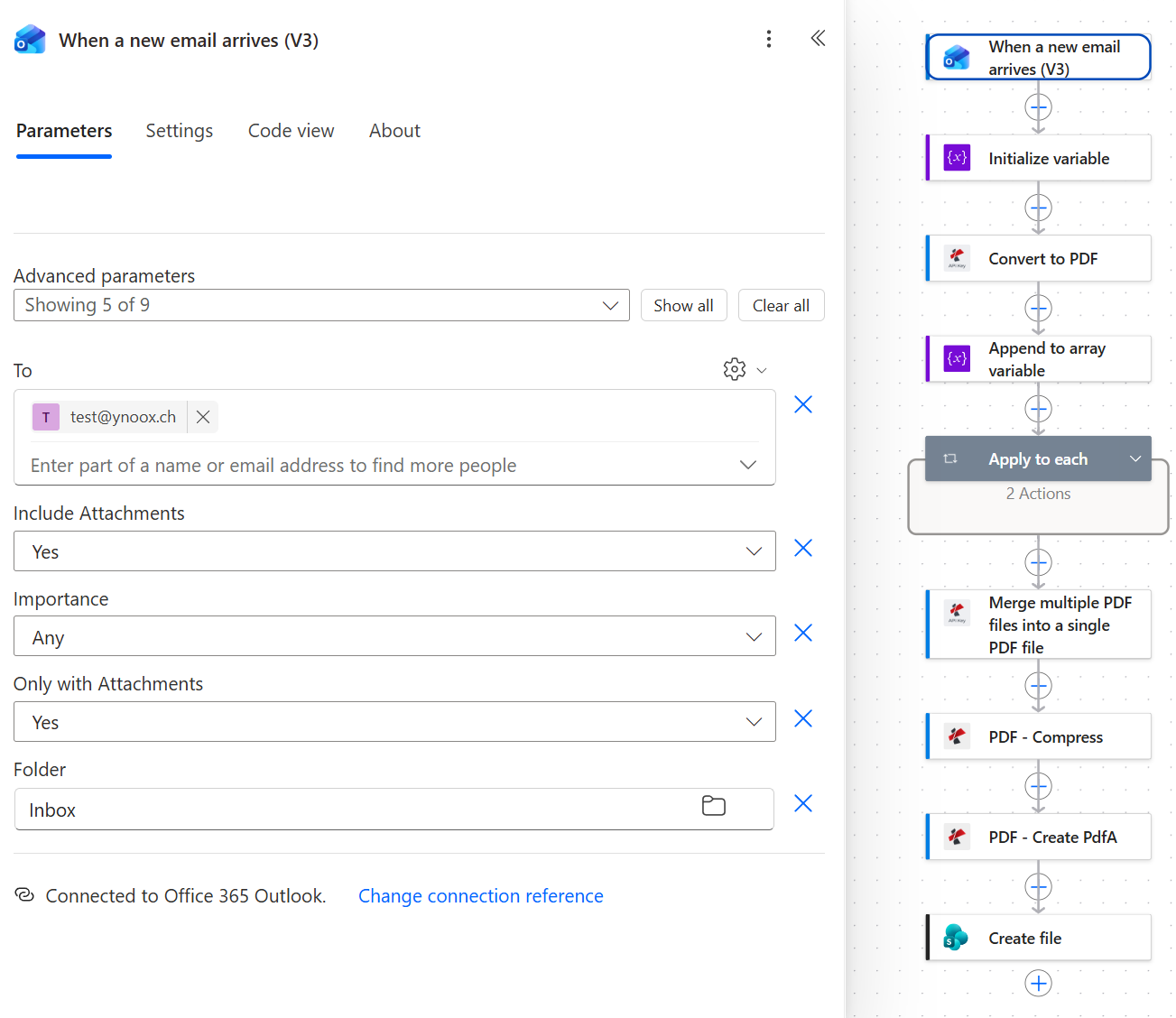
Include Attachments is the one people miss. Leave it off and the loop still runs, but every attachment arrives with empty content.
Tip. Include Attachments and Only with Attachments sound like the same setting and are not. The first controls whether attachment bytes come down with the trigger payload. The second controls whether the flow fires at all. You almost always want the first set to Yes. Whether you want the second depends on if attachment-free emails are worth archiving to you.
Step 2: Why does the flow need an array variable?
Flow so far: Outlook trigger.
The number of attachments is not known until the message arrives, so the flow needs somewhere to accumulate an unknown number of PDFs while preserving their order.
- Add Variables > Initialize variable.
- Configure:
- Name:
email - Type:
Array - Value: leave empty
- Name:
Initialize variable configuration
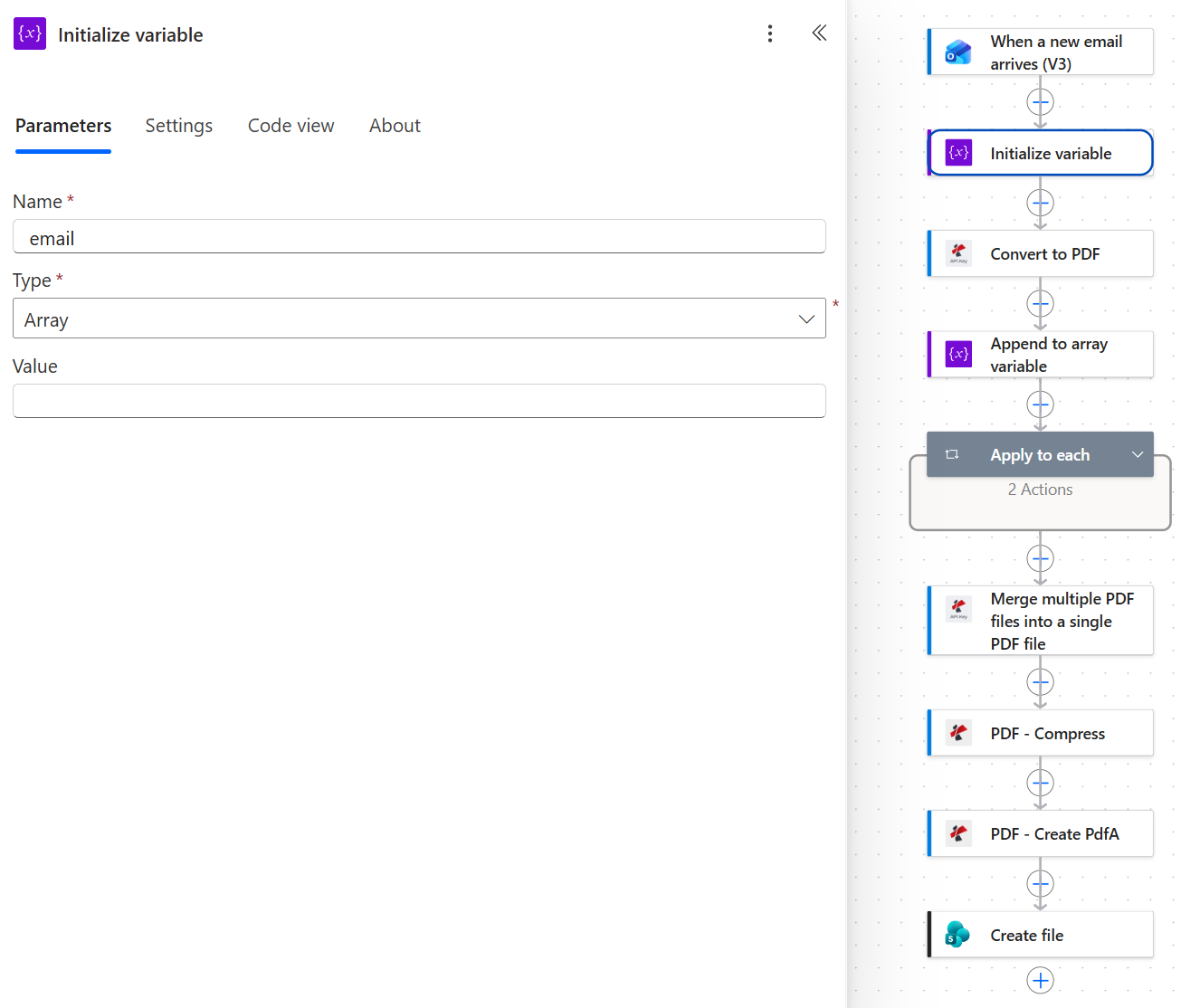
Value stays empty. The body gets appended next, before the loop, which is what puts it on page one.
Step 3: How do you convert an email body to PDF?
Flow so far: Outlook trigger plus Initialize variable.
The Outlook trigger hands over the message body as HTML. PDF4me Convert to PDF renders it, which is why the File Name carries an .html extension even though a PDF comes back.
- Add Convert to PDF from the PDF4me Connect connection.
- Configure:
- Content: the
Bodytoken, which resolves totriggerOutputs()?['body/body'] - File Name:
email-body.html
- Content: the
Convert to PDF configuration
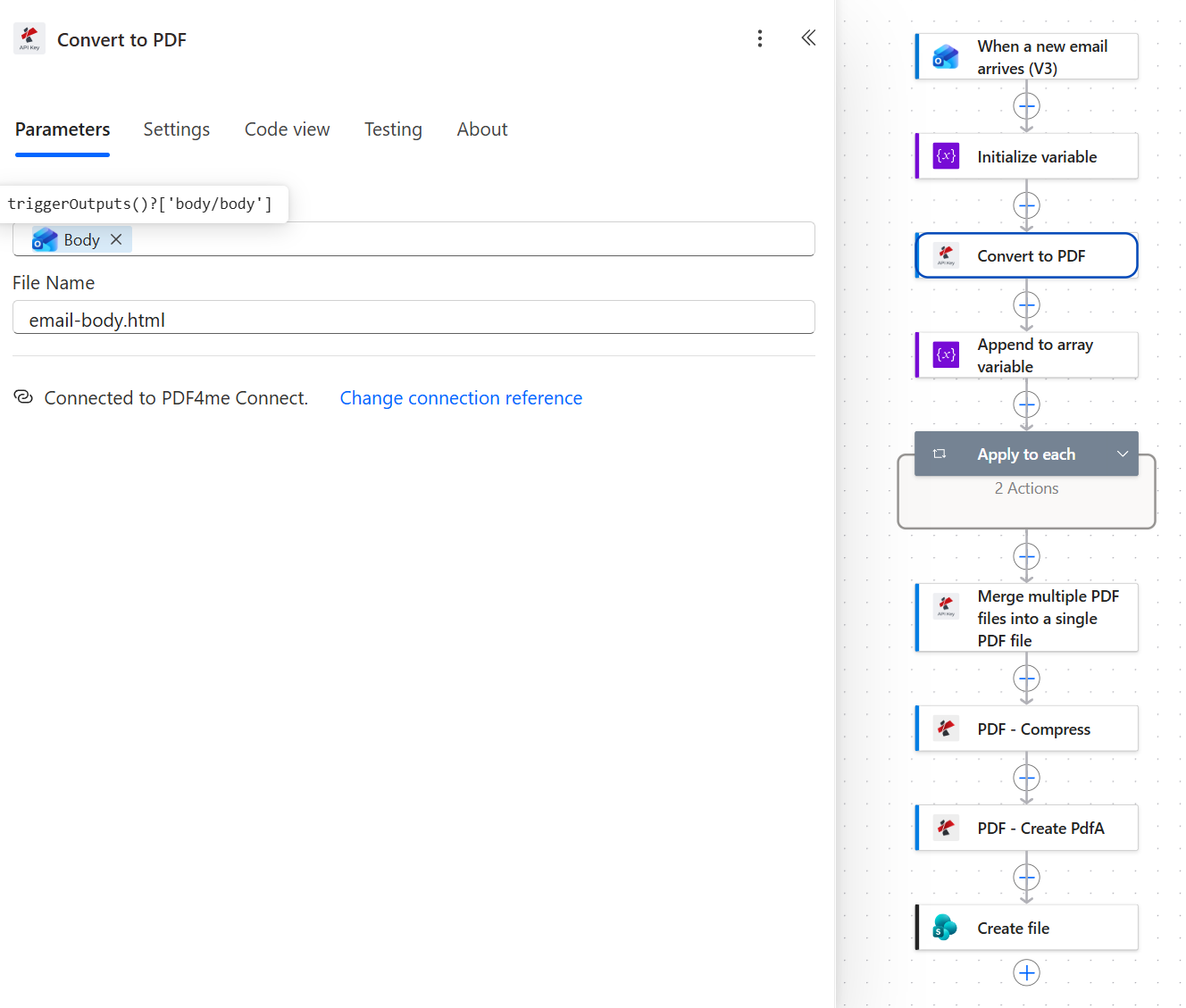
The extension in File Name tells the converter what it is being handed. It is HTML going in, so email-body.html is correct even though the output is a PDF.
Step 4: How do you put the message body on page one?
Flow so far: Outlook trigger, Initialize variable, Convert to PDF.
Order in the merged document is simply the order things enter the array. Appending the body here, before the loop, is the entire mechanism that keeps it first.
- Add Variables > Append to array variable.
- Configure:
- Name:
email - Value: the File Content token from Convert to PDF, which resolves to
body('Convert_to_PDF')
- Name:
Append to array variable configuration
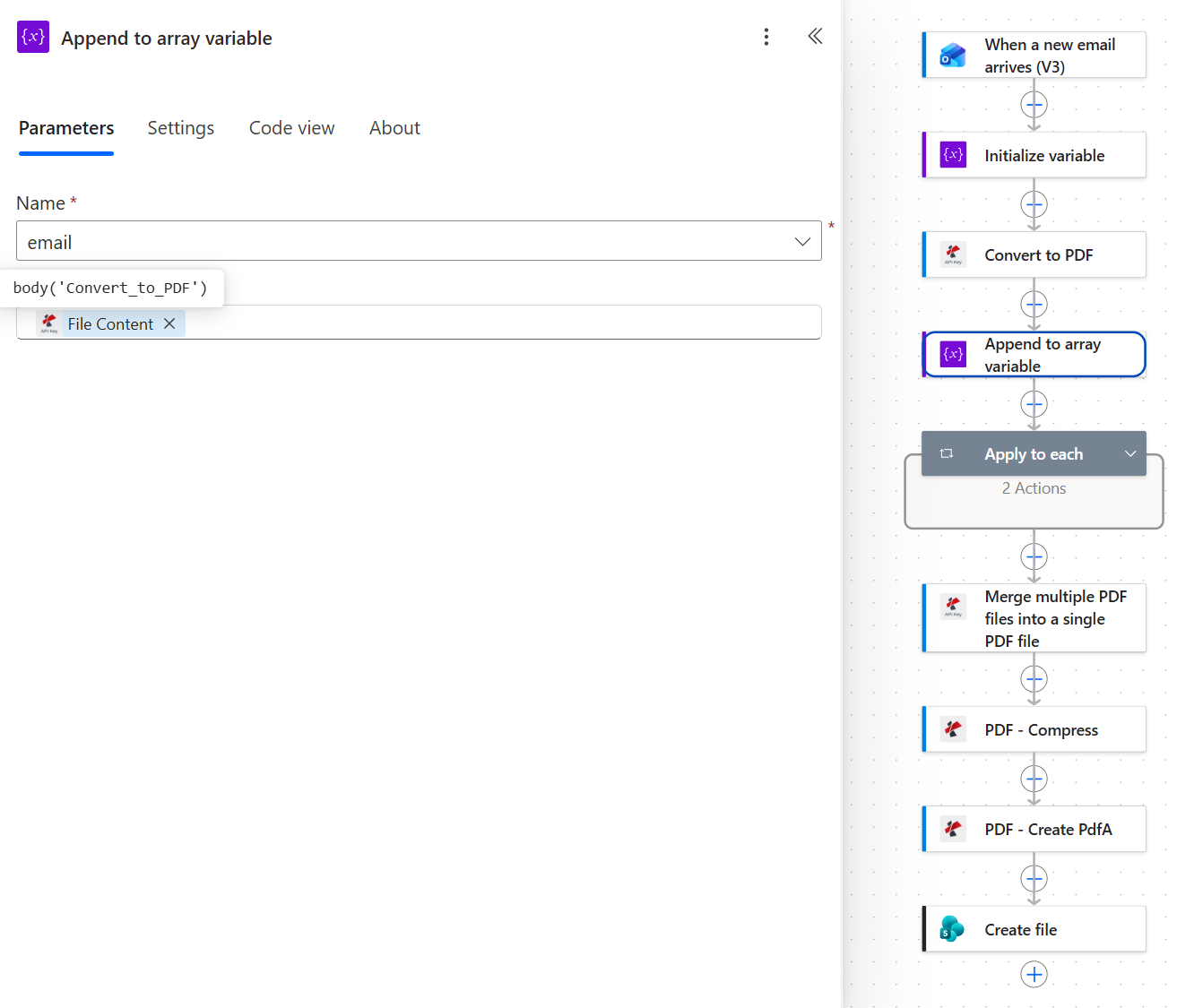
Value must be the File Content token, which is body('Convert_to_PDF'). Anything else here is the single most common reason Merge fails later.
This exact field is the classic failure point. The Value must be the File Content output of the Convert action. If you pick a different token, or wrap it in an expression that returns something other than the file content, the array fills with the wrong shape and Merge multiple PDF files either fails outright or returns a PDF that will not open. The run history stays green up to the Merge step, so the error surfaces well after the mistake.
Step 5: How do you convert every email attachment to PDF?
Flow so far: Outlook trigger, Initialize variable, Convert to PDF, Append to array variable.
One loop over the attachment collection, two actions inside it. That is the whole pattern, and it does not change as the attachment count grows.
- Add Control > Apply to each.
- Select an output from previous steps: the
Attachmentstoken, which resolves totriggerBody()?['Attachments'].
Apply to each configuration
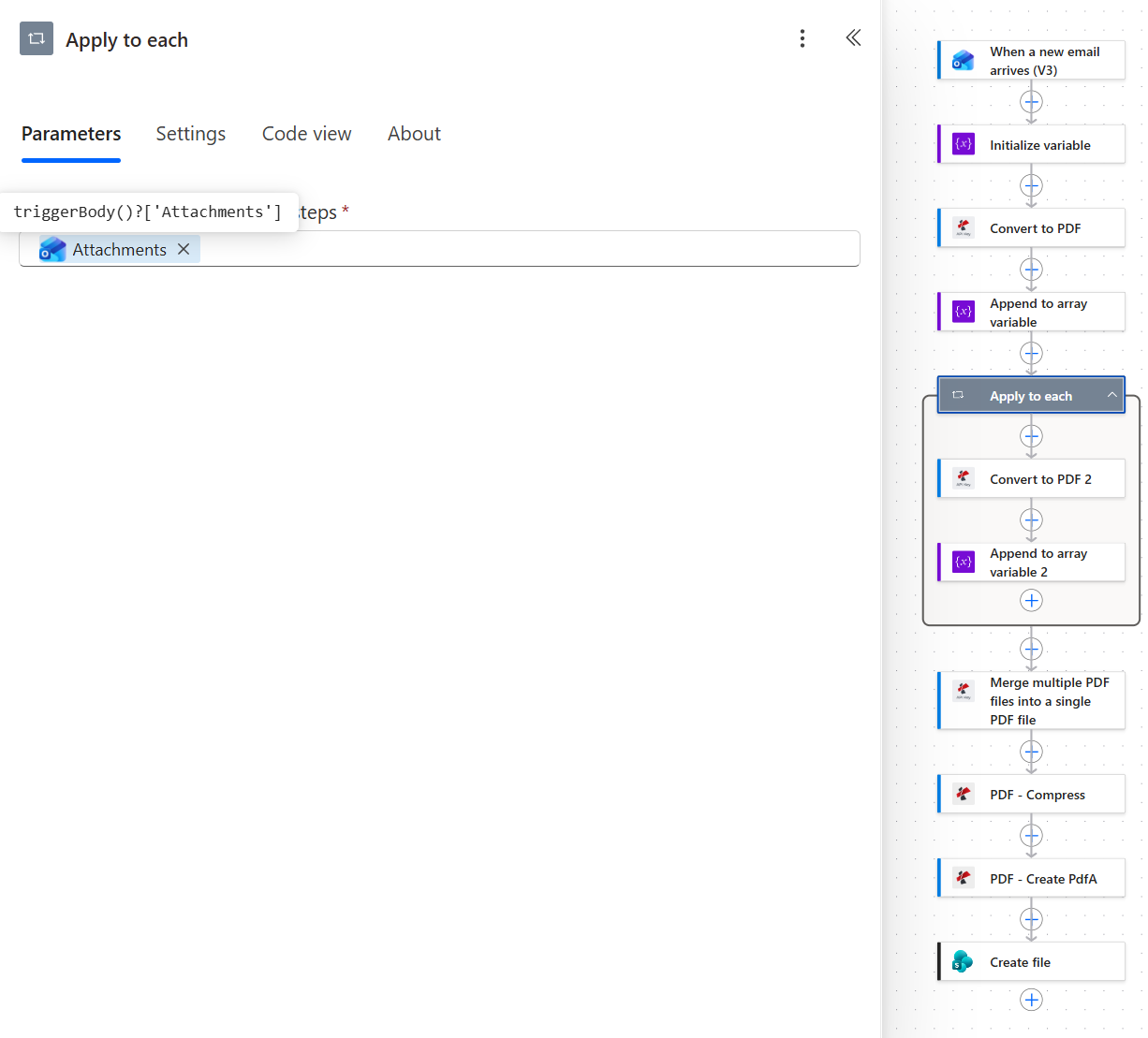
Two actions inside the loop, and that stays true for one attachment or twenty.
Now add the first action inside the loop.
- Add Convert to PDF (PDF4me Connect) inside the loop. Power Automate names it Convert to PDF 2.
- Configure:
- File Content: the expression
base64ToBinary(items('Apply_to_each')?['contentBytes']) - File Name: the
nametoken from the attachment
- File Content: the expression
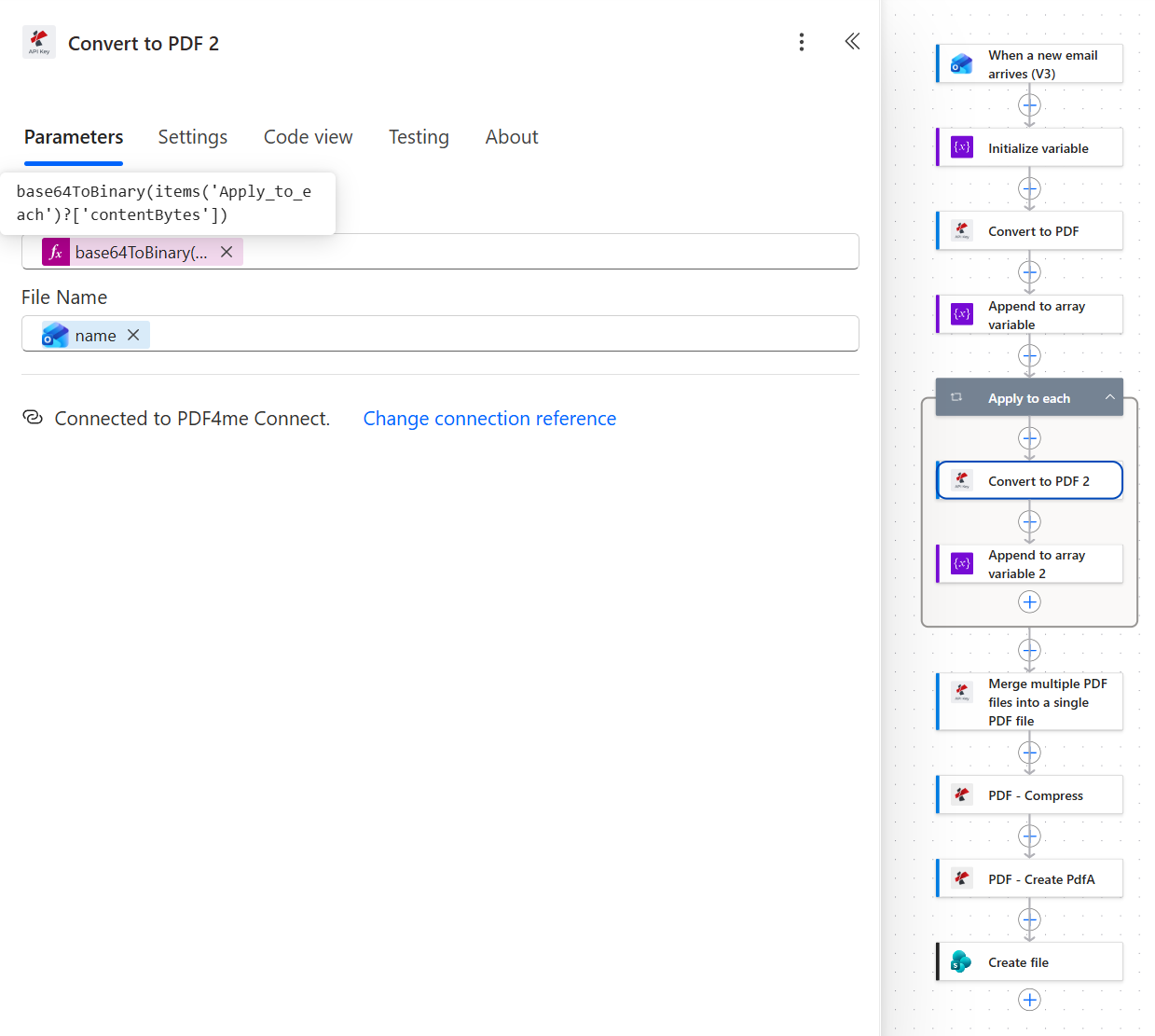
Outlook hands attachments over base64 encoded. base64ToBinary is what turns contentBytes back into a file the converter can read.
Then the second action inside the loop.
- Add Append to array variable inside the loop, named Append to array variable 2.
- Configure:
- Name:
email - Value: the File Content token from Convert to PDF 2, which resolves to
body('Convert_to_PDF_2')
- Name:
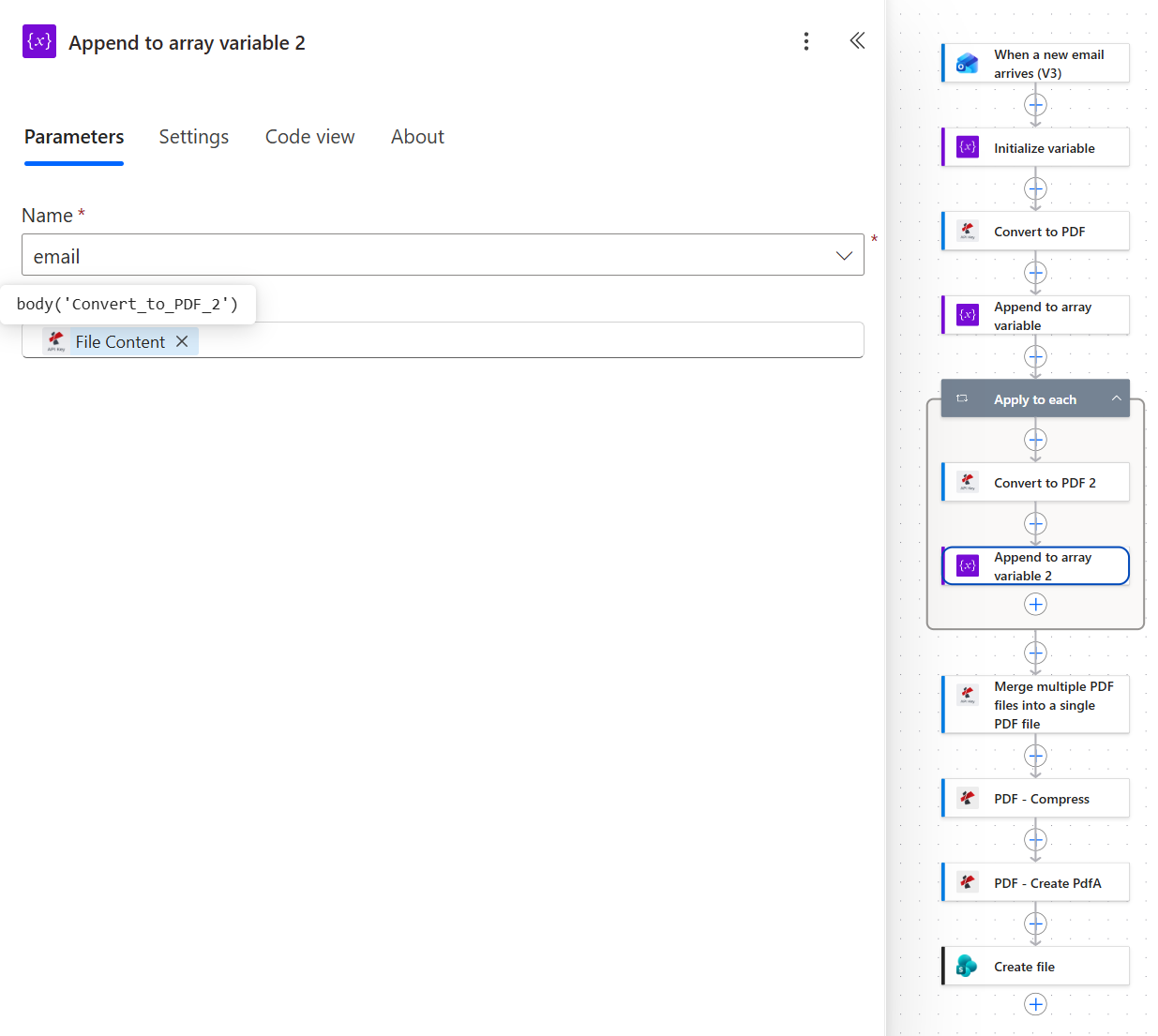
Same array, same pattern as step 4. Each pass through the loop adds one more page range to the eventual archive.
The two loop expressions
| Field | Expression | What it does |
|---|---|---|
| Apply to each input | triggerBody()?['Attachments'] | The collection of attachments on the triggering message. |
| Convert to PDF 2 File Content | base64ToBinary(items('Apply_to_each')?['contentBytes']) | Decodes the current attachment's base64 payload into binary. |
| Convert to PDF 2 File Name | the attachment name token | Preserves the original filename through the conversion. |
| Append to array variable 2 Value | body('Convert_to_PDF_2') | The converted PDF, appended to the same email array. |
base64ToBinary and items() both come from the Workflow Definition Language function reference, which is the authoritative list of what an expression field will accept.
Step 6: How do you merge an unknown number of PDFs into one?
Flow so far: everything through the Apply to each loop.
By the time the loop finishes, the email array holds the body PDF followed by every attachment PDF. Merge takes the whole array in a single call.
- Add Merge multiple PDF files into a single PDF file from PDF4me Connect, after the loop.
- Configure:
- docContent:
@variables('email') - Output File Name:
EmailArchive.pdf
- docContent:
The code view makes the shape unambiguous:
{
  "type": "OpenApiConnection",
  "inputs": {
    "parameters": {
      "body/docContent": "@variables('email')",
      "body/document/Name": "EmailArchive.pdf"
    },
    "host": {
      "apiId": "/providers/Microsoft.PowerApps/apis/shared_pdf4meconnect",
      "connection": "shared_pdf4meconnect",
      "operationId": "Merge_V1"
    }
  },
  "runAfter": {
    "Apply_to_each": [
      "Succeeded"
    ]
  }
}
Merge action code view
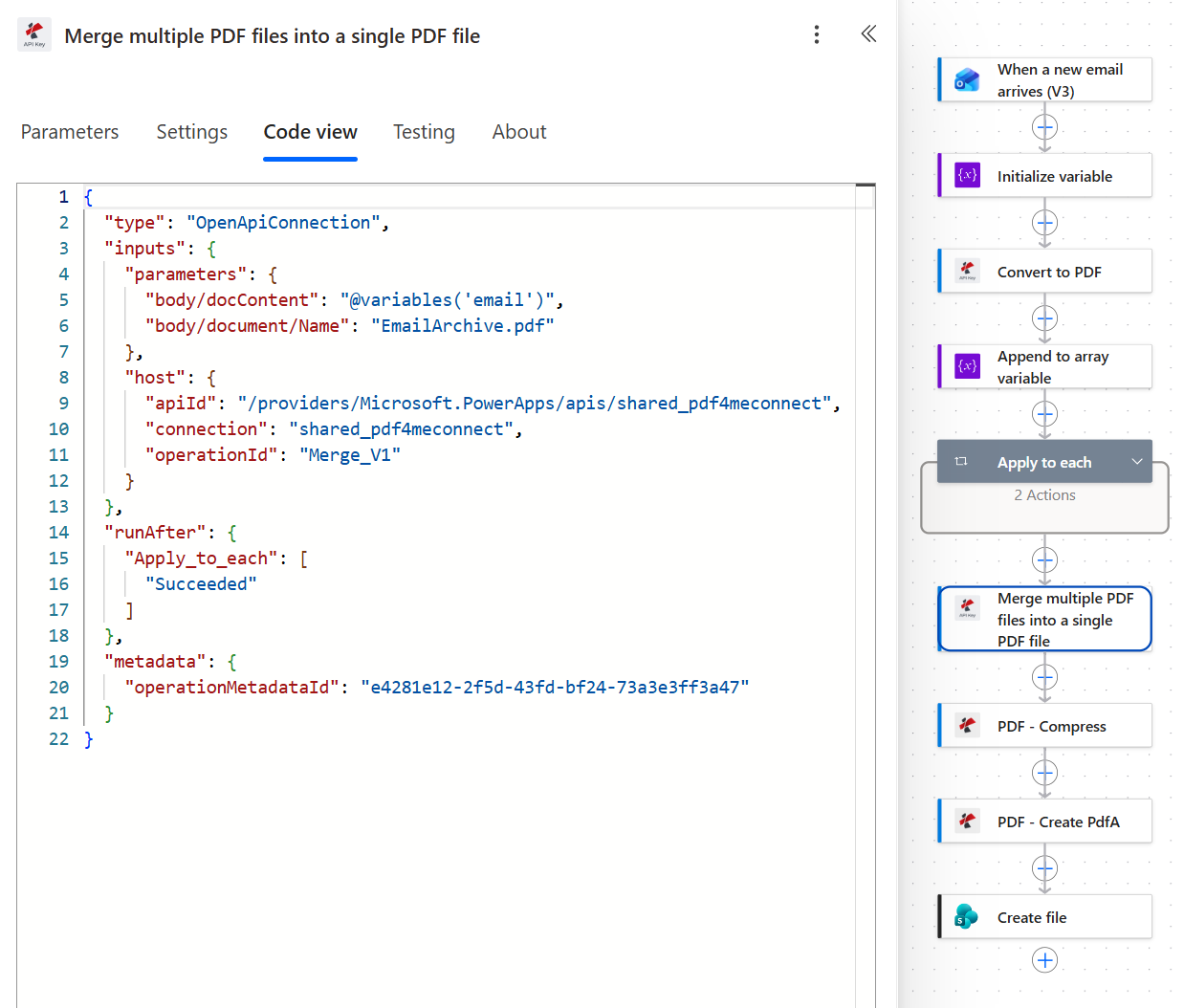
runAfter Apply_to_each Succeeded is what guarantees the merge waits for every attachment to finish converting.
Tip. Merge is one call for the whole array, not one call per file. That is why the run time barely moves as attachments are added. The cost of a fifteen-attachment email is fifteen conversions inside the loop, not fifteen merges.
Step 7: How do you make an email archive compliant with PDF/A?
Flow so far: everything through Merge.
Two actions, in this order, from the PDF4me PDF connection. The order is not cosmetic.
- Add PDF - Compress.
- File Content: the merged file content
- File Name: the
headers/FileNametoken carried through from the previous action - Optimize Profile:
Web
- Add PDF - Create PdfA.
- File Content: the compressed file content
- File Name: the
headers/FileNametoken - Compliance:
PdfA2b - Allow Upgrade:
Yes - Allow Downgrade:
Yes
Compress and Create PdfA parameters
| Action | Parameter | Value used here | What it controls |
|---|---|---|---|
| PDF - Compress | Optimize Profile | Web | Balances size against fidelity. Use a higher-fidelity profile if the attachments are scans you may need to read closely. |
| PDF - Create PdfA | Compliance | PdfA2b | ISO 19005-2 level B. Guarantees visual reproduction, which is the level most retention policies name. |
| PDF - Create PdfA | Allow Upgrade | Yes | Lets the action settle on a higher level when the requested one is not reachable. |
| PDF - Create PdfA | Allow Downgrade | Yes | Lets it settle on a lower level instead of failing outright, usually when fonts cannot be embedded. |
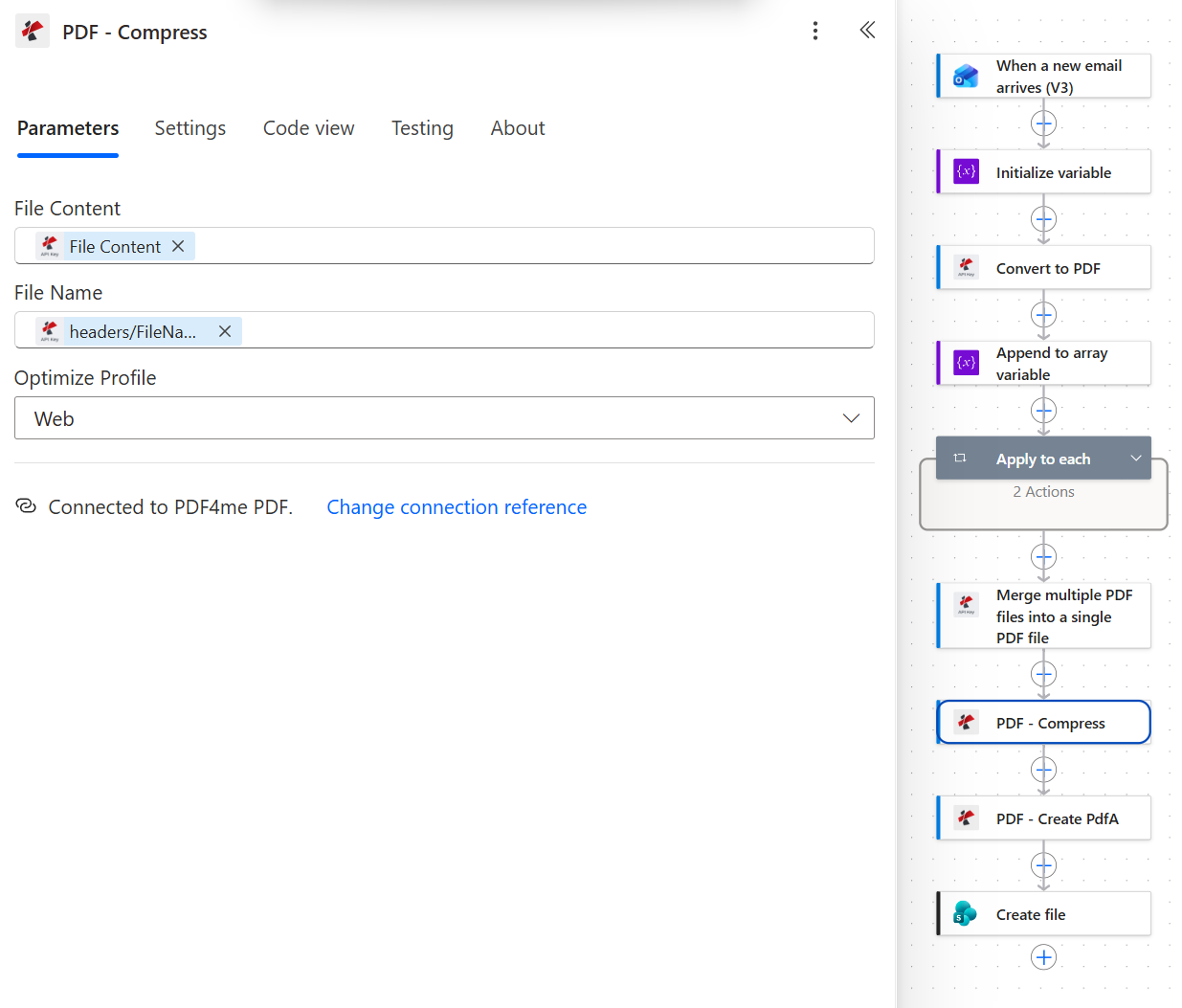
Compress runs on the merged document, before anything is certified.
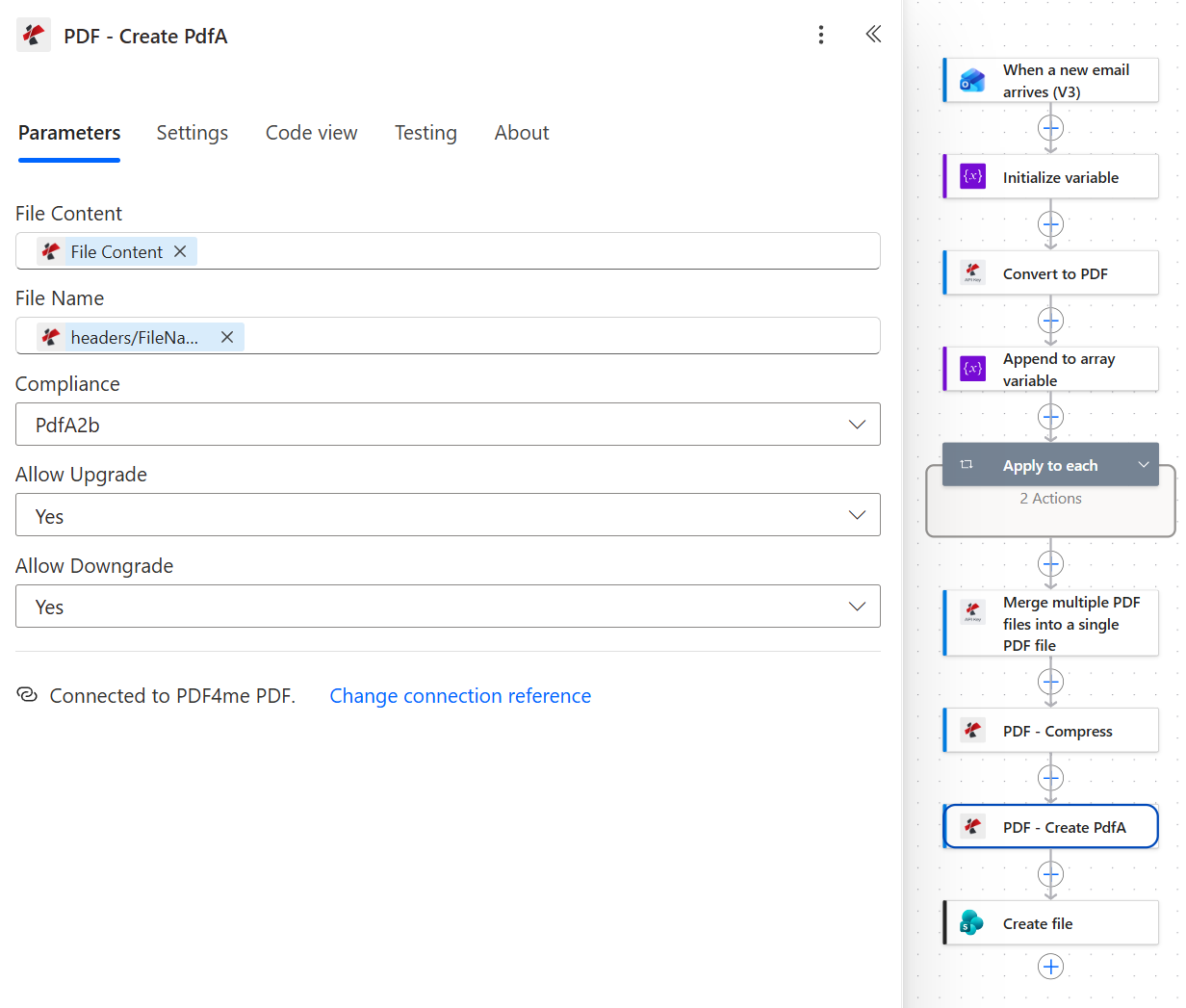
Create PdfA is the last action to touch the document, which is exactly where it belongs.
Step 8: Where does the finished archive get stored?
Flow so far: everything through Create PdfA.
The last action writes the certified file into SharePoint.
- Add SharePoint > Create file.
- Configure:
- Site Address:
PDF4me Sharepoints - https://ynoox1.sharepoint.com/sites/PDF4meSharepoints - Folder Path:
/Shared Documents/EmailArchive - File Name:
EmailArchive.pdf - File Content: the File Content token from PDF - Create PdfA, which resolves to
body('PDF_-_Create_PdfA')
- Site Address:
SharePoint Create file configuration
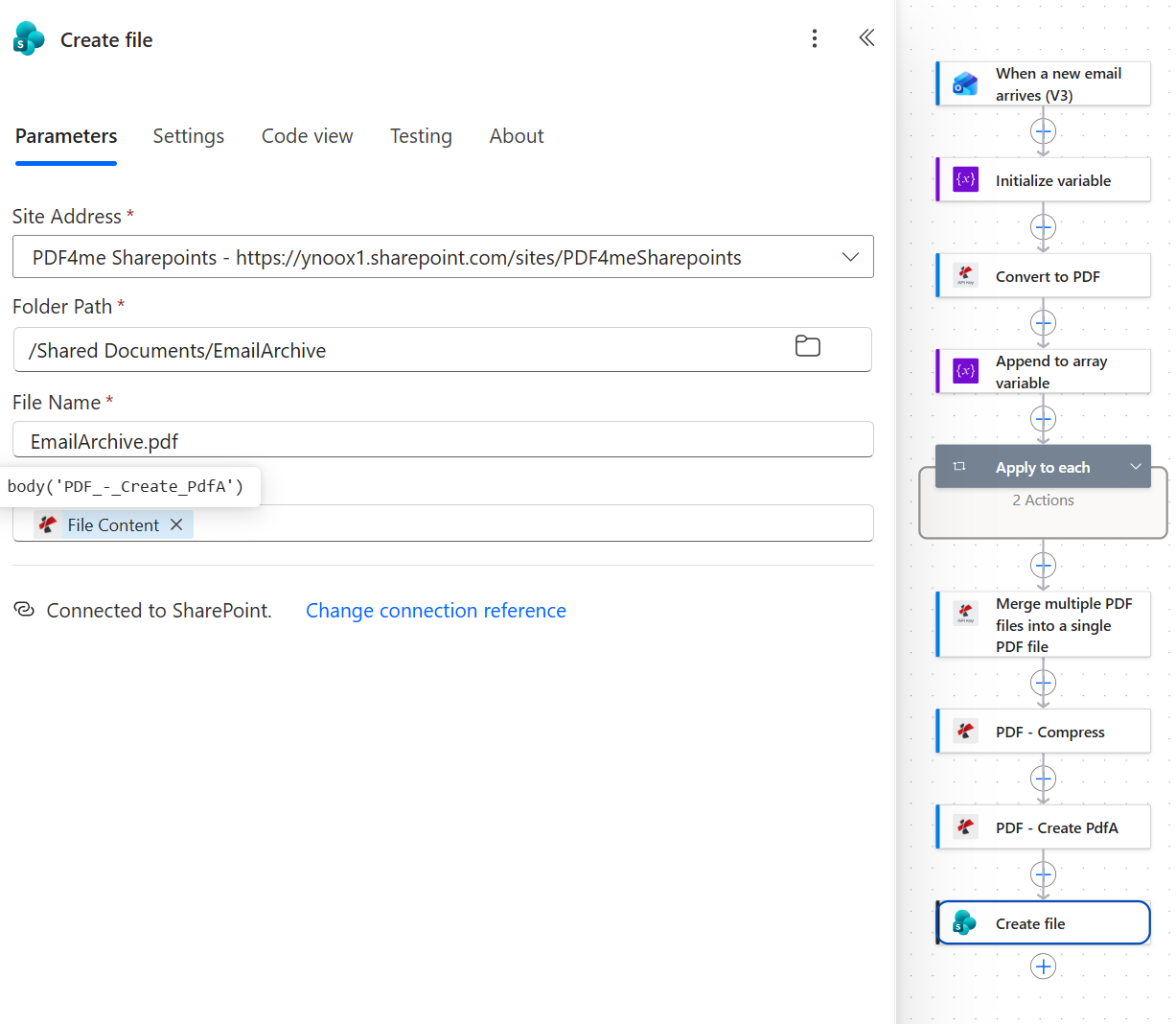
File Content resolves to body('PDF_-_Create_PdfA'). Take it from Compress instead and you get a valid PDF that is not an archive.
Change this before you go live. The File Name here is the static text EmailArchive.pdf, exactly as captured. That is fine for a test and wrong for an archive: every message writes to the same name, so each new email either overwrites the previous archive or collides with it. Replace it with something unique per message. A timestamp works: concat('EmailArchive-', formatDateTime(utcNow(), 'yyyyMMdd-HHmmss'), '.pdf'), and so does the subject line. An archive that keeps exactly one file is not an archive.
Run the flow and verify
Send a test message to the monitored address with at least one attachment, then check three things rather than one.
- The run history. All eleven actions green, with the Apply to each showing the right iteration count. The captured run shows
1 of 1for a single-attachment email. - The SharePoint folder.
EmailArchive.pdfpresent in/Shared Documents/EmailArchive, with Modified By showing the flow's account. - The file itself. This is the step people skip. Open the document properties and confirm the PDF/A declaration is really there.
The archive produced by the captured run is 32,088 bytes across two pages: the message body on page one, the attachment on page two. Its embedded XMP metadata declares pdfaid:part as 2 and pdfaid:conformance as B, which is what PDF/A-2b looks like from the inside. If your own output opens fine but carries no such declaration, the Create file action is almost certainly reading from the wrong upstream action.
What did you actually build? An email archiving pipeline that produces a self-contained, standards-compliant record of a message and everything attached to it, without anyone deciding to archive anything. The mailbox stays as it is. The archive is a separate artefact in a format designed to be readable decades from now, which is the part that mailbox exports and storage tiers do not give you.
Common Variations You Can Add Without Rebuilding
Set Only with Attachments to No. The loop simply runs zero times and the merge receives a one-element array, so the archive becomes the body alone.
Build the File Name from the trigger's Subject and received time instead of a timestamp alone. Strip characters SharePoint rejects first, or the Create file action fails on the punctuation in a subject line.
Add Validate PDFA after Create PdfA and branch on the result. Failures then surface in the run history rather than in an audit three years later.
Compose the Folder Path from the trigger's From address or received date. One flow can feed a whole folder tree without a single condition.
How this compares to the usual approaches
| Comparison | What the alternative preserves | Format guarantee | Runs by itself |
|---|---|---|---|
| Outlook Archive button vs this flow | The message, moved to another folder in the same mailbox | None. It stays a mail item inside Exchange. | No. Someone has to click it. |
| Journaling appliance vs this flow (Mimecast, Proofpoint) | Everything, held in a vendor store | The vendor's own format, readable through their product | Yes, at licence cost |
| Microsoft 365 Archive vs this flow | The same bytes, on a cheaper storage tier | None. The files are unchanged. | Yes, but it is storage, not format |
| This flow | Body plus attachments, as one document | PDF/A-2b, self-contained | Yes, on standard connectors |
The distinction that matters: the first three answer where the mail lives. Only the last one answers whether it will still render correctly when the software that made it is gone.
Common questions
What is email archiving?
Email archiving is the practice of capturing messages into a separate, durable store so they survive mailbox cleanup, staff departures, and retention deadlines. Most products define it as a storage problem: copy the mail somewhere safe and index it so it can be searched.
That definition is incomplete. An archive is only useful if it can still be opened, and a mail item is tied to the system that holds it. Converting the message and its attachments to a fixed document format is what turns a copy into a record.
How does email archiving work?
Traditionally, a journaling appliance sits beside the mail server and receives a copy of everything, storing it in a proprietary repository with its own search interface.
This flow works differently. A trigger fires on arrival, the body and attachments are converted to PDF, merged into one document in order, compressed, and converted to PDF/A-2b before being written to SharePoint. There is no appliance and no proprietary store, and the output is a file anyone can open without your software.
How to archive emails to SharePoint?
Point an Office 365 Outlook trigger at the mailbox, do the document work in the flow, and finish with SharePoint Create file pointed at the destination folder. That is the shape of it.
The thing worth getting right is what you write. Saving a .msg or .eml into a document library is technically archiving to SharePoint, but the result is a mail item that needs a mail client. A PDF/A file is a document that SharePoint can index, preview, and apply a retention label to like any other.
Can you save emails in SharePoint?
Yes, in several ways, and they are not equivalent. You can drag a message from Outlook into a synced library, use "Save to OneDrive" on an individual mail, or automate it with Power Automate as this flow does.
The manual routes save the message in its native form, so attachments stay embedded inside a file only a mail client can open. The automated route lets you decide the output format, which is the reason to prefer it when the purpose is retention rather than convenience.
What are the email archiving best practices?
Four hold up regardless of the tool. Archive on arrival rather than on a schedule, so nothing depends on someone remembering. Keep the body and its attachments together, because separating them destroys the context that made the message evidence. Use a format with a specification behind it, which in practice means PDF/A. And give every archived item a unique name, since an archive that overwrites yesterday's file is a single document with extra steps.
The flow here follows the first three by construction. The fourth is the one thing you must change from the captured configuration before going live.
Troubleshooting
Check the Value field on both Append to array variable actions. Each must be the File Content token from its Convert action, resolving to body('Convert_to_PDF') and body('Convert_to_PDF_2'). Any other token fills the array with the wrong shape, and every action before Merge still reports success.
Include Attachments is set to No on the trigger. The attachment collection still arrives with names and metadata, so the loop iterates the right number of times, but contentBytes is empty and there is nothing to convert.
The Create file File Name is the static text EmailArchive.pdf. Every run targets the same name. Make it unique per message with a timestamp or the subject line, as described in step 8.
Create file is reading from PDF - Compress instead of PDF - Create PdfA. The result is a smaller, perfectly valid PDF that fails every compliance check, and nothing in the run history looks wrong. Confirm the expression is body('PDF_-_Create_PdfA').
Related reading
This post covers the archival format end of email automation. Three neighbouring walkthroughs cover the adjacent pieces:
- Convert the email body and every attachment into one consolidated PDF covers the merge pattern itself in more detail, storing to Dropbox.
- Turn every inbound email into an audit-ready PDF archive takes the same seven actions from a records-management angle.
- PDF archiving in Power Automate with an unattended SharePoint folder applies the compress and PDF/A pair to documents that are already in SharePoint, with no email involved.
Next Steps
Create PDF/A in Power Automate
Merge Multiple PDFs in Power Automate
Compress PDF in Power Automate
Get your API key
Storage decides where your email lives. Format decides whether anyone can still read it. This flow settles the second question, which is the one nobody on the first page of results is asking.