Auto-Merge Every PDF Dropped into a Dropbox Folder in Power Automate: A 6-Step Dynamic Workflow

The painful part of "merge these PDFs" tickets is not the merging, it is knowing what is in the folder at run time. Names change, files come and go, somebody adds a fifth document at 4:55 pm. This walkthrough builds the exact pattern in Power Automate with PDF4me Merge multiple PDF files, Dropbox, and a single Apply to each loop. Six flow actions. Zero hardcoded filenames. Every PDF currently in the watched folder gets stitched together the moment a new file lands, and the output name carries the file count so each run is uniquely identifiable.
A When a file is created Dropbox trigger fires on every new upload. List files in folder returns a snapshot of every file currently in the folder (in this run, four PDFs: PDFA_Sample.pdf, sample_3_page.pdf, sample_pdf.pdf, sample.pdf). An Apply to each loop walks that list, calls Get file content by Id, and pushes base64ToBinary(body('Get_file_content')?['$content']) onto an array variable named Files. PDF4me's Merge multiple PDF files consumes the array and emits one PDF. Dropbox Create file writes it back as merge-4.pdf, because there were four input files. Drop a fifth file in tomorrow and the next run produces merge-5.pdf automatically.
Why-Based Q&A
Why use the trigger and List files in folder together? The trigger gives you a single new-file event but not a guaranteed up-to-date list of everything else in the folder. List files in folder snapshots the current state at run time, so the merge always reflects exactly what is on disk right now, not what was there when the trigger fired or when the flow was designed.
Why fetch by Id instead of Path? File names can collide or change. Dropbox Ids are stable, unique, and immune to rename. Mapping Id from List files into Get file content means the loop keeps working even if a user renames a file mid-batch, or two files have the same display name in different subfolders.
Why base64ToBinary(...) on $content? Dropbox Get file content returns the file as a base64 string wrapped in a $content property. PDF4me's Merge multiple PDF files action expects a collection of binary buffers, not base64 strings. base64ToBinary(body('Get_file_content')?['$content']) is the bridge that converts each file the moment it lands in the array.
Why build the output filename with concat() and length()? Hardcoding Output.pdf means every run overwrites the last. concat('merge-', string(length(body('List_files_in_folder'))), '.pdf') stamps the file count into the name, so consecutive runs land as merge-3.pdf, merge-4.pdf, merge-5.pdf. Bonus: a quick look at the output folder tells you how many files were in scope each time.
What You'll Get
Input: A Dropbox folder at /blog data/merge files dropbox containing whatever PDFs you drop into it. This walkthrough uses four: PDFA_Sample.pdf, sample_3_page.pdf, sample_pdf.pdf, sample.pdf. Output: A single consolidated PDF in /blog data/merge blog template/output/ named merge-N.pdf where N is the file count at run time. Drop more files and the next run automatically picks them up.
The Dropbox folder before the run

The Dropbox folder after the run

The second run had four files in the folder, so the output is merge-4.pdf. The earlier run had three.
What You Need
- Power Automate. Open Power Automate. Any plan with premium connectors (PDF4me Connect is premium).
- PDF4me API key. Get your API key. Connect it the first time you add a PDF4me action.
- Dropbox. Source folder for the input PDFs, destination folder for the merged output. SharePoint, OneDrive, and Google Drive work identically with their matching connectors.
- A handful of PDFs. Any size, any combination. The walkthrough uses four samples: PDFA_Sample.pdf, sample_3_page.pdf, sample_pdf.pdf, sample.pdf. Drop them in to mirror every screenshot.
Grab the input set and the expected output first. Download the four samples into /blog data/merge files dropbox on your Dropbox, then publish the flow. Your first run should produce a merge-4.pdf identical to the one linked here.
The Flow at a Glance
- Dropbox: When a file is created (trigger).
- Dropbox: List files in folder. Returns every file currently in the watched folder.
- Initialize variable named
Files(Array). - Apply to each on
body('List_files_in_folder'):- Dropbox: Get file content by
Id. - Append to array variable with
base64ToBinary(body('Get_file_content')?['$content']).
- Dropbox: Get file content by
- PDF4me: Merge multiple PDF files into a single PDF file.
Filesin,Output.pdfout. - Dropbox: Create file. File Name
concat('merge-', string(length(body('List_files_in_folder'))), '.pdf').
Complete flow overview
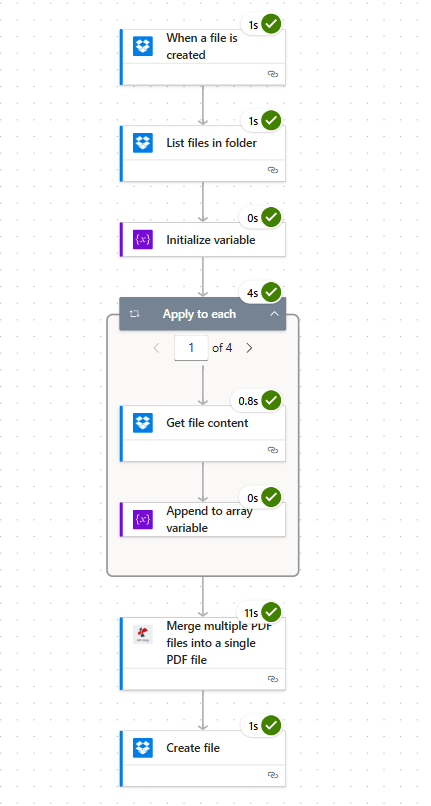
Six actions. The Apply to each card shows "1 of 4" because the watched folder held four PDFs at run time.
Step 1: Dropbox: When a File Is Created (Trigger)
Flow so far: trigger only.
- In Power Automate click Create, choose Automated cloud flow.
- Name the flow (e.g.
Auto-Merge Dropbox Folder), pick Dropbox: When a file is created as the trigger, click Create. - Connect Dropbox if you have not already.
- Configure:
- Folder:
/blog data/merge files dropbox - Advanced parameters: leave at the default (0 of 1 showing).
- Folder:
Trigger configuration
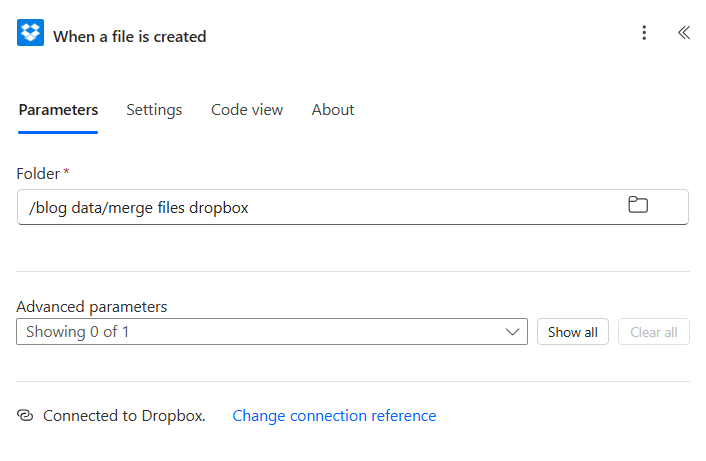
The trigger polls the watched folder and fires on every new upload. Default polling cadence varies by plan, typically 1 to 5 minutes.
Step 2: Dropbox: List Files in Folder
Flow so far: trigger plus List files in folder.
The trigger fires on a single new file. The merge needs every PDF currently in the folder. List files in folder takes a fresh snapshot of the folder contents at run time.
- Click + New step, search Dropbox, pick List files in folder.
- Configure:
- Folder:
/blog data/merge files dropbox(the same path as the trigger)
- Folder:
List files configuration
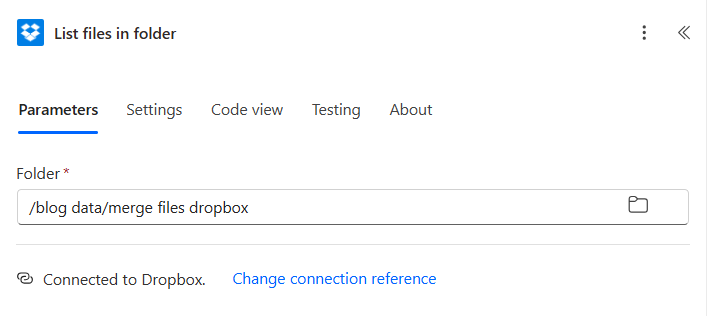
- The action returns
body('List_files_in_folder'), an array of file metadata objects. Each object carriesId,Name,DisplayName,Path,LastModified, andSize. The next step iterates this array.
Tip. If your folder has mixed content (PDFs alongside images and Office docs) and you only want to merge PDFs, add a Filter array action after this step with the expression endsWith(toLower(item()?['Name']), '.pdf') and feed the filtered array into the loop instead.
Step 3: Initialize Variable Files
Flow so far: trigger plus List files plus Initialize variable.
The merge action wants a collection of binaries. Allocate an empty array to collect them.
- Click + New step, pick Initialize variable.
- Configure:
- Name:
Files - Type:
Array - Value: leave blank
- Name:
Initialize variable configuration
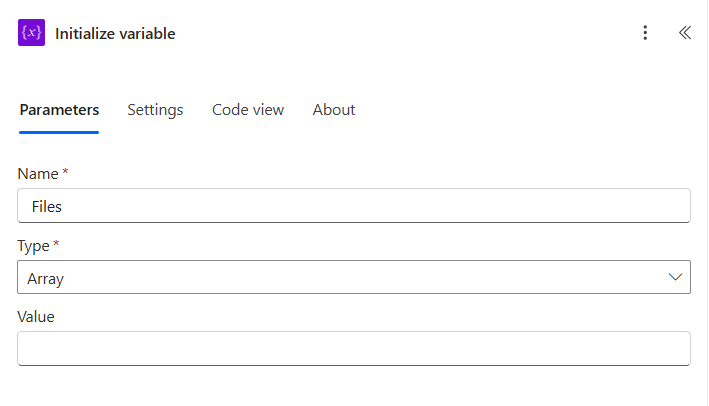
Step 4: Apply to Each Plus Get File Content Plus Append to Array
Flow so far: trigger plus List files plus Initialize variable plus Apply to each.
This is the heart of the flow. Loop over every file the snapshot returned, fetch its bytes, convert to binary, push onto Files.
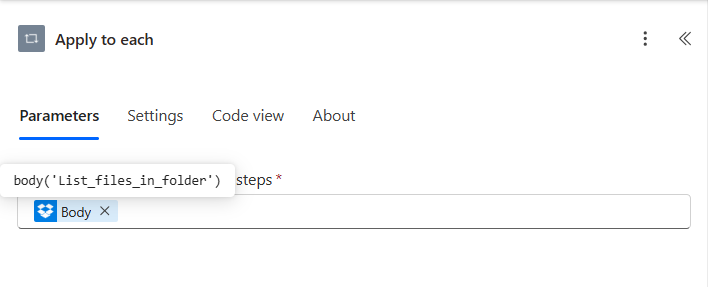
Step 4a: Apply to each (pick the source)
- Click + New step, pick Apply to each.
- Configure:
- Select an output from previous steps (expression):
body('List_files_in_folder')
- Select an output from previous steps (expression):
Step 4b: Get file content (inside the loop)
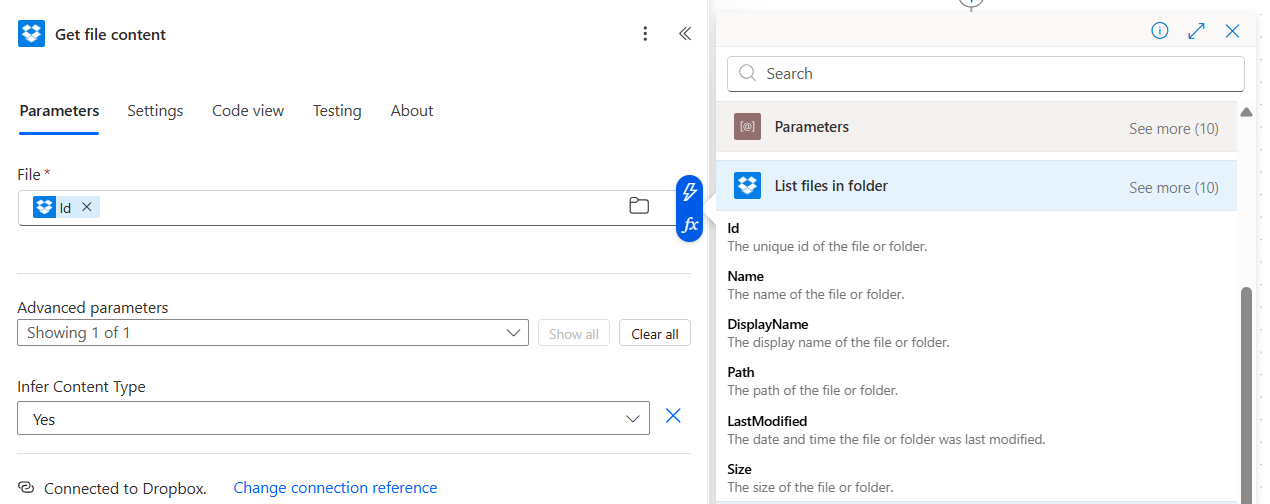
- Inside the loop click Add an action, pick Dropbox: Get file content.
- Configure:
- File: pick the Id token from the List files in folder dynamic content (it auto-resolves to the current item's Id).
- Infer Content Type:
Yes(under Advanced parameters)
Step 4c: Append to array variable (inside the loop)
- Below Get file content, Add an action, pick Append to array variable.
- Configure:
- Name:
Files - Value (expression, click
fx):base64ToBinary(body('Get_file_content')?['$content'])
- Name:
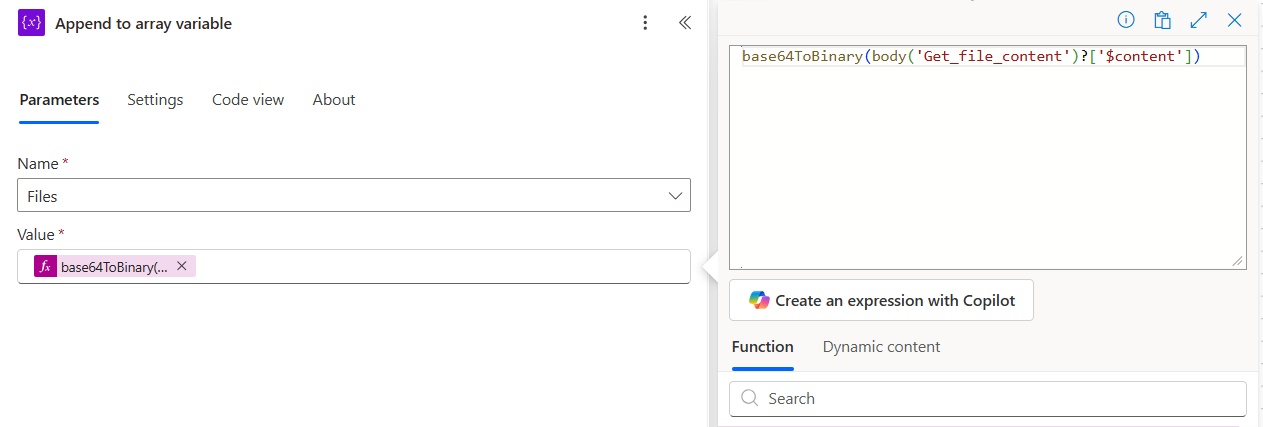
This is the one line that ties everything together. Dropbox returns each file as { "$content": "<base64 string>", "$content-type": "application/pdf" }. The merge action wants a binary buffer. base64ToBinary(...) on $content bridges the two. Skip the conversion and the merge action errors with "invalid content".
Step 5: PDF4me: Merge Multiple PDF Files Into a Single PDF File
Flow so far: trigger plus List files plus Initialize variable plus Apply to each plus Merge multiple PDFs.
The whole array goes in and one PDF comes out.
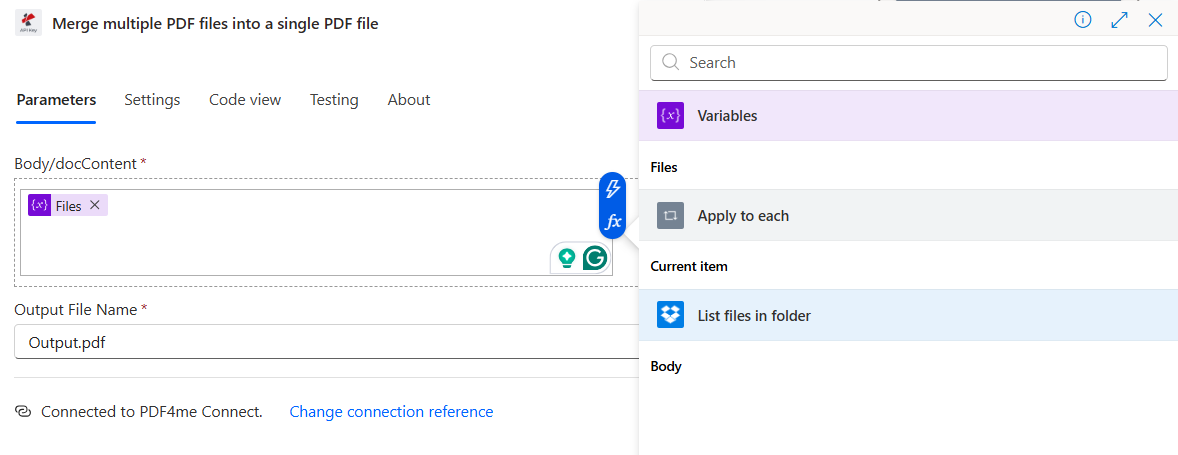
- Below the Apply to each loop click + New step, search PDF4me, pick Merge multiple PDF files into a single PDF file.
- Connect PDF4me Connect with your API key (first time only).
- Configure:
- Body/docContent: pick the
Filesvariable token - Output File Name:
Output.pdf
- Body/docContent: pick the
Merge action configuration
- The PDFs are concatenated in array order, which is the order Dropbox returned them in (typically alphabetical by name). If you need a different order, sort
body('List_files_in_folder')with a Select action before the loop, e.g. byLastModifiedfor newest-first.
Tip. The internal Output.pdf name is just the PDF metadata title, not the Dropbox filename. The real Dropbox name is set in step 6. Keep this as a stable placeholder so you can grep flow runs by it in the Power Automate run history.
Step 6: Dropbox: Create File with a Dynamic Filename
Flow so far: trigger plus List files plus Initialize variable plus Apply to each plus Merge multiple PDFs plus Create file.
Write the merged PDF back to Dropbox with a runtime-computed filename that includes the file count.
- Click + New step, pick Dropbox: Create file.
- Configure:
- Folder Path:
/blog data/merge blog template/output - File Name (expression, click
fx):concat('merge-', string(length(body('List_files_in_folder'))), '.pdf') - File Content: pick the File Content token from the Merge multiple PDFs action
- Folder Path:
File name expression
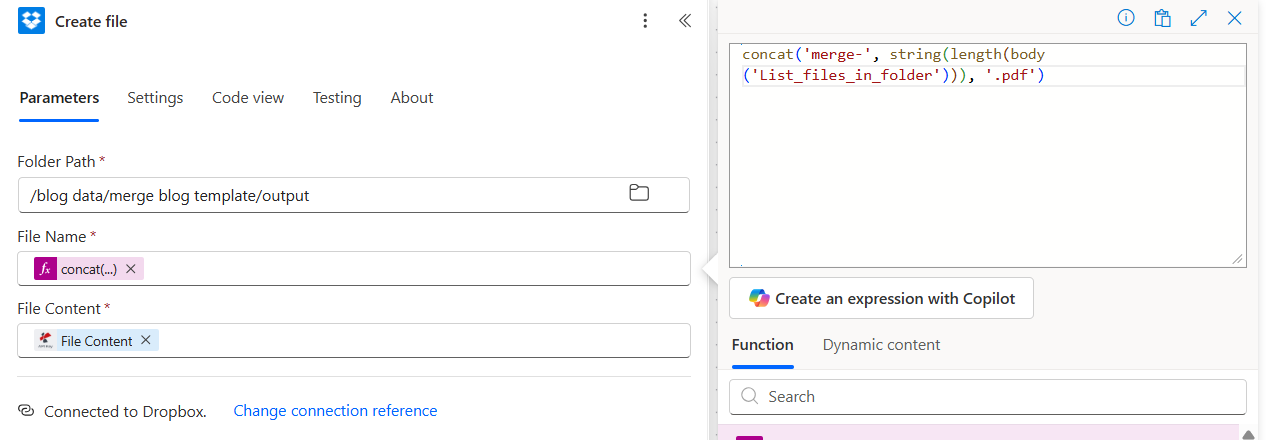
Final action ready
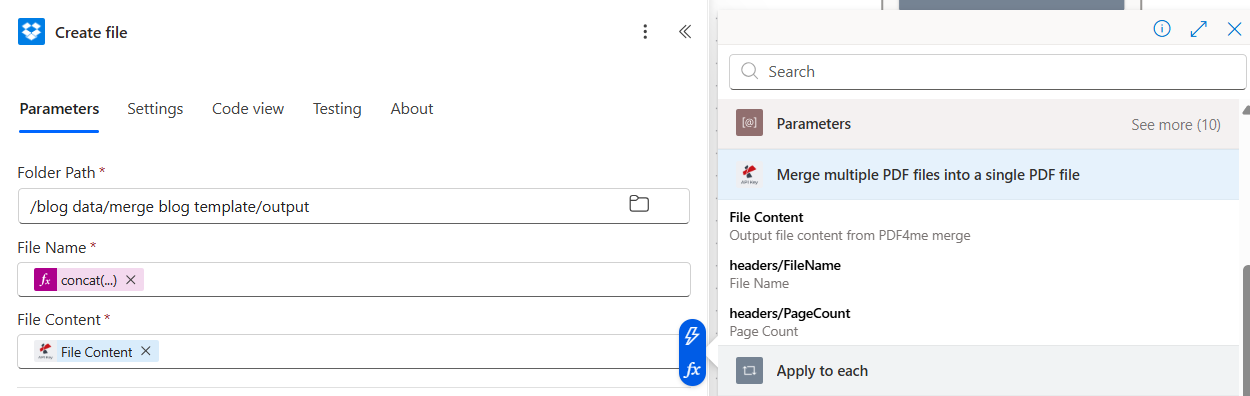
The same expression also exposes headers/PageCount on the merge output, useful if you ever want to log how many pages the consolidated PDF carries.
Tip. If you would rather stamp the run with a date than a file count, swap the expression for concat('merge-', utcNow('yyyy-MM-dd-HHmmss'), '.pdf'). Files land as merge-2026-06-12-094501.pdf and re-runs never collide.
Run the Flow and Verify
- Save the flow at the top right.
- Drop a file (or four) into
/blog data/merge files dropbox. Anything will do, the polling interval kicks the trigger within a couple of minutes. - Open the Run history at the top right and watch the actions turn green. Apply to each should show the right iteration count, "1 of 4" if four files were in the folder.
- Open Dropbox at
/blog data/merge blog template/output/. A file namedmerge-4.pdfis waiting. Open it, every PDF from the input folder is stitched into one document.
What did you actually build? A zero-touch consolidation pipeline that reacts to every new upload, reads the entire folder state at run time, and writes a single uniquely-named PDF carrying every current file. No hardcoded lists, no scheduled batch job, no manual click. The same pattern handles 4 PDFs or 400 with zero changes. Same recipe works in Make (Iterator over Dropbox List Files) and Zapier (Looping by Zapier over Find File results).
Common Variations You Can Add Without Rebuilding
endsWith(toLower(item()?['Name']), '.pdf'). The loop then ignores .docx, .png, and anything else in the folder.sort(body('List_files_in_folder'), 'LastModified'). Reverse with reverse(...) if you want newest at the top of the merged PDF.PDF/A-2b. The output that lands in Dropbox is now ISO 19005 archive-compliant./processed. Next run only sees fresh uploads.Troubleshooting
The Append to array Value expression is not wrapped in base64ToBinary(...). Without the conversion the array carries base64 strings instead of binary buffers and PDF4me rejects them. Re-open Append to array, switch to the expression editor, and paste base64ToBinary(body('Get_file_content')?['$content']) verbatim.
The trigger fired but List files returned an empty array. Check the trigger and List files Folder values are identical. Path mismatches (one with a trailing slash, the other without) are a common cause.
merge-.pdfThe length() call did not resolve at design time. Make sure you pasted the expression into the File Name field via the fx expression editor, not as plain text. Plain text leaves the curly braces as literal characters and the function never runs.
Two consecutive runs with the same file count produce identical names (merge-4.pdf). Either swap the expression to a timestamp (concat('merge-', utcNow('yyyy-MM-dd-HHmmss'), '.pdf')) or append a GUID with guid().
Next Steps
The same six-step pattern (watch then list then loop-to-array then merge then save with a runtime name) handles any "react to a folder" automation. Drop a new file in tomorrow, the run picks it up. No edits, no re-deploy.