Demand Letter Template in Power Automate: Generate a PDF Letter for Every Ready Matter in SharePoint with PDF4me

PDF4me Generate Document Single is a Power Automate action that merges JSON data into a Word template and returns a finished document. Pointed at a SharePoint list of legal matters, it turns one demand letter template into a PDF letter for every matter marked ready, files each letter in its matter folder, and updates the matter's status.
Search for a demand letter template and page one belongs to court self-help centres, legal aid sites and form libraries. California Courts, WashingtonLawHelp and LawDepot all explain how to write one letter, and explain it well. None of them deals with the firm that sends thirty a week, where the letter is the easy part and the admin around it is not: copying the client, the opposing party and the amount out of the case record, saving the PDF in the right matter folder, and remembering to mark the matter as done. This flow does that admin and leaves the wording where it belongs, in a Word document the attorneys control.
Mark a matter as Ready for Demand Letter in SharePoint and run the flow. Every matter marked ready comes back with a PDF demand letter in its own folder and a new status, and the team gets one email saying how many went out. The letter itself is a Word document with six placeholders, filled from the matter record by PDF4me. Eleven actions, about eight seconds for a two-matter batch.
Why-Based Q&A
Why build the letter from a Word template? Because the people who own the wording already work in Word. An attorney can change a paragraph, update the letterhead or add a clause without touching the flow, and the placeholders stay where they are. PDF4me reads the .docx directly, so nothing has to be rebuilt in HTML first.
Why filter on a status column instead of triggering on every new matter? Because a matter is not ready for a demand letter the moment it is created. The status column lets a paralegal decide when the facts are complete, and the query picks up exactly those rows. Changing the status straight after filing is what stops the same matter from getting a second letter on the next run.
Why give every matter its own folder? Because that is how matter files are organised anyway. The folder path uses the matter ID, so MAT-1001.pdf lands in DemandLetters/MAT-1001 next to everything else for that case, and anyone opening the matter finds the letter without searching.
Why count the letters in a variable? Because the summary email should report what this run actually produced. DocIndex goes up by one at the end of each pass, after the letter is filed and the status is changed, so the number in the subject line is the number of letters that made it all the way through.
What You'll Get
Input: a SharePoint list of matters, each with a matter ID, client, incident date, opposing party, damages amount, attorney and a status. Output: one PDF demand letter per matter marked ready, in /Shared Documents/DemandLetters/<matter ID>, the matter's status changed to Demand Letter Generated, and one summary email for the batch.
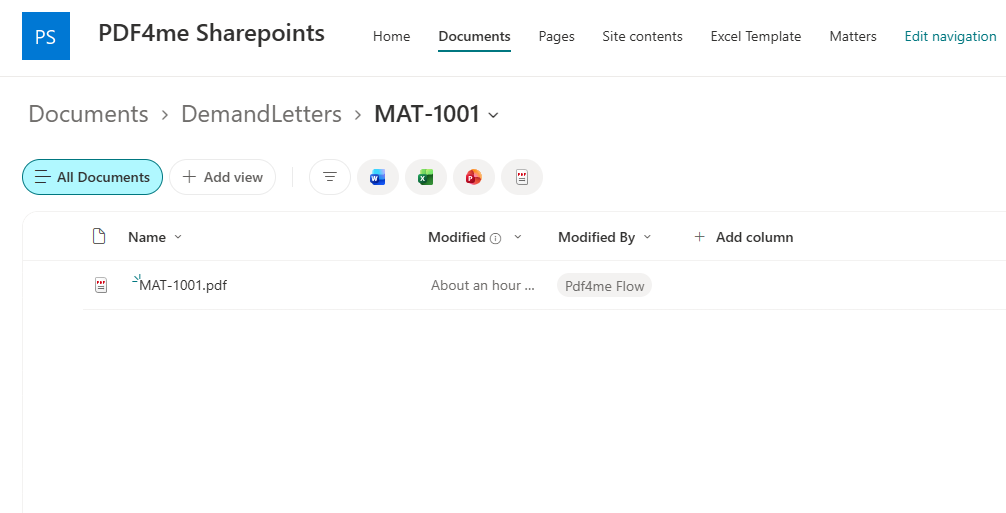
MAT-1001.pdf in its own matter folder, written by the flow account.
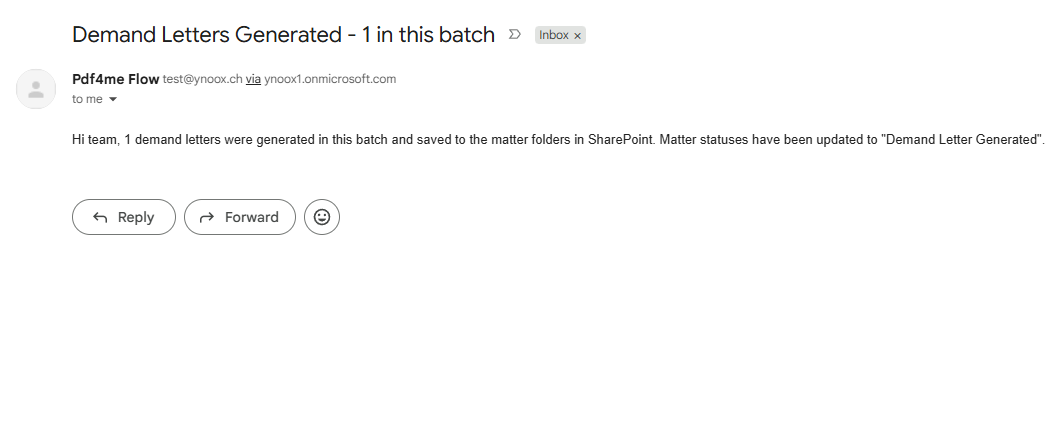
The summary from a one-matter batch. The count comes from the DocIndex variable.
What You Need
- Power Automate. Open Power Automate. A cloud flow on standard connectors. SharePoint, Office 365 Outlook and PDF4me need no premium plan.
- PDF4me API key. Get your API key. This flow uses one PDF4me connection, PDF4me PDF.
- A SharePoint list of matters. The captured list is called Matters. Its Title column holds the matter ID and is renamed MatterID in the list view, and there are columns for ClientName, IncidentDate, OpposingParty, DamagesAmount and Attorney, plus a Status choice column with values such as Draft, Ready for Demand Letter and Demand Letter Generated.
- A document library for the template and the letters. The template sits in Shared Documents and the letters go under Shared Documents/DemandLetters.
- The demand letter template. demand-letter-template.docx. Six placeholders in PDF4me template syntax. The wording is a sample, not legal advice, so have counsel approve your own before it goes to anyone.
- The finished letter. mat-1001-demand-letter.pdf. Exactly what the flow produced for matter MAT-1001.
Grab the samples first. Upload the template to Shared Documents as DemandLetterTemplate.docx, add one matter with the status Ready for Demand Letter, and run the flow. Then put your letter next to the finished one. If the names, the amount and the matter ID all line up, every mapping is right.
The Flow at a Glance
- Manually trigger a flow starts a batch.
- Get items reads the
Matterslist with the Filter QueryStatus eq 'Ready for Demand Letter'. - Select maps each matter to the six template fields.
- Get file content reads
/Shared Documents/DemandLetterTemplate.docx. - Initialize variable creates
DocIndexas an Integer set to0. - Apply to each loops over the matters from Get items.
- PDF - Generate Document (Single) (PDF4me PDF) fills the template with Output Type
PDF. - Create file (SharePoint) saves the letter into
/Shared Documents/DemandLetters/<matter ID>. - Update item (SharePoint) sets Status to
Demand Letter Generated. - Increment variable adds
1toDocIndex. - Send an email (V2) (Office 365 Outlook) sends the batch summary.
Complete flow overview
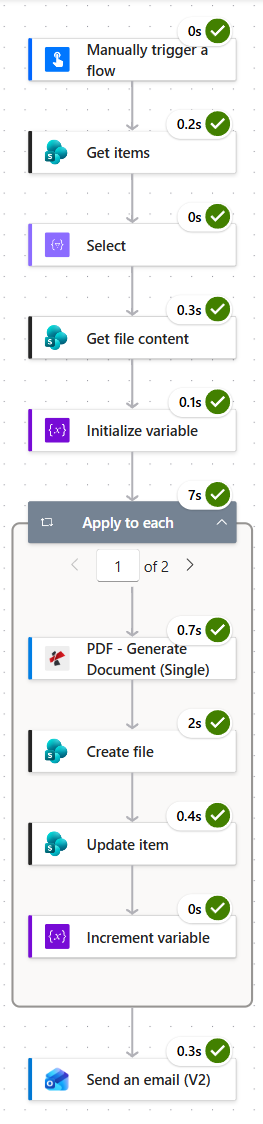
A two-matter batch. The loop took seven seconds for both passes, and the SharePoint write is the slowest step inside it at two seconds per letter.
Step 1: How do you start a demand letter batch on demand?
Flow so far: nothing yet, this is the trigger.
A manual trigger fits the way letters actually go out: someone reviews the matters marked ready, then presses the button.
- Create an Instant cloud flow and pick Manually trigger a flow.
- Leave it without inputs. The list itself decides which matters are in the batch.
Manual trigger configuration
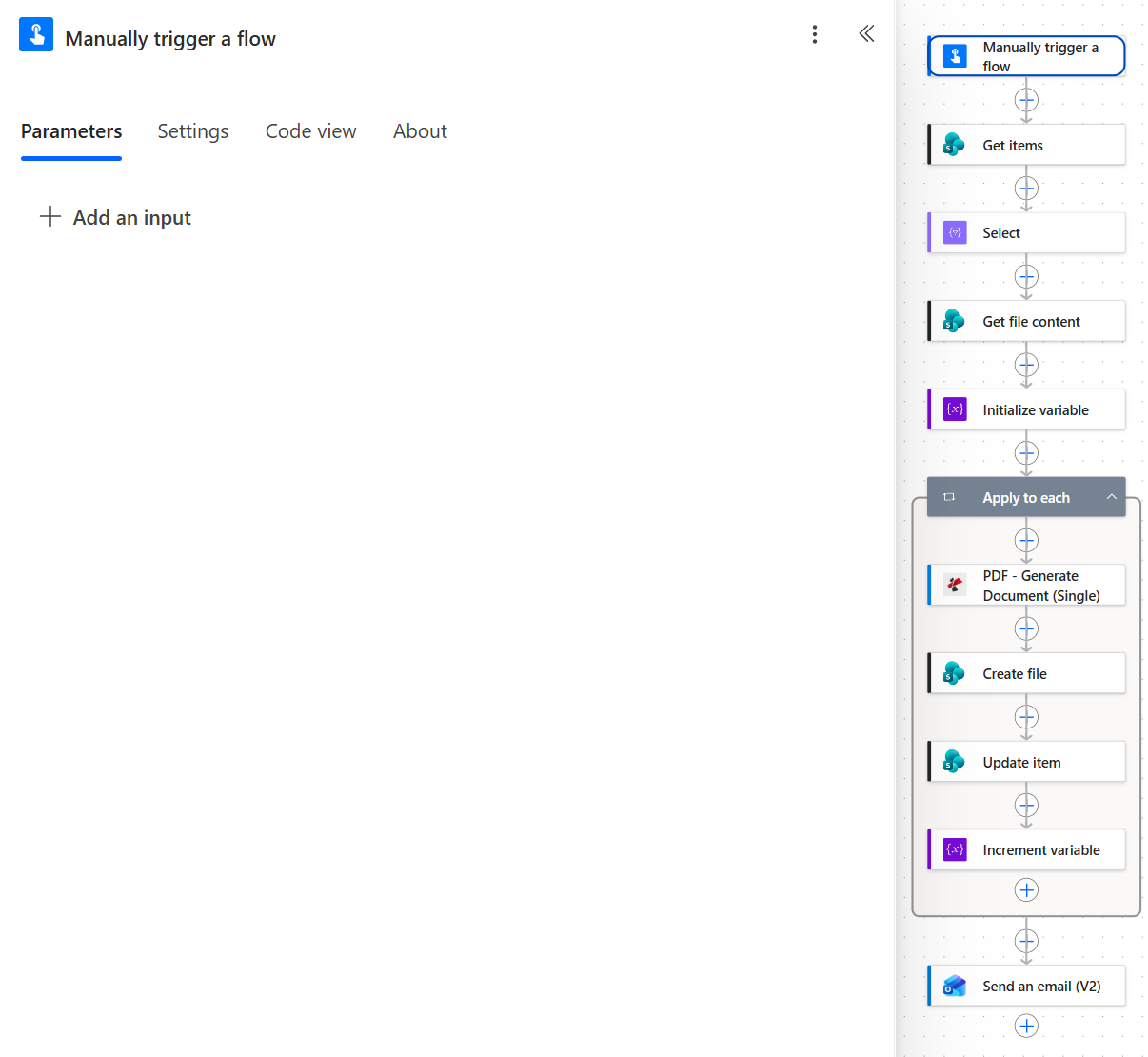
No inputs. Selection happens in the next step, on the Status column.
Tip. Nothing in the rest of the flow depends on who started it. Swap the trigger for Recurrence and the same flow becomes a nightly batch that picks up whatever was marked ready during the day.
Step 2: How do you pick only the matters that are ready for a demand letter?
Flow so far: Manually trigger a flow.
Get items does the selecting, so the flow never has to check a status itself.
- Add SharePoint > Get items.
- Configure:
- Site Address:
PDF4me Sharepoints - https://ynoox1.sharepoint.com/sites/PDF4meSharepoints - List Name:
Matters
- Site Address:
- Open Advanced parameters and set:
- Filter Query:
Status eq 'Ready for Demand Letter' - Order By:
Title asc
- Filter Query:
Get items configuration
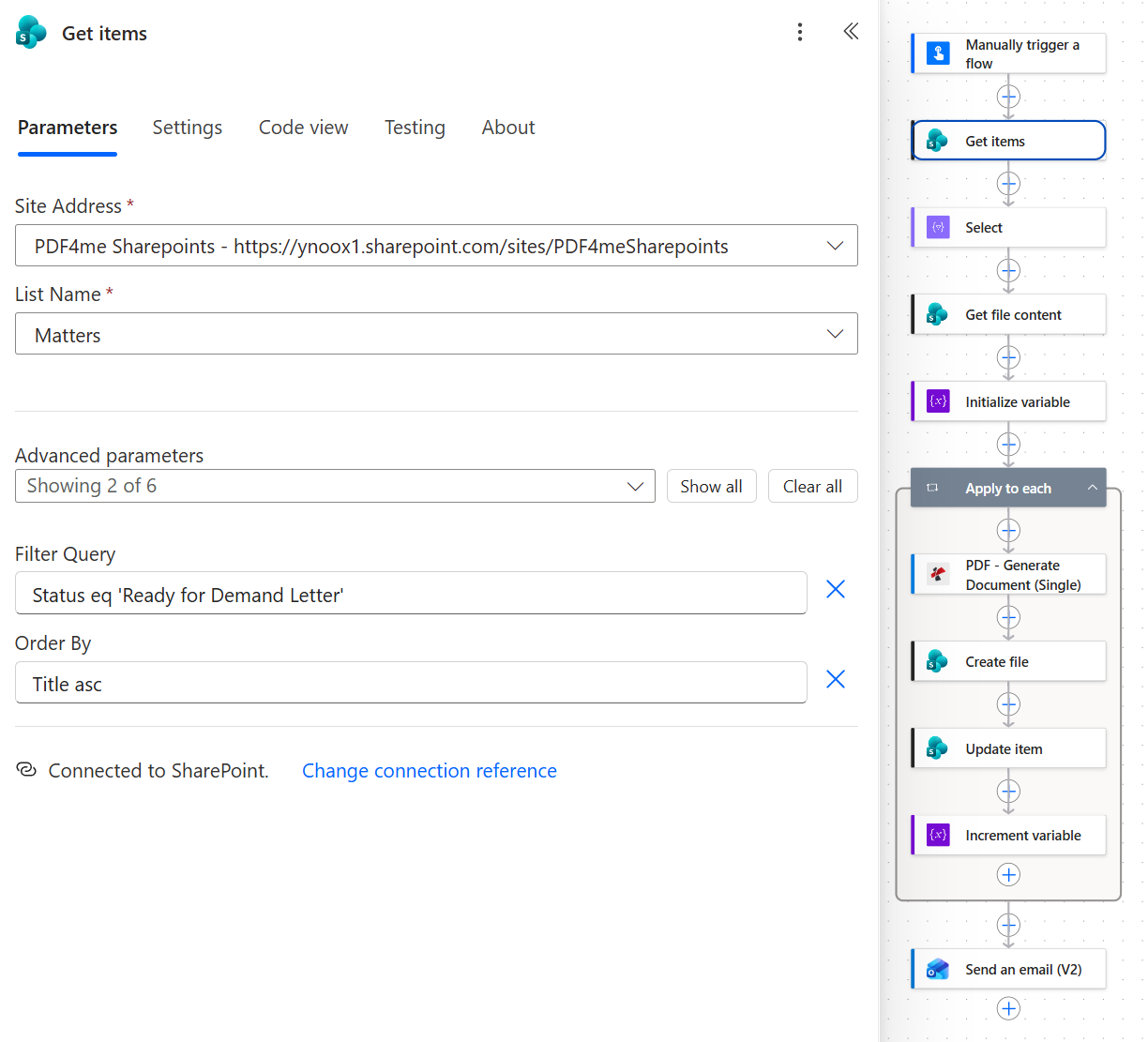
The filter value is matched exactly, including capitals. Ordering by Title produces the letters in matter-ID order.
Tip. Get items returns at most 100 rows unless you raise Top Count or turn on pagination in the action's settings. That is plenty for a daily batch, but worth knowing before the first month-end run.
Step 3: What does the Select action map?
Flow so far: Manually trigger a flow plus Get items.
Select turns each matter row into exactly the six fields the template knows about, which makes the contract between list and template easy to read.
- Add Data Operation > Select.
- From: the
body/valuetoken from Get items. - Map: one row per template field, as in the table below.
Select configuration
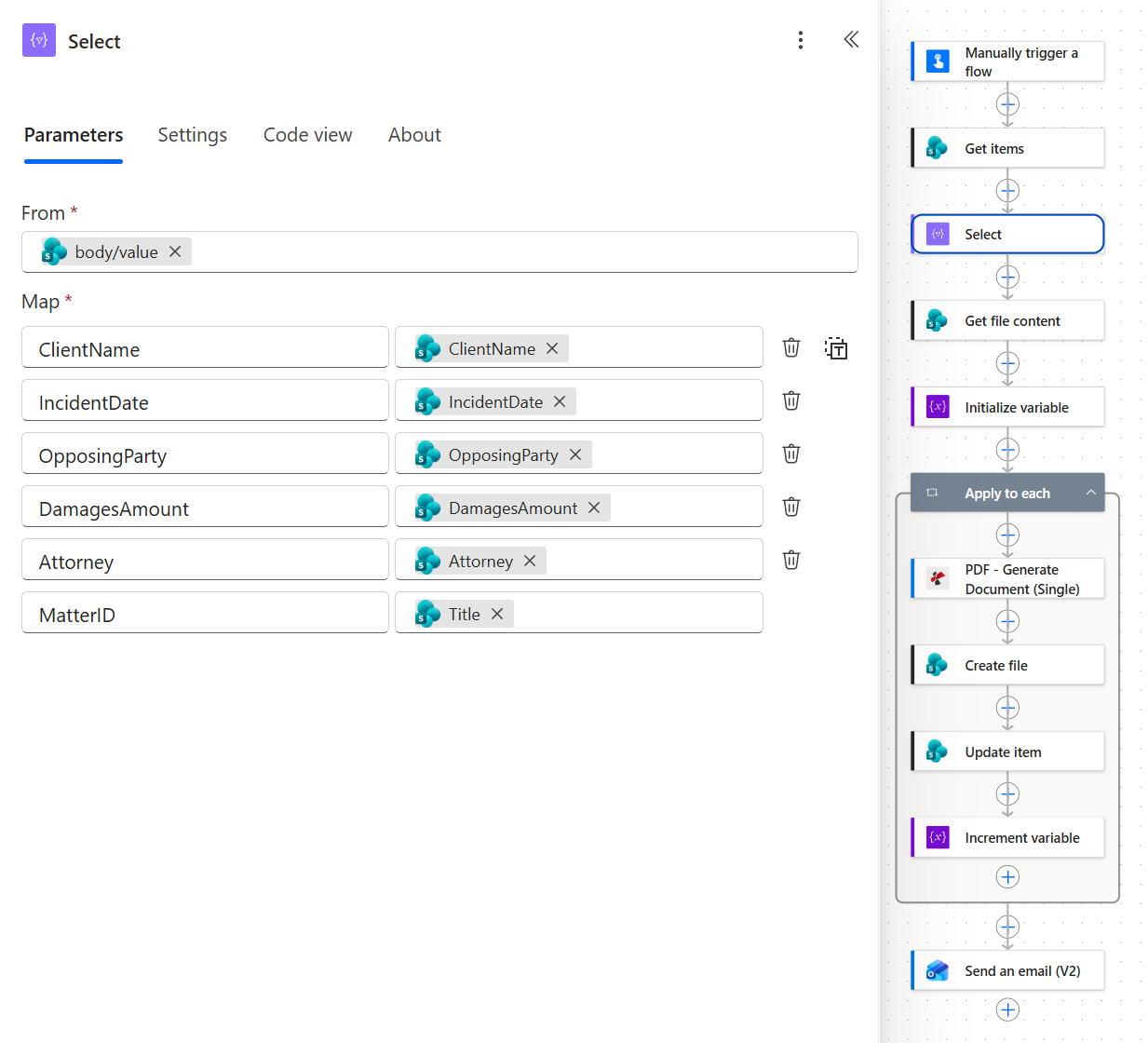
Five fields keep their column names. The sixth, MatterID, comes from the list's Title column.
How each placeholder gets its value
| Placeholder in the template | JSON key | SharePoint column | In the MAT-1001 letter |
|---|---|---|---|
<<[ClientName]>> | ClientName | ClientName | Sarah Chen |
<<[IncidentDate]>> | IncidentDate | IncidentDate | 06/14/2026 00:00:00 |
<<[OpposingParty]>> | OpposingParty | OpposingParty | Meridian Logistics Inc. |
<<[DamagesAmount]>> | DamagesAmount | DamagesAmount | 18500 |
<<[Attorney]>> | Attorney | Attorney | David Park |
<<[MatterID]>> | MatterID | Title | MAT-1001 |
Worth knowing before you copy this step. In the captured flow, the loop reads Get items directly and the letter takes its values from the loop, so nothing downstream uses the Select output. That is deliberate in one respect: Update item needs each matter's ID, and Select leaves it out. To drive the loop from Select instead, add ID to the map and point Apply to each at the Select output.
Step 4: Where does the flow read the Word template from?
Flow so far: Manually trigger a flow plus Get items plus Select.
The template is an ordinary Word file in the document library. Reading it here, before the loop, means it is fetched once per batch rather than once per matter.
- Add SharePoint > Get file content.
- Configure:
- Site Address:
PDF4me Sharepoints - https://ynoox1.sharepoint.com/sites/PDF4meSharepoints - File Identifier:
/Shared Documents/DemandLetterTemplate.docx - Infer content type (advanced):
Yes
- Site Address:
Get file content configuration
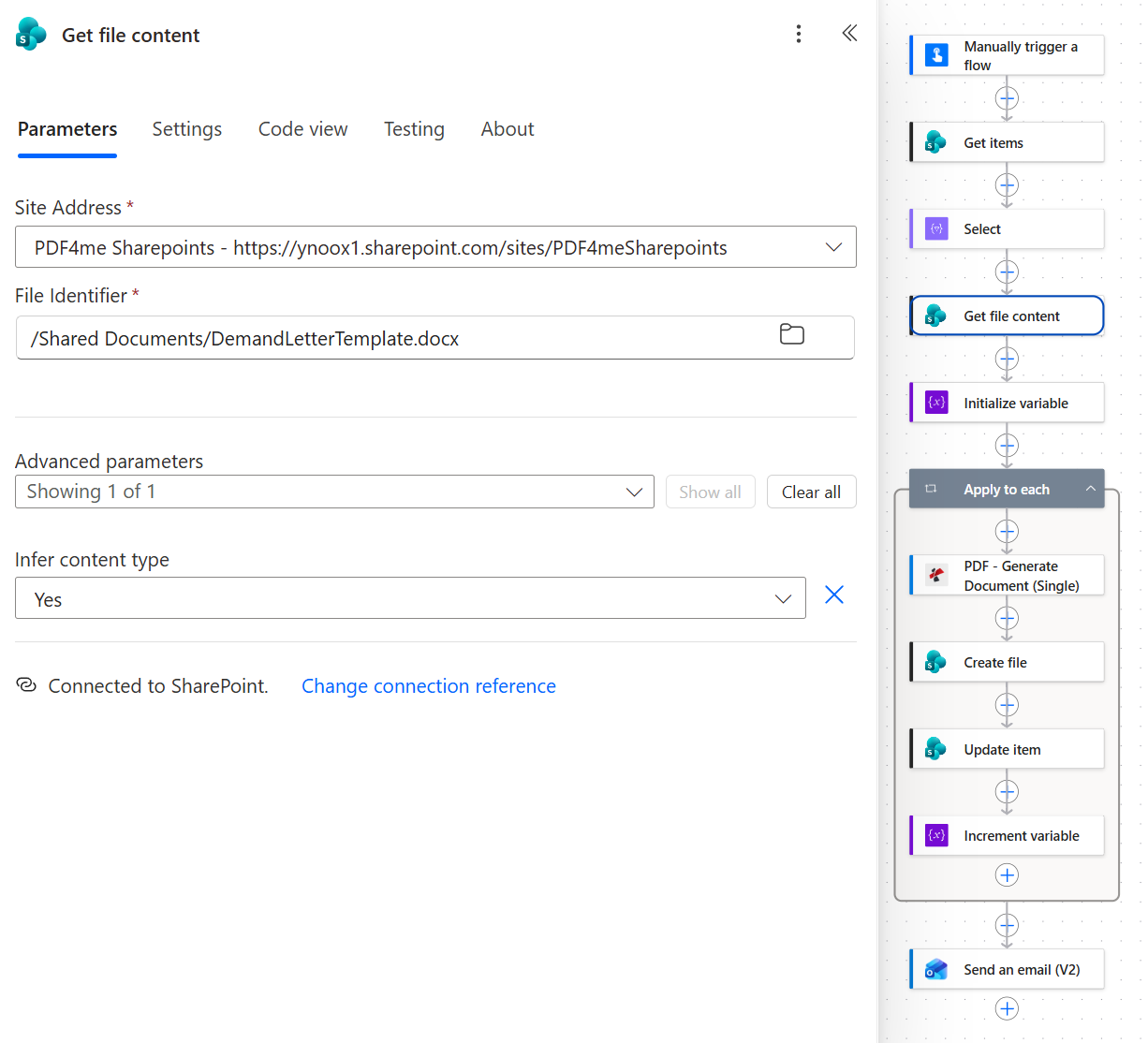
Edit the template in SharePoint and the next batch uses the new wording, with no change to the flow.
The template holds six placeholders in PDF4me template syntax: <<[Attorney]>>, <<[IncidentDate]>>, <<[OpposingParty]>>, <<[MatterID]>>, <<[ClientName]>> and <<[DamagesAmount]>>. The letterhead, the reference line and the body text around them are plain Word content. The Word template syntax overview covers everything else a placeholder can do.
Step 5: Why does the flow need a counter variable?
Flow so far: everything through Get file content.
The summary email needs a number, and a variable is the simplest way to carry one out of the loop.
- Add Variables > Initialize variable.
- Configure:
- Name:
DocIndex - Type:
Integer - Value:
0
- Name:
Initialize variable configuration
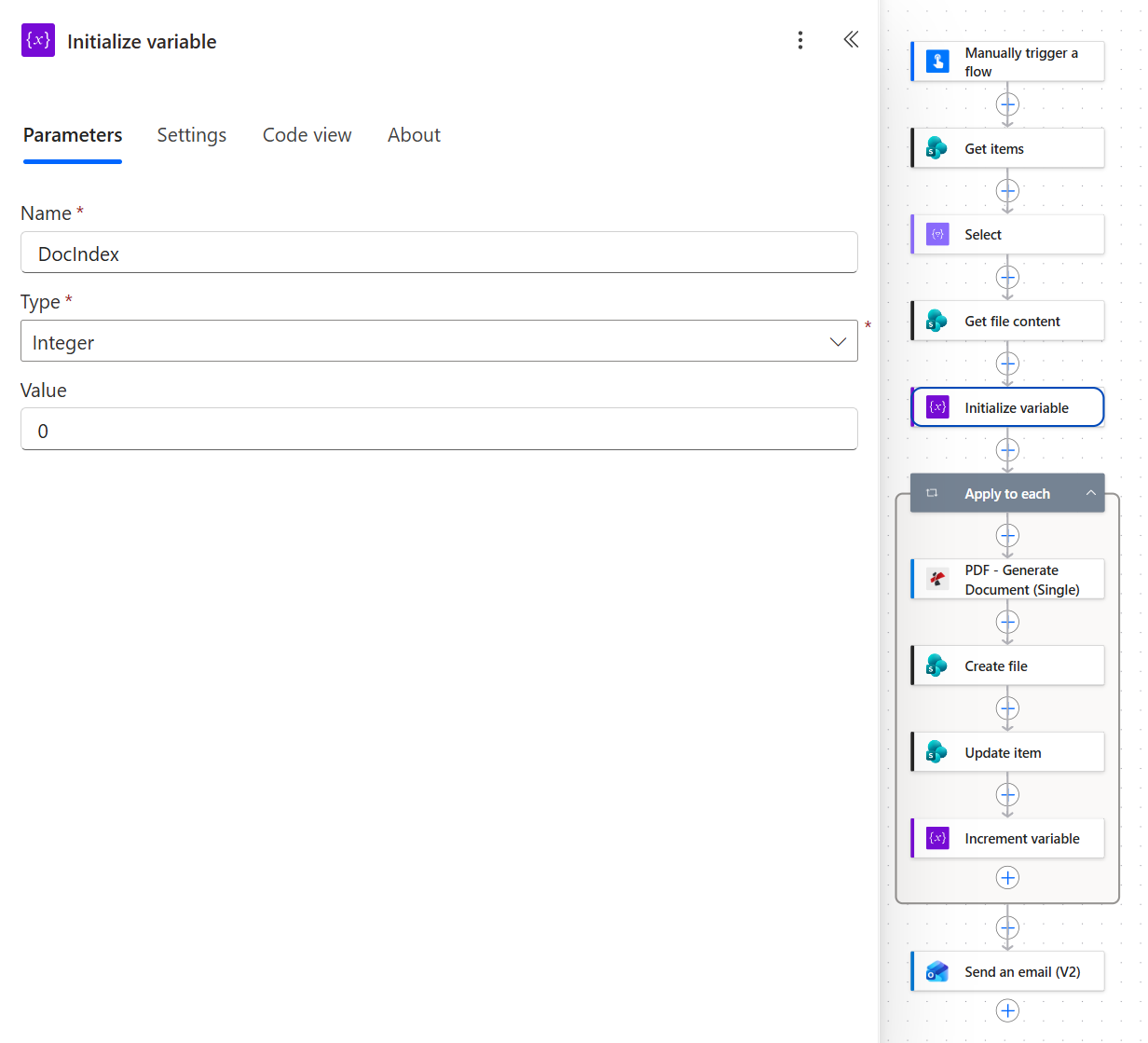
Initialize variable has to sit at the top level of the flow. Power Automate does not allow it inside a loop.
Step 6: How do you generate one demand letter per matter?
Flow so far: everything through Initialize variable.
This is the loop that does the real work. Each pass builds one letter, files it, updates the matter and counts it.
- Add Control > Apply to each.
- Select an output from previous steps: the
body/valuetoken from Get items.
Apply to each configuration
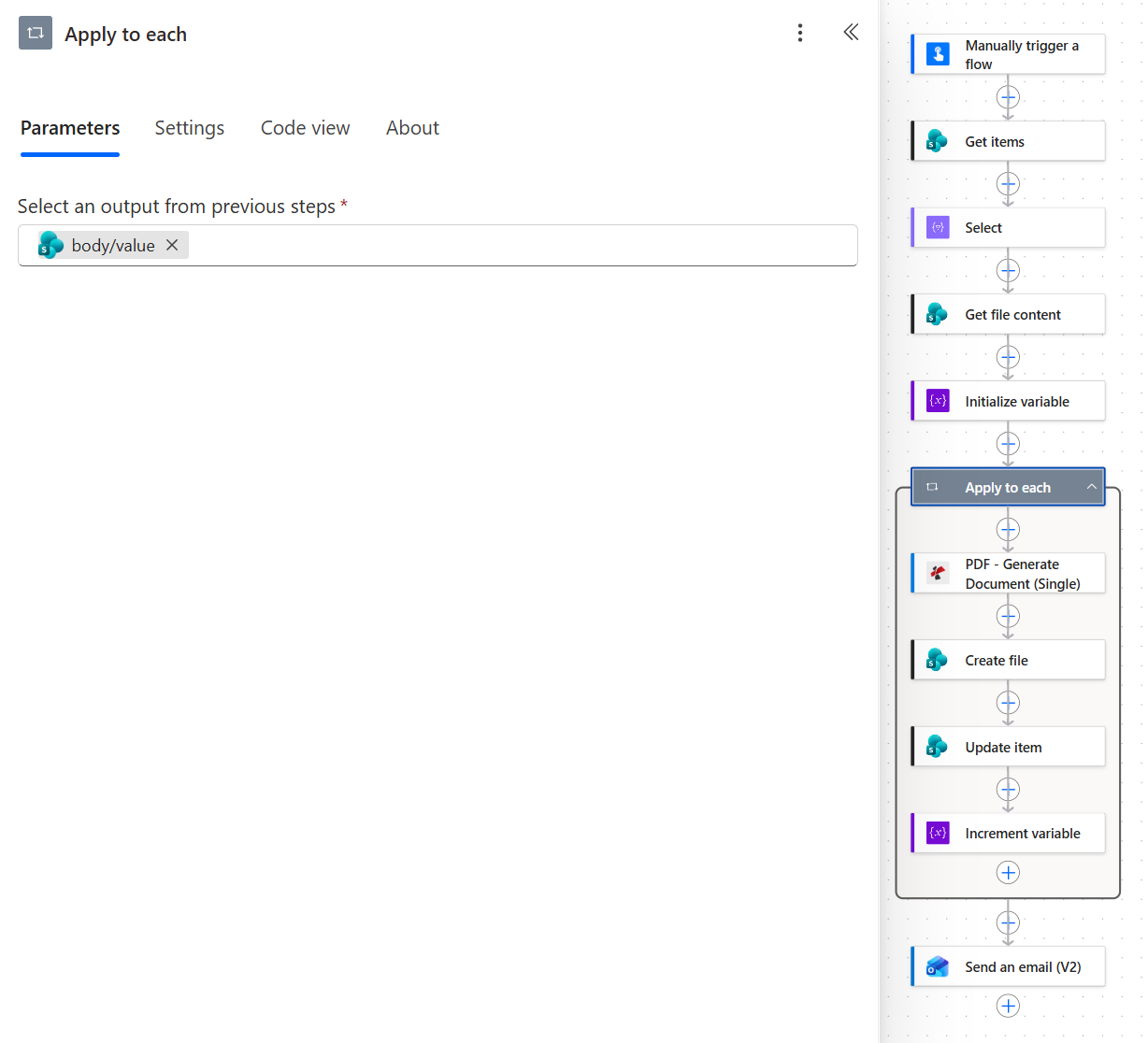
Four actions inside the loop, and that stays true for one matter or fifty.
Now the first action inside the loop.
- Add PDF - Generate Document (Single) from the PDF4me PDF connection.
- Configure:
- Template File Type:
Docx (PDF4me Template Syntax) - Template File Name:
DemandLetterTemplate.docx - Template File Data: a
base64()expression over the Get file content output, for examplebase64(body('Get_file_content')) - Document Data Type:
Json - Document Data File: leave empty
- Document Data Text: the JSON below, built from the current matter
- Output Type:
PDF - Keep Pdf template Editable:
No
- Template File Type:
The tokens in Document Data Text resolve to these expressions:
{
  "ClientName": "@{items('Apply_to_each')?['ClientName']}",
  "IncidentDate": "@{items('Apply_to_each')?['IncidentDate']}",
  "OpposingParty": "@{items('Apply_to_each')?['OpposingParty']}",
  "DamagesAmount": "@{items('Apply_to_each')?['DamagesAmount']}",
  "Attorney": "@{items('Apply_to_each')?['Attorney']}",
  "MatterID": "@{items('Apply_to_each')?['Title']}"
}
Generate Document (Single) configuration
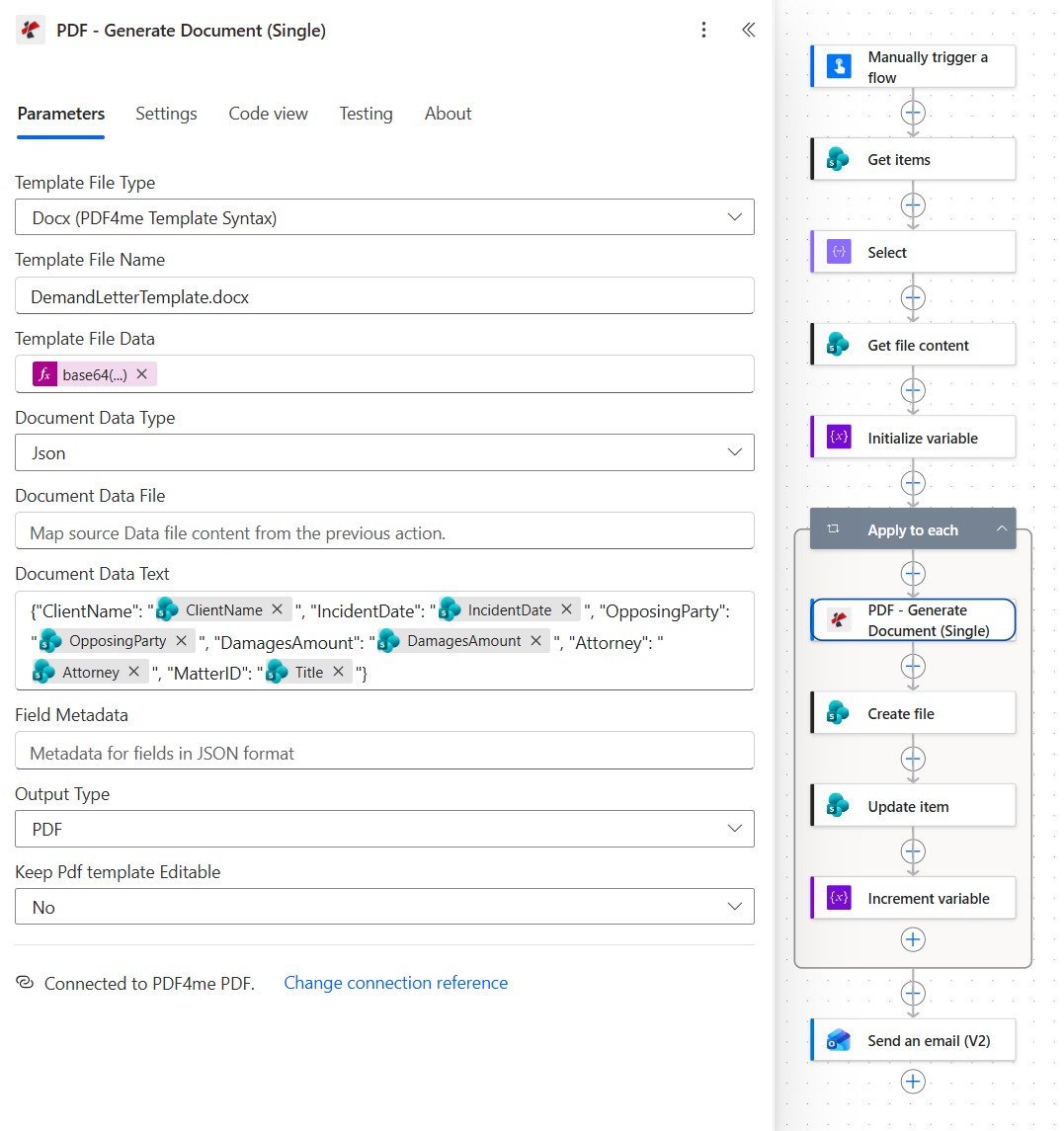
The JSON keys must match the placeholder names exactly. MatterID is the only one whose value comes from a differently named column.
Fix the date and the amount before the first real letter. The captured letter prints the incident date as 06/14/2026 00:00:00 and the damages as $18500, because neither value has a format. Nobody sends a demand letter with a timestamp in it, so add a format to the date placeholder in the template and format the amount in the flow, as shown below.
For the date, give the placeholder a format string in the Word template, as described in formatting in Word templates:
<<[IncidentDate]:"MMMM dd, yyyy">>prints June 14, 2026.
For the amount, format it in Document Data Text before it reaches the template. This assumes DamagesAmount is a Number or Currency column:
formatNumber(items('Apply_to_each')?['DamagesAmount'], 'N0', 'en-US')produces 18,500.
formatNumber and the other functions used in this post are documented in the workflow expression functions reference.
Step 7: Where does each letter get filed?
Flow so far: the loop, through Generate Document (Single).
The matter ID does double duty here, naming both the folder and the file.
- Add SharePoint > Create file inside the loop.
- Configure:
- Site Address:
PDF4me Sharepoints - https://ynoox1.sharepoint.com/sites/PDF4meSharepoints - Folder Path:
/Shared Documents/DemandLetters/followed by the Title token - File Name: the Title token followed by
.pdf - File Content: the Body token from PDF - Generate Document (Single)
- Site Address:
Create file configuration
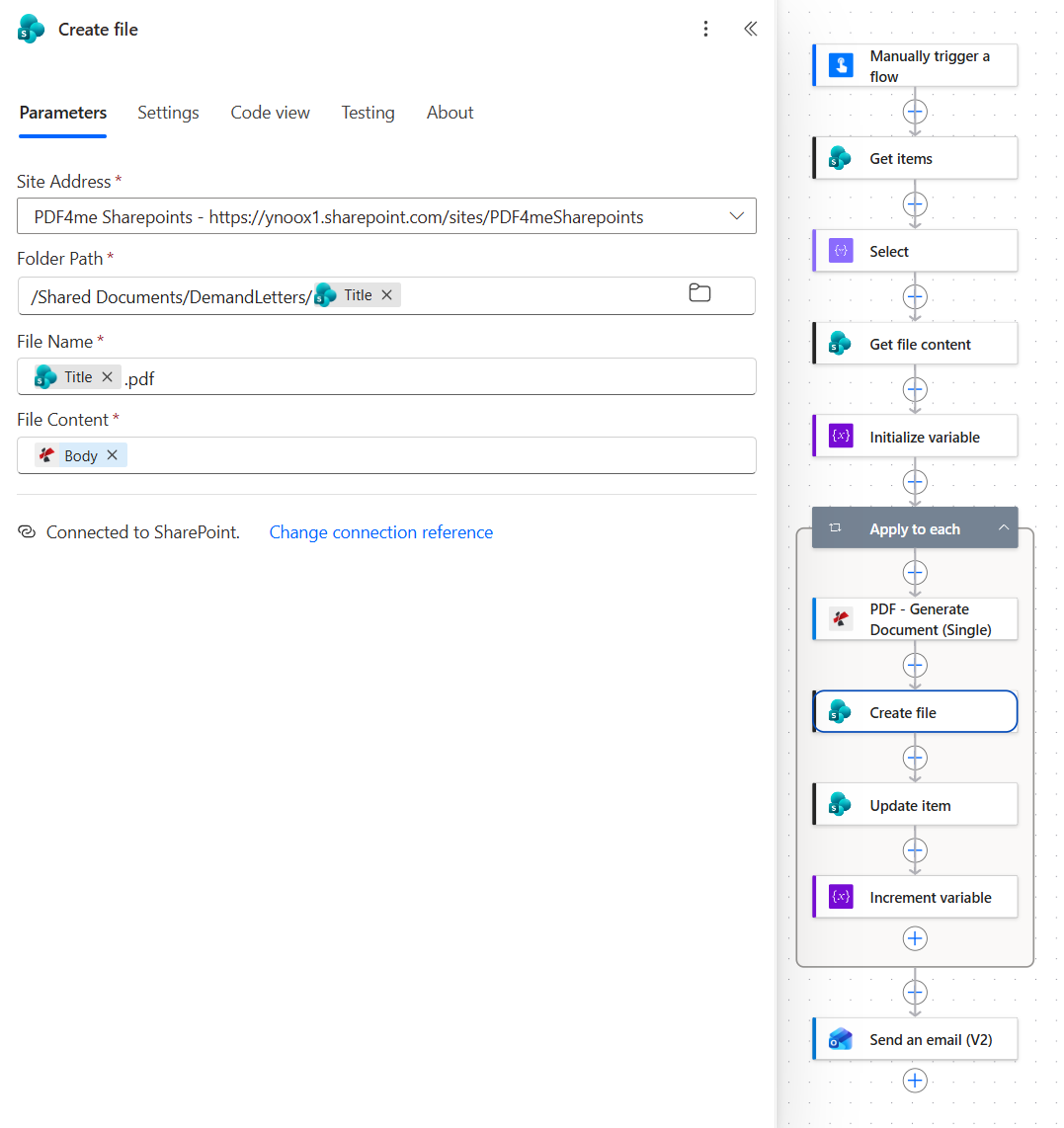
For matter MAT-1001 this writes /Shared Documents/DemandLetters/MAT-1001/MAT-1001.pdf.
Tip. An ID like MAT-1001 makes a good folder and file name because it contains nothing SharePoint rejects. If your matter IDs are free text, strip slashes, colons and question marks first, or Create file fails on the first matter that has one.
Step 8: How do you stop a matter from getting a second letter?
Flow so far: the loop, through Create file.
The filter in step 2 only works if the status changes once a letter exists. That is this action's whole job.
- Add SharePoint > Update item inside the loop.
- Configure:
- Site Address:
PDF4me Sharepoints - https://ynoox1.sharepoint.com/sites/PDF4meSharepoints - List Name:
Matters - Id: the ID token from the current matter
- Status Value (advanced):
Demand Letter Generated
- Site Address:
Update item configuration
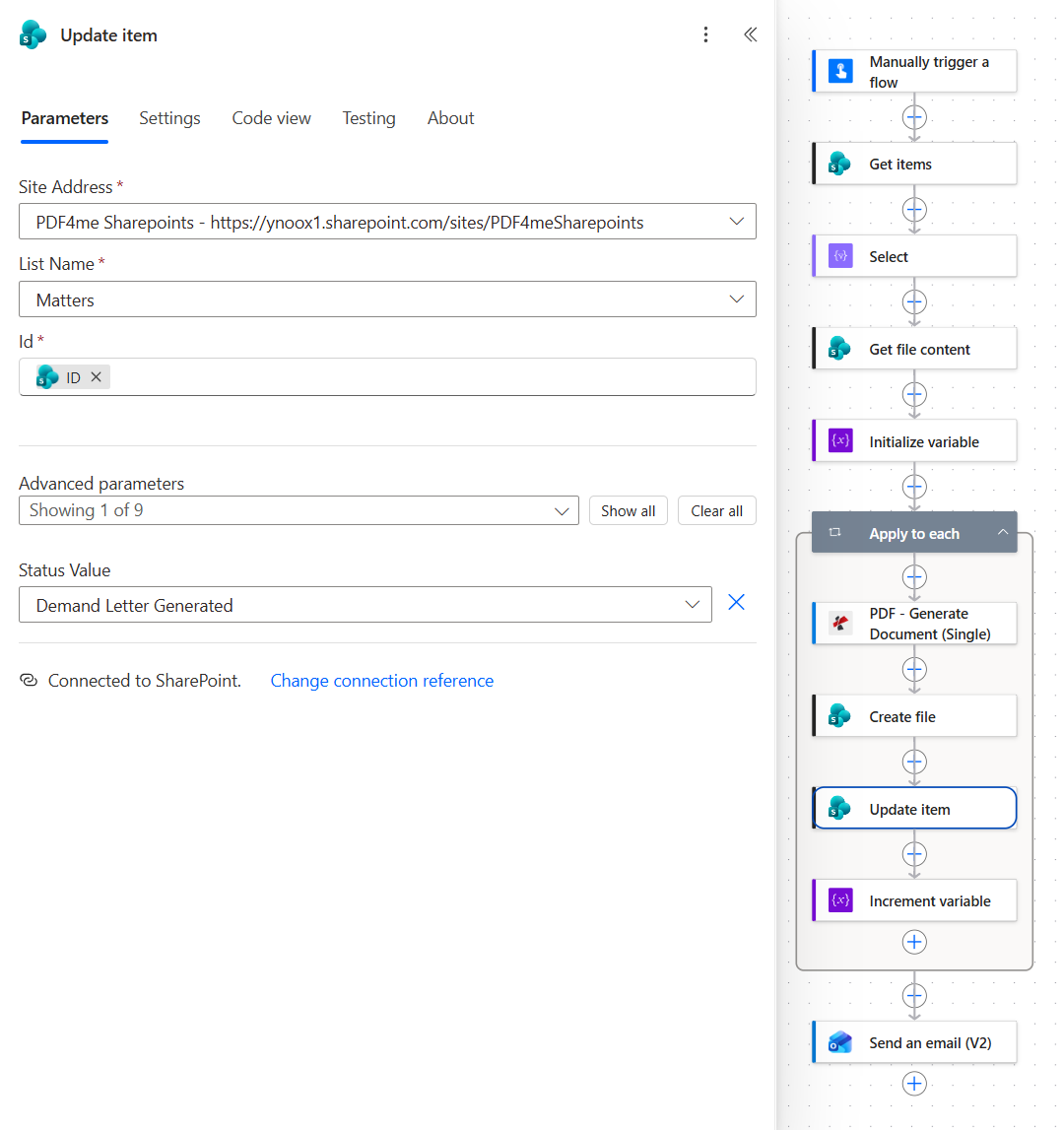
Update item runs only after Create file succeeds, so a matter whose letter failed stays ready for the next batch.
Step 9: How does the team know the batch is done?
Flow so far: the loop, through Update item.
Two actions finish the job: one counts inside the loop, the other reports after it.
- Add Variables > Increment variable as the last action inside the loop.
- Name:
DocIndex - Value:
1
- Name:
- Add Office 365 Outlook > Send an email (V2) after the loop.
- To: your team's address
- Subject:
Demand Letters Generated -followed by the DocIndex token andin this batch - Body:
Hi team,then DocIndex, thendemand letters were generated in this batch and saved to the matter folders in SharePoint. Matter statuses have been updated to "Demand Letter Generated". - Importance (advanced):
Normal
Increment variable and Send an email (V2) configuration
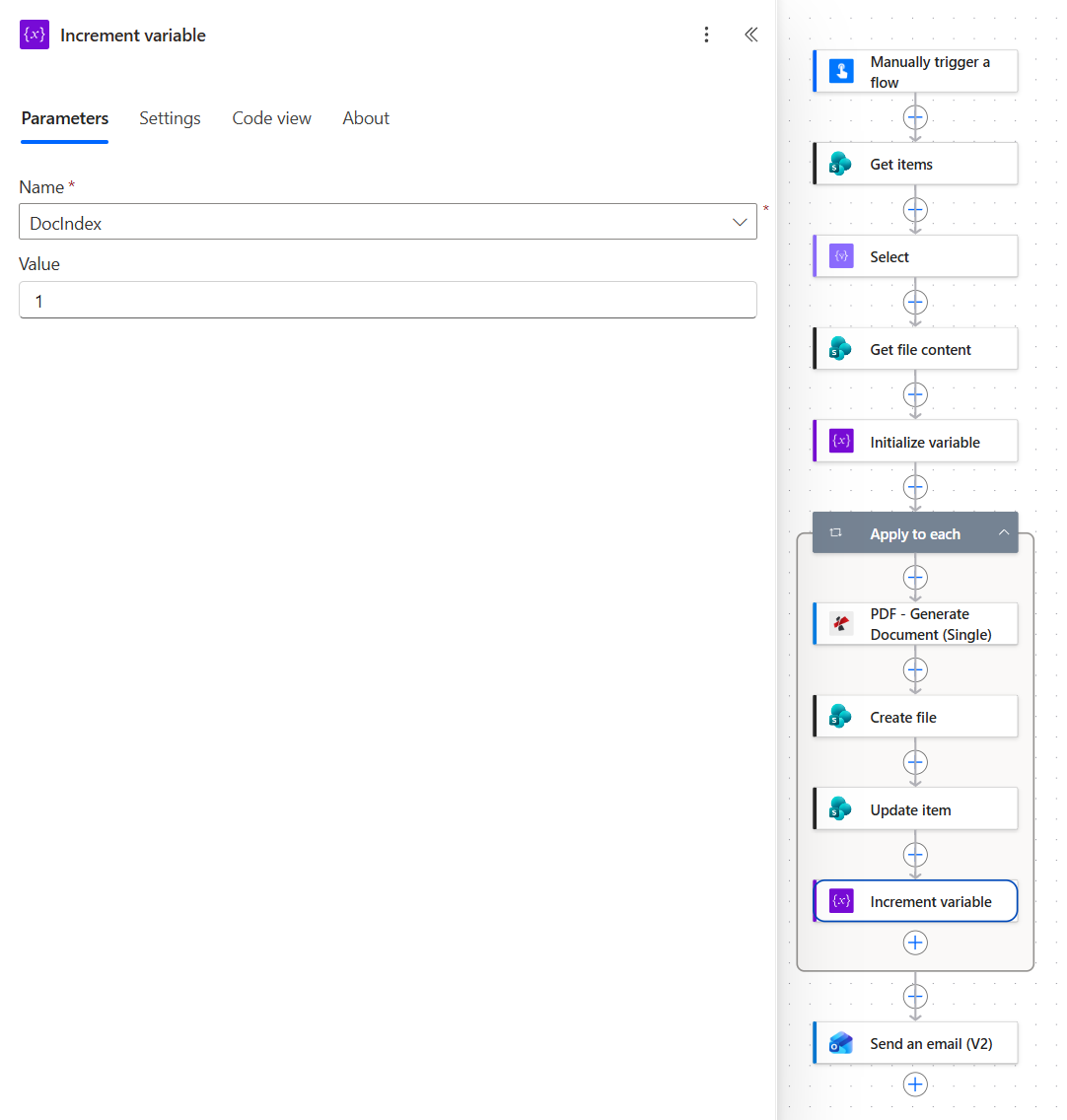
Last inside the loop, so it only counts letters that were filed and recorded.
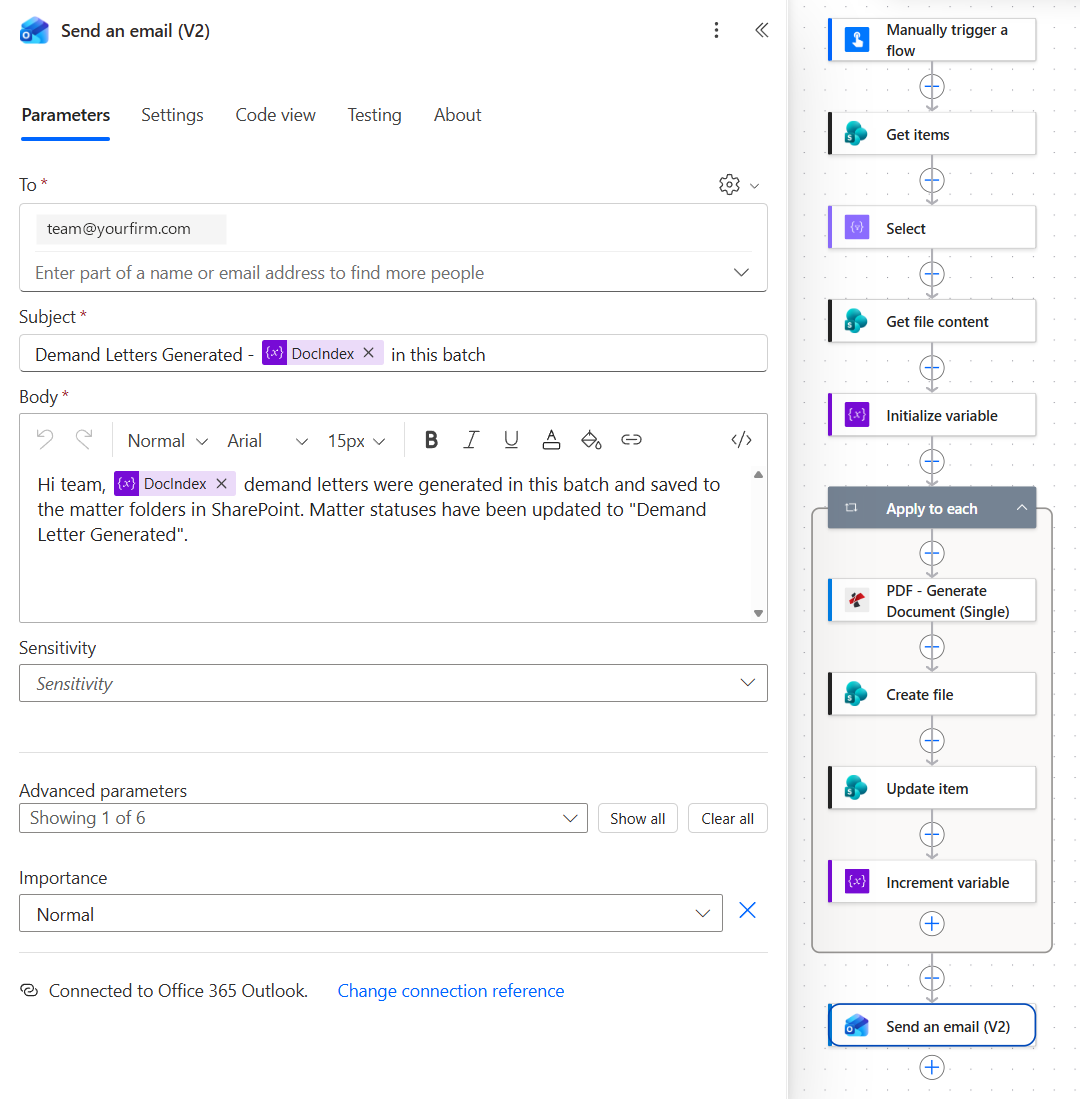
One email per batch, not one per letter.
Tip. The captured email reads 1 demand letters. Replace the fixed word with if(equals(variables('DocIndex'), 1), 'letter', 'letters') and the subject and body read correctly for a batch of one.
Run the Flow and Verify
- Save the flow and select Test, then Manually.
- Before you run it, mark at least one matter as Ready for Demand Letter.
- Open the run history. Apply to each should show one iteration per matter marked ready, and every action should be green.
- Open
/Shared Documents/DemandLettersand check for one folder per matter, each holding a PDF named after the matter ID. - Open the Matters list and confirm those matters now show Demand Letter Generated.
The Matters list after the runs
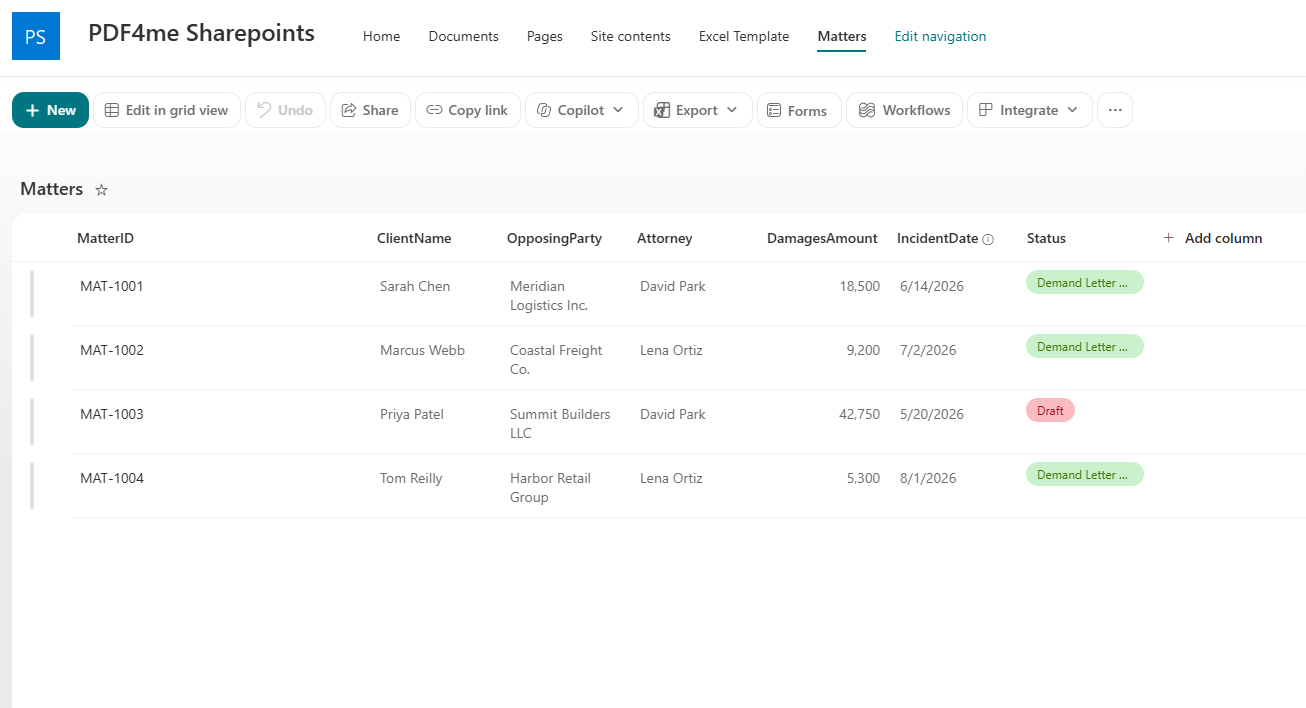
Three matters now show Demand Letter Generated. MAT-1003 is still Draft, so the filter skipped it and no letter was produced.
The captured run processed two matters in about eight seconds. The letter for MAT-1001 is 21,121 bytes on a single page, from PDF4me Legal Associates, signed by David Park on behalf of Sarah Chen and addressed to Meridian Logistics Inc. Its XMP metadata declares pdfaid:part as 1 and pdfaid:conformance as B, which is PDF/A-1b. The summary email shown earlier comes from a separate one-matter batch.
What did you actually build? A small legal document automation pipeline. The approved wording lives in one Word template, the facts live in the matter list, and the status column decides what goes out and records that it went. Nobody copies a client's name into a letter, and nobody has to remember which matters still need one.
Common Variations You Can Add Without Rebuilding
How this compares to other ways of producing demand letters
Each row describes the alternative. The last row is this flow.
| Comparison | Template | Connector or licence | Output | Updates the matter record |
|---|---|---|---|---|
| Hand-filled template vs this flow | Word, retyped for every letter | None | Whatever the person saves | By hand, if someone remembers |
| Microsoft Populate a Microsoft Word template vs this flow | Word with content controls | Premium Word Online (Business) connector | .docx, PDF needs a second conversion action | Only if you add it |
| Dedicated legal document automation software vs this flow | Usually the vendor's own template editor | Separate subscription | Word or PDF | Inside that product |
| This flow | Word with placeholders in PDF4me template syntax | Standard connectors | PDF, filed per matter | Yes, Status is updated |
The distinction that matters: this is the only row where the template stays a normal Word file and the matter record changes as part of the same run.
Common questions
How to draft a demand letter template?
Start from the letter your firm already sends and mark every value that changes between matters. A typical demand letter has a letterhead, a date, the recipient, a reference line with the matter ID, a short statement of the facts, the amount demanded with a deadline, what happens if the deadline passes, and a signature. Everything except the changing values is fixed wording.
For automation, each changing value becomes a placeholder. The sample template uses six: client, incident date, opposing party, amount, attorney and matter ID. Its wording is illustrative only, so have counsel approve the language of any template you actually send.
How to populate a Word template using Power Automate?
There are two common routes. Microsoft's Populate a Microsoft Word template action uses content controls in the document and sits in the premium Word Online (Business) connector. It returns a .docx, so a PDF takes a second conversion step.
This flow uses PDF4me Generate Document (Single) instead. The template is an ordinary .docx with placeholders such as <<[ClientName]>>, the data goes in as JSON, and the action returns a PDF directly on a standard connector. Read the template with Get file content, pass it through base64(), and build Document Data Text from the list item.
How to automate letters in Word?
Inside Word itself, the classic answer is Mail Merge: a document with merge fields and a data source such as an Excel sheet. It works, but someone has to run it on a desktop for every batch and file the results afterwards.
Automating it properly means keeping the Word document as a template and letting a flow fill it from your records. Here the records are a SharePoint list, the trigger decides when a batch runs, and filing and status updates happen in the same run, so there is no merge step left for anyone to do.
What is legal document automation?
Legal document automation is producing legal documents such as demand letters, engagement letters and notices from approved templates and case data, instead of drafting each one by hand. The template holds the language the firm has signed off, the data comes from the matter record, and software does the merge.
This flow is a small, concrete example of it: one Word template, one list of matters, and one PDF4me action doing the merge, with the matter status recording that the letter exists.
Troubleshooting
Look for a double quote in that matter's data, often in a company name. Document Data Text is JSON assembled from text, so a stray quote ends a value early and the JSON becomes invalid. Escape quotes in the values, or build the object in a Compose action first and pass its output.
The placeholder has no format, so the date prints with its time. Add a format string to the IncidentDate placeholder in the template, as shown in step 6, and upload the template again.
Get items returned nothing. The Filter Query compares the text exactly, so check spelling and capitals against the Status choices, and make sure the query uses the column's internal name. Run the flow with a single matter set to Ready for Demand Letter to confirm.
The status never changed. Check that Update item uses the ID of the current matter and that its Status Value matches a choice that does not satisfy the filter. If the status stays Ready for Demand Letter, every run picks the matter up again.
Next Steps
Generate Document Single in Power Automate
Word template syntax
Formatting in Word templates
Get your API key
The same eleven-step pattern (filter the list by status, fill a Word template per row, file the PDF, change the status, report the count) handles any document a list row can drive: engagement letters, notices, renewal reminders and settlement offers.