Build a Custom AI Analyzer for Your Own Invoice Format in Power Automate: A 3-Step Dropbox Workflow
A Custom AI Analyzer Template is a named JSON schema you define in the PDF4me dev portal that tells the AI which fields to extract from a specific document type. This walkthrough builds an Analyzer for PDF4me's own SaaS subscription invoices (33 fields: vendor address block, Swiss MWST rate, subscription Id, line items, discount details), then calls it from a 3-step Power Automate flow that reads a PDF from Dropbox and returns structured JSON.
The built-in default_invoice_extraction covers generic invoices, but real AP teams have vendor-specific layouts, custom line-item columns, jurisdiction-specific tax fields, and subscription metadata that the generic schema misses. Building a custom Analyzer once gets you exact-match extraction forever, no per-field prompting required, no follow-up logic to clean up the response.
Set up an Analyzer once: log in at dev.pdf4me.com, open AI Document Parser in the sidebar, click Add, name the Analyzer (Test Invoice), choose Type Parse, paste a JSON schema describing every field you want extracted, save. Then build the Power Automate flow: Manually trigger, Get file content using path (/pdf4me.pdf), AI - Document Parser with the Analyzer name passed as Customisation Note. Output is JSON with every field the schema declared. The example schema in this walkthrough extracts 33 fields including vendor address, Swiss VAT (MWST), subscription Id, billing period, line items, and discount details.
Why-Based Q&A
Why a custom Analyzer instead of default_invoice_extraction? The built-in template targets generic vendor invoices. Real AP teams have vendor-specific layouts, jurisdiction tax fields (Swiss MWST, German Umsatzsteuer, US sales tax), subscription metadata (subscription Id, billing period, next billing date), or industry line-item columns the default schema does not know about. A custom Analyzer captures all of it in one pass.
Why is the field called Customisation Note in Power Automate? The Customisation Note parameter in the AI - Document Parser action accepts the Analyzer Id name (the same string you set when you created the Analyzer in the dev portal). The name is historical, the role is "pick which Analyzer Template runs against this document". Leave it blank to fall back to default_invoice_extraction, fill it with your Analyzer name to invoke the custom schema.
Why use fieldMethod: generate on composite fields? Some fields (vendorAddress, billToAddress) are not directly printed on the document. The AI assembles them from other extracted fields (vendorStreet + vendorCity + ...). The fieldMethod: generate marker tells the AI engine "synthesize this value from sibling fields, do not search the document for it". Useful for normalising address blocks, full names, or concatenated identifiers.
Why both invoiceDate (date) and invoiceDateString (string)? The schema declares both because dates are often the most ambiguous field. invoiceDate is the parsed Date type (downstream actions can do date math on it). invoiceDateString is the raw printed text from the document ("Jan 26, 2026") preserved verbatim. When the parser misreads or normalises the date, the string copy lets you audit and fix.
What You'll Get
Input: A PDF invoice in the format your Analyzer was designed for, stored in Dropbox. This walkthrough uses a PDF4me SaaS subscription invoice (Ynoox GmbH / Switzerland, MWST 8.1%, subscription metadata, Pdf4me Base 1000 plan). Output: A structured JSON response with all 33 fields from the schema, available as Power Automate dynamic content for the next action (write to SharePoint List, post to Slack, append to Excel Online, route to Approval, etc.).
Sample input invoice
Download the same sample invoice used in this walkthrough: pdf4me-invoice-sample.pdf
Sample output JSON (excerpt from the real run)
{
  "documentTitle": "INVOICE",
  "invoiceNumber": "Pdf4me-202601-32324",
  "invoiceDate": "Jan 26, 2026",
  "currency": "USD",
  "paymentStatus": "PAID",
  "vendorName": "Ynoox GmbH",
  "vendorAddress": "Riedstrasse 2B, Hedingen, Zürich 8908, Switzerland",
  "vendorTaxRegNumber": "CHE-360.751.198",
  "billTo": "Chandra Arora",
  "subscriptionId": "2e46662a-32e0-4e79-ba06-b13fe2c113ac",
  "billingPeriodString": "Jan 26 to Feb 26, 2026",
  "nextBillingDate": "Feb 26, 2026",
  "mwstRate": 8.1,
  "discountCode": "F_yn_100!",
  "discountAmount": 35,
  "lineItems": [
    { "description": "Pdf4me Base 1000", "price": 35, "discount": 35, "amount": 0 }
  ]
}
The complete 33-field response is downloadable in the section below.
What You Need
- PDF4me account. Open the dev portal and log in (email plus password or Microsoft, Google, Facebook, Apple, GitHub SSO).
- Power Automate. Open Power Automate. Any plan with premium connectors (PDF4me Connect is premium).
- Dropbox. For the input PDF source. SharePoint, OneDrive, Google Drive work the same with their respective connectors.
- The exact schema and sample PDF. Download both below to mirror every screenshot.
Grab the schema, the sample PDF, and the expected output first. Use them to reproduce every screenshot byte-for-byte.
The schema: 33 fields the Analyzer extracts
The Analyzer schema is the heart of the custom extraction. Each field declares the name Power Automate will see, the type Power Automate will receive, and a description that guides the AI on where to look for the value.
| Field | Type | What it extracts |
|---|---|---|
documentTitle | string | Label at top of invoice. Example: INVOICE |
invoiceNumber | string | Invoice ID. Example: Pdf4me-202601-32324 |
invoiceDate | date | Parsed invoice issue date |
invoiceDateString | string | Raw printed date string. Example: Jan 26, 2026 |
invoiceAmount | number | Total amount in header summary |
currency | string | ISO currency code. Example: USD |
paymentStatus | string | PAID, UNPAID, or DUE |
vendorName | string | Seller company name. Example: Ynoox GmbH |
vendorStreet | string | Vendor street line |
vendorCity | string | Vendor city |
vendorState | string | Vendor state / canton / province |
vendorPostalCode | string | Vendor ZIP / postal code |
vendorCountry | string | Vendor country |
vendorAddress | string (fieldMethod: generate) | Composite address assembled from the parts above |
vendorTaxRegNumber | string | Tax registration. Swiss format CHE-360.751.198 |
billTo | string | Customer name from BILLED TO |
billToCountry | string | Customer country |
billToAddress | string (fieldMethod: generate) | Composite billing address |
subscriptionId | string | UUID from SUBSCRIPTION section |
billingPeriodStart | date | Parsed start date of billing period |
billingPeriodEnd | date | Parsed end date of billing period |
billingPeriodString | string | Raw printed period. Example: Jan 26 to Feb 26, 2026 |
nextBillingDate | date | Parsed next billing date |
nextBillingDateString | string | Raw printed next billing date |
subTotal | number | Sum before tax |
mwstRate | number | Swiss VAT rate. Example: 8.1 |
mwstAmount | number | Swiss VAT amount |
total | number | Grand total after tax |
amountDue | number | Final amount payable |
discountCode | string | Promo code from DISCOUNT section |
discountDescription | string | Full discount note text |
discountAmount | number | Discount amount |
discountPercentage | number | Discount percentage |
lineItems | table | Per-row product / plan data: description, price, discount, amount |
The full JSON schema (with the exact fieldDescription strings the AI consumes) is in the downloadable file above.
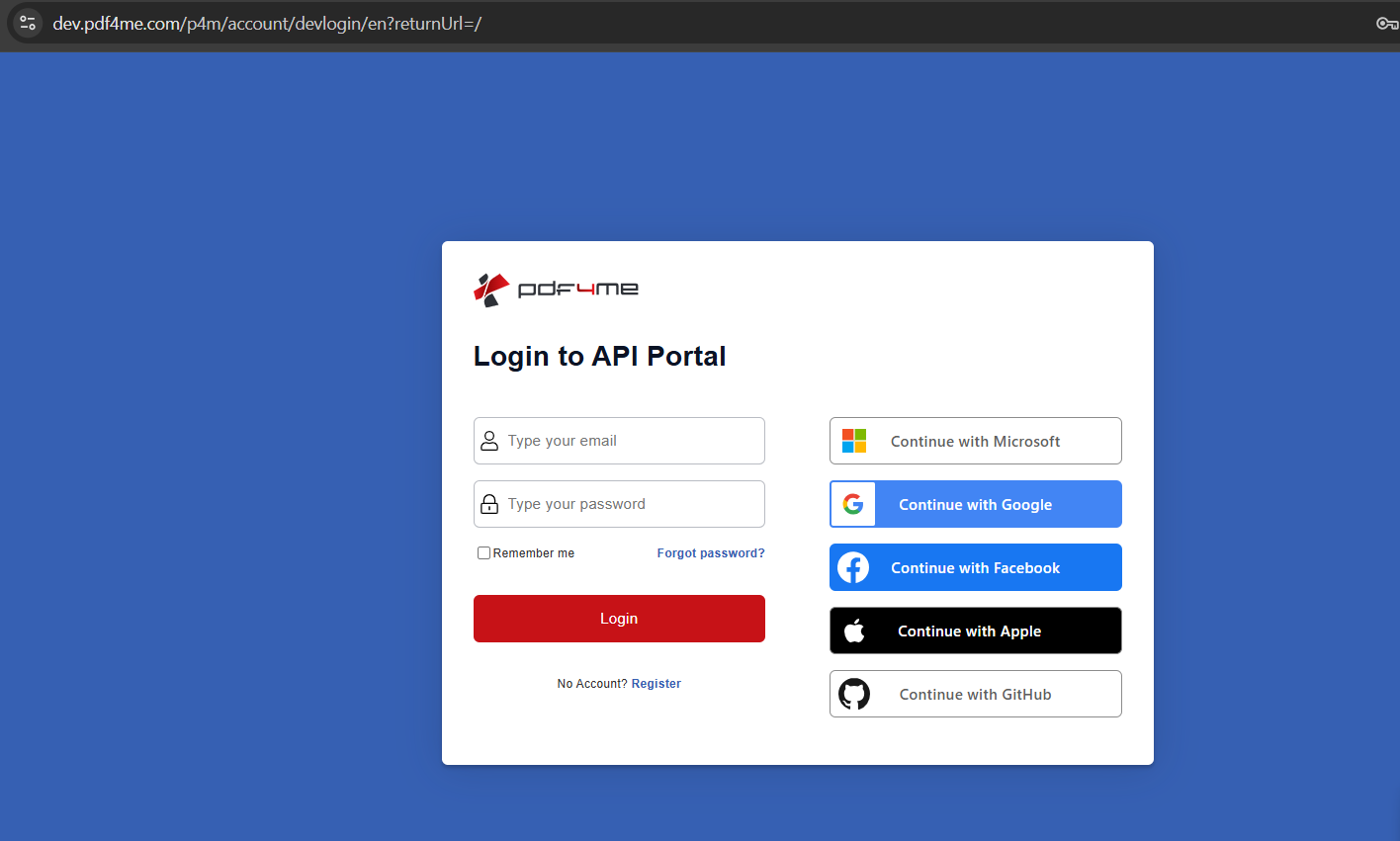
Setup A: How do you log in to the PDF4me dev portal?
Where you are: before any flow exists.
- Open dev.pdf4me.com in any browser.
- Either type your email and password and click Login, or pick one of the SSO options on the right: Continue with Microsoft, Google, Facebook, Apple, GitHub.
- New here? Click No Account? Register to create one.
The login screen
Setup B: Open AI Document Parser in the dashboard
Where you are: logged in, on dev.pdf4me.com/dashboard.
- The dashboard left sidebar shows your account sections: Home, Profile, Subscription, Payment Info, Api Keys, Logs, Invoices, AI Document Parser, My Documents, Classify Document, Parse Document, Job History, Shared Documents, Refer a friend, Rewards.
- Click AI Document Parser.
The dashboard sidebar
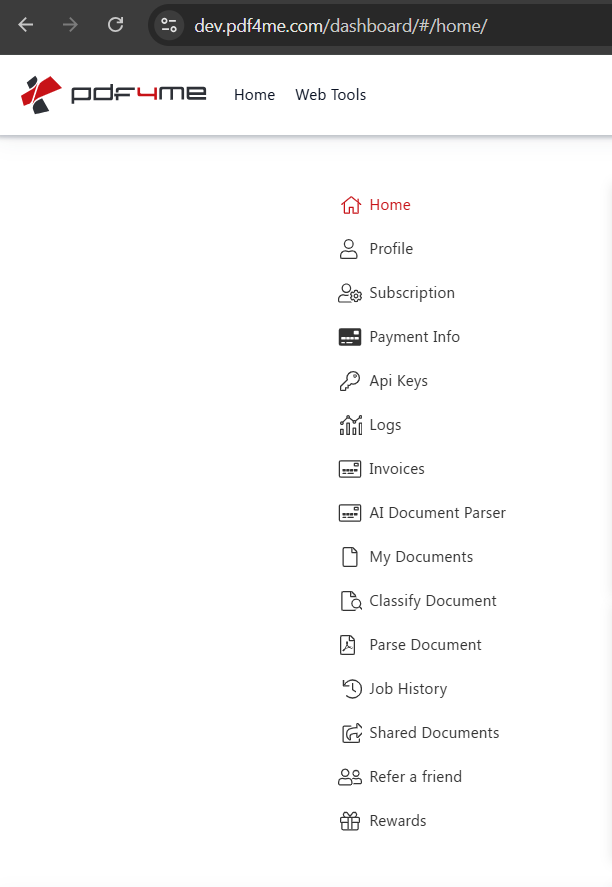
Two adjacent sidebar items. Classify Document and Parse Document are individual job runners (test a single document against an existing Analyzer). AI Document Parser is the Analyzer Template manager (where you create the schema). For first-time setup, use AI Document Parser.
Setup C: How do you add a new Analyzer Template?
Where you are: AI Document Parser page.
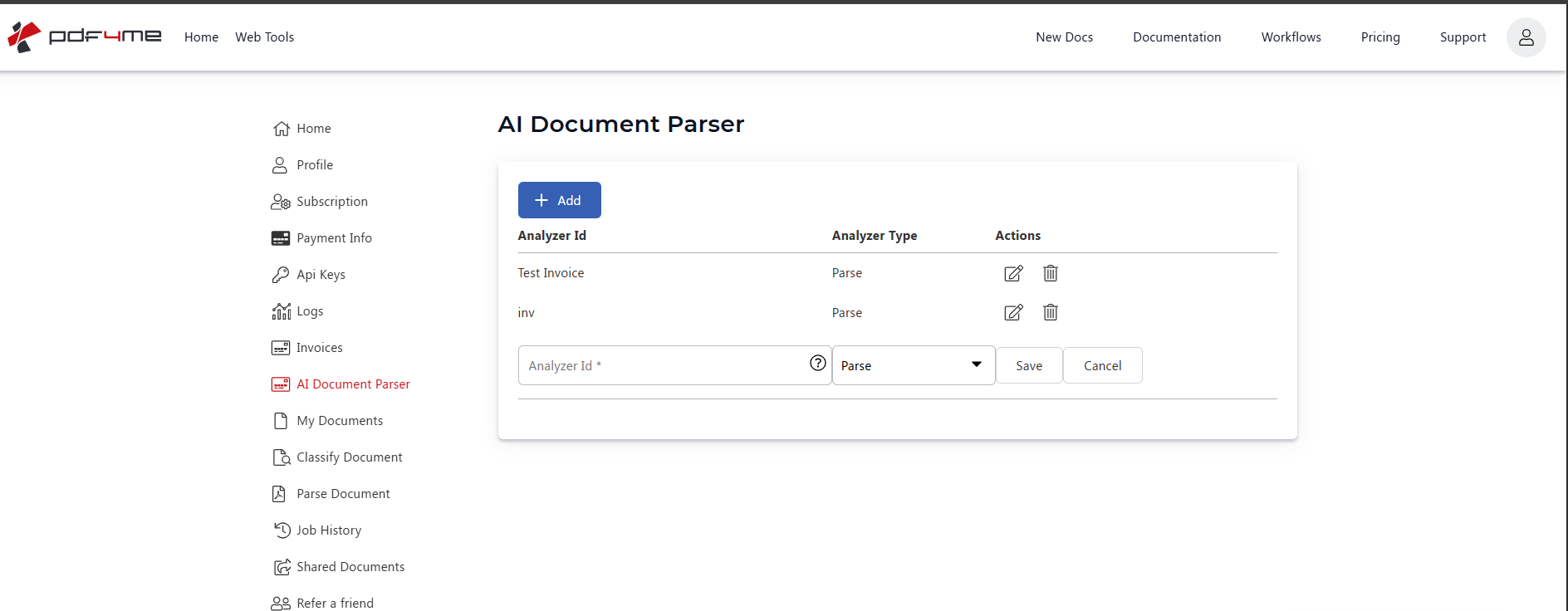
- The page lists every Analyzer Template you have already created with its Id, Type, and edit / delete actions.
- Click + Add.
- A blank row appears with two fields:
- Analyzer Id: type a short, memorable name (e.g.
Test Invoice). This is the exact string you will pass as Customisation Note in Power Automate. - Analyzer Type: dropdown with options
ParseandClassify. Pick Parse for structured field extraction. Pick Classify when you want a routing decision instead.
- Analyzer Id: type a short, memorable name (e.g.
- Click Save.
Add Analyzer
Setup D: Paste the JSON schema and save
Where you are: editing the newly created Analyzer.
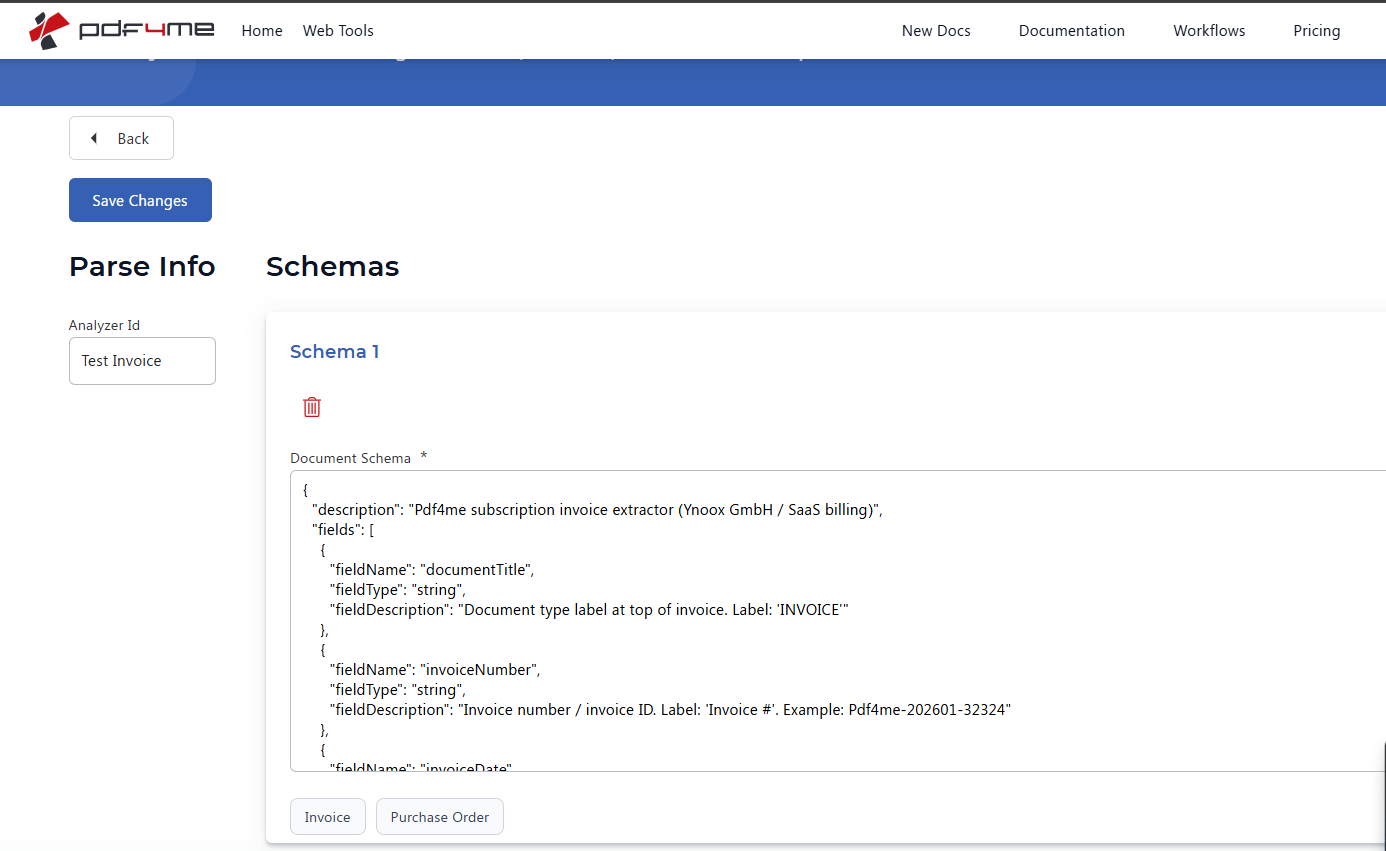
- Click the pencil edit icon next to your new Analyzer (
Test Invoice). - The Parse Info editor opens with the Analyzer Id at the top and the Document Schema field below.
- Paste the 33-field JSON schema from
analyzer-schema.jsoninto the Document Schema text area. Each entry is{ "fieldName": "...", "fieldType": "...", "fieldDescription": "..." }. ThefieldDescriptionis the most important field, it tells the AI where to look and what to capture. - Pick a Sample Document Type preset (
InvoiceorPurchase Order) if you want a starting template; otherwise paste your schema directly. - Click Save Changes.
Parse Info schema editor
Schema design tip. Write fieldDescription like you would brief a new junior accountant: name the label as printed on the document, then the format (number-only, ISO date, comma-separated string), then an example. The AI matches against these descriptions, not the field names. "vendorTaxRegNumber": "Vendor tax registration / UID number. Label: 'Tax Reg #'. Swiss format e.g. CHE-360.751.198" beats "vendorTaxRegNumber": "tax id" every time.
Flow 1: How do you wire the Analyzer into Power Automate?
Flow so far: trigger only.
The Power Automate side is short: 3 actions. Start with a manual trigger so you can iterate; swap for an HTTP / SharePoint / Outlook trigger when ready for production.
- In Power Automate click Create, choose Instant cloud flow.
- Name the flow (e.g.
Custom Invoice Extraction), pick Manually trigger a flow, click Create.
The complete 3-action flow
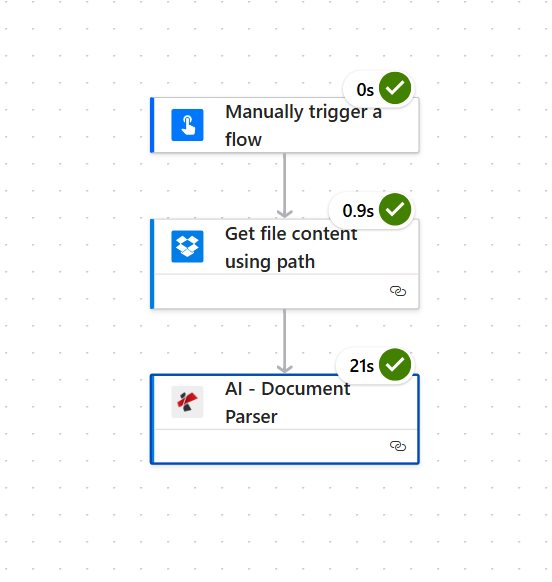
Three actions. AI - Document Parser is the only step that calls PDF4me, and it takes most of the runtime (around 21 seconds for a one-page invoice).
Flow 2: Get the source PDF from Dropbox
Flow so far: trigger plus Get file content.
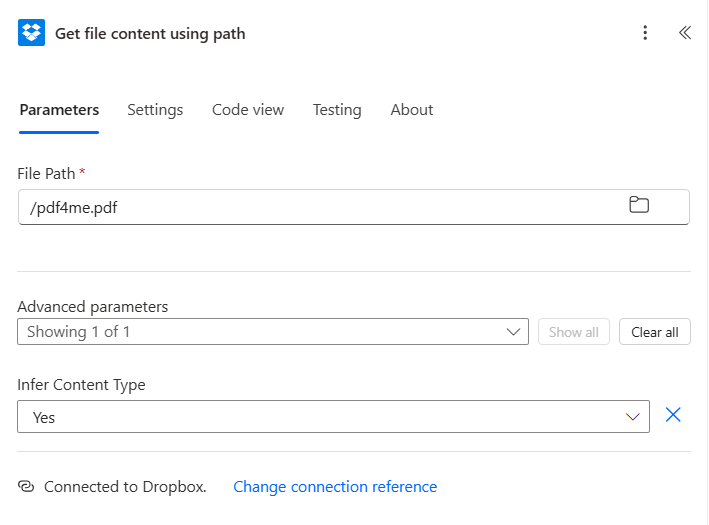
- Click + New step, search Dropbox, pick Get file content using path.
- Connect your Dropbox account if you have not already.
- Configure:
- File Path:
/pdf4me.pdf - Infer Content Type:
Yes(under Advanced parameters)
- File Path:
Get file content configuration
Flow 3: Why does the Customisation Note field carry your Analyzer name?
Flow so far: trigger plus Get file content plus AI - Document Parser.
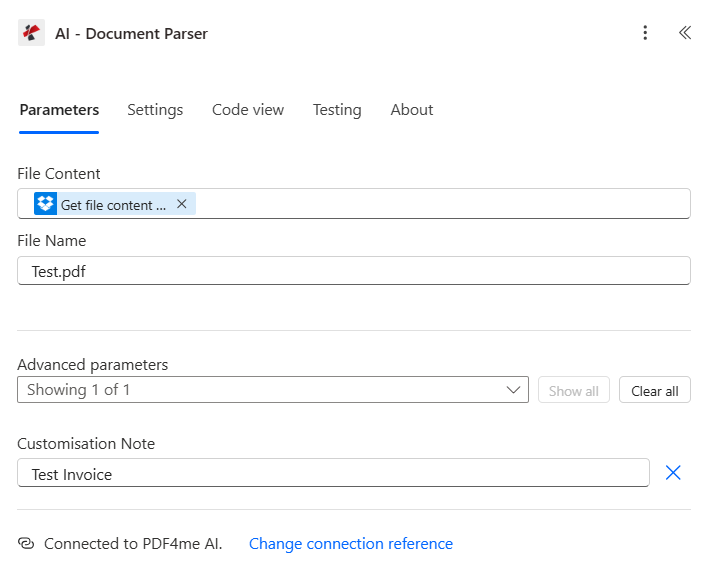
This is the action that calls your custom Analyzer. The trick is the Customisation Note field: paste the exact Analyzer Id name from Setup C (Test Invoice in this walkthrough). Without it the action falls back to the default invoice extraction.
- Click + New step, search PDF4me, pick AI - Document Parser.
- Connect PDF4me AI with your API key (first time only).
- Configure:
- File Content: pick the
File Contenttoken from step 2 (Get file content) - File Name:
Test.pdf(label only, not a path) - Customisation Note (under Advanced parameters):
Test Invoice(the exact Analyzer Id you set in Setup C)
- File Content: pick the
- Save and Test.
AI - Document Parser action
Tip on iteration speed. Use the manual trigger while you are iterating on the schema. Every time you change fieldDescription in the dev portal, save, then re-run the Power Automate flow. The Customisation Note value never changes, only the schema behind it does. This makes schema tuning a 30-second cycle.
Run the flow and verify
- Save the flow at the top right.
- Click Test, choose Manually, click Test then Run flow.
- Open the run details. All three actions should be green. The AI - Document Parser step shows a JSON body in its outputs.
- The body of the response carries every field your schema declared, populated from the PDF.
Sample response from a real run
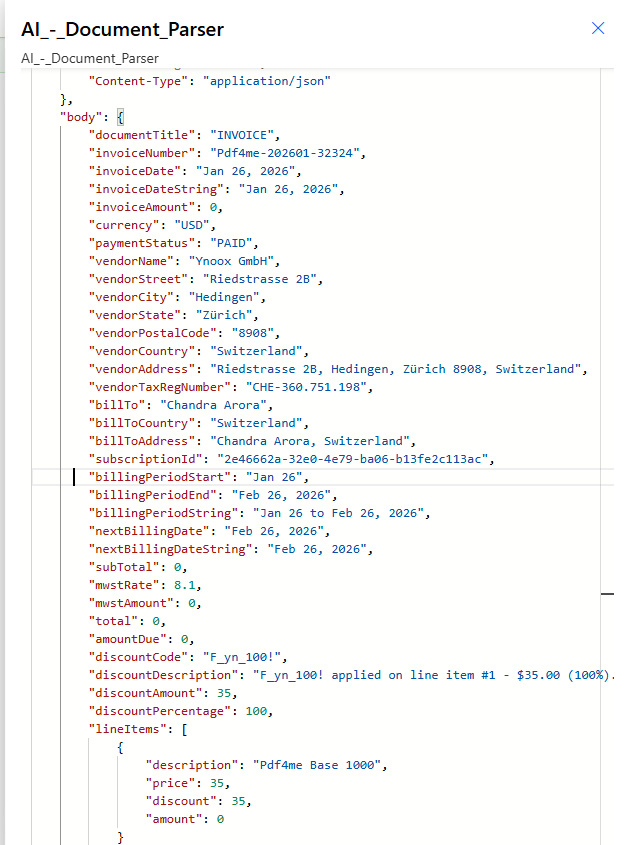
What did you actually build? A reusable custom invoice parser that knows YOUR vendor's layout. Every field your AP team cares about extracted in one call, named exactly the way your downstream system expects, ready to write to SharePoint, route through Approvals, post to Teams, or append to an Excel tracker. Build a second Analyzer for the next vendor format, a third for purchase orders, a fourth for credit notes. The flow shape never changes, only the Customisation Note value does.
Common Variations You Can Add Without Rebuilding
amountDue > 5000. Branch yes: start a Microsoft Approvals request to the finance manager. Branch no: auto-archive.Custom Analyzer vs default_invoice_extraction
| Aspect | Custom Analyzer vs default | Which wins |
|---|---|---|
| Setup time | 15-30 min to define schema | 0 (already exists) |
| Field count | Whatever you declare (33 here) | Around 15 generic invoice fields |
| Custom labels | Yes (Swiss MWST, subscription Id, discount code) | No, only standard invoice fields |
fieldMethod: generate for composite fields | Yes | No |
| Vendor-specific layout learning | Yes, schema describes their layout | No, one-size-fits-all |
| Maintenance | Update schema when invoice format changes | Zero, PDF4me maintains it |
| Best for | Recurring vendors, jurisdiction tax, subscription billing | Generic AP intake, mixed-vendor low-volume |
Common questions
How long does it take to design the schema?
For a familiar invoice format (your own SaaS billing, your top three vendors), 15-30 minutes for the first draft. Read through one invoice end-to-end, list every field your AP team manually transcribes, write a one-sentence fieldDescription for each that names the label as printed and gives an example. Then test against 3-5 sample invoices and iterate on descriptions that come back wrong.
What happens if a field is missing from the document?
The Analyzer returns the field with a null or empty value. It does not error. Your downstream Power Automate logic should handle missing values with coalesce() or if(empty(...)) expressions, especially for required fields like invoiceNumber. This is the same behaviour as default_invoice_extraction.
Can I version my Analyzer schema?
Not natively in the dev portal yet. The recommended pattern is to create a new Analyzer Id when you make a breaking schema change (Test Invoice v2) and update Power Automate's Customisation Note to point at the new version. Keep the old Analyzer active until every flow has migrated.
How does the AI know which fields to extract for fieldMethod: generate?
The AI reads the fieldDescription and the names of sibling fields in the same level. For vendorAddress defined as "Complete vendor address (street, city, state, postal code, country). Use comma(,) to separate lines.", the AI assembles the parts from the already-extracted vendorStreet, vendorCity, vendorState, vendorPostalCode, vendorCountry fields. No regex, no string templates, no follow-up action required.
Does the Analyzer work across Power Automate, Make, Zapier, and n8n?
Yes. Once an Analyzer Id is published in the dev portal, every PDF4me AI - Document Parser action across every platform can reference it by name. Build the schema once, use it from any automation tool, the same JSON response shape comes back.
Troubleshooting
The Customisation Note value does not match the Analyzer Id exactly. Open the AI Document Parser page in the dev portal, copy the Analyzer Id string verbatim, paste it into Customisation Note. Case and whitespace matter.
The fieldDescription is too vague or the label on the document does not match. Open one of the failed sample invoices, find the exact label text, and update the description to include it: "Label: 'Invoice #' or 'Invoice Number'. Example: INV-2089.". Save the schema and re-run.
Add a sibling fieldName with fieldType: string that captures the raw printed date verbatim (like the schema's invoiceDateString). You then have both the parsed date and the source text for audit.
Confirm fieldType: table at the top level and that the nested fields array declares each column. The AI repeats the nested extraction for every detected row, but only if the parent field declares table type.
Next Steps
The same setup-once / call-many pattern (define Analyzer, paste schema, pass the Id as Customisation Note) works for any document type: purchase orders, contracts, bank statements, medical claims, customs declarations. Define one Analyzer per format, then mix and match from any Power Automate, Make, Zapier, or n8n flow.