Create Swiss QR Bill in n8n: Two Complete Workflows (With and Without an Existing PDF)
Every Swiss invoice must carry a Swiss QR Bill (also called Swiss QR payment slip) so that banks and accounting software can scan and process the payment automatically. n8n and PDF4me make that generation fully automatic. This guide walks through two production-ready workflows: one that overlays the QR slip onto an existing PDF already in Dropbox, and one that generates a standalone QR Bill document from payment data alone with no background PDF required. Both run in under 10 minutes to set up.
Workflow A: Trigger fires. Dropbox Download retrieves Test Debt AG.pdf (344 kB). PDF4me Create SwissQR Bill runs with Input Data Type: Binary Data, Amount 1000, CHF, IBAN CH0200700110003765824, Creditor: Test AG. Output is swissqr_bill.pdf at 602 kB. Dropbox Upload saves the result.
Workflow B: Trigger fires. PDF4me Create SwissQR Bill runs with Input Data Type: None, same payment fields plus a full structured creditor address. Output is n8n_swissqr02.pdf at 132 kB. Dropbox Upload saves the result.
The Input Data Type field in the PDF4me node is the only structural difference between the two workflows. Set it to Binary Data when you have an existing PDF (Workflow A). Set it to None when you want a standalone QR slip from payment data alone (Workflow B). Every other parameter, amount, IBAN, currency, creditor name, is identical between them.
What you are building
Every Swiss invoice issued after the 2020 migration from the old payment slip standard must include a Swiss QR Bill: a standardised payment section with a QR code that encodes IBAN, amount, currency, creditor, and optional debtor data in ISO 20022 format. Banks and accounting software scan it without any manual re-entry. The two n8n workflows in this guide automate that generation step so the QR Bill is produced and saved to Dropbox without touching it manually.
At a glance
Workflow A: 4 steps
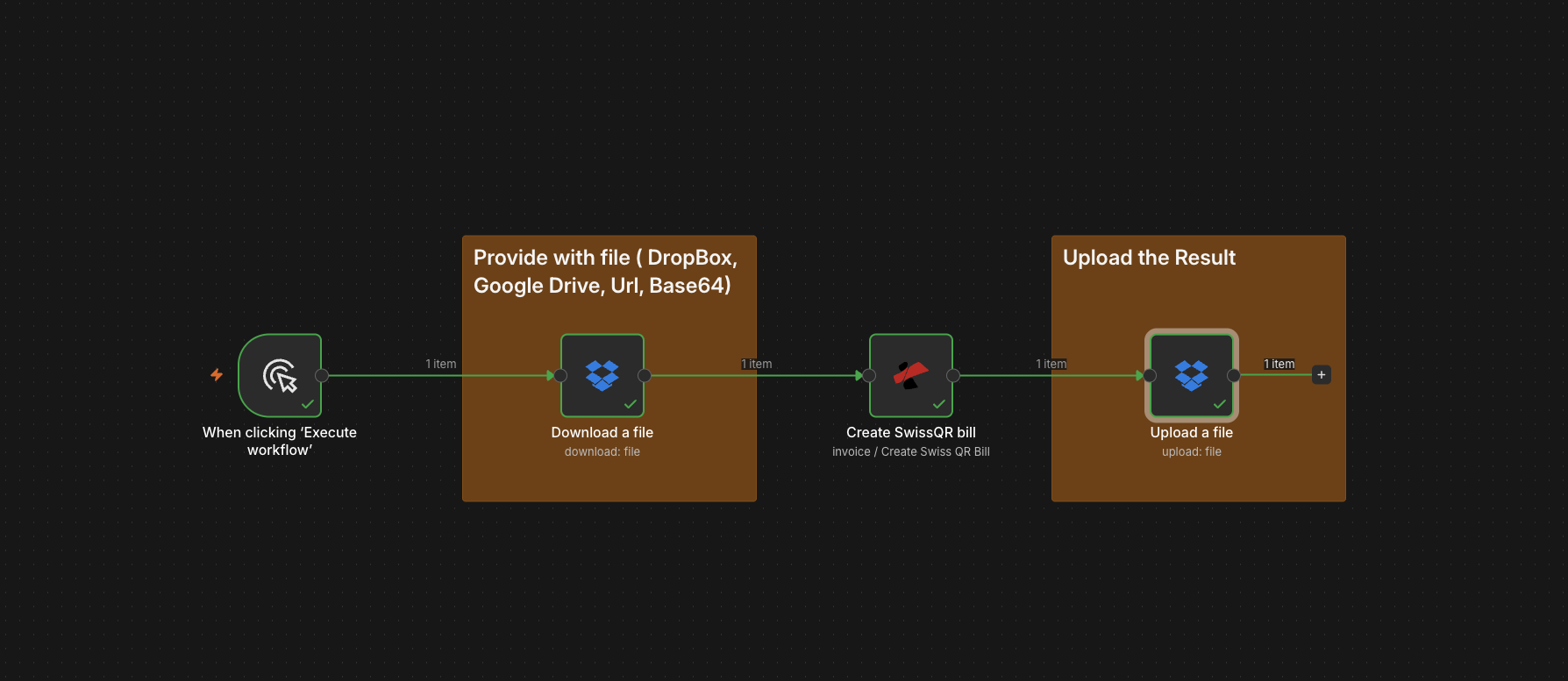
Workflow A: four nodes, Trigger to Download to Create SwissQR Bill (Binary Data) to Upload.
Workflow B: 3 steps
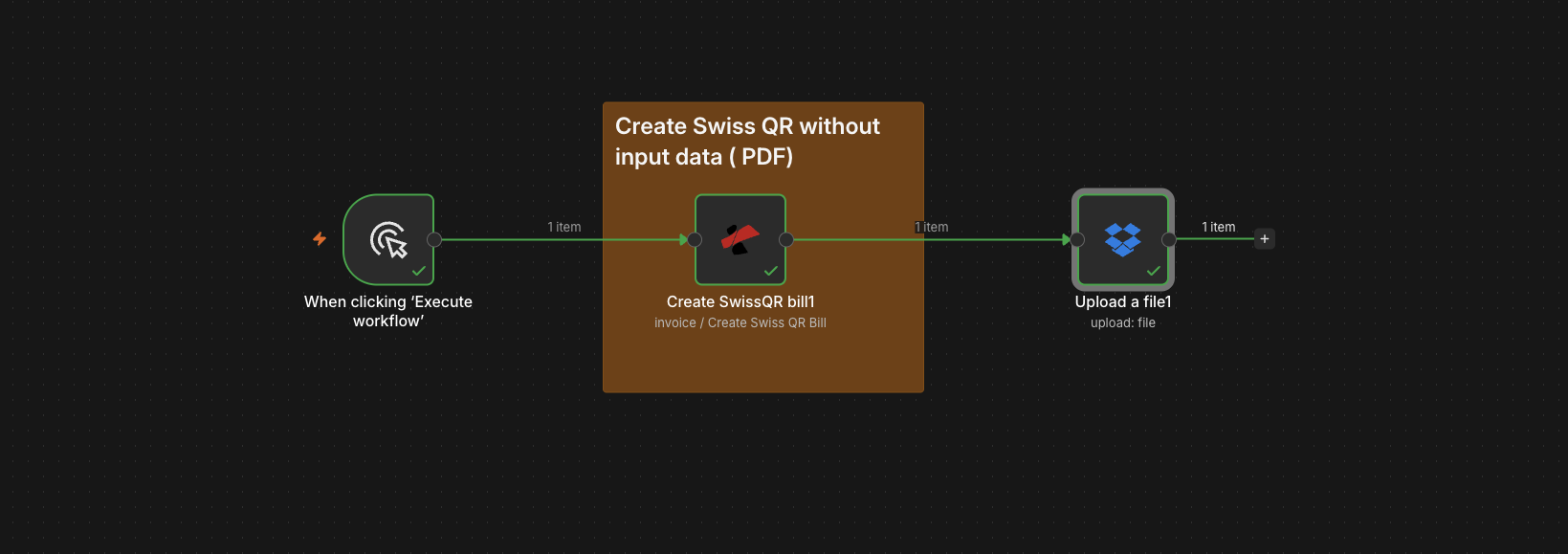
Workflow B: three nodes, Trigger to Create SwissQR Bill (Input Data Type None) to Upload. No download step needed.
Why two separate workflows
Workflow A keeps your branded invoice template intact. PDF4me appends the Swiss QR slip to the PDF you already have in Dropbox. No reformatting, no redesign, no manual layout work.
Workflow B skips the download step entirely. Provide the payment data and PDF4me produces the complete QR payment slip document from scratch. No base PDF required at all.
The only structural difference is the Input Data Type field: Binary Data for Workflow A, None for Workflow B. Amount, IBAN, currency, and creditor name are configured the same way in both.
Before you start
- n8n (cloud or self-hosted). Create a new blank workflow.
- PDF4me API key. First-time setup: Connect PDF4me to n8n.
- Dropbox OAuth2 credential in n8n with read and write access to your working folder.
- Workflow A only: An existing PDF stored in Dropbox (e.g.
Test Debt AG.pdfin/Blog Data/SwissQR/). - Payment data: A valid Swiss IBAN (21 characters, starts with
CH), amount, currency (CHF or EUR), creditor name, and for Workflow B the full structured creditor address.
Workflow A: Create Swiss QR Bill on an existing PDF (4 nodes)
Use this when you already have an invoice or document in PDF format. PDF4me overlays the Swiss QR Bill onto the file.
Step 1: Download the existing PDF from Dropbox
Flow so far: Trigger.
- Add the Dropbox node.
- Credential: Dropbox OAuth2 API.
- Resource: File. Operation: Download.
- File Path: path to your PDF in Dropbox, e.g.
Test Debt AG.pdf(in this example the file lives under/Blog Data/SwissQR/). - Put Output File in Field:
data. - Run the step. The OUTPUT panel should show the file name (
Test Debt AG.pdf), directory, MIME typeapplication/pdf, and file size 344 kB.
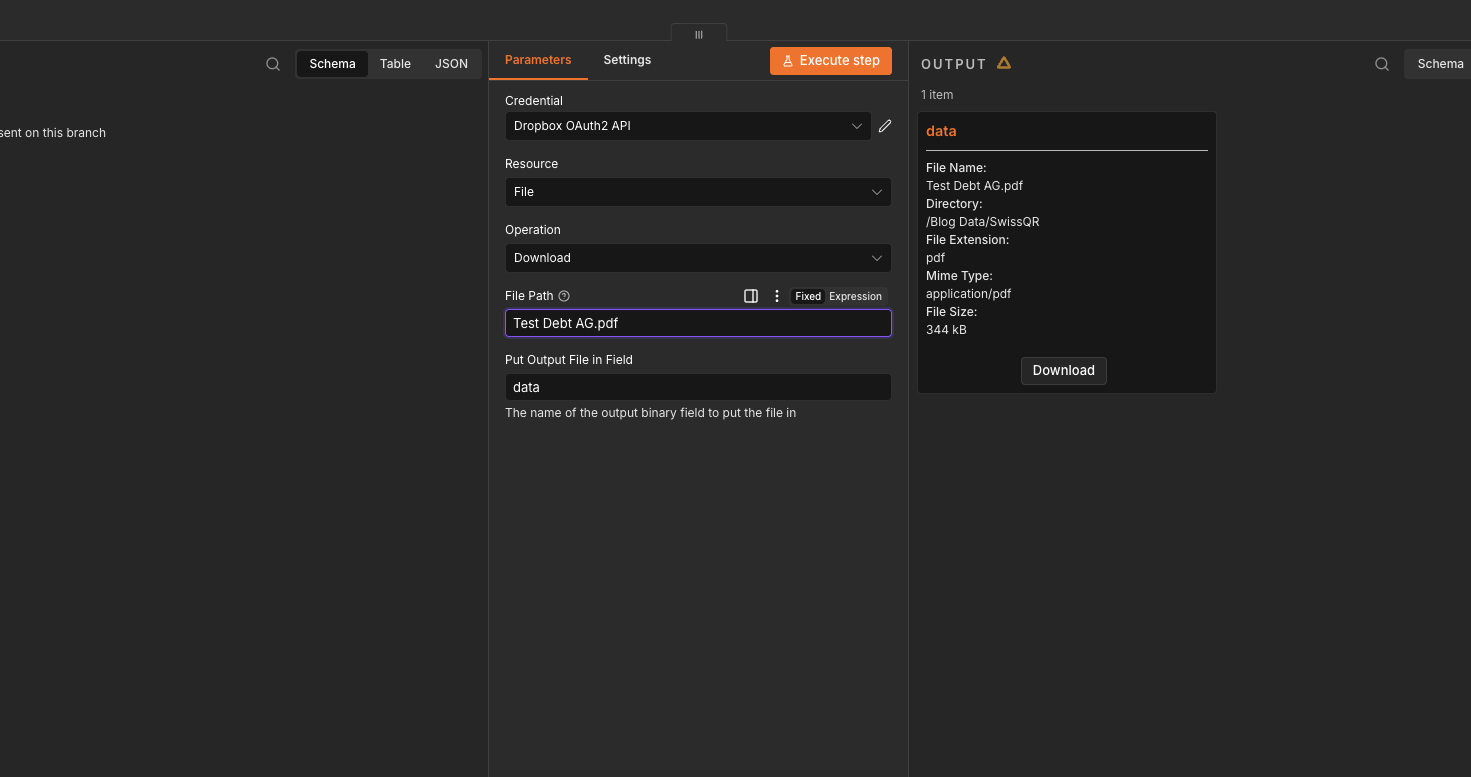
Dropbox Download configured with File Path Test Debt AG.pdf and Put Output File in Field data. OUTPUT confirms the file downloaded at 344 kB.
Step 2: Create SwissQR Bill on the downloaded PDF
Flow so far: Trigger then Download PDF.
This is the core step. PDF4me reads the downloaded PDF binary and generates a new PDF with the Swiss QR Bill attached.
- Add the PDF4me node.
- Credential: PDF4ME account.
- Resource: Invoice. Invoice Operations: Create SwissQR Bill.
- Input Data Type: Binary Data (because you are feeding the PDF from the previous node).
- Binary Property:
data(matches the field name from the Download step). - File Name:
Test Debt AG.pdf(the filename of the source document). - Fill in the payment fields:
- Amount:
1000 - Currency: Swiss Franc
- IBAN:
CH0200700110003765824 - Creditor Name:
Test AG
- Amount:
- Run the step. The OUTPUT panel shows
swissqr_bill.pdf, MIME typeapplication/pdf, file size 602 kB (up from 344 kB because the QR slip pages were embedded).
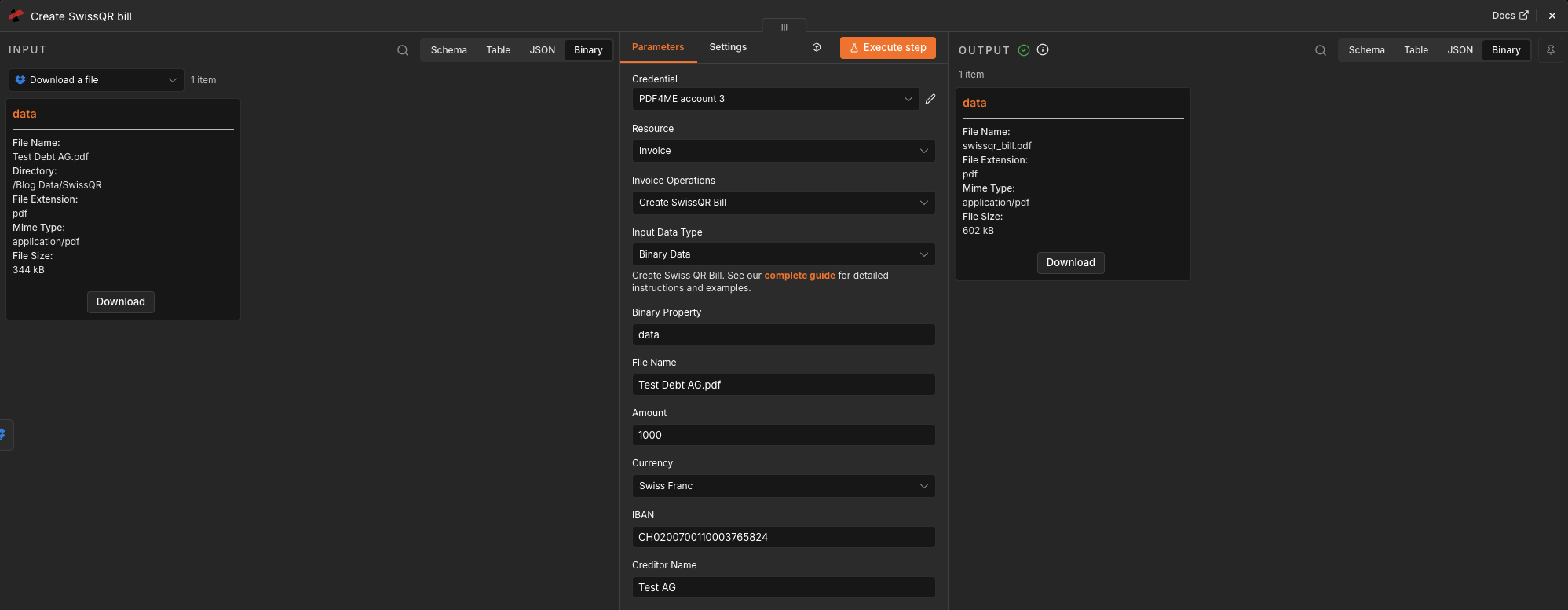
Create SwissQR Bill with Input Data Type Binary Data. INPUT is the 344 kB PDF from Dropbox. OUTPUT is swissqr_bill.pdf at 602 kB. The size increase confirms the QR slip was embedded.
Step 3: Upload the result to Dropbox
Flow so far: Trigger then Download PDF then Create SwissQR Bill.
- Add another Dropbox node.
- Credential: Dropbox OAuth2 API.
- Resource: File. Operation: Upload.
- File Path: destination path in Dropbox, e.g.
/Blog Data/SwissQR/swissqr_bill.pdf. - Binary File: On.
- Input Binary Field:
data(the SwissQR bill output from the previous step). - Run. Dropbox returns upload metadata confirming the file name and path.
Workflow A is complete. Your existing PDF now has a Swiss QR Bill and is saved back to Dropbox.
Workflow B: Create a standalone Swiss QR Bill (3 nodes)
Use this when you do not have a background PDF. PDF4me generates the entire QR payment slip document from the payment details you enter directly in the node.
Step 1: Create SwissQR Bill with no background PDF
Flow so far: Trigger.
Because there is no input PDF, you must fill in the full creditor address so PDF4me can render the complete Swiss QR Bill layout.
- Add the PDF4me node.
- Credential: PDF4ME account.
- Resource: Invoice. Invoice Operations: Create SwissQR Bill.
- Input Data Type: None (this tells PDF4me to generate a standalone QR slip with no background PDF).
- Fill in the payment fields:
- Amount:
1000 - Currency: Swiss Franc
- IBAN:
CH0200700110003765824 - Creditor Name:
Test AG - Creditor Address Type: Structured
- Creditor Street Name or Address Line:
Test Strasse - Creditor Building Number:
1 - Creditor Postal Code:
8000 - Creditor City:
Zurich
- Amount:
- Run the step. The OUTPUT panel shows
swissqr_bill.pdfat 132 kB. Significantly smaller than Workflow A (602 kB) because there is no background PDF, only the QR slip itself.
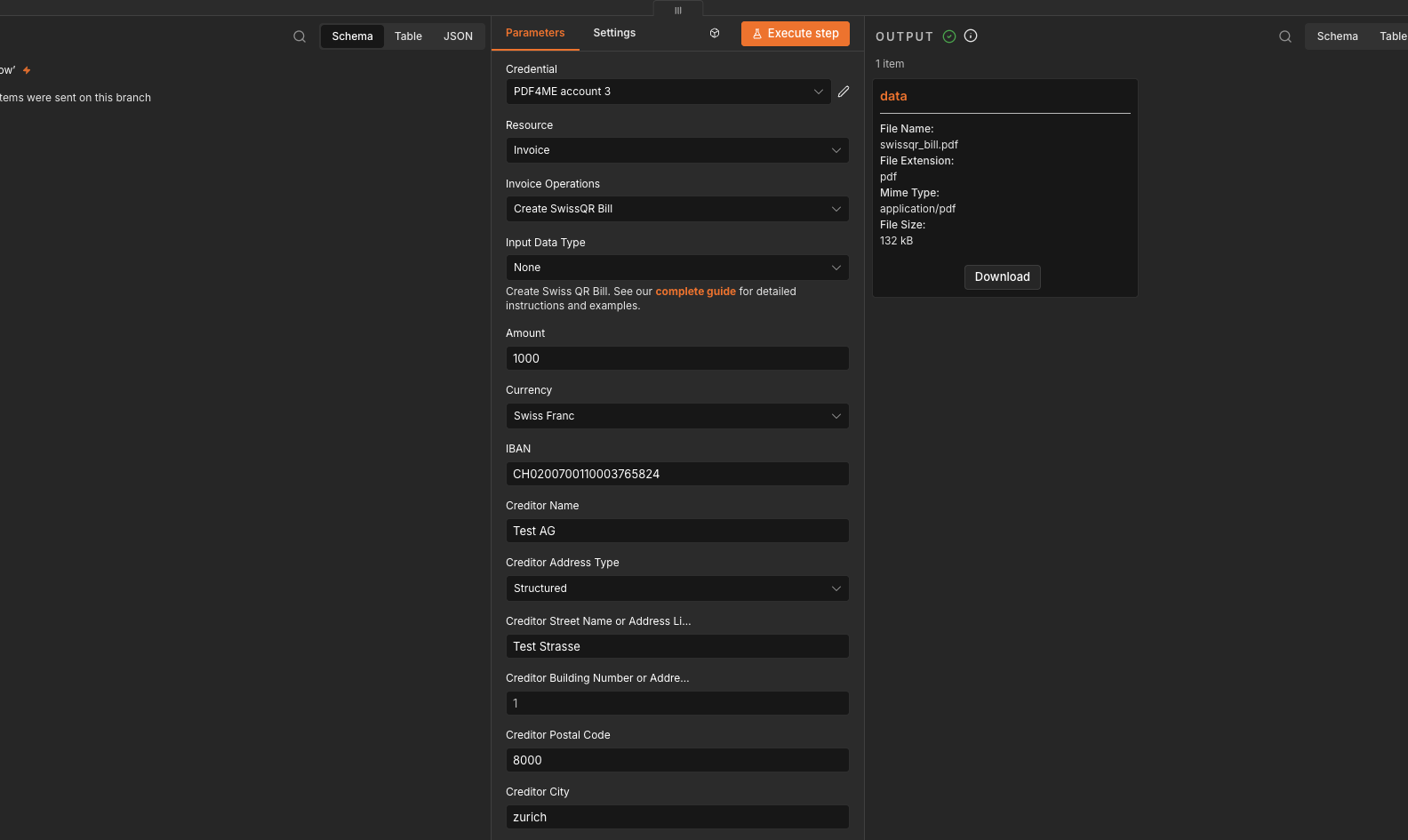
Create SwissQR Bill with Input Data Type None. Full creditor address is required because PDF4me generates the layout from scratch. Output is 132 kB.
Step 2: Upload the standalone QR Bill to Dropbox
Flow so far: Trigger then Create SwissQR Bill.
- Add the Dropbox node.
- Credential: Dropbox OAuth2 API.
- Resource: File. Operation: Upload.
- File Path:
/n8n_swissqr02.pdf(or any path in your Dropbox). - Binary File: On.
- Input Binary Field:
data. - Run. The OUTPUT panel confirms the upload:
name: n8n_swissqr02.pdf,path_display: /n8n_swissqr02.pdf,size: 132191, andis_downloadable: true.
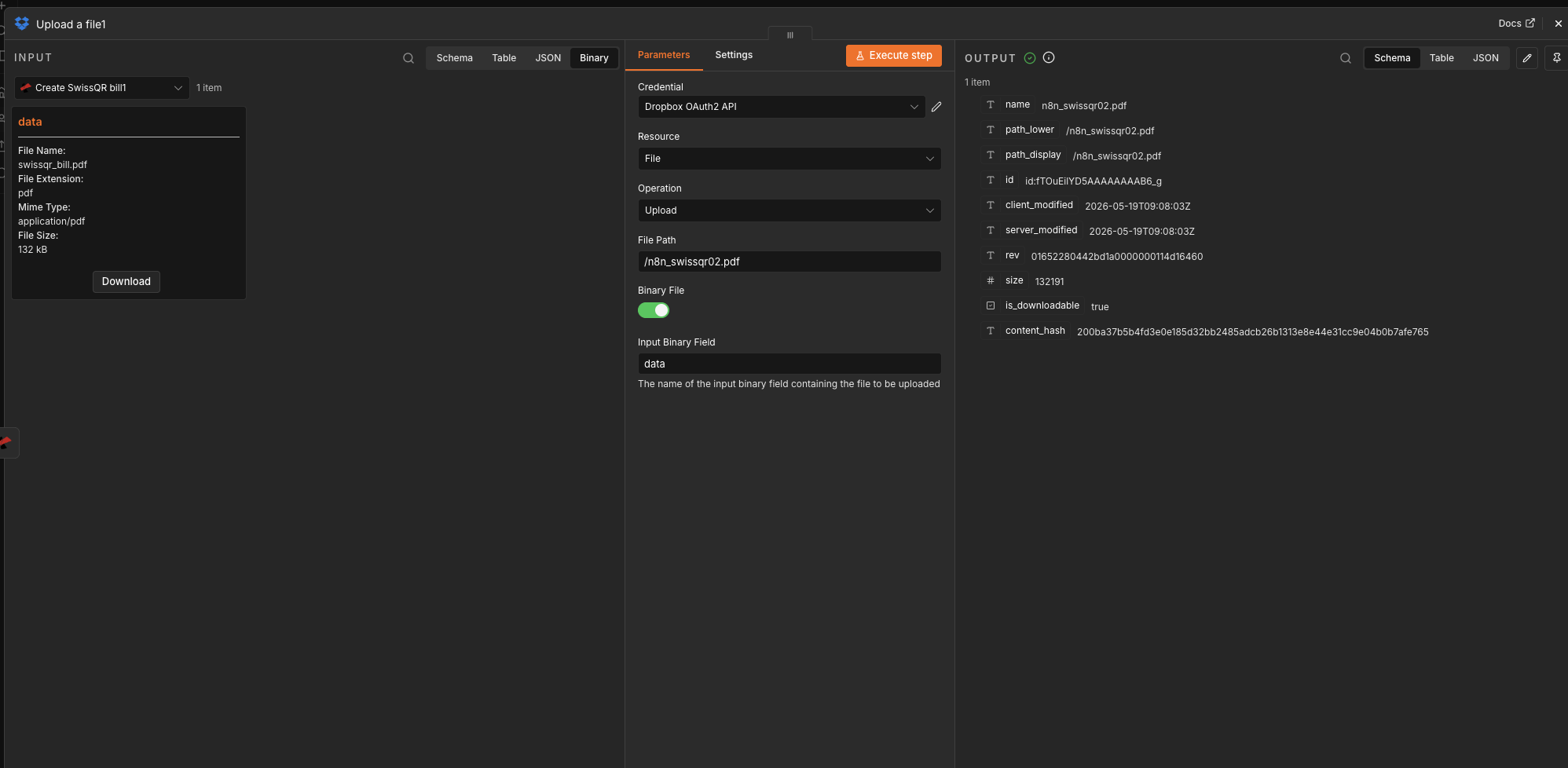
Upload confirms: name n8n_swissqr02.pdf, path /n8n_swissqr02.pdf, size 132191 bytes, is_downloadable: true.
Workflow B is complete. The standalone Swiss QR Bill PDF is in Dropbox and ready to email or attach to any outgoing document.
Which workflow should you choose?
| Workflow A (with existing PDF) | Workflow B (standalone) | |
|---|---|---|
| Nodes | 4 (trigger + download + QR + upload) | 3 (trigger + QR + upload) |
| Input Data Type | Binary Data | None |
| Requires existing PDF | Yes (in Dropbox or another source) | No |
| Output size (example) | 602 kB | 132 kB |
| Full creditor address required | No (name only shown in example) | Yes (Structured address required for layout) |
| Best for | Adding QR slip to finished invoices or letters | Sending a separate payment slip alongside any document |
Quick reference: key parameters
| Node | Key setting | Example value |
|---|---|---|
| Dropbox Download (A only) | File Path + Put Output File in Field | Test Debt AG.pdf; data |
| PDF4me Create SwissQR Bill (A) | Input Data Type + Binary Property + File Name | Binary Data; data; Test Debt AG.pdf |
| PDF4me Create SwissQR Bill (A and B) | Amount + Currency + IBAN + Creditor Name | 1000; Swiss Franc; CH0200700110003765824; Test AG |
| PDF4me Create SwissQR Bill (B only) | Input Data Type | None |
| PDF4me Create SwissQR Bill (B only) | Creditor Address Type + Street + Number + Postal Code + City | Structured; Test Strasse; 1; 8000; Zurich |
| Dropbox Upload (A) | File Path + Binary File + Input Binary Field | /Blog Data/SwissQR/swissqr_bill.pdf; On; data |
| Dropbox Upload (B) | File Path + Binary File + Input Binary Field | /n8n_swissqr02.pdf; On; data |
Use cases
Monthly invoice batch: Pull a list of invoice PDFs from Dropbox, loop through them with an n8n Split In Batches node, run Workflow A on each, and save results to a separate folder. One run handles the full month.
Dynamic payment slips from a database: Trigger via Webhook when a payment request is created. Pull the amount, IBAN, and creditor data from a Postgres or Airtable node. Use Workflow B to generate the QR slip and email it via Gmail or Outlook automatically.
Rental and utility bills: Generate standalone QR slips (Workflow B) for rent, utilities, or membership fees each month. Store them in Dropbox and attach to emails sent from n8n. No background PDF needed.
Self-hosted and on-premises: Run n8n on your own infrastructure. Payment data never leaves your network except for the PDF4me API call. Combine with on-prem file shares or NAS instead of Dropbox.
Frequently asked questions
When should I use Workflow A versus Workflow B?
Use Workflow A when you already have a finished PDF document (an invoice, a letter, any file) that you want to add a Swiss QR Bill to. PDF4me appends the QR slip to your existing file. Use Workflow B when you only have payment data (IBAN, amount, creditor details) and want a standalone QR payment slip PDF. Workflow B generates the complete document from scratch with no background PDF required.
What IBAN format does the Swiss QR Bill require?
The IBAN must be a valid Swiss IBAN: exactly 21 characters, starting with CH, followed by two check digits and the 17-digit bank account number. Example: CH0200700110003765824. The Swiss QR standard also supports QR-IBANs (starting with CH and using the range 3000 to 3199 for the bank identifier). An invalid or non-Swiss IBAN causes a validation error from the PDF4me API before any PDF is generated.
Why does Workflow B require a full creditor address but Workflow A does not?
When you use Input Data Type Binary Data (Workflow A), PDF4me appends the QR slip to an existing PDF and the layout has visual context from the source document. The creditor address is optional because the QR slip section is appended, not generated from nothing. When you use Input Data Type None (Workflow B), PDF4me generates the full document layout from scratch. The Swiss QR standard mandates that a standalone QR Bill must include the complete creditor address (street, building number, postal code, city) in the QR code data so that payment systems can process it without any other document context.
Can I use dynamic payment data from a database or form instead of hardcoded values?
Yes. In n8n, any field in the PDF4me node accepts expressions. Map the Amount, IBAN, Creditor Name, and City fields from a previous node such as a Postgres query, an Airtable record, a Google Sheets row, a form submission via the n8n Form Trigger, or a webhook payload. Each execution then generates a unique QR Bill for the current item without any manual editing of the workflow. This is the recommended approach for production billing automation.
The PDF4me node returns an error. What should I check first?
Check three things in order. First, confirm your API key is active at dev.pdf4me.com and your account has credits. Second, for Workflow B, verify that all four creditor address fields (Street, Building Number, Postal Code, City) are filled when Creditor Address Type is Structured. Missing any one causes a validation failure. Third, for Workflow A, confirm the Dropbox Download step completed successfully and that the Binary Property name in the PDF4me node matches the field name set in the Download node (both should be data).
Troubleshooting
The Dropbox Upload node looks for a field called data by default. If the Create SwissQR Bill node uses a different Output Binary Field Name, update Input Binary Field in the Upload node to match. Keep the same field name across all nodes to avoid this.
The IBAN must be a valid Swiss IBAN starting with CH (21 characters). For Workflow B, all four creditor address fields (Street, Building Number, Postal Code, City) must be filled when Creditor Address Type is Structured. Missing any one of them causes a validation failure.
Double-check the File Path in the Download node. Dropbox paths are case-sensitive on some accounts. Open your Dropbox and copy the exact path including folder names and the file extension. If the file is inside a subfolder, the path must include the full folder hierarchy, e.g. /Blog Data/SwissQR/Test Debt AG.pdf.
See PDF4me Troubleshooting for steps on verifying your API key, checking remaining credits, and re-connecting the credential in n8n.
What to try next
Optional: swap the trigger. Replace the manual trigger with a Schedule for monthly billing runs, a Webhook to fire on payment request creation, or Dropbox on file created to process new PDFs automatically as they arrive.