PDF Archiving in Power Automate: An Unattended SharePoint Folder That Compresses and Converts to PDF/A with PDF4me

PDF4me Create PdfA is a Power Automate action that rewrites a PDF to the ISO 19005 archival standard. Chained behind Convert to PDF and Compress, it turns a plain SharePoint folder into an archive drop box: anything left there comes back smaller, standards compliant, and safe to keep for decades.
Search for how to archive documents in SharePoint and every result on page one means the same thing: Microsoft 365 Archive, a cold storage tier. That answers where the bytes live and says nothing about whether the file will still open in twenty years. Archiving is a format problem before it is a storage problem, and a PDF full of embedded font references and external colour profiles is exactly the file that renders wrong a decade from now. This flow fixes the format, then shrinks it.
Someone drops a document into a SharePoint folder called ToArchive. The flow fetches it, normalises it to PDF, compresses it with the Web profile, converts it to PDF/A-2b, and files the result in Archived. Nobody opens an app, nobody remembers a checklist, and the archive stays consistent because the folder does the work. Six actions, about thirty-five seconds per document.
Why-Based Q&A
Why convert to PDF/A rather than just keeping the PDF? An ordinary PDF is allowed to reference fonts, colour profiles, and external resources that may not exist later. PDF/A forbids that. Everything needed to render the page is embedded in the file, which is the whole point of an archival format and the reason auditors and records teams ask for it by name.
Why compress before converting, not after? Compression rewrites image streams. Doing that after PDF/A conversion risks disturbing a file you have just certified as compliant. Compress first, convert second, and the last action to touch the document is the one that guarantees the standard.
Why a watch folder instead of a scheduled job? A schedule needs someone to decide what to sweep and when. A folder needs no decision at all. Anyone with access can archive a document by putting it somewhere, which is the only archiving habit that survives contact with a busy team.
Why keep Convert to PDF when the input is already a PDF? It costs one action and it makes the folder tolerant. The day somebody drops a Word file or an image into ToArchive, the flow handles it instead of failing. On a file that is already a PDF the step is close to a pass through.
What You'll Get
Input: any document dropped into a SharePoint folder used as an archive queue. Output: a compressed, PDF/A-2b compliant copy in a separate Archived folder, named after the original.
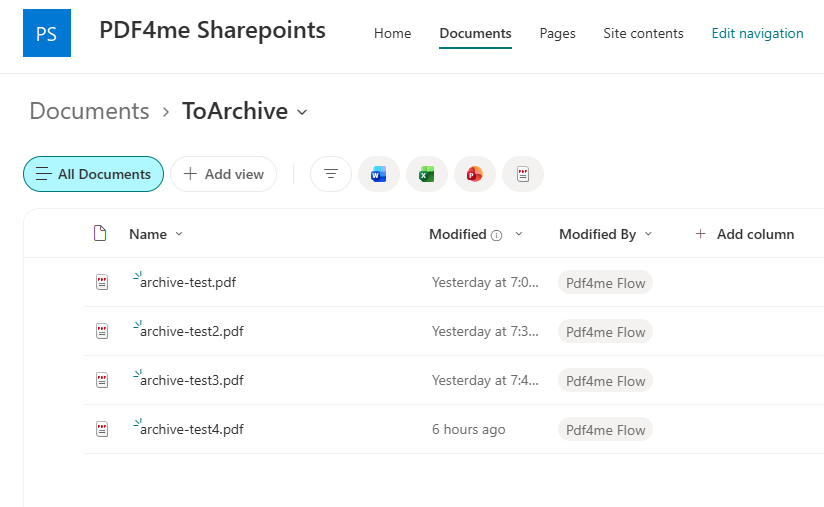
ToArchive is the queue. Anything dropped here gets processed.
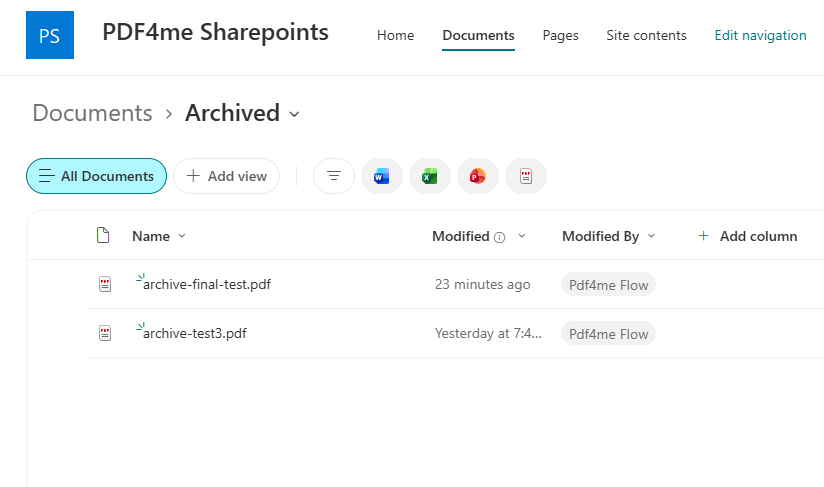
Archived holds the finished PDF/A copies, ready for retention.
What You Need
- Power Automate. Open Power Automate. A cloud flow on standard-tier connectors. No premium plan, no gateway, no machine.
- PDF4me API key. Get your API key. This flow uses two PDF4me connections, PDF4me Convert and PDF4me PDF. The same key authorises both.
- A SharePoint site with two folders. One queue folder and one archive folder. Create them before you build so the pickers have somewhere to point.
- A sample archival output. archived-output-pdfa.pdf. Exactly what the flow produced, so you can compare.
Grab the sample first. Download the archival output and open its document properties. Knowing what a finished PDF/A-2b file looks like makes it obvious whether your own run actually worked.
The Flow at a Glance
- When a file is created (properties only) (SharePoint trigger) scoped to
/ToArchive. - Get file content using the trigger's
Identifier. - Convert to PDF (PDF4me Convert) to normalise the input.
- PDF - Compress with Optimize Profile
Web. - PDF - Create PdfA with Compliance
PdfA2b. - Create file (SharePoint) writing into
/Shared Documents/Archived.
Complete flow overview
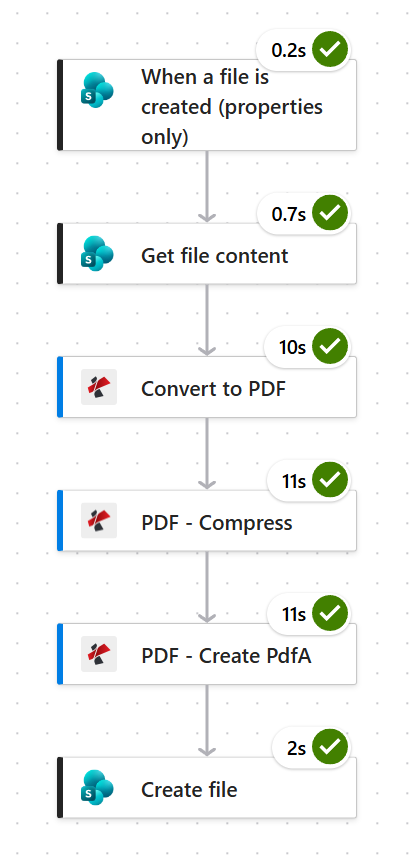
Three document operations at ten to eleven seconds each account for almost the entire run. Budget about thirty-five seconds per file.
Step 1: How do you turn a SharePoint folder into an archive queue?
Flow so far: nothing yet, this is the trigger.
The trigger fires on new items in a library. Scope it to the queue folder so ordinary uploads elsewhere in the library do not start archiving themselves.
- Create an Automated cloud flow and pick When a file is created (properties only).
- Configure:
- Site Address:
PDF4me Sharepoints - https://ynoox1.sharepoint.com/sites/PDF4meSharepoints - Library Name:
Documents
- Site Address:
- Open Advanced parameters, add Folder, and set it to
/ToArchive.
SharePoint trigger configuration
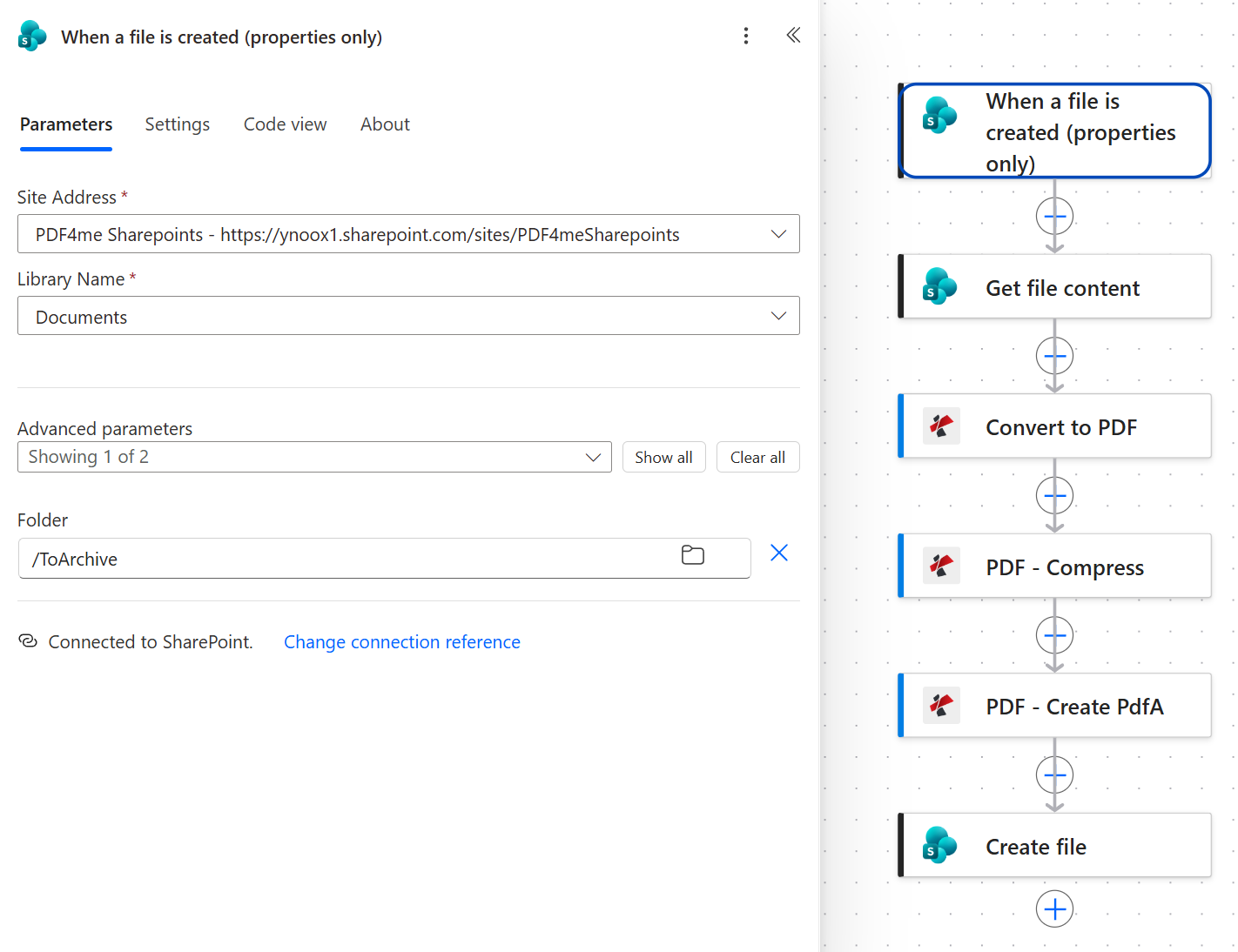
The Folder parameter is what scopes the trigger. Without it the whole Documents library becomes the archive queue.
Tip. Name the queue folder for the verb, not the noun. ToArchive tells a colleague what dropping a file there will do. A folder called Archive reads like the place finished things already live, and people put the wrong documents in it.
Step 2: Why do you need Get file content after the trigger?
Flow so far: SharePoint trigger.
The properties-only trigger reports metadata, not the document. Get file content exchanges the trigger's Identifier for the bytes the PDF4me actions need.
- Add SharePoint > Get file content.
- Configure:
- Site Address: the same site as the trigger
- File Identifier:
Identifierfrom the trigger
- Open Advanced parameters and set Infer content type to
Yes.
Get file content configuration
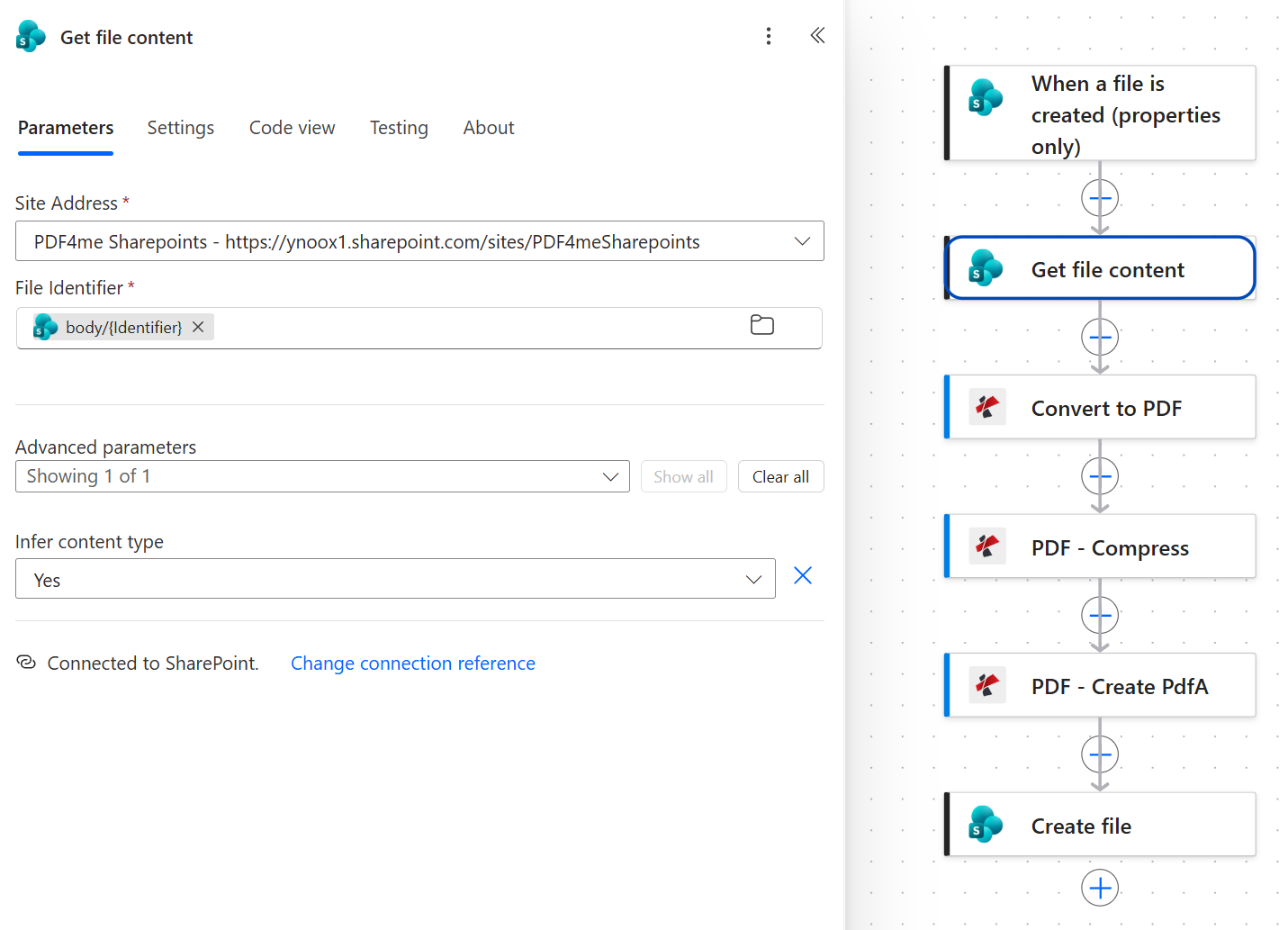
Use the trigger's Identifier, not the file name or path. Names repeat across folders and change when someone renames a document.
Step 3: Why normalise with Convert to PDF first?
Flow so far: SharePoint trigger plus Get file content.
Convert to PDF makes the rest of the chain indifferent to what was dropped in. It comes from the PDF4me Convert connection, which is separate from the PDF4me PDF connection used by the next two actions.
- Add Convert to PDF.
- Configure:
- File Content:
Bodyfrom Get file content - File Name:
test.pdf
- File Content:
Convert to PDF configuration
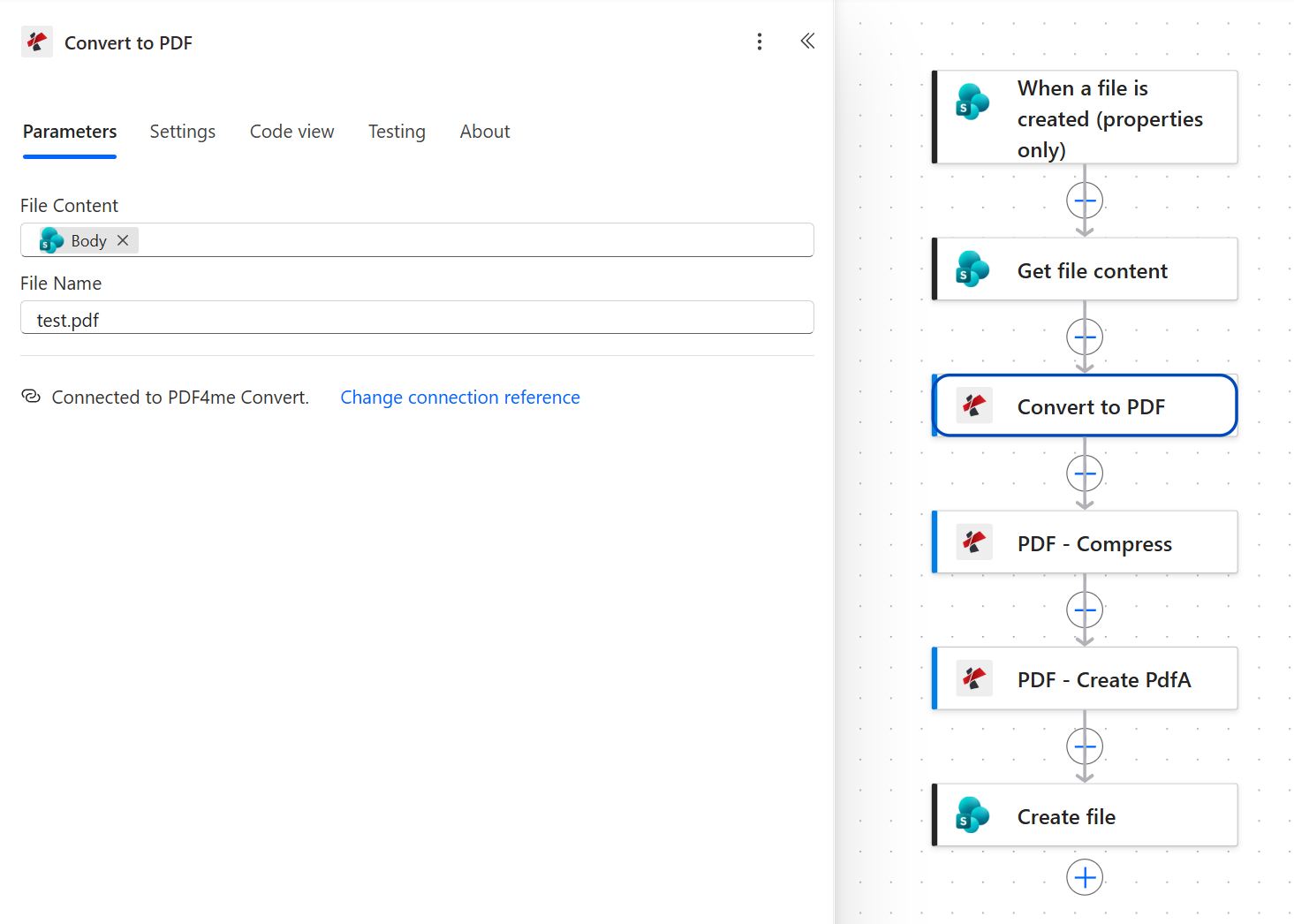
Note the connection line: this action uses PDF4me Convert, while Compress and Create PdfA use PDF4me PDF. Two connections, one API key.
Change this before you go live. The File Name here is the literal text test.pdf, exactly as captured. It works, because every later step takes its name from the trigger instead, so the archived file still lands under the right name. It is still leftover test configuration. Replace it with the trigger's file name token so the value in this field means something when you are reading a failed run six months from now.
Step 4: How much smaller does Compress make an archive?
Flow so far: SharePoint trigger plus Get file content plus Convert to PDF.
Compression matters more in an archive than anywhere else, because archives are measured in years of accumulation rather than one upload.
- Add PDF - Compress.
- Configure:
- File Content:
Bodyfrom Convert to PDF - File Name: the trigger's file name token
- Optimize Profile:
Web
- File Content:
Compress parameters
| Parameter | Value used here | What it controls |
|---|---|---|
| File Content | Body from Convert to PDF | The normalised PDF. |
| File Name | trigger file name token | Carries the original name forward through the chain. |
| Optimize Profile | Web | Balances size against fidelity. Use a higher-fidelity profile when the originals are scanned pages you may need to read closely later. |
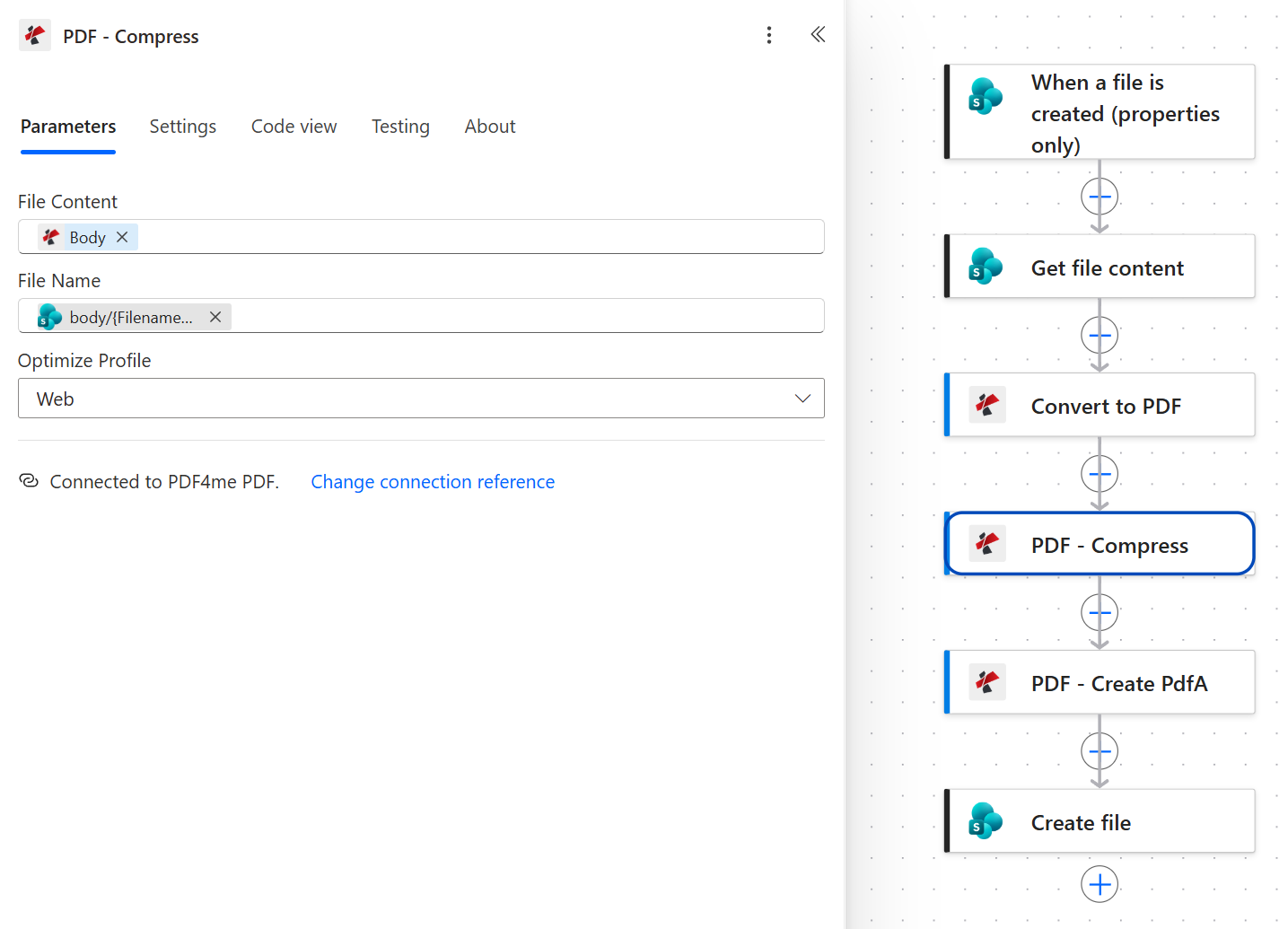
Web is the aggressive profile. On a text-heavy contract it is nearly lossless. On photographic scans, check a sample before you commit a decade of documents to it.
Step 5: How do you convert a PDF to PDF/A in Power Automate?
Flow so far: SharePoint trigger plus Get file content plus Convert to PDF plus Compress.
This is the action that makes the file archival. Everything before it was preparation.
- Add PDF - Create PdfA.
- Configure:
- File Content:
Bodyfrom PDF - Compress - File Name: the trigger's file name token
- Compliance:
PdfA2b - Allow Upgrade:
Yes - Allow Downgrade:
Yes
- File Content:
Create PdfA parameters
| Parameter | Value used here | What it controls |
|---|---|---|
| File Content | Body from PDF - Compress | The compressed PDF, so the archival copy is also the small one. |
| File Name | trigger file name token | The name the archived file will carry. |
| Compliance | PdfA2b | The conformance level. PDF/A-2b covers visual reproduction, which is what most retention policies actually require. |
| Allow Upgrade | Yes | Lets the action move a file to a newer conformance level when the source allows it. |
| Allow Downgrade | Yes | Lets it fall back to an older level rather than failing outright. Leaving both Yes is what keeps a mixed folder from throwing errors. |
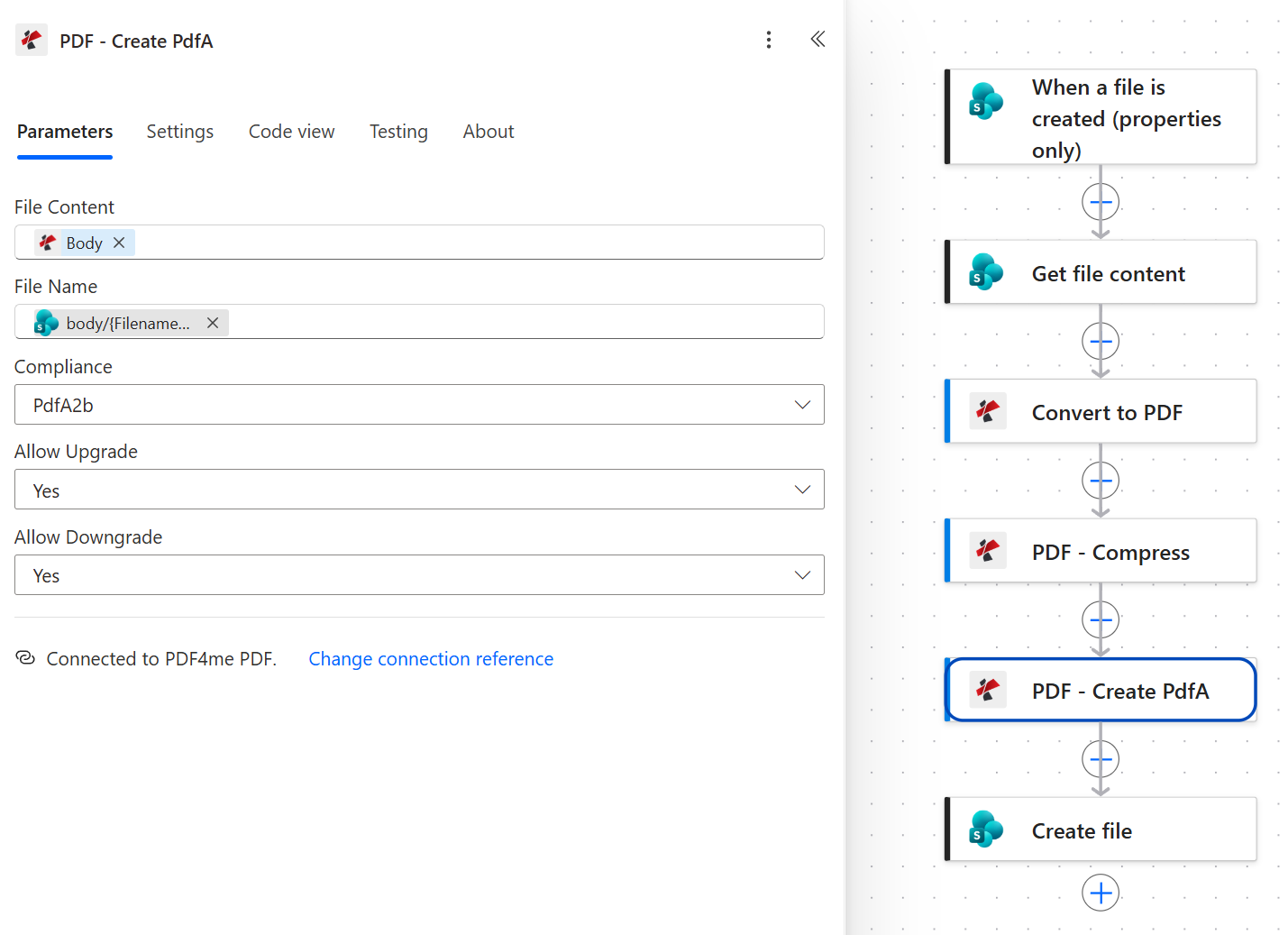
Allow Upgrade and Allow Downgrade both set to Yes is the forgiving configuration. It is the right default for a folder anyone can drop into.
Tip. If your retention policy names a specific conformance level, set it here and turn both allow flags off. You will get failures instead of quiet substitutions, which is what you want when the level itself is the requirement being audited.
Step 6: How do you file the archival copy back into SharePoint?
Flow so far: SharePoint trigger plus Get file content plus Convert to PDF plus Compress plus Create PdfA.
The last action writes the finished file into the archive folder.
- Add SharePoint > Create file.
- Configure:
- Site Address: same site as the trigger
- Folder Path:
/Shared Documents/Archived - File Name: the trigger's file name token
- File Content:
Bodyfrom PDF - Create PdfA
SharePoint Create file configuration
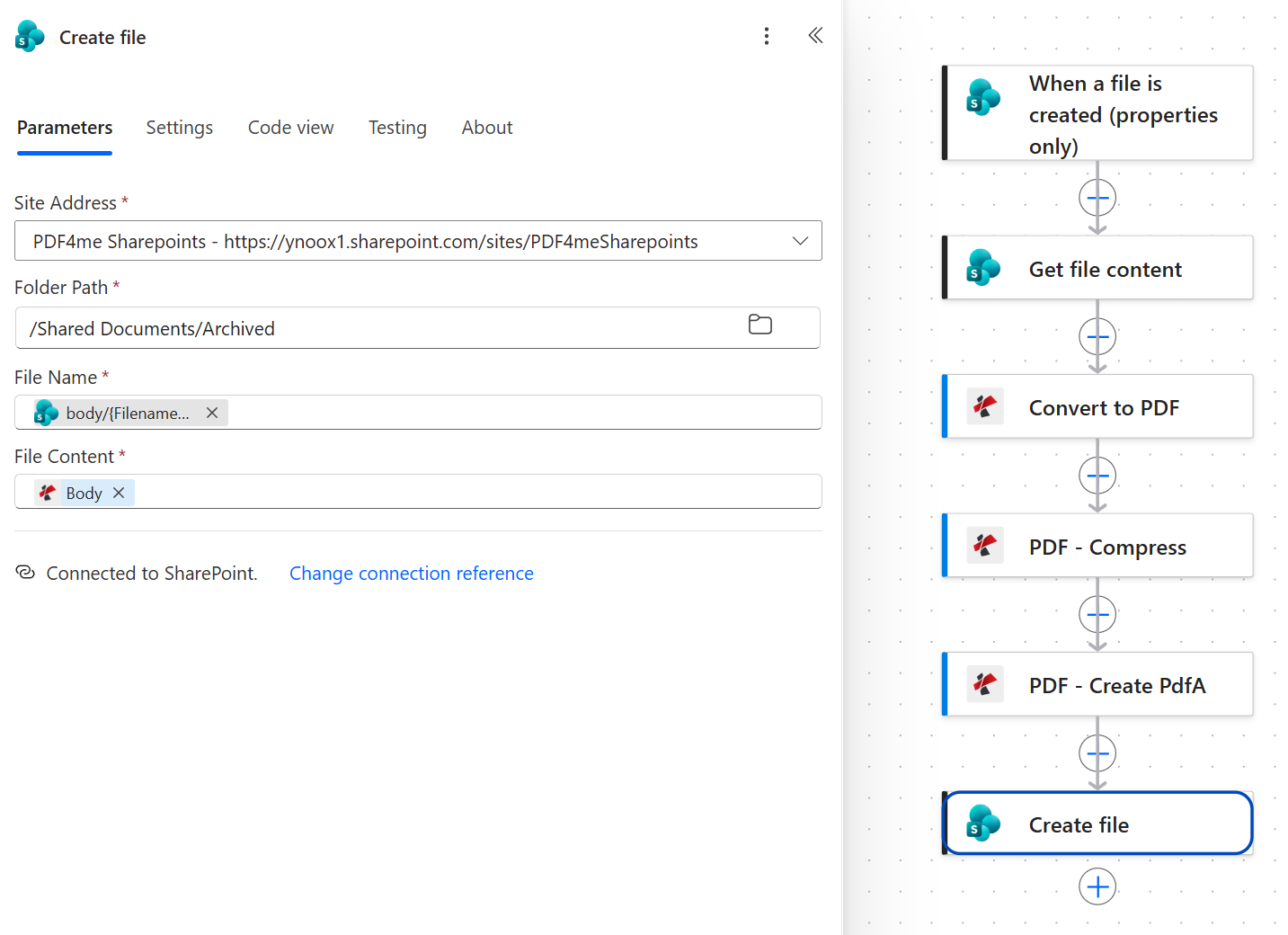
File Content carries the PDF4me icon because it comes from Create PdfA. Take it from Compress by mistake and you archive a small PDF that is not PDF/A at all.
Tip. Keep Archived outside the folder the trigger watches. Writing the output back into ToArchive would re-trigger the flow on its own result and archive the archive, repeatedly.
Run the Flow and Verify
- Save the flow at the top right.
- Drop a document into
/ToArchive. The trigger polls, so allow a minute. - Open the flow's run history and check all six actions carry a green tick. The three document operations will each take about ten seconds.
- Open
/Shared Documents/Archived, download the result, and check its properties. A conforming file reports PDF/A in the document properties of any standards-aware reader.
What did you actually build? A records pipeline that nobody has to remember. The same six actions work for finance, HR, legal, or engineering drawings, because the policy lives in the folder rather than in someone's head. If you want the conversion story on its own, see Convert PDF to PDF/A in Power Automate, and for a Word-first variant see Word to PDF/A: Convert Then Archive.
Common Variations You Can Add Without Rebuilding
utcNow(), so the archive carries its own timeline without a metadata column.| This flow vs the alternatives | Runs unattended | Changes the file format | Reduces size |
|---|---|---|---|
| PDF4me in a Power Automate cloud flow | Yes | Yes, to PDF/A-2b | Yes, before conversion |
| Microsoft 365 Archive | Yes | No, the file is untouched | No, it moves storage tier |
| Manual PDF/A export from a desktop reader | No, one file at a time | Yes | Depends on the tool |
Common questions
How to archive PDF files?
Archiving a PDF properly means two things: converting it to PDF/A so it embeds everything needed to render, and putting it somewhere with a retention policy. The conversion is what most people skip, because moving a file into a folder called Archive feels like archiving.
In this flow the conversion is a single Create PdfA action set to PdfA2b, and the storage is a SharePoint folder. The compression step before it is optional but pays for itself over a decade of accumulation.
How do you archive documents in SharePoint automatically?
Point a When a file is created (properties only) trigger at a queue folder, then do the work in the flow behind it. That gives you a drop box anyone can use, with no schedule to maintain and no one needing to remember a process.
Note that this is a different thing from Microsoft 365 Archive, which moves data to a cheaper storage tier and leaves the files exactly as they are. If your goal is that documents still open correctly in twenty years, you need a format conversion, not a storage tier.
What is PDF/A compliance?
PDF/A is the ISO 19005 family of standards for long-term preservation. It restricts what a PDF is allowed to do: no external font references, no unembedded colour profiles, no reliance on anything outside the file. The result is a document that renders the same way regardless of what software opens it later.
PdfA2b is the level used here. The b stands for basic conformance, meaning visual reproduction is guaranteed. It is the level most retention policies actually ask for.
Can Power Automate archive SharePoint files?
Power Automate can move and copy SharePoint files natively, but it has no action that converts a document to an archival format. That comes from the PDF4me connector, which adds Create PdfA to a standard-tier cloud flow.
The combination is what makes the pattern work: SharePoint triggers and file actions handle the movement, PDF4me handles the format.
Should you compress a PDF before archiving it?
Usually yes, and before the PDF/A conversion rather than after. Compression rewrites image streams, so running it on a file you have already certified as compliant risks disturbing that compliance. Compressing first means the last action to touch the document is the one that guarantees the standard.
The exception is archives of photographic or scanned material where detail matters more than size. Test a representative file on the Web profile before committing to it.
Troubleshooting
Create file is taking its File Content from the wrong action. It must come from PDF - Create PdfA. Taking it from Compress produces a valid, smaller PDF that fails every compliance check, and nothing in the run history looks wrong.
Some sources cannot reach the requested conformance level, usually because of fonts that cannot be embedded. Setting Allow Upgrade and Allow Downgrade to Yes lets the action settle on a level it can reach instead of failing.
File Identifier is mapped to the wrong token. It needs the trigger's Identifier, not the file name, the path, or the item ID. Those look interchangeable in the dynamic content list and are not.
The Archived folder sits inside the folder the trigger watches. Keep the queue and the archive as siblings, and confirm the trigger's Folder parameter points only at the queue.
Next Steps
The same six-step pattern (watch a queue, fetch, normalise, compress, convert, file) turns any folder into a records process that runs itself.