Rename Every Vendor Invoice by Supplier Name in Zapier: A 5-Step Dropbox + PDF4me AI Workflow

The painful part of accounts payable is not paying invoices, it is finding the right vendor's invoice three weeks later when finance asks. Every supplier names files differently. Half are invoice.pdf. The other half are INV-2089-FINAL-v3.pdf from a vendor who switched naming conventions four times. The fix: let AI read the supplier name off every invoice the moment it lands, then rename the file before it goes into long-term storage. This walkthrough builds that exact pattern in Zapier with PDF4me AI - Document Parser and a 2-line Code by Zapier step. Five Zap steps. Real screenshots. The supplier name becomes the filename. Audit-ready folder. Search just works.
Two Dropbox steps frame the Zap. PDF4me AI reads the invoice header and pulls the supplier name. A two-line Code step turns the parser output into mappable tokens. The vendor name becomes the new filename. Run time under 10 seconds end-to-end on a one-page invoice. No custom Analyzer required, the built-in default_invoice_extraction already maps the Vendor Name field for typical AP invoices. Output in the test run: Veolia WTS Services USA, Inc..pdf instead of sample_invoice.pdf.
Why-Based Q&A
Why rename by Vendor Name instead of Invoice Number? Both are useful, but Vendor Name is what your finance team searches by. "Pull last quarter's Veolia invoices" beats "find INV-2089 through INV-2412". Invoice Number is great as a folder strategy (one folder per vendor) layered ON TOP of the rename. If you want both, add a Dropbox Move File step after step 5 with the destination set to /pdf4meoutput/{{vendorName}}/.
Why two Dropbox steps at the start? The New File in Folder trigger gives you metadata (name, path, ID) but not always a clean binary that downstream apps can re-upload. Find File reads the file properly so PDF4me AI gets a real document and step 5 has bytes to upload. Same pattern works on SharePoint or OneDrive with the matching connectors.
Why default_invoice_extraction? It is the built-in Analyzer Template that ships with PDF4me, pre-tuned for typical vendor invoices. It already extracts Vendor Name, Invoice Number, Total, Tax, Dates, and Line Items. Switch to a custom Parse Analyzer only when you need fields the default does not cover (e.g. vendor VAT number, custom PO references, GL codes).
Why a Code step in the middle? The AI parser returns its extracted data as a JSON string on the Doc Text output. Zapier displays it as one big blob unless you parse it. Two lines of JSON.parse inside Code by Zapier turn that blob into a real object whose properties (Vendor Name, Invoice Number, Total) become individually mappable tokens in step 5. The Make equivalent is a Parse JSON module; the Power Automate equivalent is the Parse JSON action.
What You'll Get
Input: Any vendor invoice PDF dropped into a watched Dropbox folder (/MuneerTrigger in this walkthrough; any AP intake folder works). Output: The same PDF re-uploaded to /pdf4meoutput named after the vendor's company name (e.g. Veolia WTS Services USA, Inc..pdf). The original file stays in the trigger folder so you keep an audit trail of what came in.
What You Need
- Zapier. Open Zapier. The Code by Zapier step needs at least a Starter plan; everything else works on the free tier.
- PDF4me API key. Get your API key. You'll connect it the first time you add the PDF4me action.
- Dropbox. For both the AP intake folder (trigger) and the renamed-output folder. SharePoint, OneDrive, and Google Drive work the same with their respective connectors.
- A sample vendor invoice. Any PDF with a visible vendor / supplier name. The walkthrough uses
sample-vendor-invoice.pdf, you can download the exact file used in this walkthrough and drop it into Dropbox to mirror every screenshot.
Grab the sample first. Click below to download the same vendor invoice the screenshots use. Drop it into your Dropbox trigger folder before publishing the Zap so the first test run produces the same Vendor Name token (Veolia WTS Services USA, Inc.) you see in the final upload step.
The Flow at a Glance
- Dropbox: New File in Folder (trigger). Polls a watched folder every few minutes for new files.
- Dropbox: Find File. Looks up the new file by name to get its binary content into the Zap.
- PDF4me: AI - Document Parser. Runs the
default_invoice_extractionAnalyzer. - Code by Zapier: Run JavaScript. Two lines that
JSON.parsethe Doc Text into a real object. - Dropbox: Upload File. Writes the file back with Vendor Name as the new filename.
Complete Zap overview
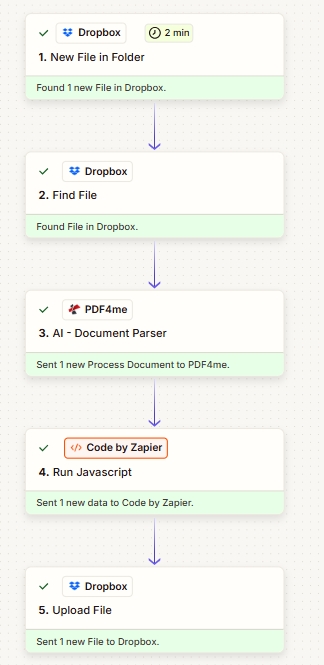
Five steps. Each card shows a green checkmark when the step is configured and tested. PDF4me AI sits in the middle; the Code step turns the parser output into mappable Vendor Name tokens.
Step 1: Dropbox – New File in Folder (Trigger)
Zap so far: trigger only.
- In Zapier click + Create Zap.
- Pick Dropbox as the trigger app, New File in Folder as the event.
- Connect your Dropbox account if you have not already.
- Configure:
- Space:
Default - Folder:
/MuneerTrigger(or whatever AP intake folder vendors drop into) - Include files in subfolders?:
False - Include file contents?:
Yes(important, gives downstream steps a clean binary fallback) - Include sharing link?:
Yes(optional, useful if you want to send a link in Slack or email later)
- Space:
- Test trigger. Drop a sample invoice into the folder and Zapier should return one new file record.
Trigger configuration
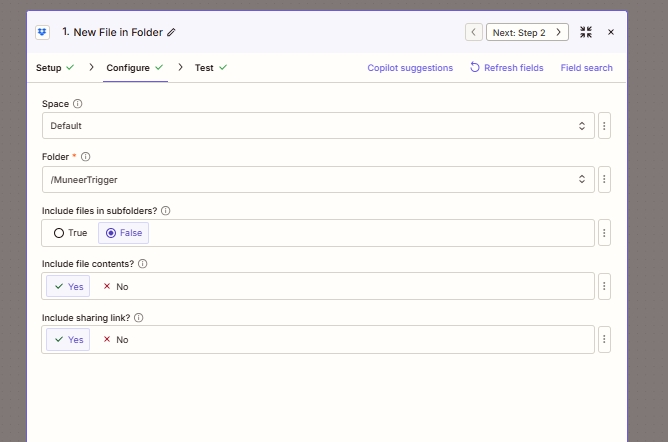
The trigger watches the AP intake folder and polls every 2 minutes by default on Starter, faster on higher plans.
Step 2: Dropbox – Find File
Zap so far: trigger → Find File.
The New File trigger gives you a file name and path, but Find File guarantees a clean, downloadable binary the next steps can use. Add it.
- Click + below the trigger. Pick Dropbox, Find File.
- Configure:
- Space:
Default - Folder:
/pdf4metest/sample(the folder where the actual file lives, often the same as the trigger folder) - Include files in subfolders?:
False - File Name (required):
sample_invoice(or pick the File Name token from the trigger to make it dynamic) - Include Deleted Files?: leave blank (default)
- Include file contents?:
Yes - Include sharing link?:
Yes - Successful if no search results are found?: leave default (
False, halts the Zap if the file is missing) - If multiple search results are found: leave default (
Return first search result)
- Space:
- Test action. Zapier should hand back the file with binary content.
Find File configuration
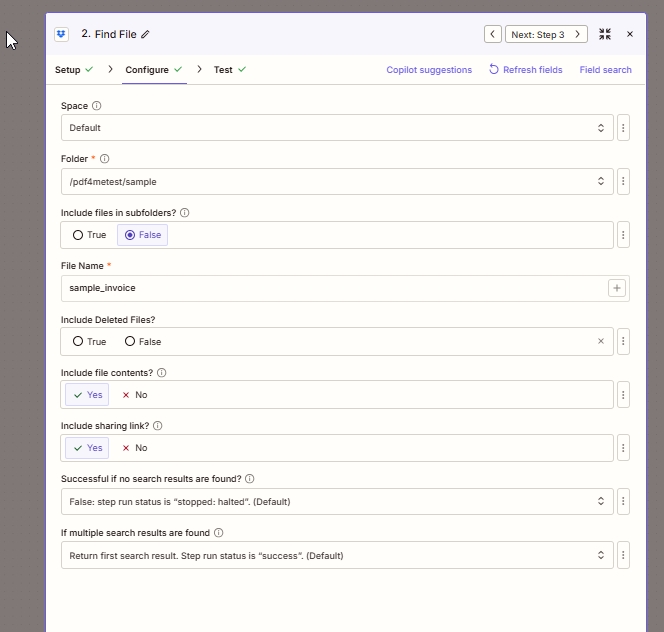
Find File gives the downstream AI parser and Upload File step a guaranteed clean binary, not just a Dropbox link.
Step 3: PDF4me – AI - Document Parser
Zap so far: trigger → Find File → AI - Document Parser.
This is where the AI reads the invoice and extracts structured fields. The built-in Analyzer covers typical vendor invoices; you can swap to a custom Analyzer later for industry-specific fields.
- Click +. Search PDF4me, pick AI - Document Parser.
- Connect PDF4me with your API key (first time only; reuse the connection across all PDF4me actions).
- Configure:
- File: pick the File token from step 2 (Find File). Leave File URL empty, you have a file already.
- File Name: concatenate the File Name and File Ext tokens from step 2 so the action receives the original name with the right extension (e.g.
sample_invoice+.pdf). - AI Analyzer Name (Deprecated): leave blank.
- AI Analyzer Id:
default_invoice_extraction(the built-in invoice template, extracts Vendor Name, Invoice Number, Total, Tax, Dates, Line Items).
- Test action. Inspect the response. You should see a
Doc Textfield containing a JSON string with extracted fields.
AI - Document Parser configuration
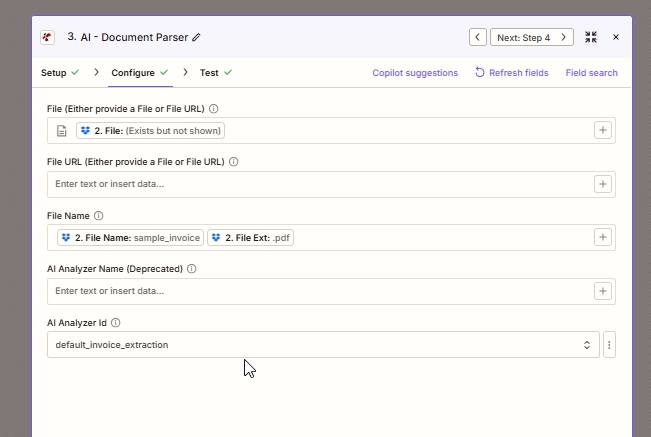
The Analyzer Id default_invoice_extraction is the built-in template. Build custom Analyzers in the PDF4me dashboard when you need fields beyond the default schema.
Tip. Curious what the parser actually returns? Open the Test action response in Zapier and look at Doc Text. You'll see fields like vendorName, invoiceNumber, invoiceDate, dueDate, totalAmount, lineItems[], and many more. Anything in there is mappable in step 5 after the JSON.parse step.
Step 4: Code by Zapier – Run JavaScript
Zap so far: trigger → Find File → AI - Document Parser → Run JavaScript.
The AI parser returns its data as a JSON string on the Doc Text output. Zapier displays it as a single big token. To map individual fields (Vendor Name, Invoice Number, totals) into the next step, parse it into a real object first.
- Click +. Pick Code by Zapier, event Run Javascript.
- Input Data: add one entry.
- Name:
data - Value: pick the Doc Text token from step 3 (the AI parser response).
- Name:
- Code (paste exactly):
const parsed = JSON.parse(inputData.data);
return parsed;
- Test action. The output should expose every field from your Analyzer schema as an individual token:
parsed vendorName,parsed invoiceNumber,parsed totalAmount, etc.
Run Javascript configuration
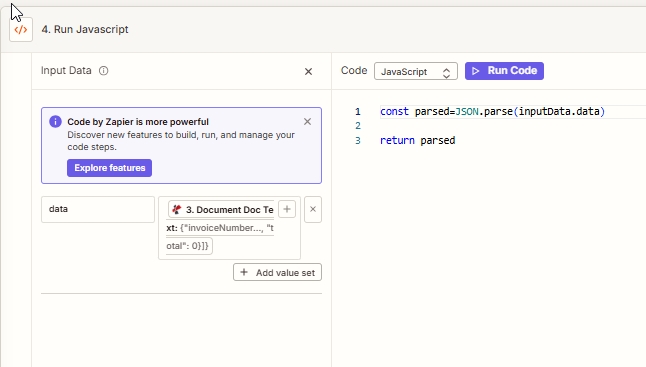
Two lines turn the AI parser JSON blob into individually mappable Zapier tokens. The Make equivalent is a Parse JSON module; Power Automate uses the Parse JSON action.
No-Code variant. If you cannot use Code by Zapier (e.g. free Zapier plan, internal policy against custom code), use Formatter by Zapier → Utilities → Lookup Table or Text → Find and Replace patterns to extract specific values from the raw Doc Text string. Less elegant, but free.
Step 5: Dropbox – Upload File (Smart Rename by Vendor Name)
Zap so far: trigger → Find File → AI - Document Parser → Run JavaScript → Upload File.
This is the payoff. Take the file from step 2 and re-upload it with the extracted Vendor Name as the filename.
- Click +. Pick Dropbox, Upload File.
- Configure:
- Space:
Default - Folder:
/pdf4meoutput(or wherever your renamed AP invoices should live) - File: pick the File token from step 2 (Find File)
- Overwrite:
True(orFalseif you want to fail loudly on duplicate vendor invoices in the same period) - Specify File Name: pick the Vendor Name token from step 4 (the parsed JSON output). In the test run this resolved to
Veolia WTS Services USA, Inc. - Specify File Extension: pick the File Ext token from step 2 (preserves the original
.pdf) - Include sharing link?:
Yes
- Space:
- Publish the Zap.
Upload File configuration
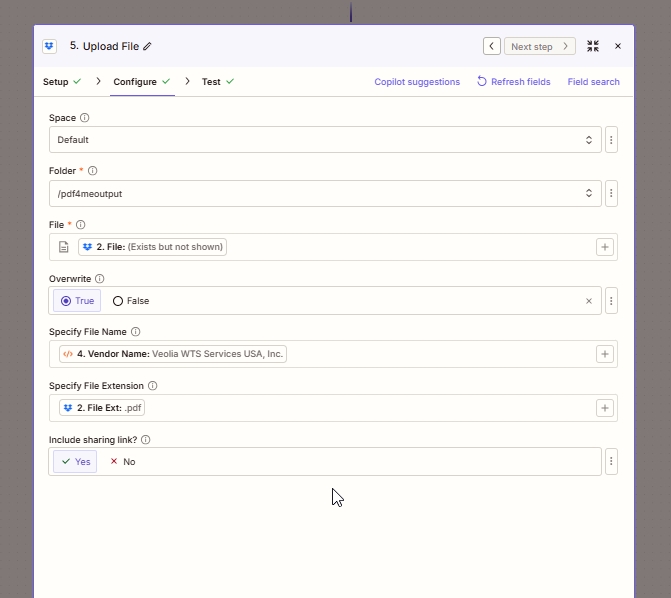
The AI-extracted Vendor Name token feeds straight into Specify File Name. The original extension keeps the file openable as a PDF. Output filename: Veolia WTS Services USA, Inc..pdf.
Run the Zap and Verify
- Toggle the Zap On.
- Drop a vendor invoice PDF into
/MuneerTrigger. - Wait for the trigger poll (up to 2 minutes on Starter). Check Zap History; all five steps should be green.
- Open Dropbox
/pdf4meoutput. The file is there, named after the vendor's company name with the original extension preserved.
What did you actually build? A zero-touch AP intake pipeline that turns chaotic vendor invoice filenames into a searchable archive keyed by supplier. The AI handles the variation across vendor invoice layouts, the Code step handles the JSON, Dropbox handles the storage. Same pattern works in Make (use a Parse JSON module instead of Code) and Power Automate (use the Parse JSON action). Same default Analyzer covers most vendors out of the box.
Common Variations You Can Add Without Rebuilding
/pdf4meoutput/{{vendorName}}/. Auto-creates one folder per supplier, files named by invoice number inside.totalAmount > 10000. Then Slack Send Channel Message: Large invoice from {{vendorName}}: {{totalAmount}}, due {{dueDate}}.default_invoice_extraction for a Classify Analyzer Id holding one Schema per vendor. Use Zapier Paths after step 4 to branch on the Classification Name and rename / archive per vendor.Troubleshooting
Make sure you mapped the File token from step 2 (Find File), not from step 1 (the trigger). The trigger sometimes ships only metadata; Find File always ships a binary.
default_invoice_extraction recognises typical layouts. If your vendor uses an unusual one and vendorName comes back blank, build a custom Parse Analyzer in the PDF4me dashboard with a field description like "Supplier or vendor name as printed on the invoice header, sometimes labelled From, Bill From, or Remit To." Pick that Analyzer Id in step 3 instead.
The AI parser returns plain text on rare malformed runs. Wrap the parse in a try/catch and fall back to returning the raw string so the Zap does not break: try { return JSON.parse(inputData.data) } catch (e) { return { raw: inputData.data } }.
Two invoices from the same vendor in the same period will collide. Either set Overwrite to True in step 5 (last write wins) or append the {{invoiceNumber}} token to the filename for uniqueness: {{vendorName}} - {{invoiceNumber}}.
Related Documentation
- AI - Document Parser in Zapier, action reference
- AI Document Parser using Parse, build a custom Analyzer
- AI Document Parser using Classify, route mixed-vendor batches
Next Steps
The same five-step pattern (trigger then fetch then AI parse then parse JSON then write with the extracted name) works for any AI extraction Zap in accounts payable. Ship one for vendor invoices and the next ones cost almost nothing. Try it next on receipts, contracts, or purchase orders.