AI-Extract and Smart-Rename Any PDF in Make: A 4-Module Dropbox Workflow with PDF4me AI - Document Parser
The hardest part of vendor-invoice automation has always been the file naming. A folder full of 2030703747 (1).pdf and Scan_2026-04-12_invoice.pdf is unsearchable, unsortable, and impossible to audit. PDF4me AI - Document Parser plus a Make Parse JSON module fix that in 4 modules, zero code: the AI extracts the vendor name from the PDF, and the same scenario re-uploads the file as Acme Industries.pdf. The screenshots below walk through the exact run captured in the canvas.
Four Make modules. Dropbox Download a File pulls the raw vendor PDF (screenshots show YnooxTestone connection, path /pdf4metest/sample/2030703747 (1).pdf). PDF4me AI - Document Parser maps File Name and Document from the prior step and runs default_invoice_extraction as the AI Analyzer Id. JSON Parse JSON turns the Doc Text output into individually mappable tokens. Dropbox Upload a File writes to /pdf4meoutput/ with File Name = 6. vendorName + .pdf and Data = 1. Data from the original download. The result: the same PDF lands in your output folder with a meaningful filename, no human in the loop.
Two design choices. First, Data on the Upload module is bound to Module 1 (original Dropbox Data), not Module 3. The AI parser only needs to extract metadata; the upload re-uses the original untouched file, so there is no re-encode, no quality loss, and one fewer step. Second, File Name uses the parsed token plus a literal .pdf extension (the screenshot shows 6. vendorName followed by the typed text .pdf) so the renamed file keeps a valid extension regardless of what the AI returns.
Common real-world questions this solves
People search this exact problem with phrasings like:
- "How do I rename a PDF by its content automatically?" This 4-module scenario does it: the AI reads the vendor name, the upload uses it as the filename. Zero manual work.
- "Can Make extract vendor name from a PDF and use it elsewhere?" Yes. the JSON Parse JSON step right after AI - Document Parser exposes every extracted field as an individually mappable token (vendorName, invoiceNumber, totalAmount, etc).
- "Is there an AI document parser in Make?" Yes. the PDF4me AI - Document Parser module. It is template-driven (Analyzer Template), so the same module handles invoices, receipts, contracts, and custom forms.
- "How do I extract structured JSON from a PDF without training a model?" Pick a built-in Analyzer Template (
default_invoice_extractionfor AP) or build a custom one in the PDF4me dashboard. Zero training required. - "Can I rename the output file using one of the extracted fields?" Yes. After Parse JSON, drop the parsed token into the Upload File Name field. Done.
What you are building
A reusable Make scenario for AP / inbound-document automation. Trigger fires (manual, scheduled as shown, file-watch, webhook), the vendor PDF gets parsed by AI, and the same file is re-uploaded with a meaningful filename derived from its content. Drop in any of the other PDF4me Analyzer Templates (receipts, contracts, purchase orders, custom forms) to handle other document types with the same flow.
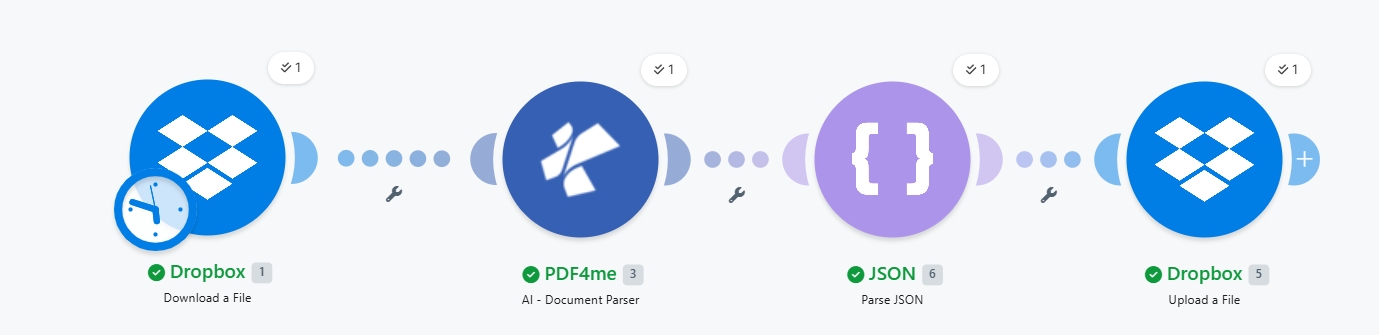
Four modules end-to-end. The clock badge on Dropbox 1 indicates a scheduled trigger; swap to webhook or file-watch for production.
What you need
- Make account with a scenario open. Create a Make account if you need one.
- PDF4me API key. Get your API key. Add it on the first PDF4me module. See Connect PDF4me to Make.
- Dropbox with a source folder (e.g.
/pdf4metest/sample/) holding the vendor PDFs and an output folder (/pdf4meoutput/). Any storage works the same way. - A vendor invoice PDF. Download the sample used in the screenshots to follow along exactly. Any standard invoice format works (the AI handles layout variation).
- (Optional) A custom Analyzer Template if your use case is not invoices. Build one at dev.pdf4me.com. Use the built-in
default_invoice_extractionfor AP.
Quick reference: what each parameter does
Build the scenario
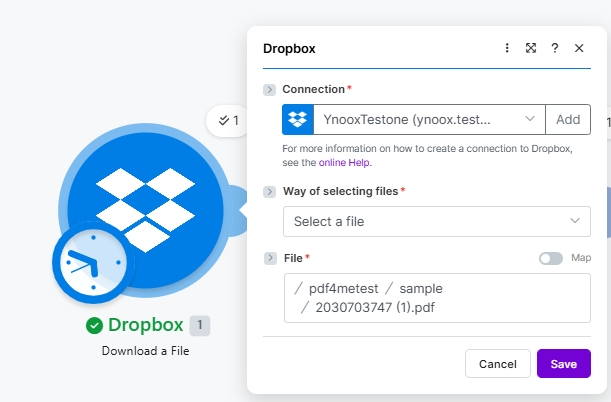
Module 1: Dropbox Download a File
Pull the raw vendor PDF from the source folder.
| Field | Value used in this run |
|---|---|
| Connection | YnooxTestone (ynoox.test...). your Dropbox connection |
| Way of selecting files | Select a file |
| File | /pdf4metest/sample/2030703747 (1).pdf |
Module 2: PDF4me AI - Document Parser
Search for PDF4me in the action picker and pick AI - Document Parser.
| Field | Value used in this run |
|---|---|
| Connection | My PDF4me connection (t...) |
| File | Map |
| File Name | 1. File Name (from Module 1) |
| Document | 1. Data (from Module 1) |
| AI Analyzer Id | default_invoice_extraction (built-in) |
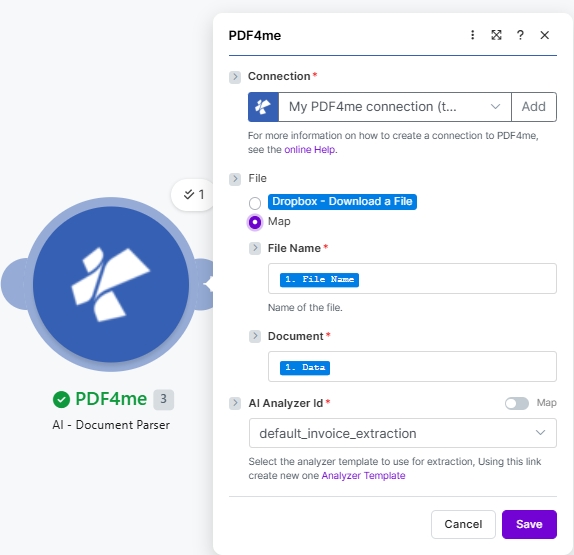
The default_invoice_extraction template is built-in. Click the Analyzer Template link in the hint to create a custom analyzer for receipts, contracts, or any document type.
Module 3: JSON - Parse JSON
The AI module returns its result as a JSON string on Doc Text. Parse it to expose individually mappable fields.
| Field | Value used in this run |
|---|---|
| Data structure | My data structure (or leave blank. Make builds one on first run) |
| JSON string | 3. Doc Text (from Module 2) |
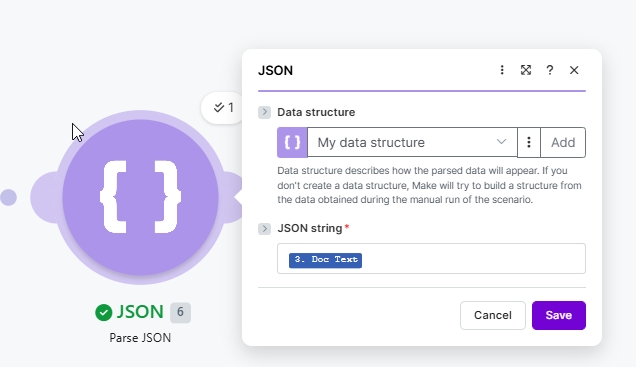
Leave Data structure as the default My data structure and Make builds one from the live AI output on the first scenario run.
Module 4: Dropbox Upload a File
The smart-rename step. Map File Name to the parsed token plus a literal .pdf extension, and Data to the original Module 1 file (not the AI output).
| Field | Value used in this run |
|---|---|
| Connection | YnooxTestone (ynoox.test...) |
| Folder | /pdf4meoutput/ |
| File | Map (so File Name and Data come from prior modules) |
| File Name | 6. vendorName + .pdf (the parsed vendorName plus a literal .pdf extension) |
| Data | 1. Data (re-uses the original Dropbox download. not the AI output) |
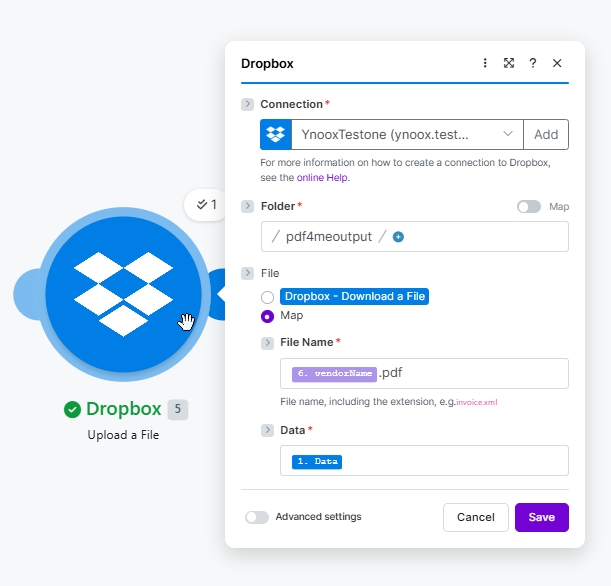
Smart-rename: 6. vendorName is the parsed token from Module 3, with a literal .pdf typed right after it.
Save and click Run once. The vendor PDF lands in /pdf4meoutput/ named after its vendor.